Upgrading a Windows To Go device is a complicated and cumbersome process, so in order to ensure that you can upgrade Windows To Go drive successfully, please read this guide carefully before performing the upgrade operation.
 Tips:
Tips:
Step 1. Before you begin the upgrade process, you need to ensure that your system meets the following minimum hardware and software requirements.
Step 2. Download and install VirtualBox V7.2 if you don¡¯t already have it installed. If you have already installed other versions (such as 6.x, 7.0) of VirtualBox, please reinstall version 7.2.
Download VirtualBox V7.2
Step 3. Download Windows To Go Upgrader installation file from our site. Double click to open it, then follow the steps in the setup dialogs. And you'll have the option to specify where to install Windows To Go Upgrader.
Step 4. Connect the Windows To Go drive which you want to upgrade to the computer you have installed Windows To Go Upgrader.
Step 5. Run Windows To Go Upgrader as administrator, then click the  button.
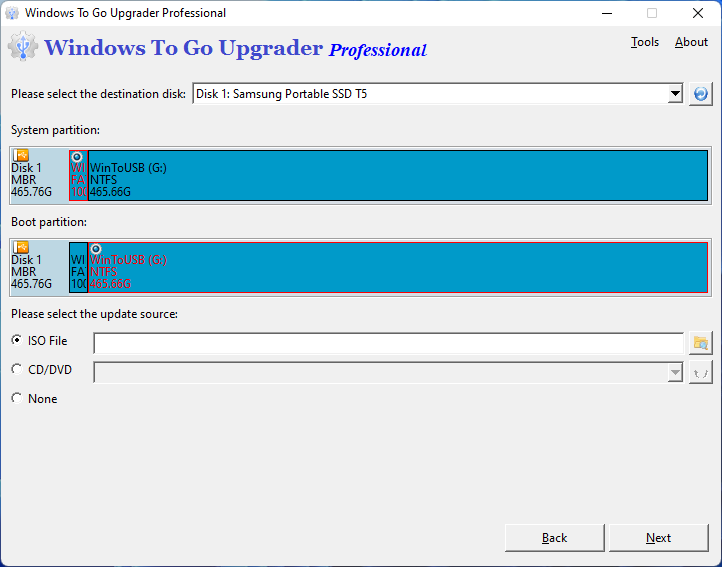
Step 6. Select the USB drive which you want to upgrade in the drop-down list. Windows To Go Upgrader will automatically select the target boot partition and system partition from the partition list, and the selected partitions will be marked as red.
 Tips:
Tips:
 button for the program to recognize the USB drive.
Step 7. In this step, you could specify the update source.
 button.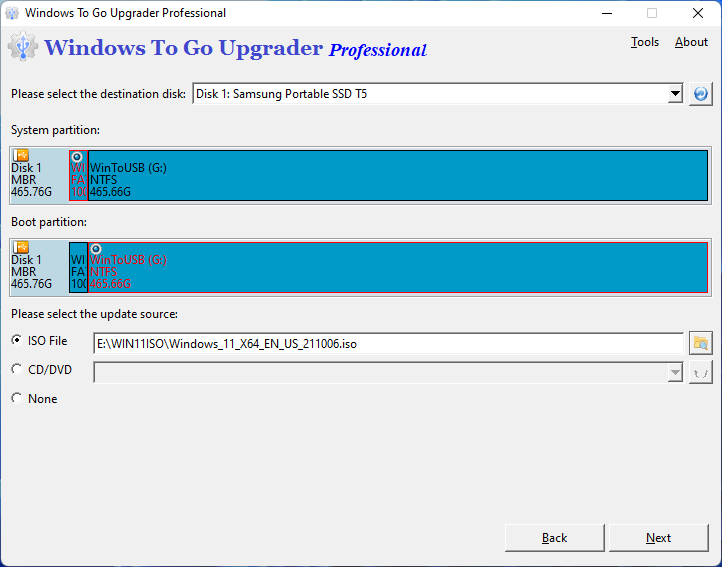
Step 8. Click "Next". After clicking "Next", Windows To Go Upgrader will automatically create a VirtualBox virtual machine called "Windows To Go Upgrader", and then automatically start the virtual machine. Because the virtual machine uses your USB drive as the system disk, so it will boot into the Windows operating system on the USB drive.
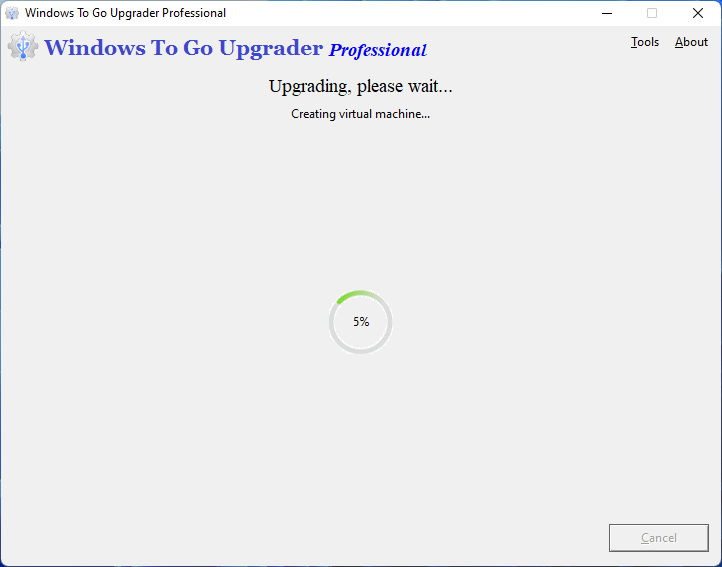
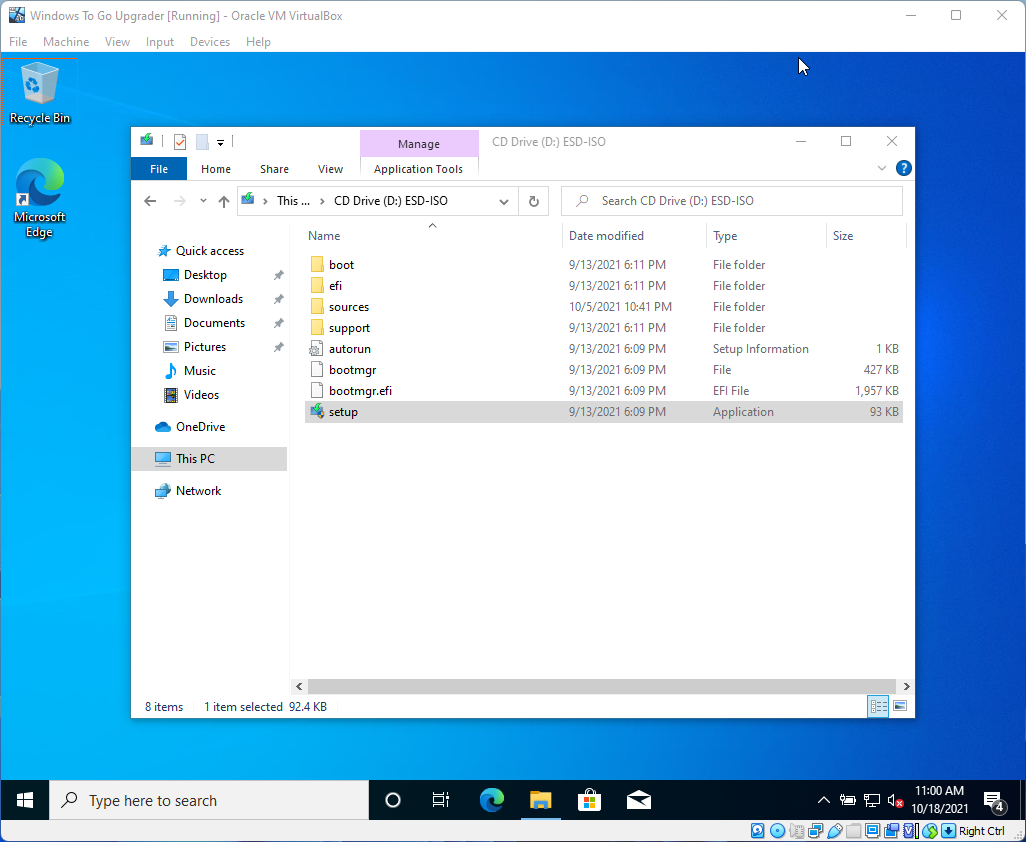
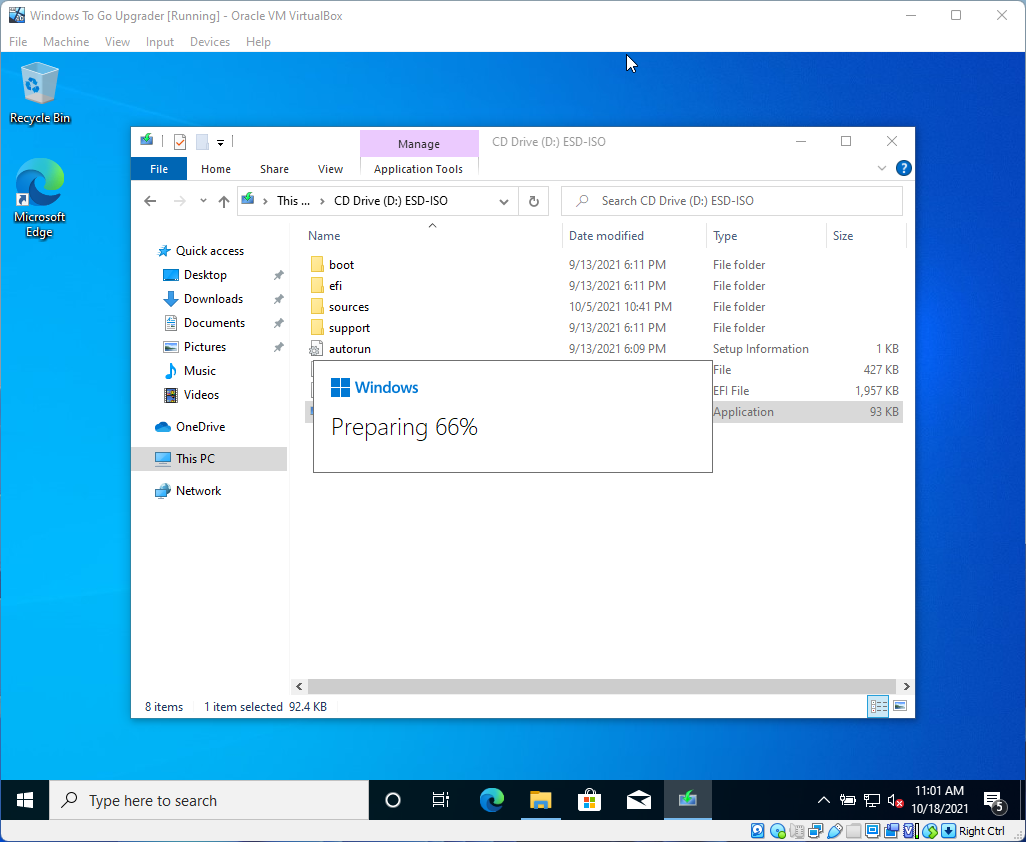
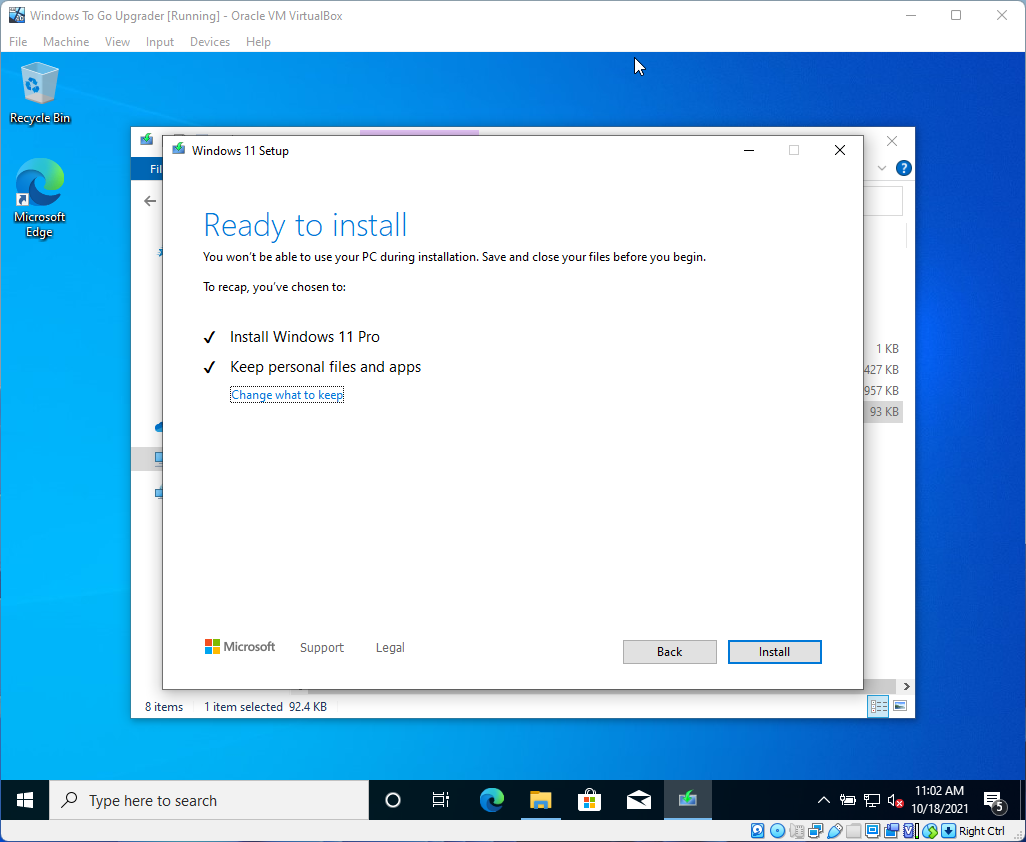
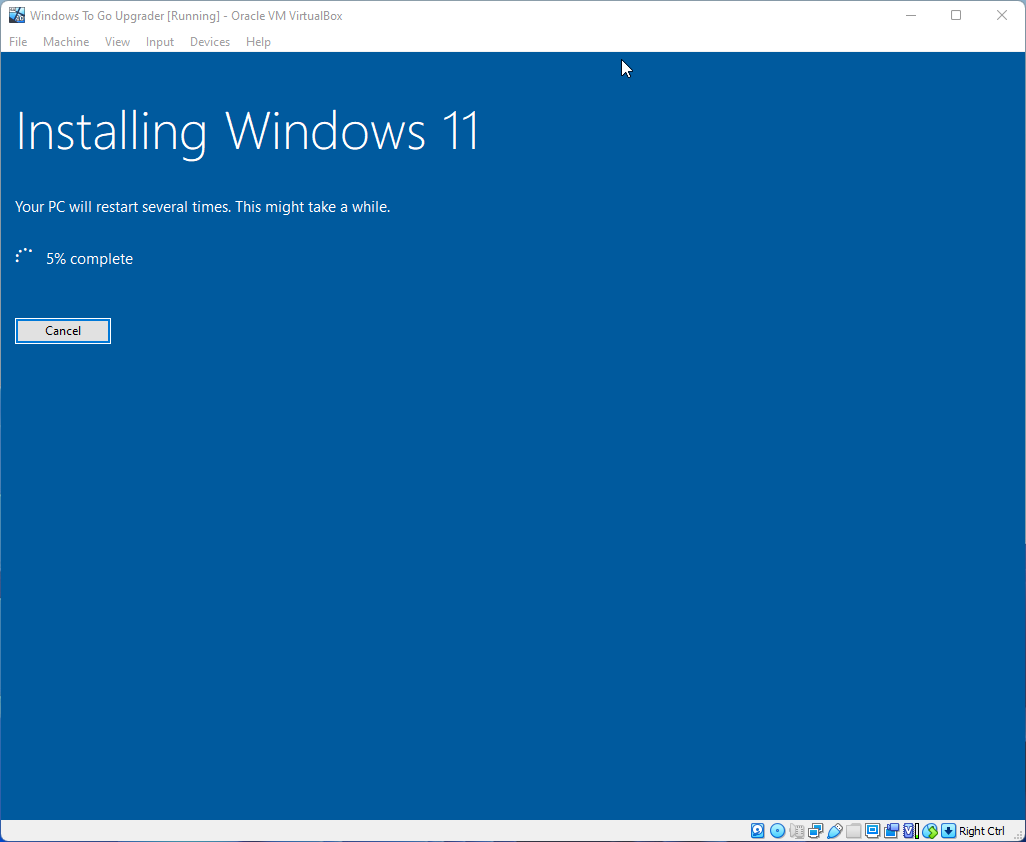
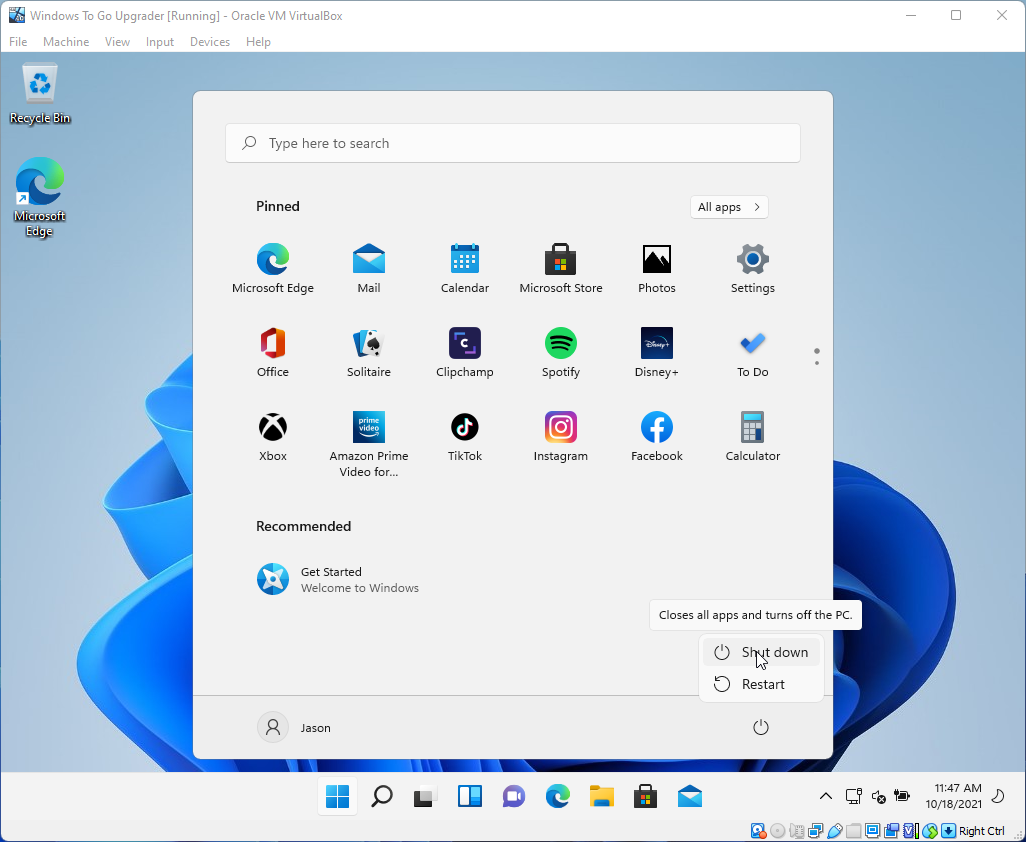
Step 9. If the virtual machine can successfully boot into Windows, please upgrade the Windows normally, and then shut down the virtual machine normally after the upgrade is complete. if the virtual machine can't successfully boot into Windows, you need to force shutdown the virtual machine.

 Tips:
Tips:
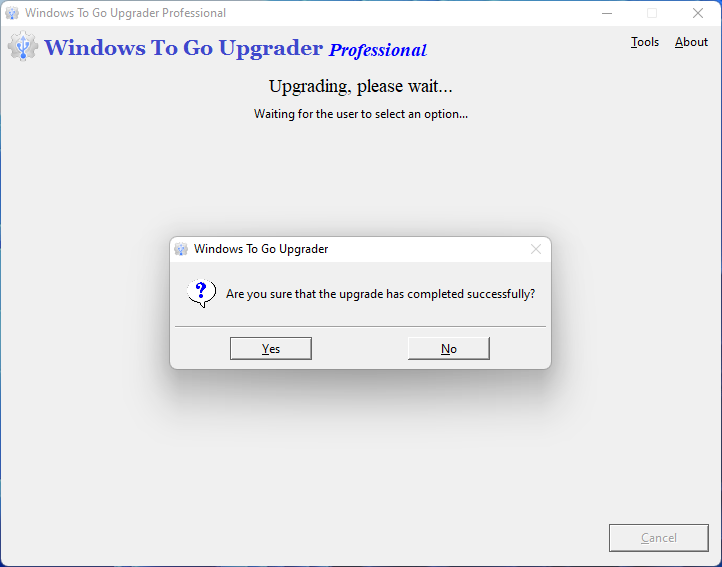
Step 10. After you shut down the virtual machine, a window will pop up ask whether the upgrade has completed successfully. Select "Yes" if you confirm the upgrade has been completed successfully, otherwise select "No".
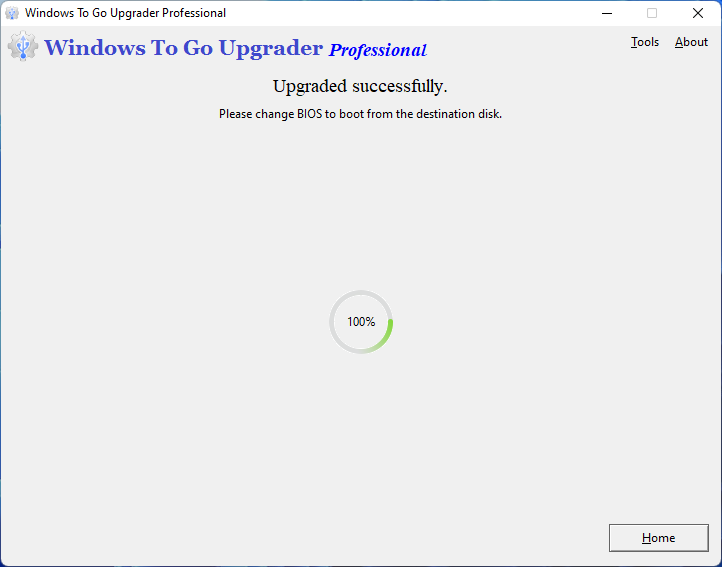
Step 11. If the upgrade has been completed successfully, now you can restart the computer and change BIOS to boot from this drive.
Tips: The upgrade feature is only available in the full paid version of Windows To Go Upgrader, so you'd better use the check feature to confirm that your device can be upgraded before you make a purchase. How to check it, please refer to Check whether a Windows To Go drive can be upgraded.