When we try to upgrade a Windows To Go USB drive, we will get the following error messages:
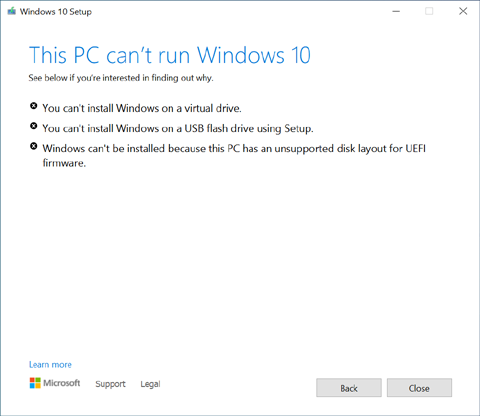
Did you run into the similiar situation? In the past, when customers have experienced this situation, we generally recommend using our software Windows To Go Upgrader to upgrade Windows To Go. However, in the new version of Windows 10, Microsoft seems to have changed the upgrade mechanism for Windows, users can now complete the Windows To Go upgrade by changing the registry key. Please note that this method is currently only available for upgrading legacy mode Windows To Go and not for upgrading VHD/VHDX mode Windows To Go. If the following method still can't help you upgrade Windows To Go, Windows To Go Upgrader will be your last choice. Below we'll show you how to upgrade legacy mode Windows To Go by modifying the registry.
Step 1. Start windows from the USB drive.
Step 2. SRun regedit.exe as administrator.
Step 3. SNavigate to "HKEY_LOCAL_MACHINE\SYSTEM\CurrentControlSet\Control" and change the value "PortableOperatingSystem" from 1 to 0.
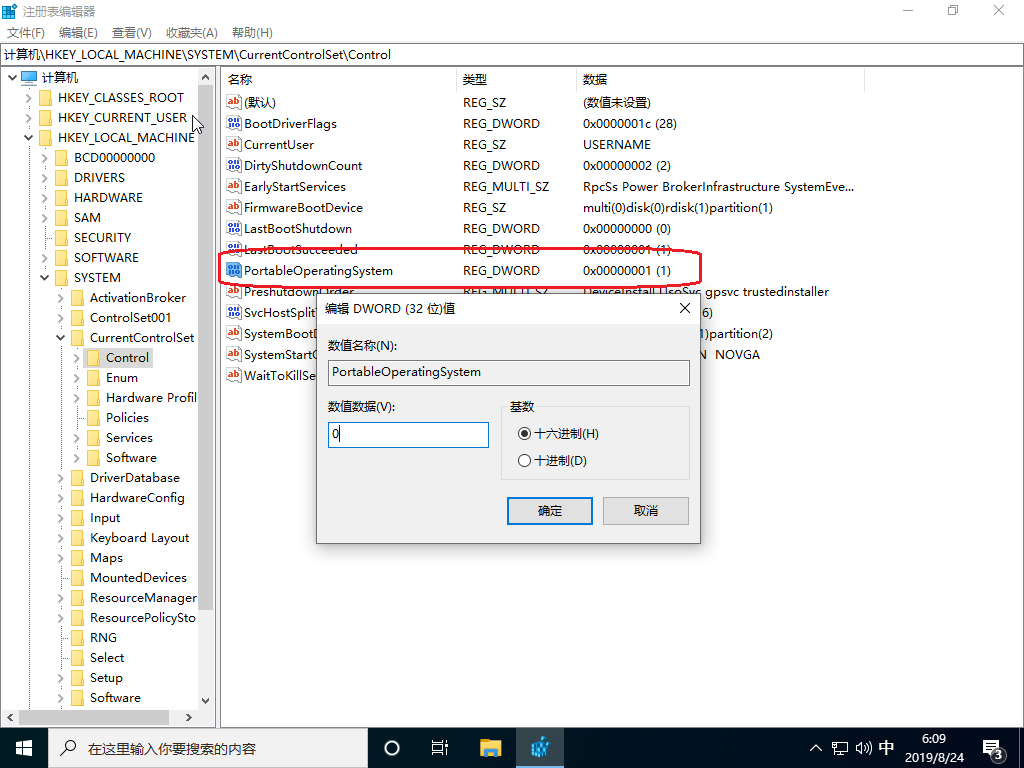
Step 4. Try upgrading Windows To Go.
Follow these simple steps, you can upgrade Windows To Go by modifying the "PortableOperatingSystem" registry key.
 Tips:
Using the above method can only upgrade Windows To Go created with the Legacy option, and for Windows To Go created with the VHD/VHDX option, you still have to use Windows To Go Upgrader to complete the upgrade operation.
Tips:
Using the above method can only upgrade Windows To Go created with the Legacy option, and for Windows To Go created with the VHD/VHDX option, you still have to use Windows To Go Upgrader to complete the upgrade operation.
A: Microsoft does not officially support upgrading Windows To Go. You can bypass this limitation by changing the registry key "PortableOperatingSystem" from 1 to 0 in the Windows To Go workspace, then attempt the standard Windows upgrade.
A: You need to change the registry key "PortableOperatingSystem" located at HKEY_LOCAL_MACHINE\SYSTEM\CurrentControlSet\Control. Change its value from 1 to 0 to allow the upgrade process to proceed.
A: No, the registry key method only works for legacy mode Windows To Go. For VHD/VHDX mode Windows To Go, you need to use Windows To Go Upgrader software to perform the upgrade.
A: This method has been reported to work in newer versions of Windows 10. The ability to upgrade via registry modification may vary depending on the Windows version and build you are using.
A: The in-place upgrade should preserve your files, but we strongly recommend backing up all important data before attempting any upgrade, as there is always a risk of data loss during the process.
A: This error occurs because Windows setup does not recognize USB drives as valid installation targets. The registry modification helps bypass this check, but it may not work for all configurations.
A: If the registry key method fails, you can use Windows To Go Upgrader, which uses virtualization to work around Microsoft's limitations and supports both legacy and VHD/VHDX mode Windows To Go upgrades.
A: No, you don't need to change it back. The value of 0 will remain and Windows will function normally on your USB drive as a portable Windows installation.