
If you already have a Windows installation DVD, and now you want to convert it to a Windows installation ISO file to use it in software that only doesn't support DVD drives. Hasleo WinToUSB can help you to convert a CD or DVD to ISO image file with a few simple steps.
Step 1. Insert the CD or DVD disc which you want to convert in your CD/DVD-ROM.
Step 2. Run WinToUSB as administrator.
Step 3. Click  > "CD/DVD To ISO".
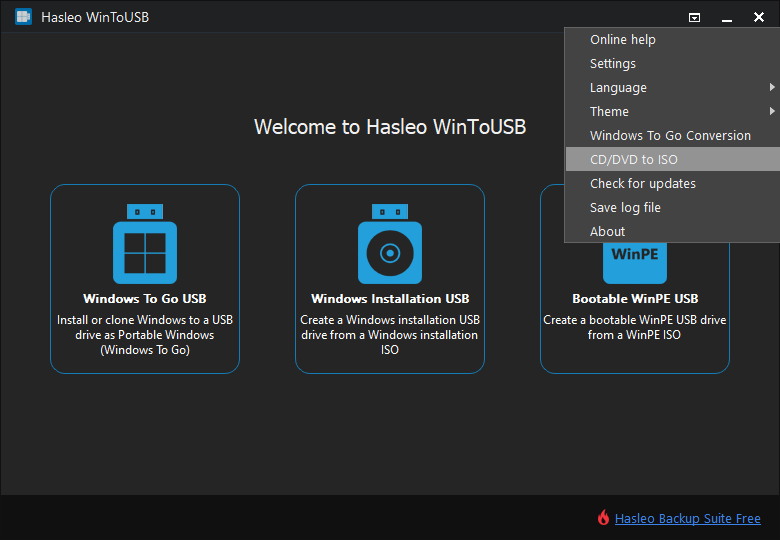
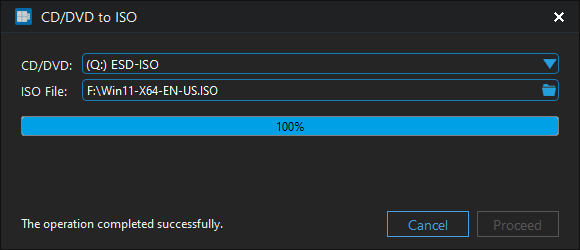
Step 4. Select the CD/DVD drive in the drop-down list.
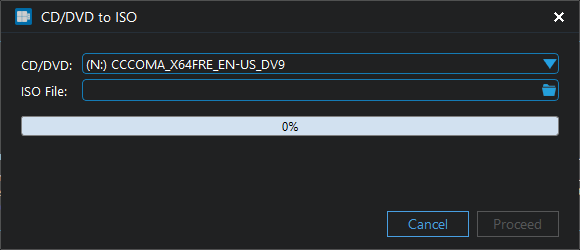
Step 5. Click the  button. A dialog window will appear asking you where you want to save the ISO file to, select where you want to save the ISO file and give it a name.
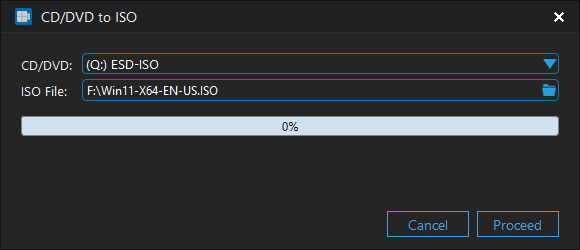
Step 6. Click "Proceed", WinToUSB begins converting.
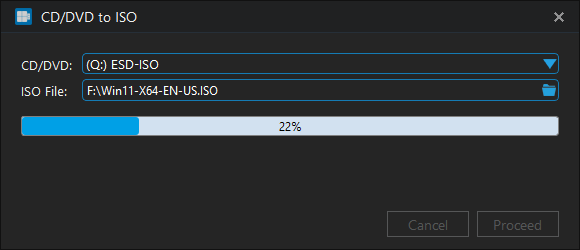
Step 7. Click "Cancel" to exit when the conversion is complete. The CD or DVD disk has been converted to ISO image file now.
Follow these simple steps, you can convert a CD or DVD disc to ISO image file with WinToUSB easily.


