

Hasleo WinToUSB 支持将 Windows 11/10 安装到 Thunderbolt 驱动器。本教程将向你展示如何在 Thunderbolt 驱动器上安装并运行 Windows 11/10。
Thunderbolt 概述
Thunderbolt 是 Intel(与 Apple 合作)开发的硬件接口品牌,于 2011 年 2 月 24 日首次推出。它可以将外接外设连接到电脑或笔记本电脑。Thunderbolt 1 和 2 使用与 Mini DisplayPort 相同的接口,而 Thunderbolt 3 复用 USB-C 接口。Thunderbolt 1 的传输速率为 10 Gbps,Thunderbolt 2 为 20 Gbps。Thunderbolt 3 的 40 Gbps 速率远快于 USB 3.1 的 10 Gbps 或 USB 3.0 的 5 Gbps 上限。所有 Thunderbolt 版本都支持将最多六个设备以菊花链方式连接到单个主机。除数据传输外,它还可以传输高清视频和音频信号。由于 Thunderbolt 占用空间更小且速度更快,它正变得越来越受欢迎。也许 Thunderbolt 在主机端还需要几年才能像现在的 USB 一样普及,但当那一天到来时,它将简化我们与设备协作的方式。
为什么选择 Hasleo WinToUSB?
默认情况下,Windows 无法安装到 Thunderbolt 驱动器上,需要第三方软件来实现。Hasleo WinToUSB 作为最佳的便携版 Windows 创建软件,是全球首款允许用户将 Windows 安装到 Thunderbolt 驱动器并直接从其启动的软件。下面我们详细介绍如何使用 WinToUSB 将 Windows 安装到 Thunderbolt 驱动器。
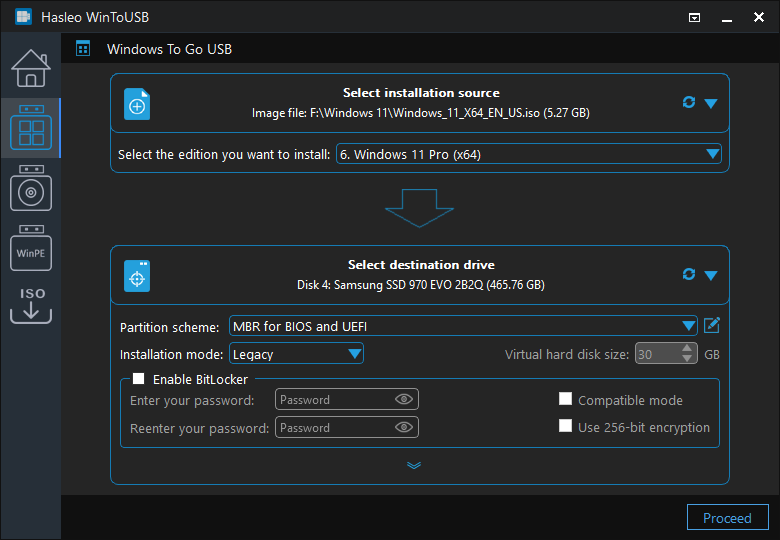
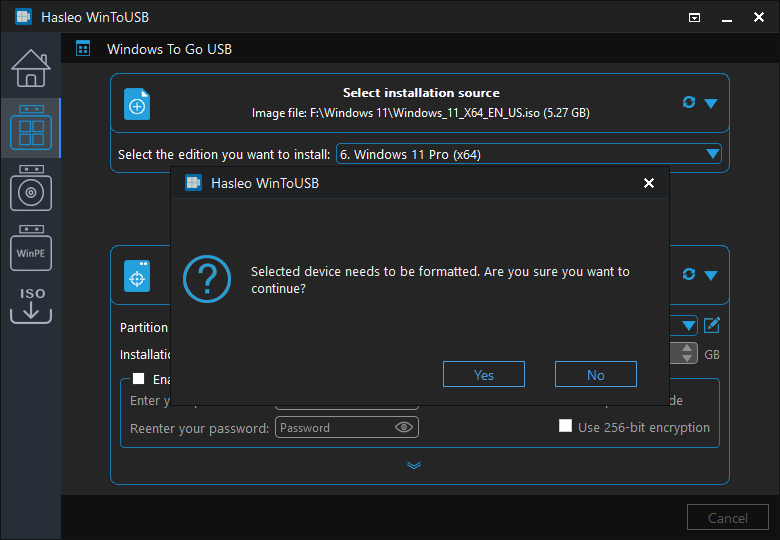
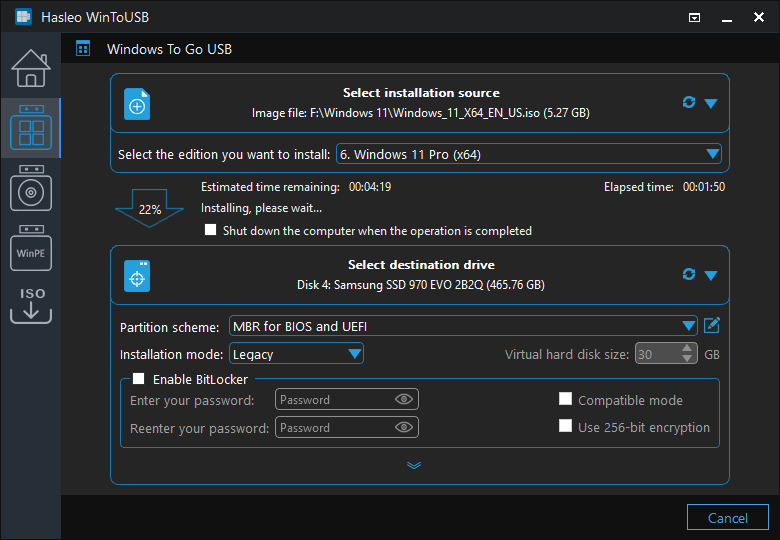
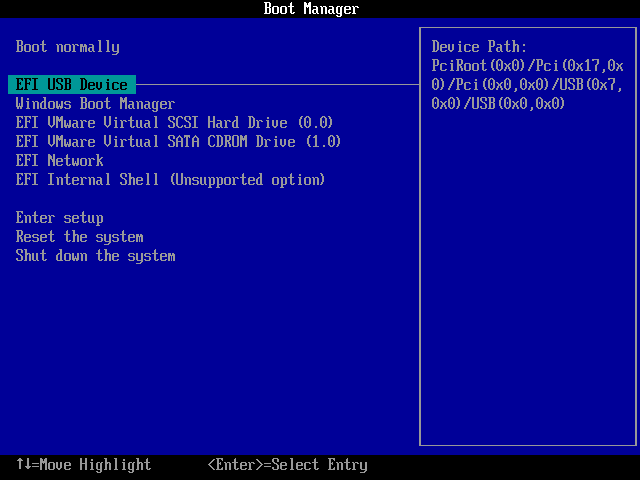
使用 Hasleo WinToUSB 在 Thunderbolt 驱动器上安装并运行 Windows 11/10 的教程。
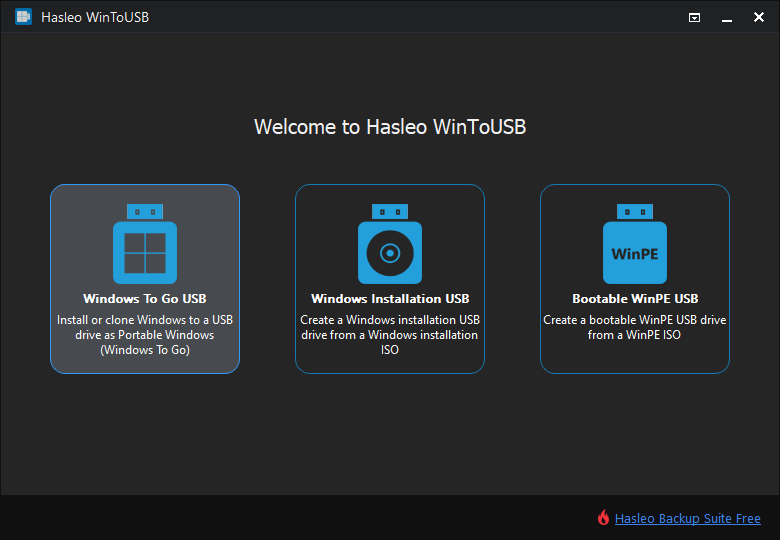
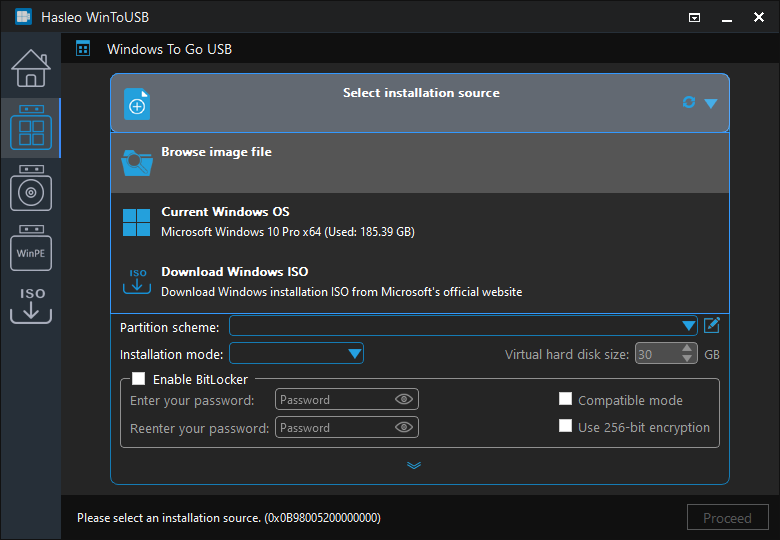
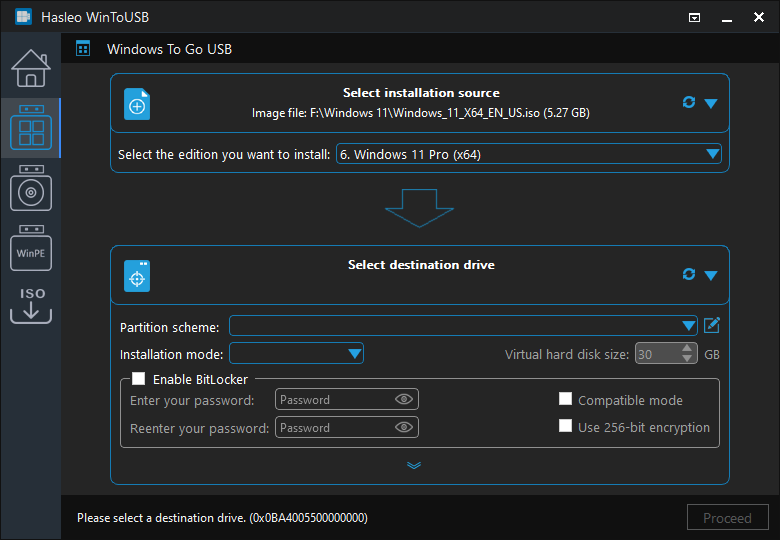
 按钮以启动驱动器识别。
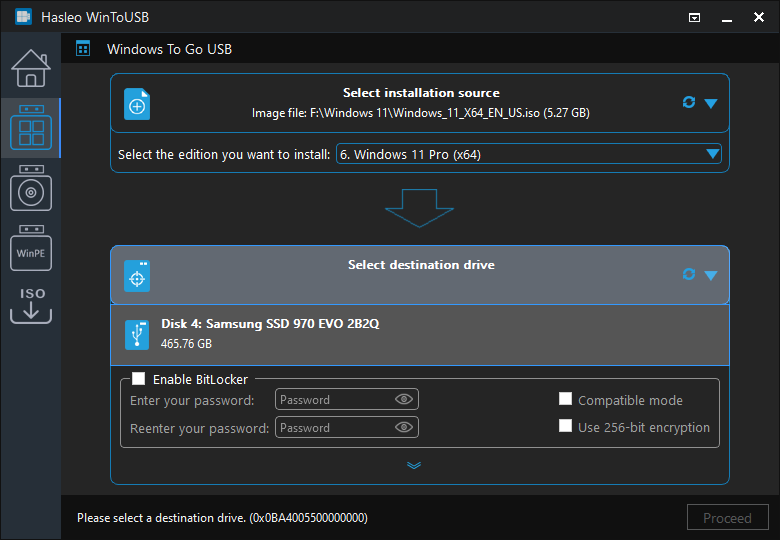
* 提示:

常见问题(FAQ)
A: Thunderbolt 是 Intel 和 Apple 开发的硬件接口,数据传输速度明显快于 USB。Thunderbolt 3 提供 40 Gbps,而 USB 3.1 为 10 Gbps,USB 3.0 为 5 Gbps。Thunderbolt 使用 USB-C 接口,但采用增强协议,可实现更快的传输和视频输出。
A: 不能,使用 Windows 默认工具无法将 Windows 安装到 Thunderbolt 驱动器。你需要 Hasleo WinToUSB 等第三方软件才能将 Windows 安装到 Thunderbolt 驱动器并从中启动。
A: 与普通 USB 驱动器相比,Thunderbolt 驱动器的数据传输速度更快,因此便携版 Windows 的整体系统性能更好。它们还支持以菊花链方式连接最多六个设备,并可传输高清视频和音频信号。
A: 不是,主机电脑必须支持 Thunderbolt,并在 BIOS/UEFI 设置中启用了从外部设备启动。某些电脑可能需要在 BIOS 中启用 Thunderbolt 或安装相应的驱动程序。
A: Hasleo WinToUSB 是全球首款允许用户将 Windows 安装到 Thunderbolt 驱动器并直接从中启动的软件。这使它成为在 Thunderbolt 存储设备上创建便携版 Windows 的独特解决方案。
总结
按照这些步骤,你就可以在 Thunderbolt 驱动器上安装并运行 Windows 11/10。使用 Hasleo WinToUSB,你还可以将 Thunderbolt 驱动器上的 Windows 11/10 克隆为便携版 Windows 11/10。