Luna - Hasleo 技术编辑
作者:Luna
Hasleo 技术编辑,专注于数据保护和实用解决方案。
更新于 2026年6月9日 | WinToUSB

有没有办法把 Windows 10 安装到 U 盘上?我基本上就是想用一个 128 GB 的 U 盘来运行 Windows 10,这样我只要把它插到电脑上就能启动进入便携版 Windows 10 系统。这可行吗?谢谢!

由于便携版 Windows 系统具有显著优势,许多人都想将 Windows 10 安装到 U 盘上。不幸的是,Windows 安装程序不支持将 Windows 安装到 U 盘。 Windows 10 能安装到 U 盘上吗? 可以,使用像 Hasleo WinToUSB 这样的专业便携版 Windows 创建工具即可。下面我们详细介绍如何使用 Hasleo WinToUSB 将任意版本的 Windows 10 安装到 U 盘并运行。安装完成后,你可以安装应用程序并把文件复制到该 U 盘,随身携带便携版 Windows 10工作区到任何你想去的地方,并在任何 UEFI/Legacy BIOS 电脑上启动它。

使用 Hasleo WinToUSB 将 Windows 10 安装到 U 盘的教程
1
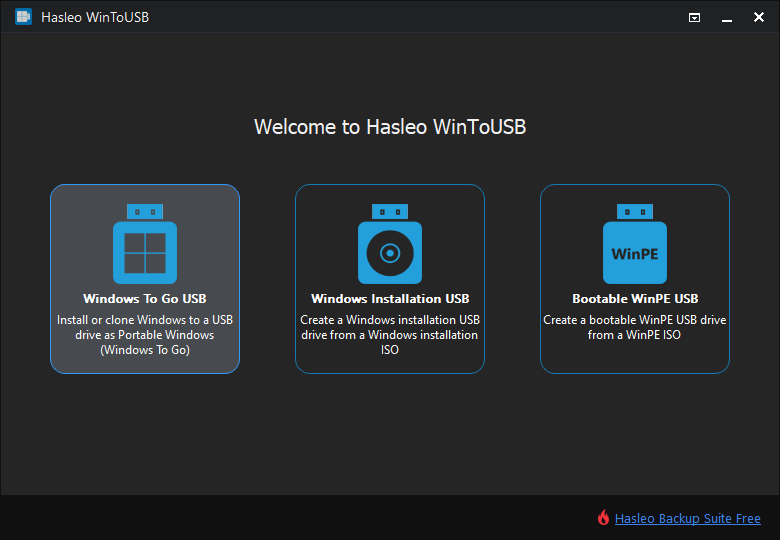
将 U 盘连接到电脑,然后下载、安装并运行 Hasleo WinToUSB。点击“Windows To Go USB”选项。
Start creating Windows To Go in WinToUSB
2
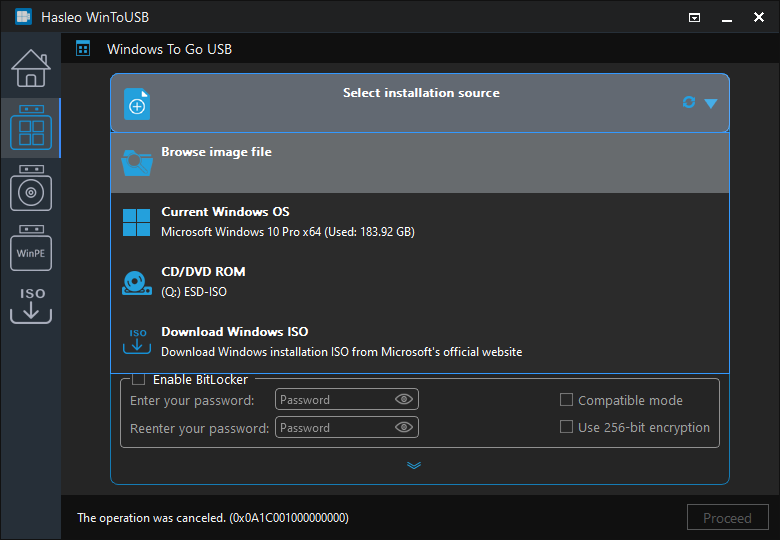
点击“Select installation source”,然后点击“Browse image file”。接着在对话框中选择 Windows 10 安装 ISO 文件作为安装源。或者,选择包含 Windows 10 安装介质的光驱。
Select installation source for Windows To Go

* 提示: 如果你没有 Windows 10 安装 ISO,请先下载。

3
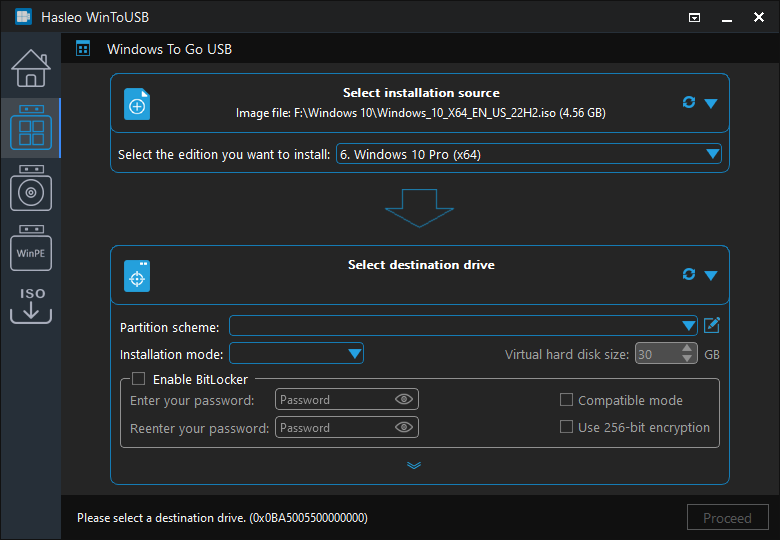
Hasleo WinToUSB 将扫描并列出可用的 Windows 版本。请选择你要安装的版本。
Select Windows edition
4
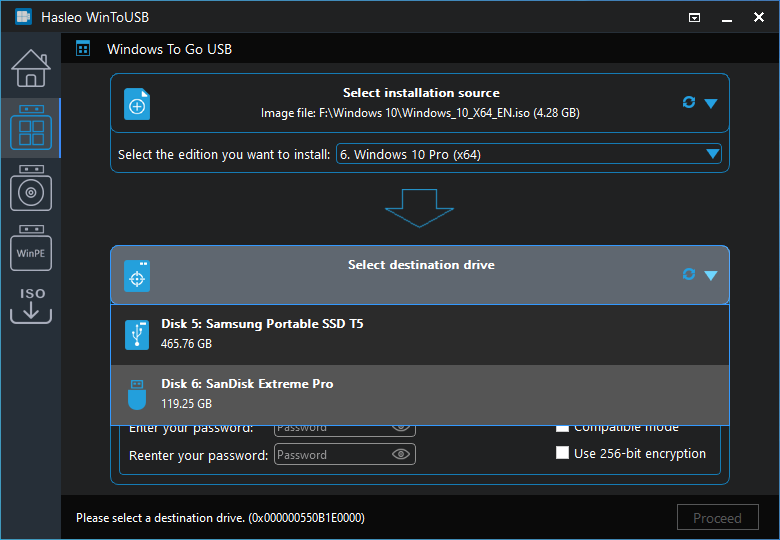
点击“Select destination drive”,然后在弹出的列表中选择目标驱动器。如果 Hasleo WinToUSB 无法检测到该驱动器,请点击 Refresh drives button 按钮以启动驱动器识别。
Select destination drive
5
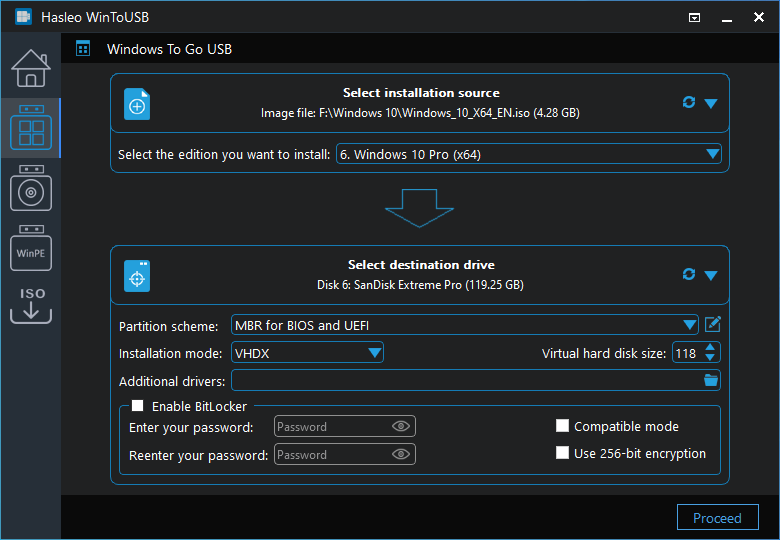
选择你偏好的分区方案和安装模式。你还可以选择指定其他驱动程序,或为 Windows To Go 驱动器启用 BitLocker 加密,然后点击“Proceed”。
Select partition scheme and installation mode

* 提示:

1
在 U 盘上创建 Windows To Go 时,我们建议选择 VHD/VHDX 安装模式,以获得更好的兼容性。
2
有关“Partition scheme”、“Installation mode”和“Enable BitLocker”的详细信息,请参阅:如何从 ISO、WIM、ESD、SWM、VHD(X) 或 DBI 文件创建便携版 Windows 11/10/8/7?
3
如果你选择“Keep the existing partition scheme”选项,则需要在此步骤之前手动准备 U 盘分区。查看指南:如何为 Windows To Go 手动准备分区。
6
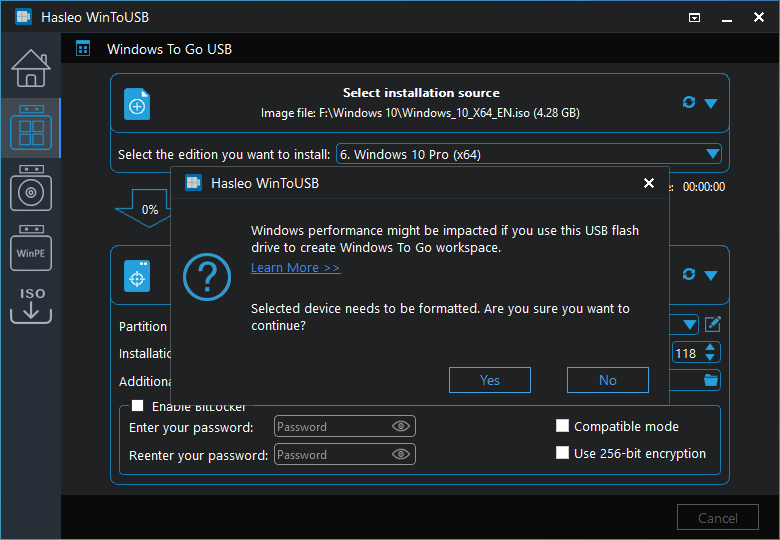
点击“Proceed”后,会出现一个确认对话框,询问是否继续格式化驱动器。如果你接受此操作,请点击“Yes”。
The drive needs to be formatted prompt
7
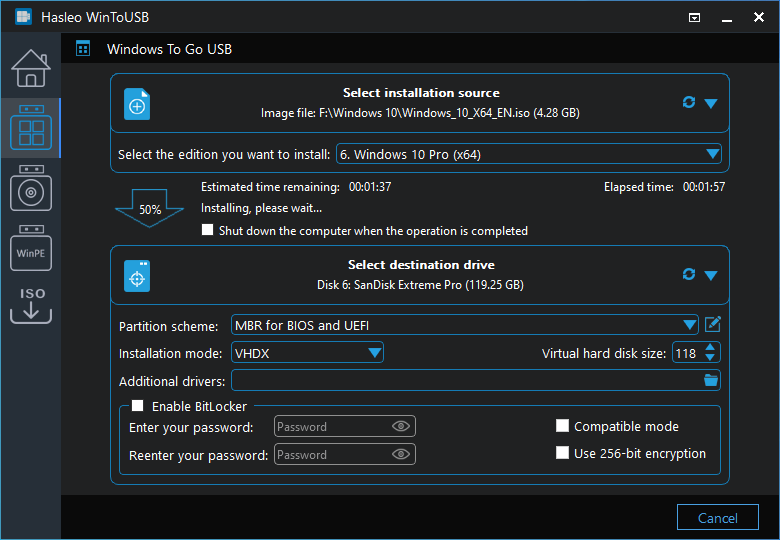
点击“Yes”后,WinToUSB 开始在目标驱动器上安装 Windows。
installing Windows to USB
8
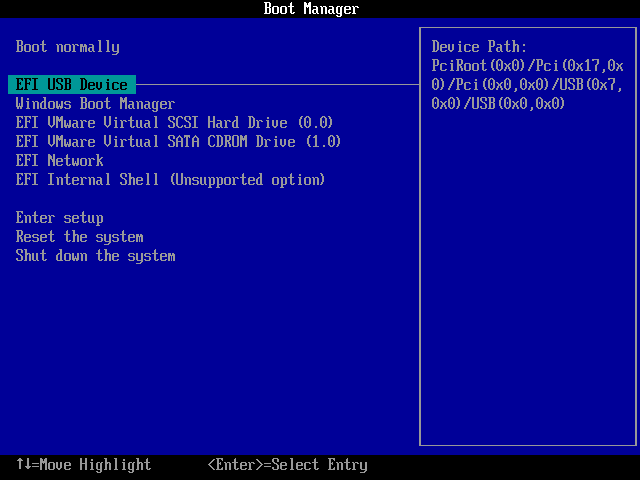
安装过程需要一些时间。安装完成后,重启电脑并进入 UEFI/BIOS 设置,从 U 盘启动。
Set boot priority to USB in BIOS
9
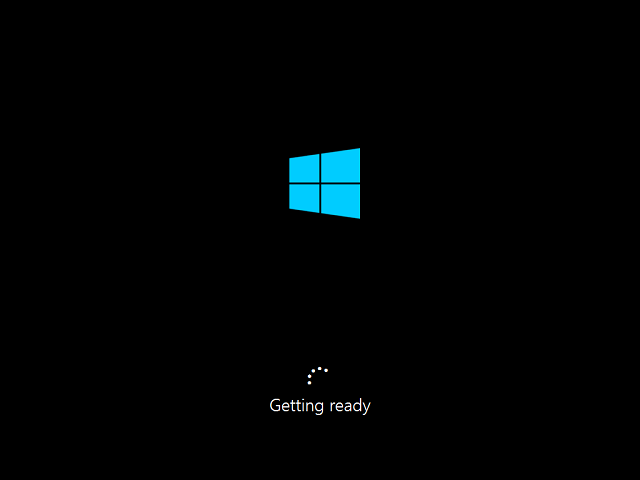
标准的 Windows 10 安装需要在首次启动时完成所有设置步骤。之后,你就可以安装应用程序、复制文件等。
Windows normal installation

常见问题(FAQ)

Q: Windows 10 To Go 对 U 盘的最小容量要求是多少?

A: Windows 10 至少需要 20GB 存储空间,但我们建议使用 64GB 或更大的 U 盘。更大的驱动器性能更好,也能为 Windows 更新和应用程序留出更多空间。

Q: 任何 U 盘都能用于 Windows 10 To Go 吗?

A: 为获得可接受的性能,我们建议使用 USB 3.0 或更快的 U 盘。USB 2.0 驱动器会非常慢。为更好地兼容 U 盘,建议使用 VHD 模式。

Q: 为什么建议 U 盘使用 VHD 安装模式?

A: VHD 模式会在 U 盘上创建一个虚拟硬盘文件,使 Windows 环境的备份和还原更容易。它提供更好的兼容性,并让你能更灵活地管理 Windows 安装。

Q: Windows 10 在 U 盘上运行会很慢吗?

A: 性能取决于 U 盘的速度。优质的 USB 3.0 U 盘可以提供可接受的性能,但通常仍比内置 SSD 或外接硬盘慢。

Q: 我可以在 BIOS 和 UEFI 电脑上都能从 USB 启动 Windows 10 To Go 吗?

A: 可以,创建 Windows To Go 时,你可以选择“MBR for BIOS and UEFI”分区方案。这样同一块便携版 Windows 10 既能在 Legacy BIOS 电脑上启动,也能在 UEFI 电脑上启动。

总结

按照这些步骤,你可以使用 Hasleo WinToUSB 将 Windows 10 安装到 U 盘,并从该 U 盘启动。作为专业的 Windows To Go 创建软件,Hasleo WinToUSB 可以安装或将 Windows 10 克隆到 U 盘作为便携版 Windows。为 Windows To Go 选择 U 盘时,请选择随机读写速度快的优质 USB 3.0 或 USB 3.1 驱动器,以获得最佳体验。安装完成后,首次使用时记得配置电脑的 BIOS 或 UEFI 设置,从 U 盘启动。