

💬 我是一名 Windows 10 和 Linux 用户。我熟悉如何从外接硬盘运行 Linux 操作系统,把它作为便携系统在任何电脑上使用,这对我来说非常有用。我知道便携操作系统的好处,所以一直也想创建一个便携版 Windows 10。有没有办法在不同的电脑上从外接硬盘运行 Windows 10?
众所周知,Linux 可以很容易地从外接硬盘安装并运行,作为便携版 Linux 系统。这种便携版 Linux 系统非常有用,因为你可以随身携带它,并在不同的电脑上启动。然而,对于习惯 Windows 的用户来说,Linux 并不易用,而且存在一些功能限制,包括与流行的 Windows 游戏和 Microsoft Office 软件不兼容。因此,许多 Windows 用户希望把 Windows 安装到外接硬盘上,作为便携版 Windows 系统,以便在不同地点都能保持自己的工作和游戏环境。
Windows 能安装到外接硬盘并从中启动吗?可以。如果你了解 Windows To Go (WTG),那你已经走在正确的道路上。Windows To Go 是 Microsoft 的一项技术,允许 Windows 用户创建便携版 Windows,并能在不同的电脑上运行。虽然它只存在于 Windows 企业版和教育版中,但像 Hasleo WinToUSB 这样的第三方工具可以使用非企业版/非教育版创建 Windows To Go。下面我们将详细介绍如何使用 Hasleo WinToUSB 从外接硬盘创建并运行 Windows 11/10 To Go。
从外接硬盘运行 Windows 最常见的原因包括:
- 随时随地工作: 把你的完整 Windows 环境带到办公室、家里或客户现场,插上即可使用。
- 安全地测试软件: 把测试版、驱动程序或不熟悉的软件安装到便携驱动器上,而不是你的主系统。
- 保持公用电脑干净: 在共用或借用的电脑上启动你自己的 Windows,不在上面留下任何数据。
- 灾难恢复: 保留一个配置完整的 Windows,在内置系统盘出现故障时随时启动。
- 随身额外存储: 在不用于启动 Windows 时,该驱动器仍可作为普通存储存放文件。
教程:从外接硬盘运行 Windows 11/10 To Go
本教程使用免费 Windows To Go 创建工具 Hasleo WinToUSB。Microsoft 已停止其官方 Windows To Go 项目,但 WinToUSB 让这项技术对任何 Windows 11/10 版本依然可用。
开始之前,请准备以下内容:
- 一块外接硬盘或 SSD——USB 3.0 或更快,至少有 64 GB 可用空间。外接 SSD 能带来最佳体验。
- Hasleo WinToUSB——免费的 Windows To Go 创建软件,下载 WinToUSB 并安装到当前电脑上。
- 一台支持 USB 启动的电脑——教程中你需要在 UEFI/BIOS 设置中启用 USB 启动。
⚠ 警告: 在此过程中外接硬盘会被格式化。继续操作前,请备份其中的所有重要内容。
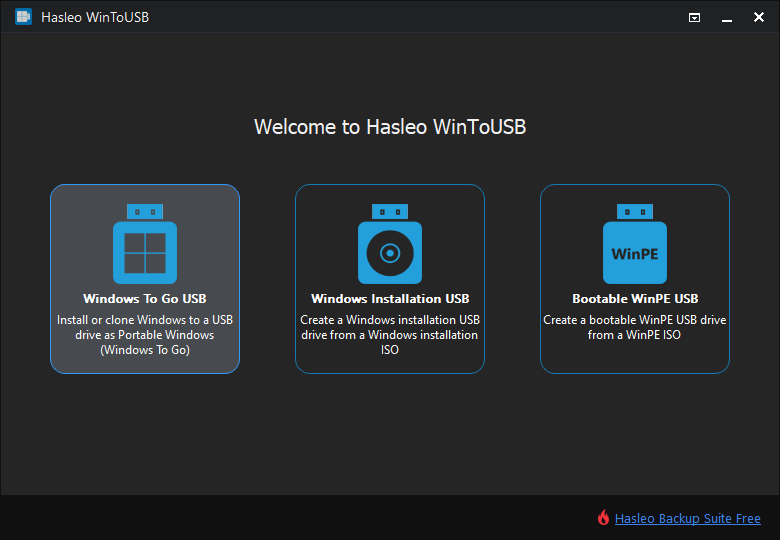
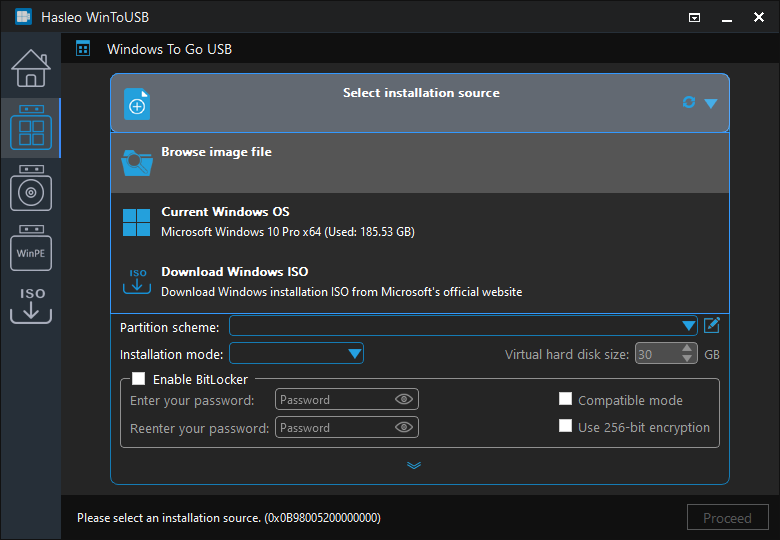
⚠ 如果你没有 Windows 11/10 安装 ISO,请先下载 Windows ISO。
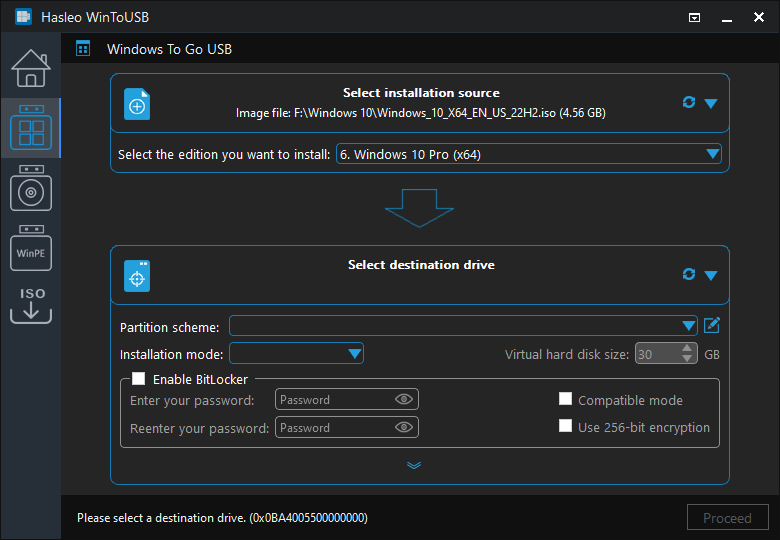
 按钮以启动驱动器识别。
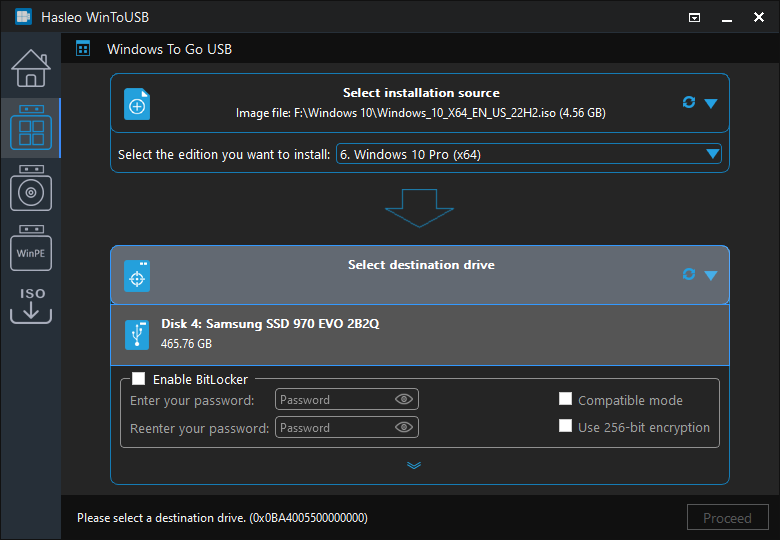
步骤 5 选择你偏好的分区方案和安装模式。你还可以选择指定其他驱动程序,或为 Windows To Go 驱动器启用 BitLocker 加密,然后点击“Proceed”。
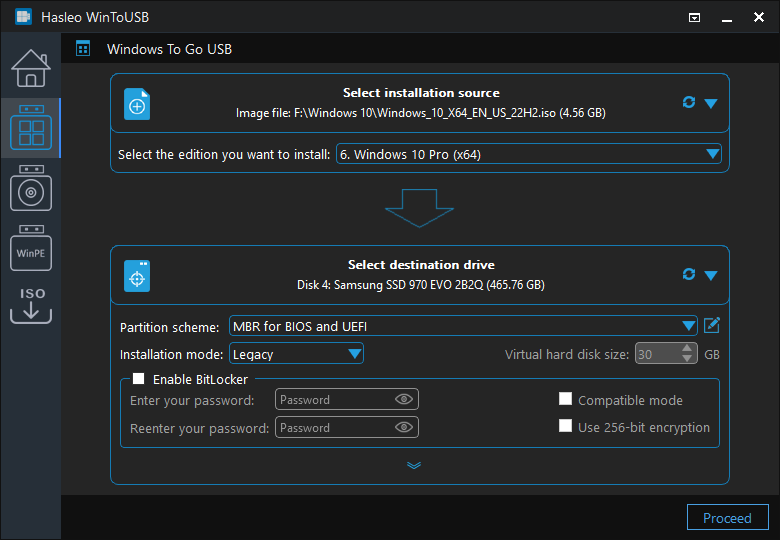
1. 有关“Partition scheme”、“Installation mode”和“Enable BitLocker”的详细信息,请参阅:如何从 ISO、WIM、ESD、SWM、VHD(X) 或 DBI 文件创建便携版 Windows 11/10/8/7?
2. 如果你选择“Keep the existing partition scheme”选项,则需要在此步骤之前手动准备外接硬盘分区。查看指南:如何为 Windows To Go 手动准备分区。
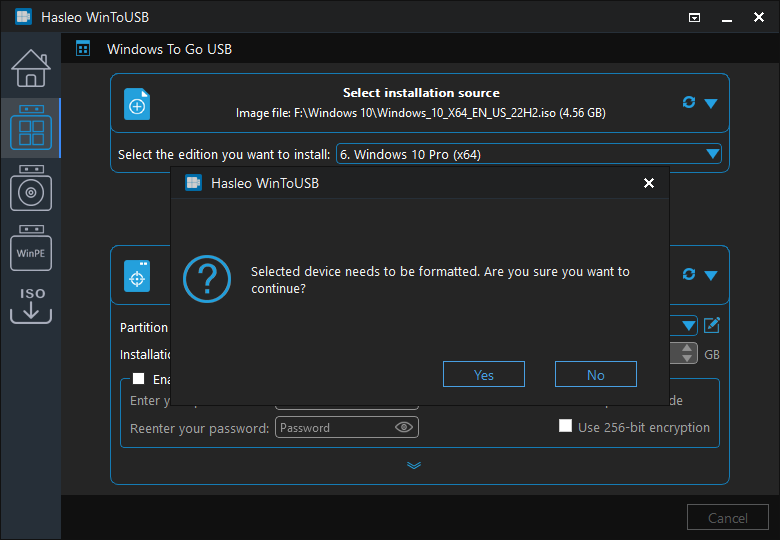
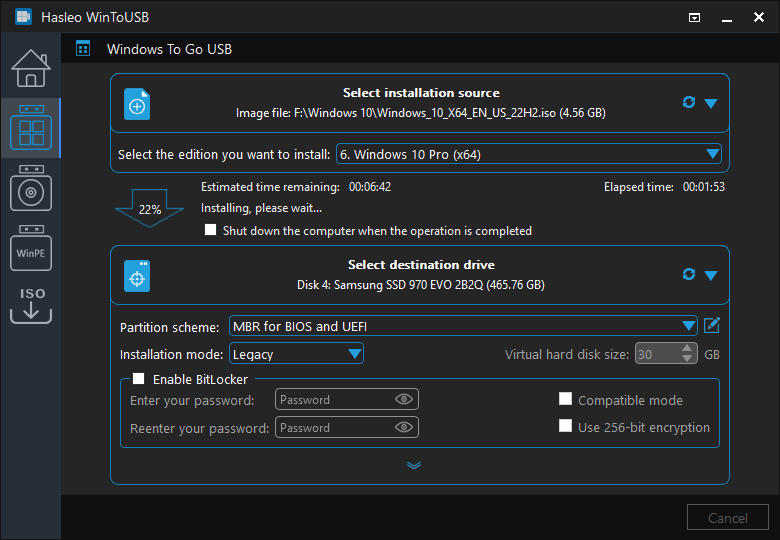
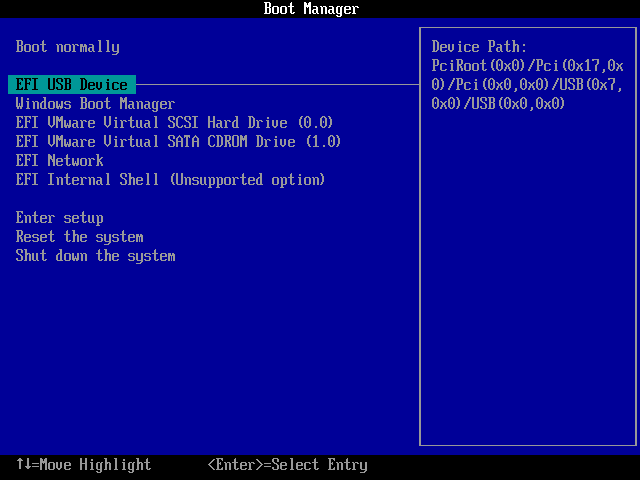
常见问题(FAQ)
A: 便携版 Windows 让你可以把自定义的工作环境带到任何地方。你可以在任何兼容的电脑上启动,同时保留所有应用程序、设置和文件。
A: 与 U 盘相比,外接硬盘提供更快的性能和更大的存储容量。我们建议使用外接 SSD 以获得最佳的便携版 Windows 体验。
A: 我们建议使用 USB 3.0 或更快的外接驱动器。安装过程中该驱动器会被格式化,因此请先备份所有重要数据。USB 2.0 驱动器的性能会更慢。
A: 大多数应用程序在便携版 Windows 上都能正常工作。一些依赖硬件授权的软件可能需要在不同的电脑上重新激活,但大多数便携应用都能正常使用。
A: 可以,Hasleo WinToUSB 支持将现有的 Windows 安装克隆到外接硬盘。这样会在便携版 Windows 上保留你的所有应用程序、设置和个人文件。
总结
本教程详细介绍了如何使用 Hasleo WinToUSB 在外接硬盘上创建 Windows 11/10 To Go,让你可以在任何电脑上携带并运行自己的便携版 Windows。
作为专业的 Windows To Go 创建软件,Hasleo WinToUSB 还可以将 Windows 11/10 克隆到外接驱动器作为便携版 Windows。