Written by James
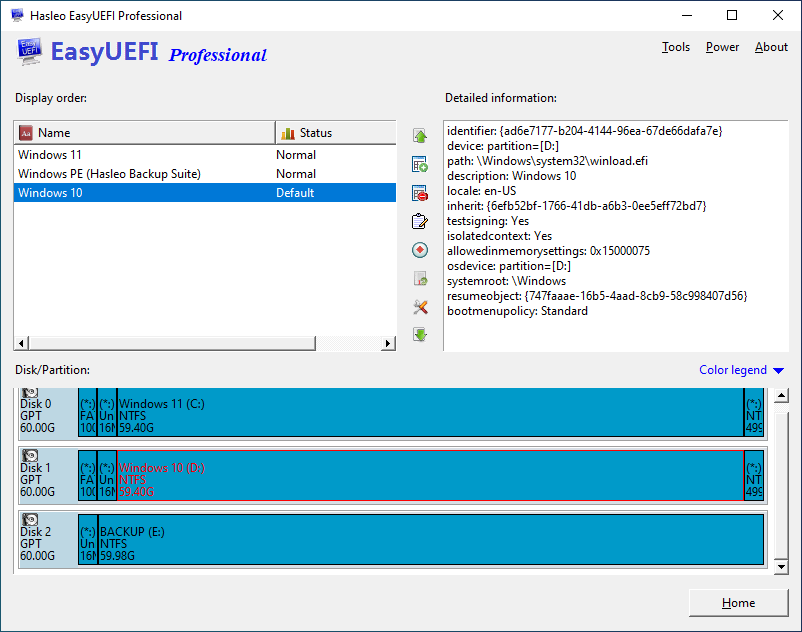
When a Windows computer is started, the Windows loader reads the BCD file and lists all the boot entries recorded in the BCD file for the user to choose from. If the user does not make a selection, Windows will load the default boot entry. This guide mainly talks about how to set a BCD boot entry as default boot entry with Hasleo EasyUEFI.
Tutorial to set a BCD boot entry as default boot entry with Hasleo EasyUEFI.
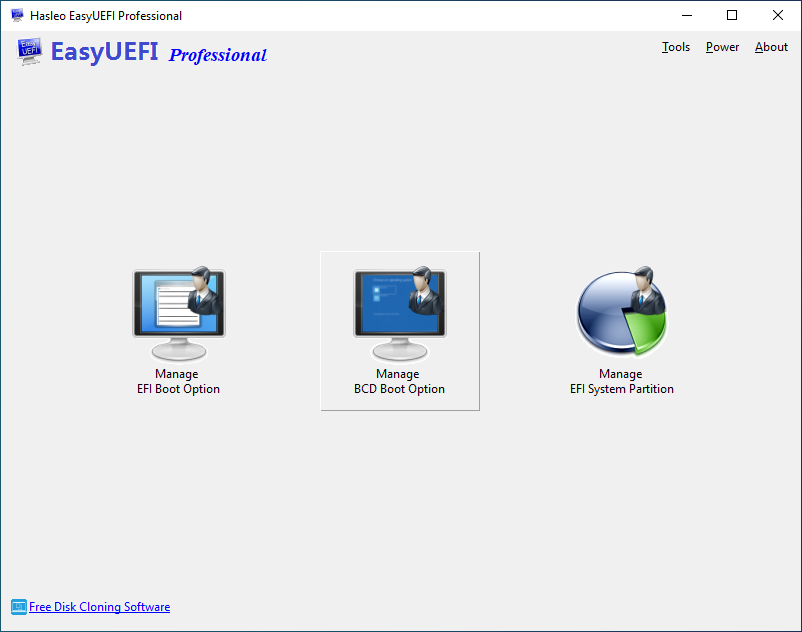
Step 1. Run EasyUEFI as administrator, then click the 'Manage BCD Boot Option' button.
Step 2. Select the boot entry you want to set as default boot entry in the Display order list.
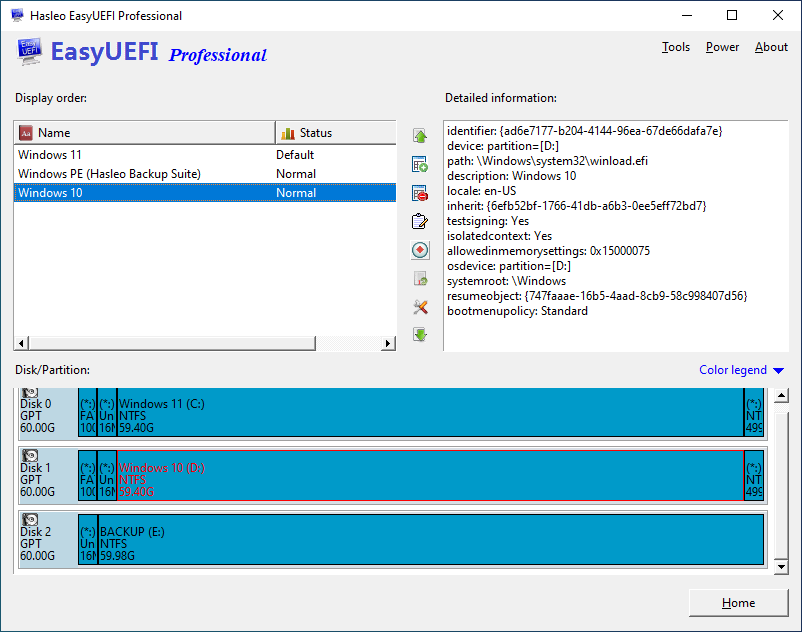
Step 3. Click the  button to set it as default boot entry.