

There are 4 partitions on my hard disk, one of the partitions is encrypted by Windows 7 BitLocker encryption, which preserves some files that are important to me. Recently I accidentally deleted some files from this encrypted partition, I have tried several data recovery software, but none of them can help me recover the deleted files, this makes me very depressed. The deleted files are so important to me, does anyone have any way to help me recover my lost data?
Although we are very careful when using our computers, data loss due to numerous causes is an unavoidable reality in today's digital technological era. To recover deleted/lost files from Windows 7 BitLocker encryption, we need to use a professional BitLocker Data Recovery software. Actually, there is a lot of data recovery software on the market claiming to be able to restore deleted/lost files from BitLocker encryption partition. However, most of them failed after my tests. The only one which helped me fully recover deleted/lost files is Hasleo Data Recovery. Here you can find how to recover deleted files from Bitlocker encrypted partition in Windows 7 with Hasleo Data Recovery.

How to Recover Deleted Files From a BitLocker-Encrypted Partition in Windows 7 with Hasleo Data Recovery?
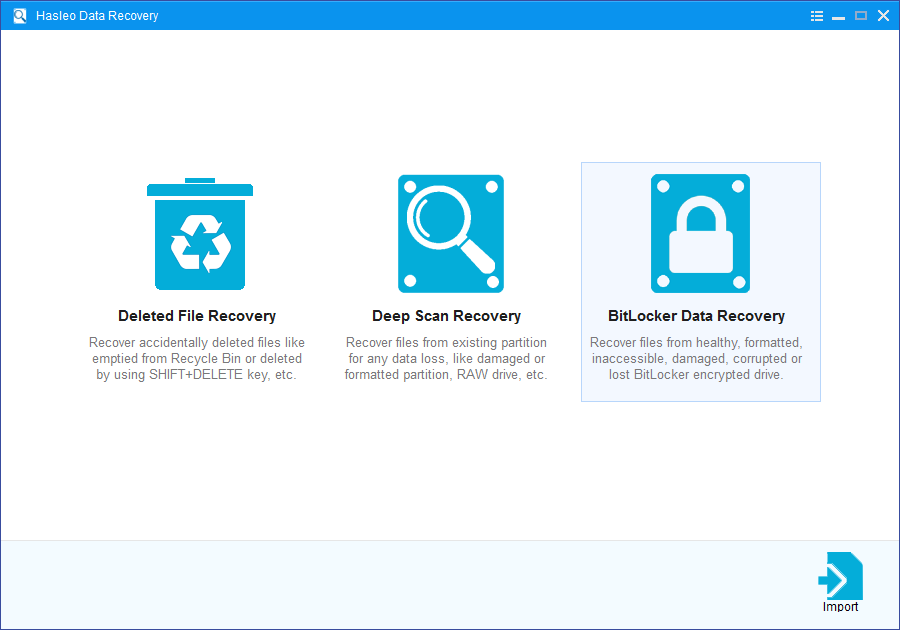
Step 1: Choose BitLocker Data Recovery
Download, install, and run Hasleo Data Recovery. On the main interface, you'll see several recovery options. Please select BitLocker Data Recovery mode.
Step 2: Select the partition to Scan
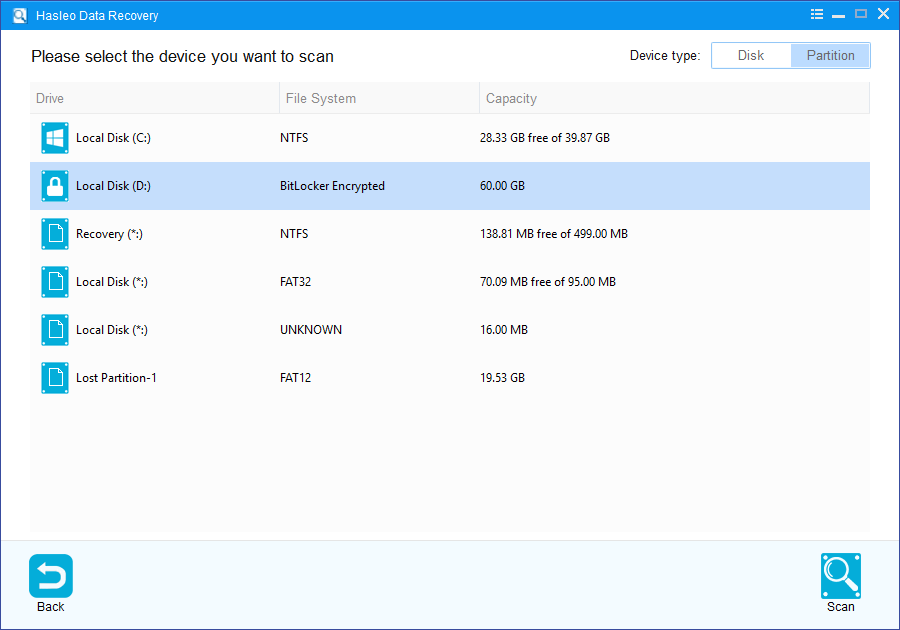
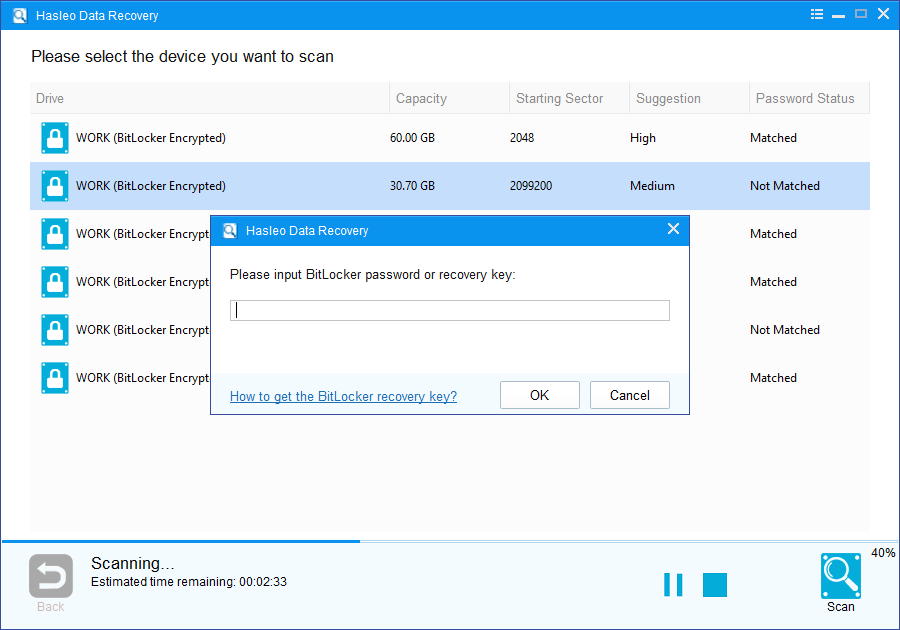
1. Select the partition where you accidentally deleted or lost your files, then click "Scan" to begin searching for recoverable data.
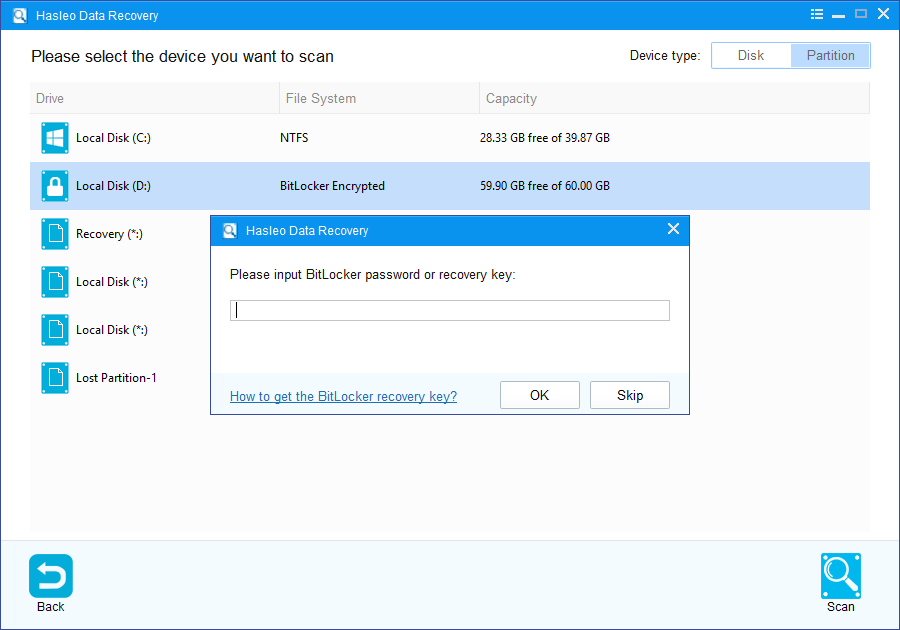
2. A pop-up window will appear asking you to enter the BitLocker password or 48-digit BitLocker recovery key. If you don't want to enter the password or BitLocker recovery key here, just click the "Skip" button to skip it.
3. Hasleo Data Recovery will display all detected BitLocker-encrypted partitions on the target device. If you provided the password or BitLocker recovery key in the previous step, the password status will show whether they match the partition.
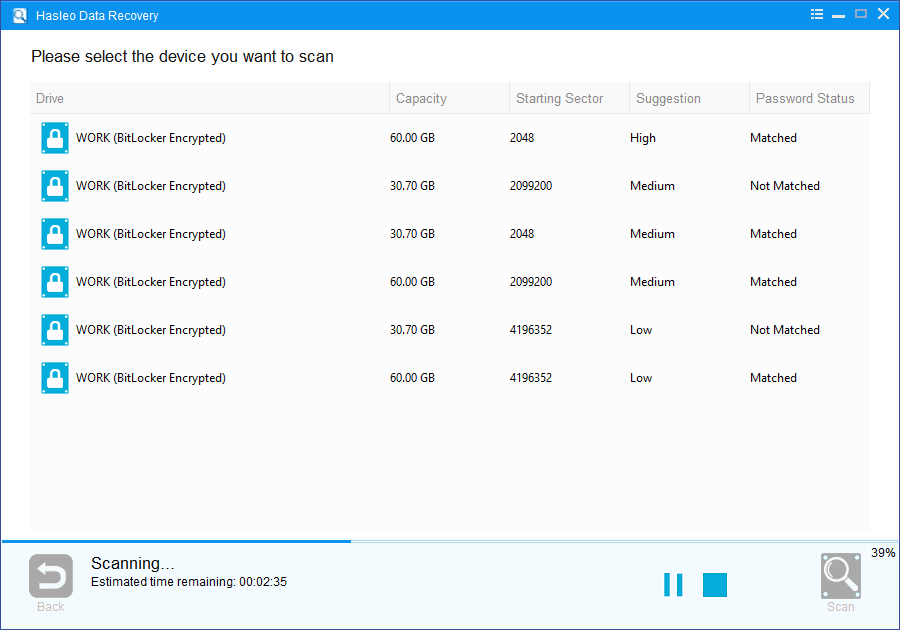
4. Double-click the BitLocker-encrypted partition from which you want to recover data. If you have previously entered the password or BitLocker recovery key and it matches, Hasleo Data Recovery will begin scanning for lost files immediately. If no matching credentials are found, a pop-up window will appear asking you to enter the password or recovery key. After entering it, click "OK". The software will then verify the key and start scanning if it matches.
Step 3: Preview and Recover Deleted Files
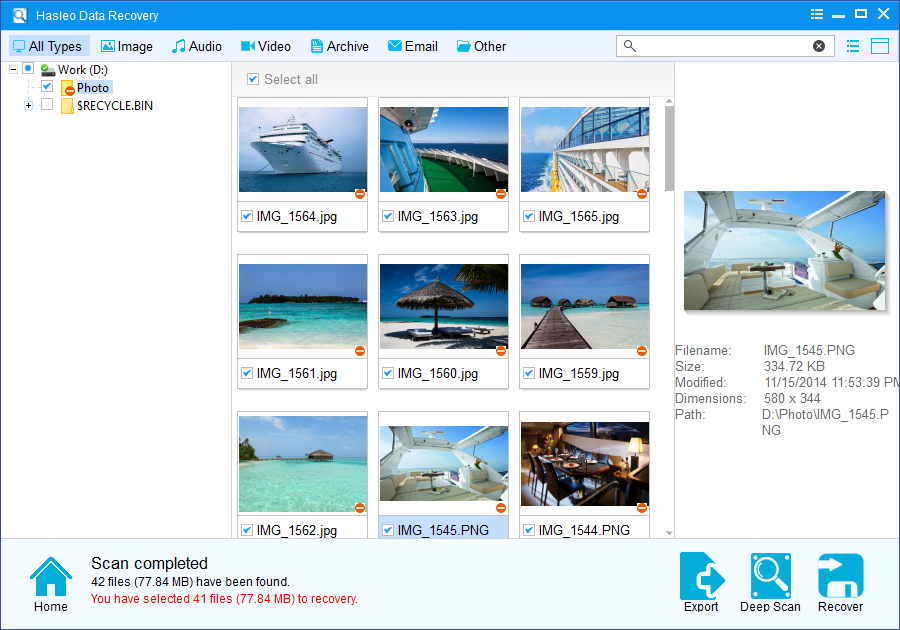
Hasleo Data Recovery will display a list of found files. You can preview them by path or file type. Select the files you want to recover and click "Recover" to save them. If some files are missing, click "Deep Scan" to start the Deep Scan Recovery process. This takes more time but can recover significantly more lost data.
Important Notes:
- You must enter the correct Bitlocker password or the 48-digit Bitlocker recovery key to successfully recover data from a BitLocker-encrypted drive.
- If the metadata area of a BitLocker-encrypted drive is severely corrupted, data recovery from that partition may fail—even with the correct password or recovery key.
- Do not save recovered files to the original partition where the lost data was stored. This prevents the data from being overwritten.
- You can export or save the scan results for later use or future recovery sessions.
As professional BitLocker Data Recovery software, Hasleo Data Recovery can not only recover deleted files from Bitlocker encrypted partition in Windows 7, but also recover data from Bitlocker encrypted drive in Windows 11/10.
Frequently Asked Questions (FAQ)
A: BitLocker encryption in Windows 7 works the same way as in other Windows versions—it encrypts all data with AES encryption. The difficulty in recovery doesn't come from the Windows version but from the encryption itself. Hasleo Data Recovery supports BitLocker encrypted drives across all Windows versions including Windows 7, making data recovery possible with the correct password or recovery key.
A: No, you cannot recover data from a BitLocker encrypted partition without either the password or the 48-digit recovery key. BitLocker uses strong encryption that prevents unauthorized access. The only exceptions are if the encryption metadata is corrupted (making recovery uncertain) or if you have previously created a backup of the encryption key.
A: Most recovery tools claim BitLocker support but fail because they cannot properly decrypt the drive. BitLocker uses sophisticated encryption that requires specific algorithms to decrypt. Hasleo Data Recovery has dedicated BitLocker decryption technology developed through extensive research of BitLocker encryption, enabling successful file recovery from Windows 7 BitLocker partitions.
A: Yes, it is safe to run data recovery software on a BitLocker encrypted drive as long as you use specialized BitLocker recovery software like Hasleo Data Recovery. The recovery process only reads data from the drive without making any changes. Just remember to save recovered files to a different location to avoid overwriting any remaining lost data.
A: Best practices include: 1) Always back up your BitLocker recovery key to multiple safe locations (Microsoft account, printed copy, secure file storage), 2) Enable BitLocker with automatic unlock disabled for additional security, 3) Regularly backup important files to an external non-encrypted drive, 4) Use the Recycle Bin instead of permanent deletion when possible, 5) Test your backup and recovery key periodically to ensure they work.
Related Articles
- How to recover a deleted or lost Bitlocker encrypted partition?
- How to recover data from Bitlocker encrypted partition in Windows 8?
- How to recover data from Bitlocker encrypted partition in Windows 11/10?
- How to recover data from accidentally formatted BitLocker encrypted drive?
- How to recover data from corrupted/damaged BitLocker encrypted external hard drive?


