

BitLocker Drive Encryption is a full-volume encryption algorithm developed by Microsoft for the Windows operating system, which can effectively help us secure our data, but also brings the risk of data loss. As an all-in-one data recovery software, you can use Deleted File Recovery or Deep Scan Recovery features to recover lost files from a Non-BitLocker encrypted drive. If the drive you want to recovery data from is encrypted with BitLocker Drive Encryption, then you should try our BitLocker Data Recovery software - Hasleo Data Recovery.
Hasleo Data Recovery is definitely an advanced featured tool to recover deleted/lost files from a BitLocker Encrypted Drive in Windows. With it, you can not only recover deleted file from a BitLocker Encrypted FAT32, exFAT and NTFS partition, but also recover lost files from a healthy, inaccessible, formatted, failed, damaged, corrupted, deleted or lost BitLocker encrypted drives.
Looking for reliable BitLocker data recovery software? Hasleo Data Recovery provides a professional and secure solution to recover files from BitLocker encrypted drives after various data loss scenarios — including accidental deletion, drive formatting, system crashes, or partition loss. The software operates in read-only mode, ensuring your original encrypted data remains completely safe during the recovery process.

Step-by-Step Guide to Recover Deleted/Lost Files From BitLocker Encrypted Drive with Hasleo Data Recovery
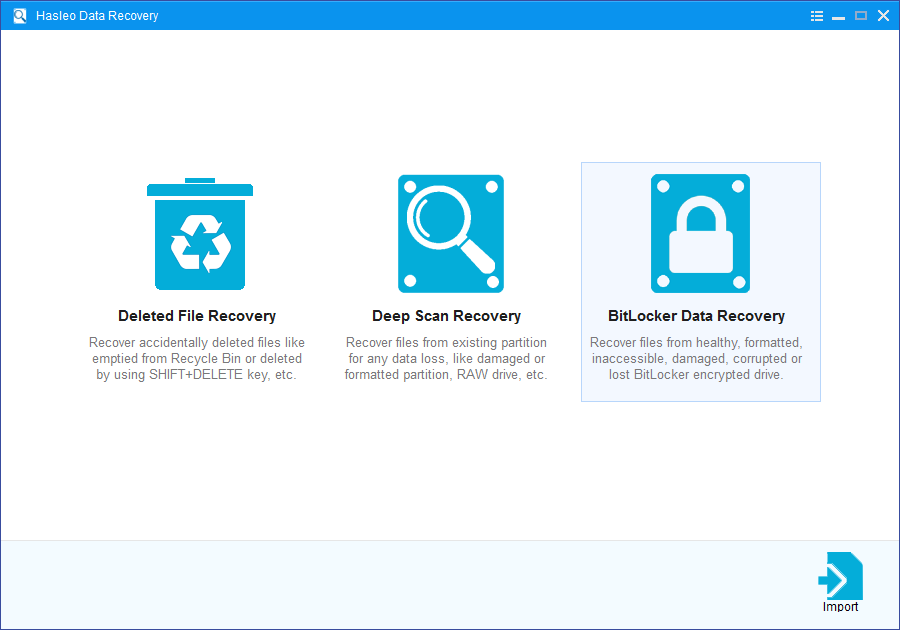
Step 1: Choose BitLocker Data Recovery
Launch Hasleo Data Recovery and select BitLocker Data Recovery mode.
Step 2: Select a Location to Scan
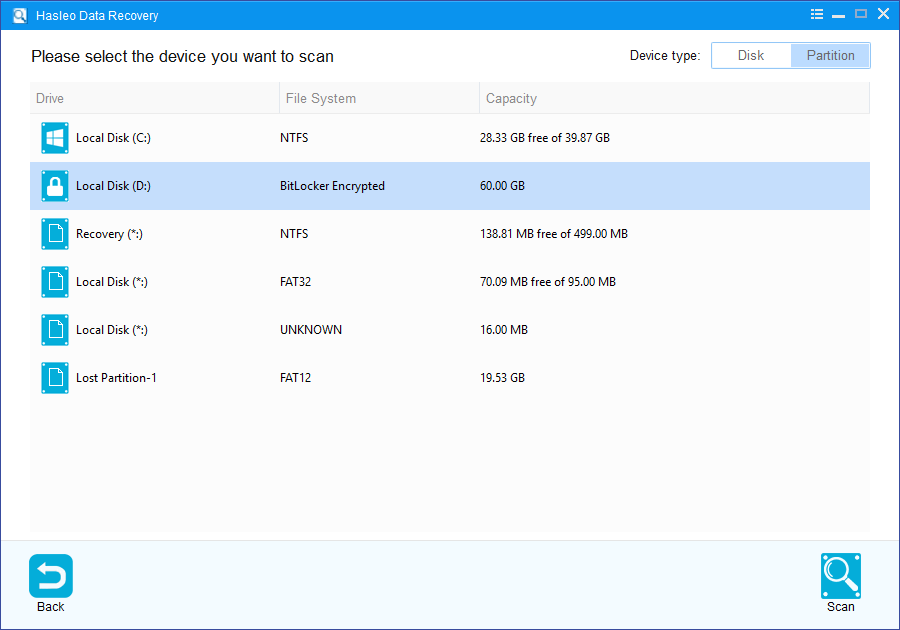
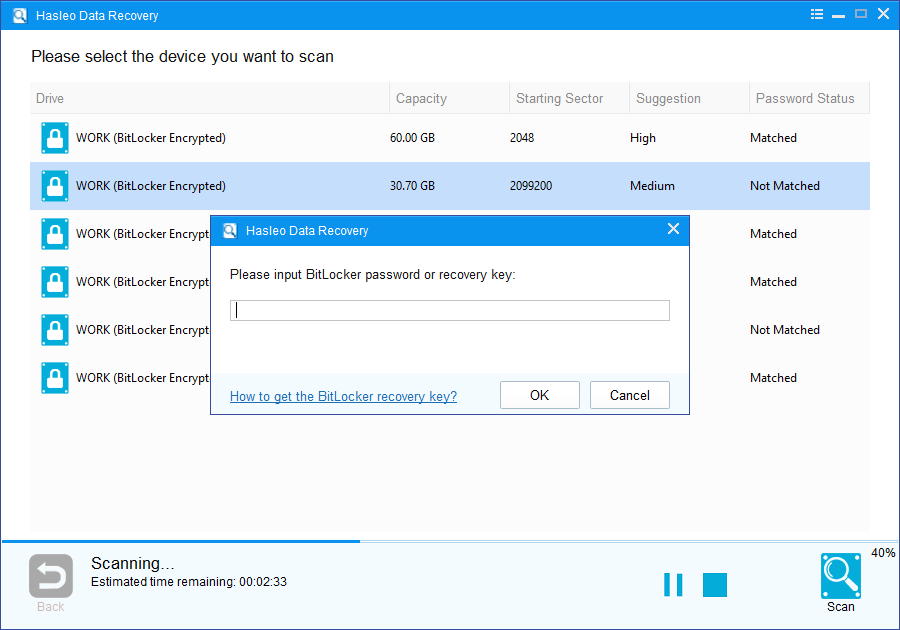
1. Please select the hard disk or partition where you lose your files, then click "Scan" button to find all BitLocker encrypted partitions on the device.
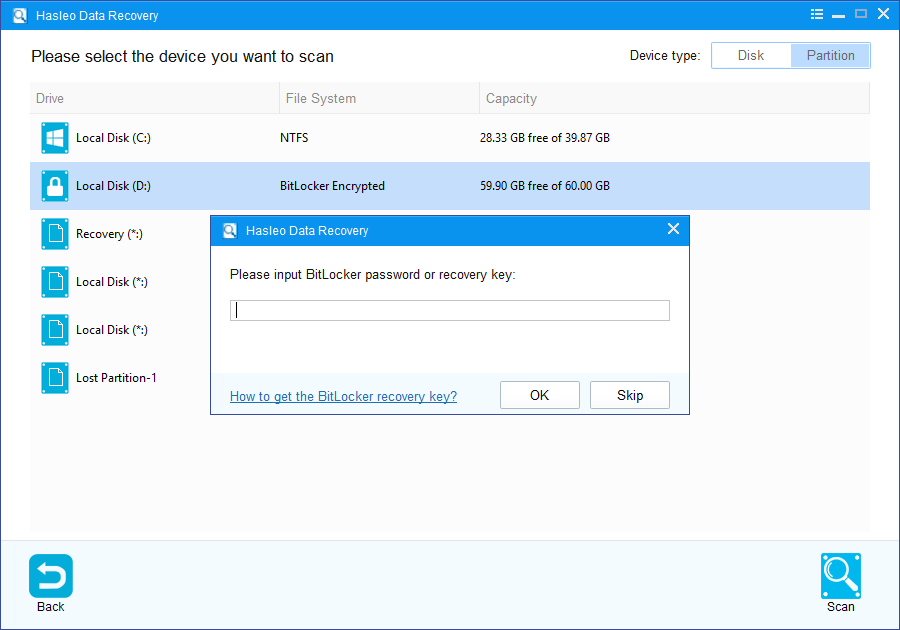
2. A pop-up window will appear asking you to enter the BitLocker password or 48-digit BitLocker recovery key. If you don't want to enter the password or BitLocker recovery key here, just click the "Skip" button to skip it.
3. Hasleo Data Recovery will list all found BitLocker encrypted partitions on the target device. If you have entered the password or BitLocker recovery key in the previous step, the password status will show whether the password or BitLocker recovery key matches this partition.
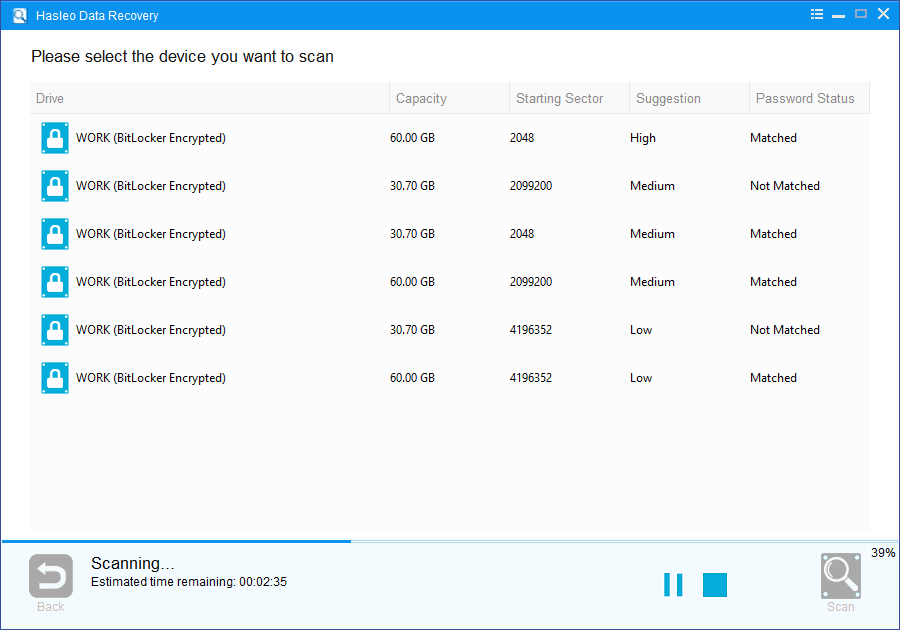
4. Double click the BitLocker encrypted partition you want to recovery data from. If you have previously entered the password or BitLocker recovery key and the the password or recovery key matches, Hasleo Data Recovery will start scanning lost files. Otherwise, a pop-up window will appear asking you to enter the password or BitLocker recovery key. Enter the password or recovery key and then click "OK" button, Hasleo Data Recovery will start scanning lost files if the password or recovery key matches.
Step 3: Preview and Recover Deleted Files
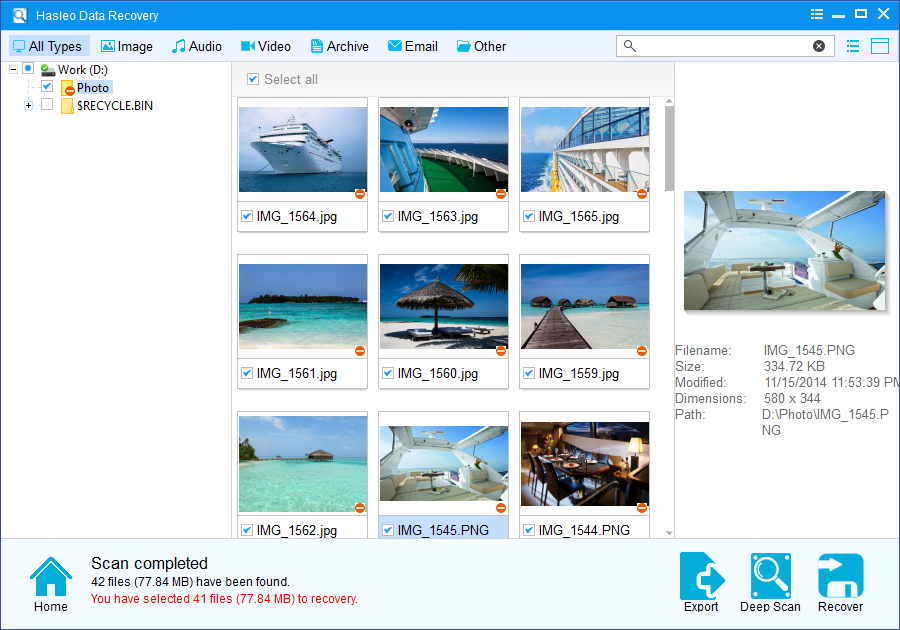
When the scanning process gets finished, you can filter and preview found files by path and file types. When you locate the files you want, just select them and click on "Recover" button to save them to your hard drive or other storage device. If some files are not found, please click "Deep Scan" button to start the Deep Scan Recovery process, deep scan takes more time, but can find much more lost files.
To sum up, Hasleo Data Recovery is a professional BitLocker data recovery software that can help you recover deleted/lost files from a BitLocker encrypted drive in a few steps.
Please note that:
1. You must enter the correct Bitlocker password or the 48-digits Bitlocker recovery key to successfully recover data from a BitLocker encrypted drive.
2. If the metadata area of a BitLocker encrypted drive is severely corrupted, you will not be able to recover data from this partition even if you have the correct Bitlocker password or the 48-digits Bitlocker recovery key.
3. Don't save the recovered files to the partition where your lost files originally located. This prevents your data from geting overwriten.
4. You can export/save the scanning results for later or next recovery.
Frequently Asked Questions (FAQ)
A: BitLocker encryption uses AES algorithms to encrypt all data on the drive, making traditional recovery tools ineffective. Without the correct password or recovery key, the encrypted data appears as gibberish. Specialized BitLocker recovery software like Hasleo Data Recovery can decrypt the drive using your credentials before attempting file recovery.
A: Yes, you only need either the password OR the recovery key to unlock a BitLocker drive. If you have the password, you can recover your files without needing the recovery key. Hasleo Data Recovery accepts both password and 48-digit recovery key formats for BitLocker encrypted drives.
A: Hasleo Data Recovery supports BitLocker encrypted drives with FAT32, exFAT, and NTFS file systems. It can recover data from healthy, inaccessible, formatted, failed, damaged, corrupted, deleted, or lost BitLocker encrypted partitions. This includes internal hard drives, external hard drives, USB flash drives, and SD cards.
A: Hasleo Data Recovery operates in read-only mode during BitLocker recovery to ensure your original encrypted data remains completely safe. The software only reads data from the drive without making any modifications, protecting against accidental data loss during the recovery process.
A: If BitLocker encryption or decryption failed and the drive shows as RAW, stop using the drive immediately to prevent further corruption. Use Hasleo Data Recovery's BitLocker Data Recovery mode, enter your password or recovery key, and run a deep scan to find recoverable files. The software can locate files even on partially corrupted BitLocker partitions.
Related Articles
- How to recover a deleted or lost Bitlocker encrypted partition?
- How to recover data from accidentally formatted BitLocker encrypted drive?
- How to recover data from Bitlocker encrypted partition in Windows 11/10?
- How to recover deleted/lost files from BitLocker To Go encrypted USB drive?
- How to recover data from corrupted/damaged BitLocker encrypted external hard drive?


