

By default, we cannot upgrade the Windows 10 operating system that is running on a USB drive, this is a limitation of Microsoft. When we try to upgrade Windows 10 To Go to Windows 10 Windows October Update, we will get the following error message.

Are you looking for a solution to upgrade Windows 10 To Go to Windows 10 October 2018 Update (Windows 10 1809)? Here we recommend that you try Windows To Go Upgrader. Windows To Go Upgrader is the only software which can help you upgrade a Windows To Go USB drive. And this tutorial will teach you how to upgrade Windows 10 To Go to to Windows 10 October 2018 Update (Windows 10 1809) with Windows To Go Upgrader.
Please note that upgrading a Windows To Go USB device is a complicated and cumbersome process, so in order to ensure that you can upgrade Windows To Go drive successfully, please read this guide carefully before performing the upgrade operation.
Tips:
- Please don't install and run 'Windows To Go Upgrader' on the Windows running on the USB drive which you want to upgrade, you should install and run it on other Windows operating systems.
- If the Windows To Go workspace has been encrypted by using BitLocker Drive Encryption, you need to enter the decrypted password during the upgrade process.
- If you have installed Hyper-V Role in the Windows To Go Workspace, then you need to disable Hyper-V Role before the operation.
- If the system partition or boot partition does not have a drive letter, you'd better manually assign a drive letter for it.
- Before the upgrade, we highly recommend that you back up all your important data to ensure that your personal data will not be lost during the system upgrade.
- If you lose some files after you upgrade your Windwos To Go drive, you can use our Free Data Recovery Software Hasleo Data Recovery to recover your lost files.
Tutorial to upgrade Windows To Go to Windows 10 October 2018 Update (Windows 10 1809) with Windows To Go Upgrader.
- Windows 8 or later is required.
- CPU: VT-x/AMD-v must be supported by your CPU and VT-x/AMD-v must be enabled in your BIOS.
- 1024x768 graphic device (higher resolution recommended).
- 4GB of available RAM (8G or more recommended).
- 16GB of free space on Windows boot drive.
Download VirtualBox V7.2
 button.
- If your USB drive is not correctly recognized by Windows To Go Upgrader, you need to click the
 button for the program to recognize the USB drive.

- If you want to upgrade Windows using a Windows installation ISO file, first click the "ISO File" radio button, and then specify the ISO file path by clicking the
 button.
- If you want to upgrade Windows using a CD/DVD drive, first click the "CD/DVD" radio button, and then select the CD/DVD drive.
- If you want to upgrade Windows using Windows Update, using Windows Media Creation Tool or using "Get Windows 10" App, please click the "None" radio button.

- Please do not force shutdown (turn off), sleep or hibernate the virtual machine during the upgrade process, this will cause upgrade failure or cause data loss or corruption.
- During the upgrade process, if the virtual machine terminates abnormally or crashes, you can manually restart the virtual machine to try the upgrade again. And if you'd like to retry, please don't move to the next step.


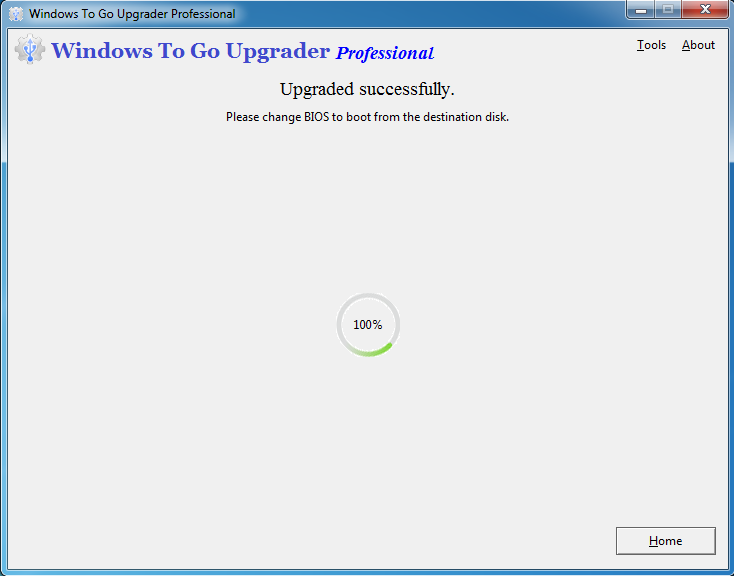
Tips:
The upgrade feature is only available in the full paid version of Windows To Go Upgrader, so you'd better use the check feature to confirm that your device can be upgraded before you make a purchase. How to check it, please refer to Check whether a Windows To Go drive can be upgraded.
This tutorial focuses on how to upgrade Windows 10 To Go to Windows 10 October 2018 Update (Windows 10 1809) with Windows To Go Upgrader.
Frequently Asked Questions (FAQ)
A: You can upgrade using Windows To Go Upgrader, which creates a virtual machine to bypass Microsoft's limitations on upgrading USB-based Windows installations. Connect your Windows To Go drive, select it in the software, and choose a Windows 10 1809 ISO file as the upgrade source.
A: Microsoft does not support in-place upgrades on USB drives. You'll encounter errors like "You can't install Windows on a USB flash drive using Setup" or "Windows can't be installed because this PC has an unsupported disk layout for UEFI firmware."
A: You need Windows 8 or later, VT-x/AMD-v enabled in BIOS, at least 4GB RAM (8GB recommended), 1024x768 display resolution, and 16GB free space on the Windows boot drive. VirtualBox V7.2 must be installed.
A: Yes, Windows To Go Upgrader performs an in-place upgrade that preserves your applications, settings, and personal files. However, we strongly recommend backing up your data before proceeding.
A: No, you should install and run Windows To Go Upgrader on a different Windows computer, not on the Windows To Go drive you plan to upgrade. Running it on the same drive will cause the upgrade to fail.
A: Yes, Windows To Go Upgrader supports upgrading BitLocker-encrypted drives. You'll be prompted to enter the BitLocker recovery password during the upgrade process to decrypt the drive.
A: Check that VT-x/AMD-v is enabled in your BIOS, ensure the USB drive is properly connected, and verify the Windows To Go workspace is not corrupted. You can force shutdown the virtual machine and retry the upgrade process.
A: No, the upgrade feature is only available in the paid versions. You can use the check feature in the trial version to verify if your device can be upgraded before purchasing.