

- Method 1: Delete Old Shadow Copies
- Method 2: Increase Shadow Storage Space
- Frequently Asked Questions
- Conclusion
This tutorial describes how to fix 0xXXXXXXXX8004231F (VSS 0x8004231F error - VSS_E_INSUFFICIENT_STORAGE, Insufficient storage available to create either the shadow copy storage file or other shadow copy data.) error you encounter when performing backups or clones using Hasleo Backup Suite.
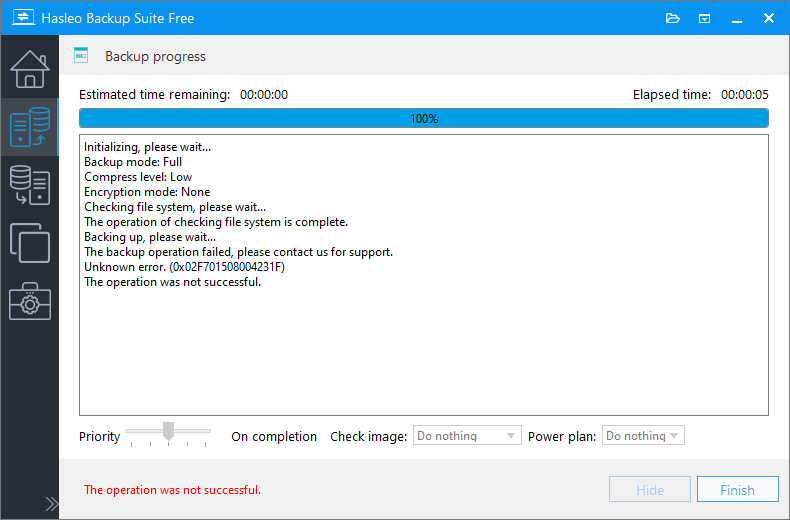
Hasleo Backup Suite uses Microsoft's Volume Shadow Copy Service (VSS) technology to implement Windows hot backup/cloning. You may encounter 0xXXXXXXXX8004231F error while performing backups or clones with Hasleo Backup Suite. The last 8 bytes (8004231F) of which are the VSS error code returned by Windows. The VSS error code 0x8004231F (VSS_E_INSUFFICIENT_STORAGE) usually means that one or more selected partitions lack enough space to create the required VSS snapshot. Below we describe how to fix the VSS 0x8004231F (VSS_E_INSUFFICIENT_STORAGE) error.
Method 1: Delete Old Shadow Copies to Fix VSS 0x8004231F (VSS_E_INSUFFICIENT_STORAGE) Error
Step 1. Open an elevated cmd.exe in Windows.
Step 2. Run "vssadmin list shadowstorage" to show the shadow storage space of the current system.
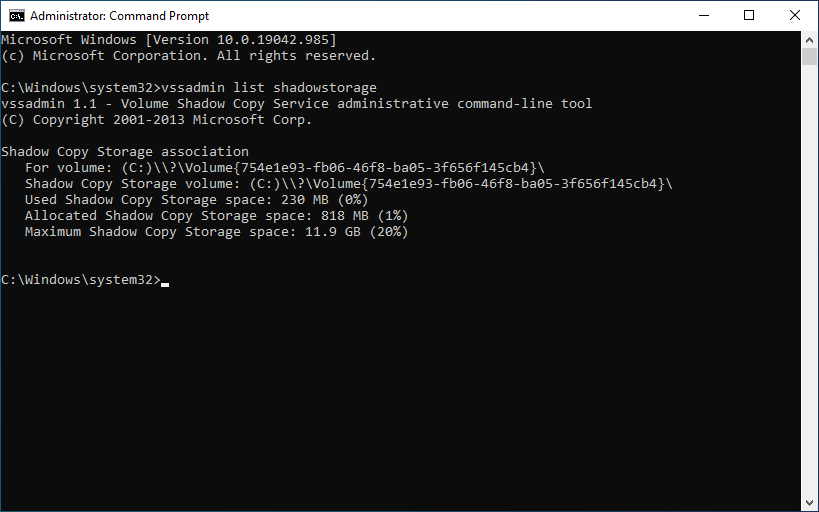
Step 3. Run "vssadmin delete shadows /for=X: /all" to delete all shadow copies on a specific volume (X: is the drive letter of the volume).
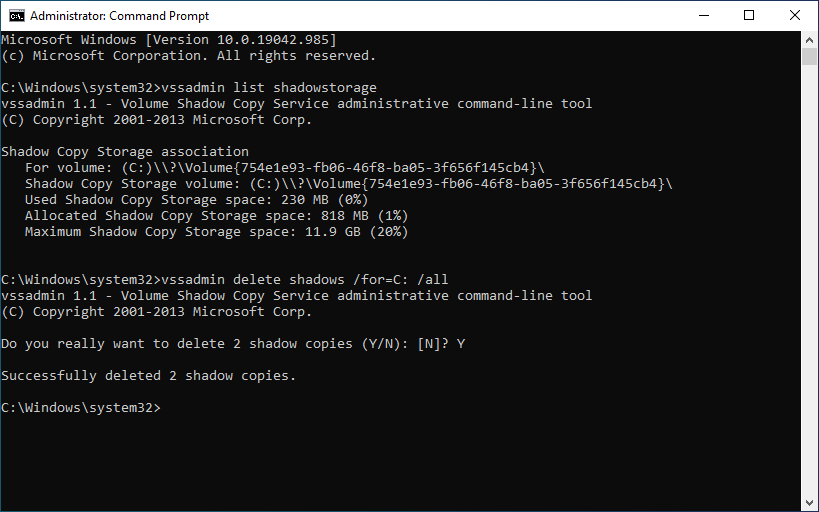
Alternatively, run "vssadmin delete shadows /for=X: /oldest" to delete the oldest shadow copy from a specific volume.
Alternatively, run "vssadmin delete shadows /shadow=[ShadowId]" to delete a specific shadow copy from any volume.
Method 2: Increase Shadow Storage Space to Fix VSS 0x8004231F (VSS_E_INSUFFICIENT_STORAGE) Error
Step 1. Open an elevated cmd.exe in Windows.
Step 2. Run "vssadmin list shadowstorage" to show the shadow storage space of the current system.
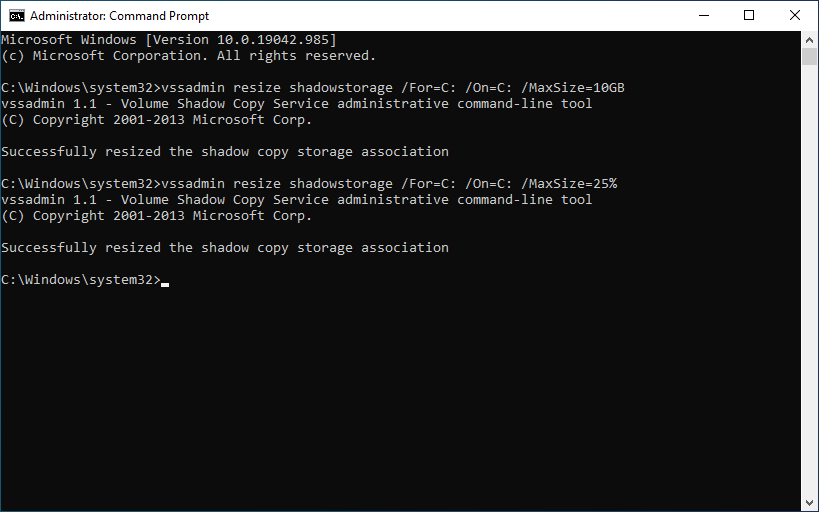
Step 3. Run "vssadmin resize shadowstorage /For=X: /On=X: /MaxSize=10GB" or "vssadmin resize shadowstorage /For=X: /On=X: /MaxSize=25%" to increase the storage space for a specific volume (X: is the drive letter of the volume).
Frequently Asked Questions
A: This error occurs when there is insufficient disk space to create shadow copies. VSS requires storage space to hold the snapshot data, and if the shadow storage is full or nearly full, the backup fails.
A: Run "vssadmin list shadowstorage" in Command Prompt as administrator. It shows the current shadow copy storage space allocation for each volume.
A: Shadow storage should be at least 20-30% of the volume size being backed up. For system drives, Microsoft recommends at least 50GB or 10% of the drive, whichever is larger.
A: No, deleting shadow copies via vssadmin only removes Windows system restore points and VSS snapshots. Your Hasleo Backup Suite backup images remain intact.
A: Yes, use "vssadmin delete shadows /for=C: /all" to delete all shadow copies only for the C: drive. Replace C: with your drive letter.
A: There is no fixed maximum, but it cannot exceed the size of the source volume. A good rule is to allocate 10-20% of the drive capacity.
A: Not recommended if you use Hasleo Backup Suite for hot backups. VSS is required for hot backup functionality. Instead, manage shadow storage size properly.
A: Minimal impact during normal operation. More shadow storage only means more potential data can be saved if a backup is interrupted. Performance returns to normal after backup completes.
Conclusion
This tutorial describes how to fix the 0xXXXXXXXX8004231F (VSS 0x8004231F error - VSS_E_INSUFFICIENT_STORAGE) error you encounter when performing backups or clones using Hasleo Backup Suite.
Related Articles
- How to create an App Password in Gmail that you can use to send emails in Hasleo Backup Suite?
- How to fix Dokan not installed or Dokan version not supported error?
- How to fix VSS 0x80042306 (VSS_E_PROVIDER_VETO) error?
- How to back up and restore Windows 11 for free?
- How to Use the Deduplication in Hasleo Backup Suite to Save Storage Space?


