

- What is an App Password for Gmail?
- Tutorial to Create an App Password in Gmail for Sending Emails From Hasleo Backup Suite.
- Frequently Asked Questions
- Conclusion
This tutorial describes how to create an app password in Gmail for sending Hasleo Backup Suite email notifications.
What is an App Password for Gmail?
Gmail, developed by Google, is one of the world's most popular email services, boasting billions of active users thanks to its free and easy-to-use nature. Given the hundreds or thousands of third-party apps and services connected to it, Google had to come up with reliable ways to ensure these accounts remain secure. App password is one of those ways, which simply means creating a separate password for each third-party app. Therefore, even if the app password is compromised, your primary Gmail password remains secure.
Tutorial to Create an App Password in Gmail for Sending Emails From Hasleo Backup Suite.
Step 1. Sign in to your Google Account at: https://accounts.google.com/signin
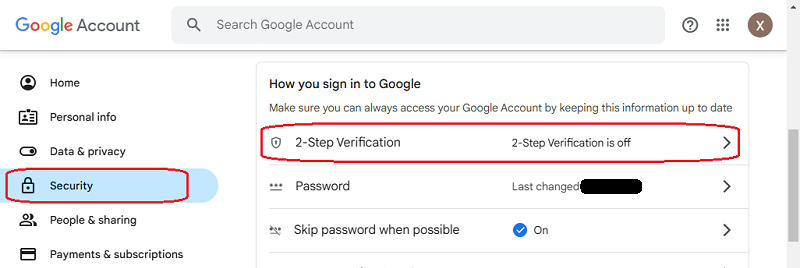
Step 2. You must enable 2-step verification before creating an App password. If you haven't done this yet, please enable it first.
2.1). Open the Account Security page (https://myaccount.google.com/security). Scroll down to the "How you sign into Google" section.
2.2). Click 2-Step Verification and follow the on-screen prompts to complete the setup.
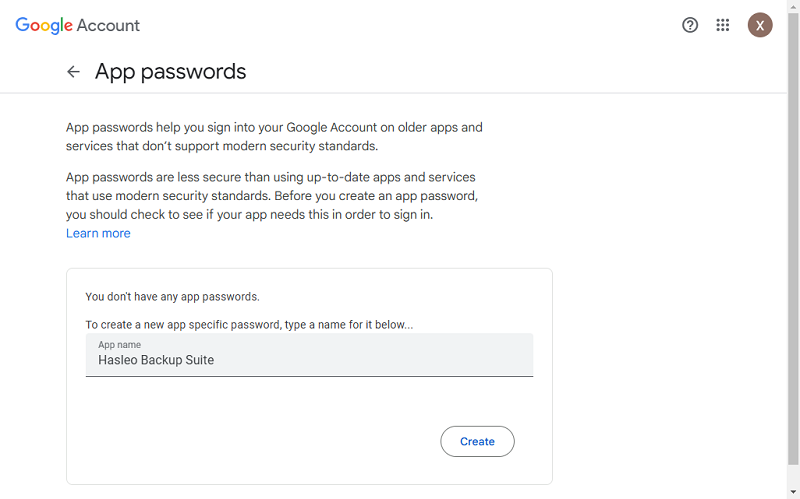
Step 3. Open the App Password page: https://myaccount.google.com/apppasswords. Enter the App name and click "Create". The newly generated app password will be displayed.
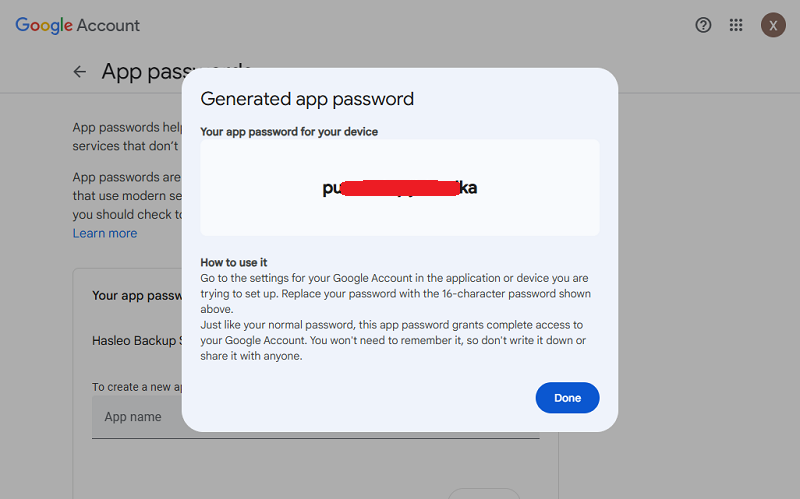
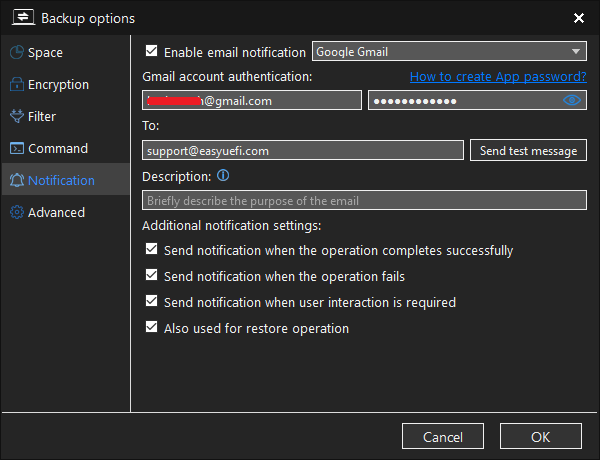
Step 4. To enable email notifications via Gmail, enter your Gmail account and the generated App password into the corresponding fields on the Hasleo Backup Suite email notification page.
Frequently Asked Questions
A: An App Password is a 16-character code that allows third-party apps or services to access your Gmail account when you have 2-Step Verification enabled. It provides an extra layer of security by using a separate password for each app.
A: Hasleo Backup Suite needs your Gmail credentials to send email notifications about backup tasks. Since 2-Step Verification is recommended for Gmail security, you need an App Password to authenticate third-party apps.
A: Yes, 2-Step Verification must be enabled before you can create App Passwords in Gmail. Visit your Google Account security settings and enable 2-Step Verification first.
A: Go to https://myaccount.google.com/apppasswords while signed into your Google Account. Enter an app name (like "Hasleo Backup Suite") and click Create to generate your 16-character App Password.
A: App Passwords do not expire unless you revoke them or change your Google Account password. You can create multiple App Passwords for different apps and revoke them individually if needed.
A: No, Google has discontinued support for less secure app access. Third-party apps must use App Passwords or OAuth authentication. Using an App Password is the recommended method for desktop applications like Hasleo Backup Suite.
A: Visit https://myaccount.google.com/security, find the App Passwords section, and click the remove icon next to the App Password you want to revoke. You can create a new one anytime.
Conclusion
This tutorial describes how to create an app password in Gmail and then use it to configure email notifications in Hasleo Backup Suite.
Related Articles
- How to Revoke Gmail Permissions for Hasleo Backup Suite?
- How to Revoke Outlook Permissions for Hasleo Backup Suite?
- How to clone Windows/Disk/Partition in Windows 11?
- How to back up and restore Windows 11 for free?
- How to Create Full/Differential/Incremental Backups in Windows Using Hasleo Backup Suite Free?


