

If you want to get back recently deleted files, you should try the Deleted File Recovery first, it's fast and in most of the cases can find your lost files. If the deleted files can't be found by Deleted File Recovery or the lost files are on a formatted, corrupt partition or RAW drive, you should try Deep Scan Recovery built into Hasleo Data Recovery. Deep Scan Recovery will deeply scan your drive or device with advanced scanning technology to find every recoverable file. It performs sector-by-sector scanning, so it will takes more time and can find much more lost files.
The primary advantage of Deep Scan Recovery is that it offers you the best possible chance to recover data when other methods fail. By scanning your drive thoroughly and completely, it can find files that have been missing for a long time, or that were lost due to formatting, corruption, or severe system errors. Though it requires more time, this method ensures that every recoverable file is identified, making it the most reliable option for difficult or long-term data loss.
However, even the most professional data recovery software cannot guarantee 100% success. The only truly reliable data security strategy is to prevent loss at the source — through regular backups. We recommend Hasleo Backup Suite Free. This free and user-friendly Windows backup tool allows you to easily create automated backup plans for your system, disks, and files, ensuring your important data always has a recoverable copy on hand. Prevention is always simpler and more reassuring than restoration.

User Guide: How to Recover Lost Files From a Formatted, Corrupt or RAW Drive with Hasleo Deep Scan Recovery?
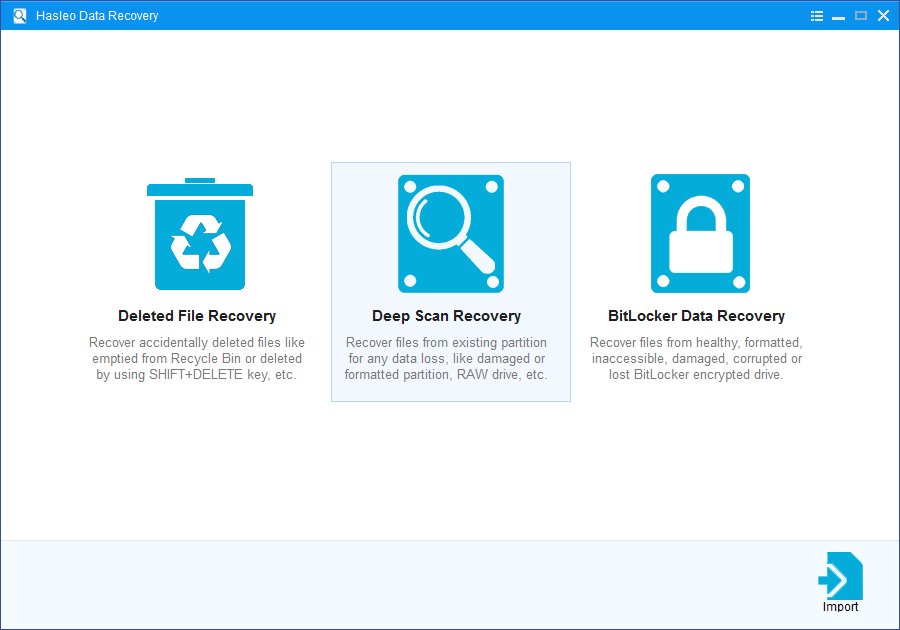
Step 1: Choose Deep Scan Recovery
Launch Hasleo Data Recovery and select Deep Scan Recovery mode.
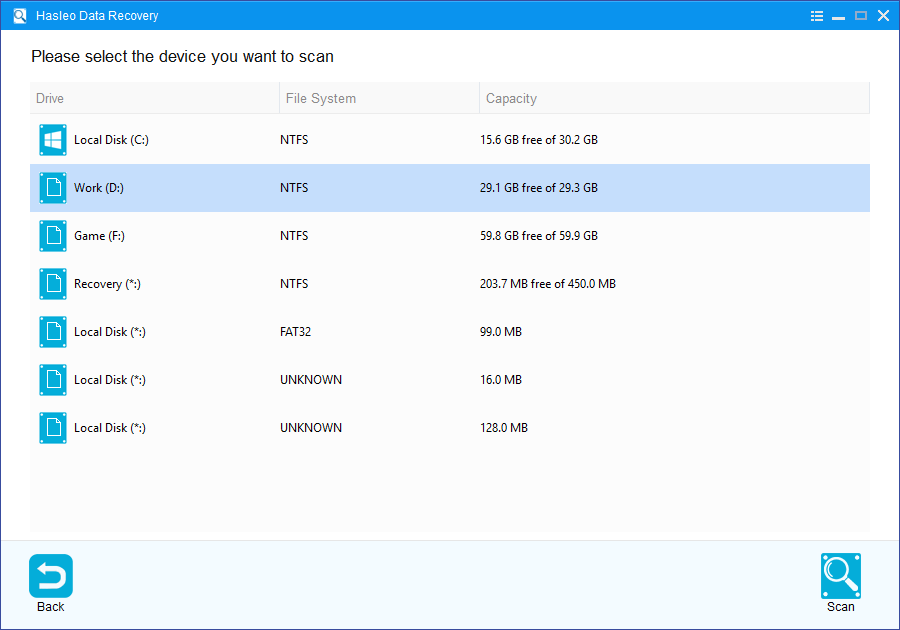
Step 2: Select a Location to Scan
Please select the drive where you lose your files as the target drive and click on "Scan" button to start the deep scan recovery process.
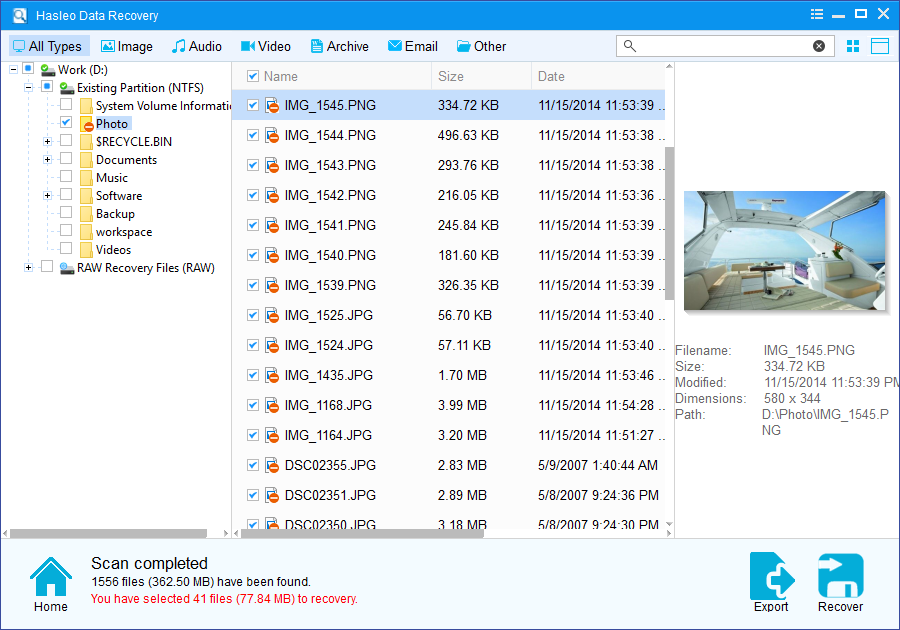
Step 3: Preview and Recover Deleted Files
After the scan is not complete, you can easily locate the files you want to recover by path and file types. Before you decide to save them, you can preview the files to check their quality and detailed information.
To sum up, Hasleo Data Recovery is a professional data recovery software that can help you recover lost files from a formatted, corrupt partition or RAW drive.
Please note that:
1. Don't save the recovered files to the partition where your lost files originally located. This prevents your data from geting overwriten.
2. If the device you want to recovery data from is encrypted by BitLocker Drive Encryption, you should try BitLocker Data Recovery.
3. You can export/save the scanning results for later or next recovery.
Frequently Asked Questions (FAQ)
A: Use Deep Scan Recovery when: the deleted files cannot be found by Deleted File Recovery, the partition has been formatted, the drive shows as RAW or inaccessible, the partition is corrupted or damaged, or you need to recover files that have been missing for a long time. Deep Scan performs sector-by-sector scanning to find files that regular scanning misses.
A: Deep Scan Recovery takes significantly longer than regular recovery because it performs sector-by-sector scanning of the entire drive rather than just searching file system records. The duration depends on drive size and speed, but can range from several minutes to several hours. While time-consuming, this thorough approach finds significantly more recoverable files.
A: Deep Scan Recovery can handle: formatted partitions (quick format or full format), corrupted file systems, RAW drives with missing file system structures, severely damaged partitions, and files deleted long ago whose file system records have been overwritten. It works by reading raw sectors and identifying file signatures rather than relying on file system metadata.
A: Yes, Deep Scan can recover files from repartitioned drives by scanning unallocated space or the entire physical disk. It identifies file structures by their binary signatures and can reconstruct files even when partition information is lost. The success rate depends on whether the original file data has been overwritten by new partitions.
A: Deep Scan Recovery cannot decrypt BitLocker encrypted drives directly. If your drive is encrypted with BitLocker, you need to use the dedicated BitLocker Data Recovery feature instead, which can unlock the drive with your password or recovery key before performing recovery. BitLocker encryption prevents Deep Scan from reading file signatures on the encrypted partition.
Related Articles
- How to Recover Data from a RAW USB Flash Drive?
- How to Recover Lost Files From BitLocker Encrypted Drive?
- How to recover a deleted or lost partition in Windows 11/10/8/7/XP?
- How to fix/repair "CHKDSK is not available for RAW drives" error?
- How to recover data from accidentally formatted BitLocker encrypted drive?


