

We often store important files—such as documents, photos, emails, videos, and audio files—in a partition on our computers for easy access. How would you feel if you accidentally deleted that partition and lost those files? For those without any backups, this could be a disaster. Is there a way to recover those precious files you've kept for years? The answer is yes—but first, it helps to understand why recovery is possible.
When you accidentally delete a partition in Windows 10, 8, 7, or XP, the data stored in that partition is not immediately erased. Physically, the space remains on your storage device as long as you do not create a new partition in the unallocated space and write new data to it. Instead, the space that was originally occupied by the deleted partition is simply marked as available for reuse. This is the fundamental principle of data storage, which is why a deleted partition can still be recovered. This article explains how to restore data from a lost or deleted partition using professional Partition Recovery Software.

How to Recover a Deleted or Lost Partition with Hasleo Data Recovery Free?
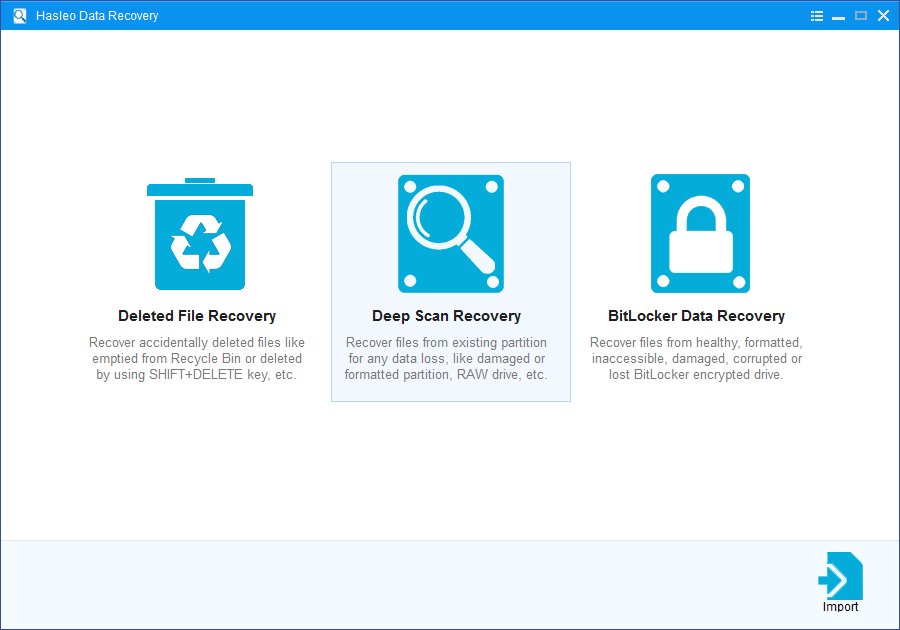
Step 1: Choose Deep Scan Recovery
Download, install, and run Hasleo Data Recovery. On the main interface, select Deep Scan Recovery mode.
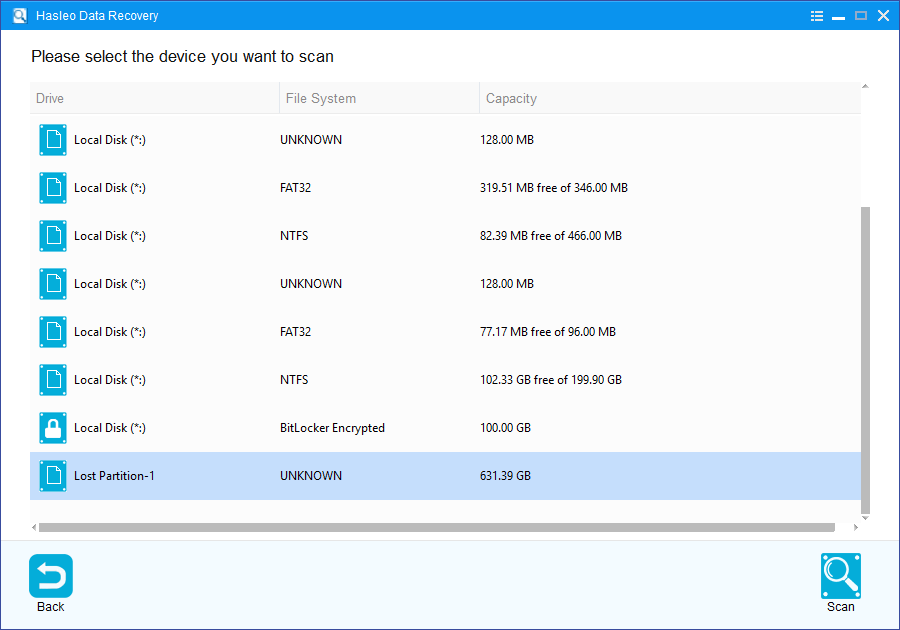
Step 2: Select a Location to Scan
Select the unallocated disk space from which you lost or deleted the partition, then click Scan to search for lost files. The scanning time depends on the hard drive capacity.
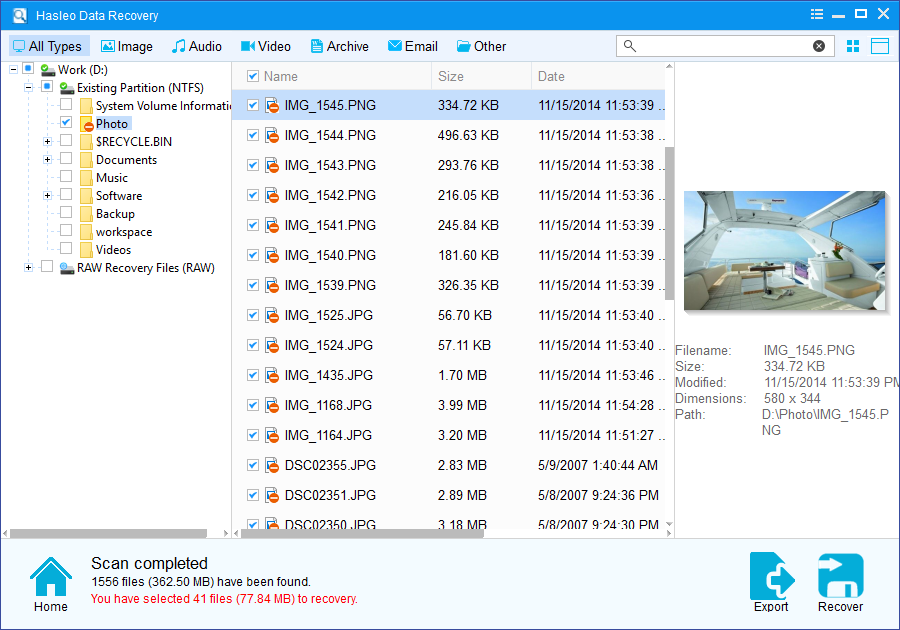
Step 3: Preview and Recover Deleted Files
Preview the recoverable files, then select the ones you need and click "Recover".
We suggest stopping using the disk where the partition was lost or deleted. Continued use may overwrite the original data and permanently destroy your chances of recovery.
Important Notes:
- If the device you want to recover data from is encrypted with BitLocker Drive Encryption, you should use BitLocker Data Recovery.
- Do not save recovered files to the original device where data loss occurred, as this may overwrite the lost data.
- You can export or save the scan results for later use or future recovery.
Frequently Asked Questions (FAQ)
A: Partitions can be deleted or lost due to: accidental deletion using disk management tools, failed partition resize or merge operations, virus or malware attacks that corrupt partition tables, sudden power loss during disk operations, corrupted MBR (Master Boot Record), installing or reinstalling operating systems, and hard drive failures or bad sectors that cause partition metadata corruption.
A: Yes, you can often recover a deleted partition without data loss if you act quickly. When a partition is deleted, the data remains on the disk—the partition table entry is simply removed. Use Hasleo Data Recovery to scan the unallocated space and reconstruct the partition. The key is to avoid creating new partitions or formatting the drive, as this could overwrite the partition data.
A: Partition recovery reconstructs the partition structure so the drive shows the original partitions again with all files accessible. File recovery scans an existing partition to recover individual deleted files. Partition recovery is preferred when entire partitions are missing or deleted—it restores everything at once. File recovery is for when partitions exist but specific files are missing.
A: When partitions are deleted or lost, the disk space they occupied becomes unallocated—the partition table no longer has entries for those areas. Windows sees the raw disk space as unallocated and may prompt you to initialize the disk or create new partitions. This does not mean the data is gone; the files remain intact but the system doesn't know how to access them without the partition information.
A: Yes, if Windows installation accidentally deleted or reformatted your partitions, you can recover them. The key is to not proceed with the Windows installation—it overwrites partition data. Boot from Hasleo Data Recovery bootable disk to scan the drive without running Windows. The software can find deleted partitions by examining the raw disk structure. Recovery success depends on whether the installation process wrote new data to those areas.
Related Articles
- How to Recover Deleted/Lost Files from SD Card?
- How to Recover Deleted/Lost Files from Sandisk SD Card?
- How to Recover Deleted/Lost Files from USB flash drive?
- How to recover a deleted or lost Bitlocker encrypted partition?
- How to recover data from corrupted/damaged BitLocker encrypted external hard drive?


