

- What is encryption?
- Advantages and Limitations of Encryption
- How to Encrypt Backup Tasks Using Hasleo Backup Suite Free?
- Frequently Asked Questions (FAQ) for Backup Encryption
- Summary
In modern digital life, where cyber threats are everywhere, the protection of important data is especially crucial. Encryption is a key method to protect data. This guide will help you understand encryption concepts and learn to use Hasleo Backup Suite Free for encrypting backup tasks. You will be able to protect your critical data and follow our step-by-step instructions to complete the task.
What is encryption?
Encryption is a process of converting readable plaintext into unreadable ciphertext, aimed at protecting the security and privacy of the information. It transforms the original data using a special algorithm so that even if unauthorized users obtain the encrypted data, they still cannot understand the information content without knowing the key. There are many kinds of encryption algorithms, each with different levels of security. For example, Advanced Encryption Standard (AES) is currently the most commonly used and secure encryption standard.
Advantages and Limitations of Encryption
Encryption is a double-edged sword;it secures data but also introduces significant challenges. Let's explore the key advantages and limitations.
Advantages:
- Confidentiality: A core property of encryption which ensures that information is readable only by authorized recipients and is protected from unauthorized access.
- Integrity: Ensures that data has not been changed during transmission or storage. Any modification to encrypted data will result in decryption failure, notifying the user that the data is incomplete or unreliable.
- Authentication: Confirm that the source of the information is genuine and trustworthy.
Limitations:
- Dependence on key management: If keys are lost due to mismanagement, the encrypted data cannot be recovered.
- Performance Overhead: During the encryption and decryption process, a large amount of computing resources is required, which consumes additional CPU time and memory. For devices with limited performance, this may cause system delays and reduced throughput.
Although encryption has its limitations, its advantages in the digital era far surpass the disadvantages, leading to its widespread use in daily life. Encryption is essential across multiple areas, including communications (e.g., VPN, email), data storage (e.g., file and full-disk encryption), and finance (e.g., online banking, credit card chips). It can be said that wherever there is data that needs protection, encryption technology is applied.
How to Encrypt Backup Tasks Using Hasleo Backup Suite Free?
When choosing software to encrypt important backup data, you need to consider ease of use, compatibility with the operating system, and the security level of the encryption. We highly recommend Hasleo Backup Suite, a comprehensive backup solution. It not only supports key functions like backup, restoration, and cloning but is also compatible with mainstream Windows personal and server operating systems, natively supporting Windows x86/x64 and ARM64. Furthermore, it allows you to encrypt backup tasks using enterprise-level AES encryption. You just need to check the box and enter a password to ensure your data security, making the operation simple and convenient. The following step-by-step guide shows how to encrypt a file backup task using Hasleo Backup Suite Free.
Step 1. Download, install and run Hasleo Backup Suite Free. Click the "Backup" button in the navigation bar, then select "File Backup" from the action area.
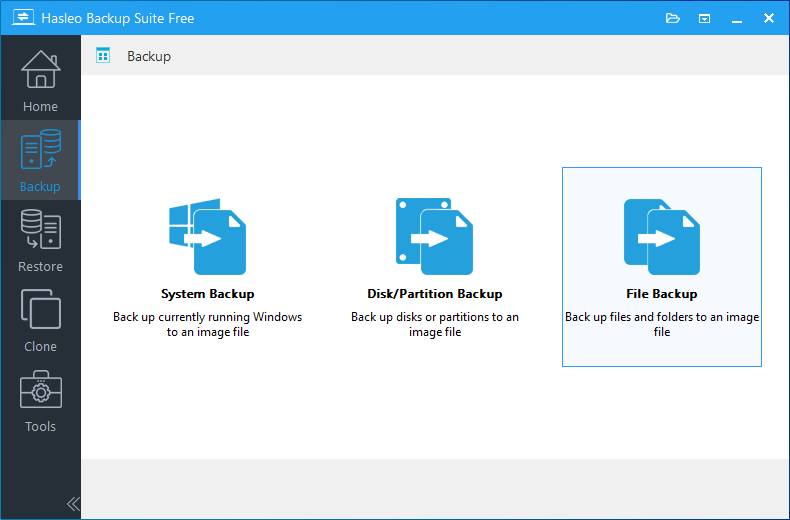
* Tips: Please note that encryption is available for file backups, as well as for system and disk/partition backups.
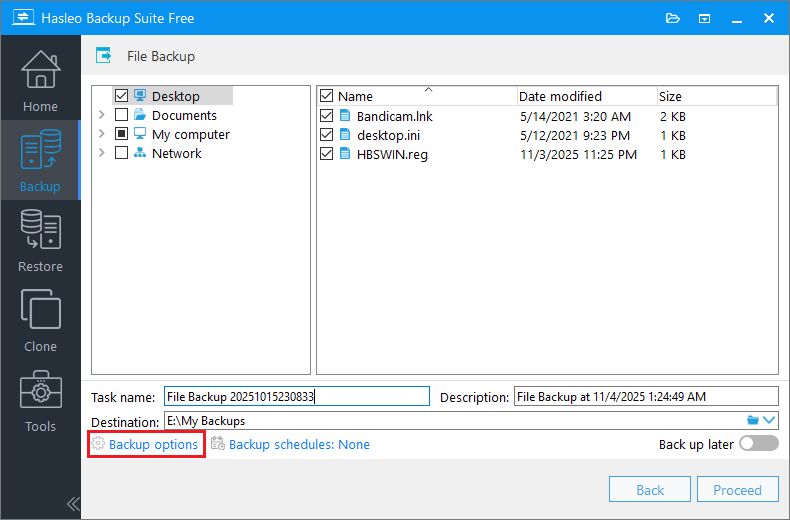
Step 2. Select the files/folders that you want to back up. Then, customize the task name, description, destination as needed. Click "Backup options" to open the configuration interface.
* Tips:
- Task name: Specify a task name so that you can quickly find and manage your backup task later.
- Description: Briefly describe the purpose of the task and any other relevant information.
- Destination: Modify the destination path where the backup image files will be stored by clicking the folder icon.
- Backup options: Advanced backup settings. For more details, please refer to Backup options.
- Backup schedule: Set up backup schedules to automatically perform your backup tasks on a regular basis. For more details, please refer to Backup schedule.
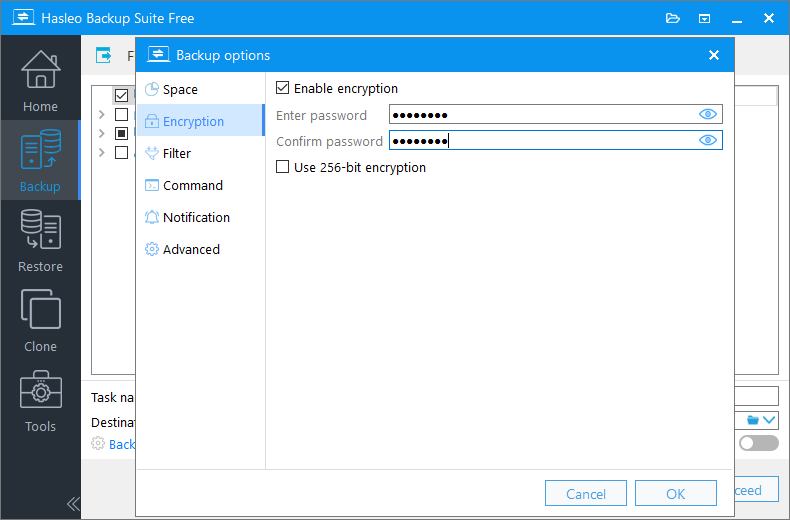
Step 3. Select "Encryption" in the navigation bar. Check the "Enable encryption" checkbox in the operation area, enter a password of at least 8 characters, and verify it. Click "OK" to save the settings.
* Tips:
- When setting a password, you should avoid using easily guessed passwords. It is strongly recommended to use a combination of numbers, letters, and special characters to enhance password security.
- You can enable 256-bit AES encryption as needed to enhance data security.
- Please keep your encryption password in a safe place. This password is required to restore your backup.
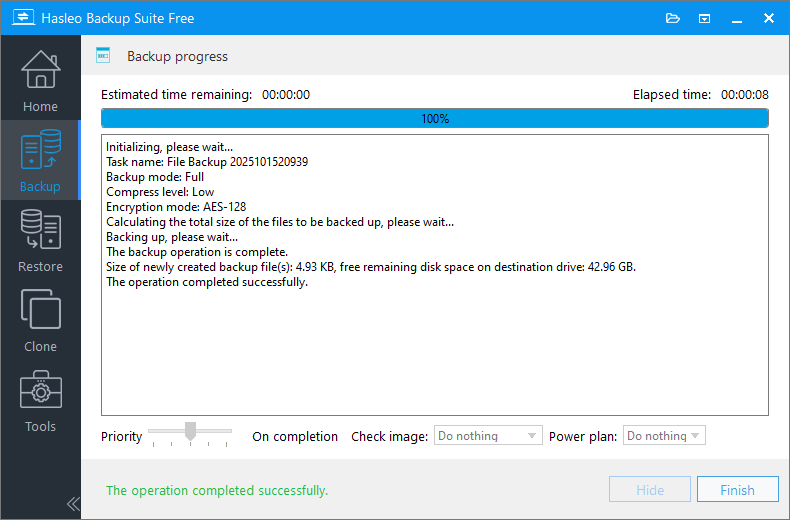
Step 4. Click "Proceed" to start the encrypted file backup. This process will take some time, please be patient.
* Tips:
- Priority: Specify a priority for the backup process. A higher priority allocates more CPU time to the backup, which may cause other programs to run slower.
- Check image: Verify the integrity of the backup image files upon completion of the backup process.
- Power plan: Perform the power management action after the backup is complete.
Frequently Asked Questions (FAQ) for Backup Encryption
A: Yes, encryption is available for file backups, system backups, and disk/partition backups. You can enable encryption in the Backup Options when creating any backup task.
A: Unfortunately, if you forget the encryption password, there is no way to recover the backup data. The password cannot be reset or retrieved. This is why it is strongly recommended to store your encryption password securely in a password manager or written location.
A: Yes, encryption introduces additional CPU overhead for the encryption and decryption process. The time required for backup and restore operations will increase, especially on devices with limited processing power.
A: AES-256 provides a higher security level than AES-128, but both are secure. If data security is your top priority, choose AES-256. If faster performance is needed, AES-128 offers a good balance between security and speed.
A: The minimum password length is 8 characters. It is strongly recommended to use a combination of numbers, letters, and special characters to enhance password security.
A: No, the encryption password is required to restore an encrypted backup. Without the correct password, the backup data cannot be decrypted and will be inaccessible.
A: Encryption itself does not significantly increase the backup file size. However, encrypted backups cannot be compressed, so you should enable compression or encryption based on your specific needs.
A: No, it is not recommended to enable both encryption and compression at the same time. Encrypted data is random and cannot be compressed effectively, which will waste resources. Choose one based on your priority: compression to save space, or encryption to protect data.
Summary
Hasleo Backup Suite Free is powerful software that provides free backup, restore, and clone functions. It even allows you to encrypt important backup tasks using enterprise-grade AES encryption, making it the best solution for protecting your data security. Furthermore, it can create a WinPE emergency disk, allowing you to boot into WinPE to quickly restore the system when it crashes.
If you need a more comprehensive encryption solution, consider the Hasleo BitLocker Anywhere series. It offers compatible tools for Windows, Linux, and Mac systems.
Related Articles
- How to Compress Backup Files using Hasleo Backup Suite Free?
- How to back up and restore Windows 11 for free?
- How to Merge/Delete Old Backup Files using Hasleo Backup Suite Free?
- Backup & Restore BitLocker-Encrypted Partition - Keep Encryption Status
- How to set up backup schedules to automatically backup Windows?


