

- Why BitLocker Encryption Is Lost After Restore (And How Hasleo V5.8+ Fixes It)
- How to Back Up a BitLocker Data Partition with Hasleo Backup Suite
- How to Restore a BitLocker Data Partition While Keeping Encryption Status
- Frequently Asked Questions (FAQ)
- Best Practices for BitLocker-Encrypted Data Partitions
- Final Verdict
If you use BitLocker to encrypt data partitions (such as D:, E:, or external drives), you may encounter a frustrating problem: most backup tools restore the BitLocker-encrypted partition in an unencrypted state, forcing you to manually re-encrypt sensitive data after restoration, which is usually a time-consuming process.
Hasleo Backup Suite V5.8 perfectly solves this problem. Starting from version V5.8, it introduces native support for restoring BitLocker volumes while maintaining their encrypted state. This process is particularly simple for regular data partitions (non-Windows system partitions).
Why BitLocker Encryption Is Lost After Restore (And How Hasleo Backup Suite V5.8+ Fixes It)
To understand why Hasleo Backup Suite is different from most backup software, you first need to understand how most backup software works with BitLocker-encrypted partitions.
The VSS Problem
Almost all Windows backup software on the market use Microsoft's Volume Shadow Copy Service (VSS) to create backups. When you use these software to back up a BitLocker-encrypted data partition within Windows:
- • The partition must be unlocked (accessible in File Explorer)
- • VSS reads the data in its decrypted state
- • The backup image contains plain, unencrypted data
This is not a flaw, but rather the way VSS is designed to work. BitLocker decryption happens at a lower level than VSS operates.
What Happens During a Standard Restore
When you restore a data partition using traditional backup software, the decrypted data is written directly to the target location. Since the backup image never contained any BitLocker metadata (encryption keys, protectors, etc.), the restored partition is simply unencrypted.
This forces you to manually re-encrypt the entire partition after restoration. For large data drives (especially mechanical hard drives), this re-encryption process can take several hours.
How Hasleo Backup Suite V5.8+ Fixes This
Hasleo Backup Suite V5.8+ addresses this limitation specifically during the restore phase:
- Backup phase (unchanged): Uses VSS to read and back up the decrypted data (identical to other tools), while also capturing BitLocker metadata for re-encryption.
- Restore phase (the innovation): When you check the "Retain BitLocker encryption" option, Hasleo re-encrypts the data on-the-fly and restores BitLocker metadata to the target partition.
Data Partition Advantage: No Restart Needed
Data partitions have a significant advantage over system partitions: since they don't contain the running Windows operating system, both backup and restore operations can run directly within Windows. No reboot is required, no boot media is needed, and you can continue working on other tasks while the operation runs in the background.
How to Back Up a BitLocker Data Partition with Hasleo Backup Suite
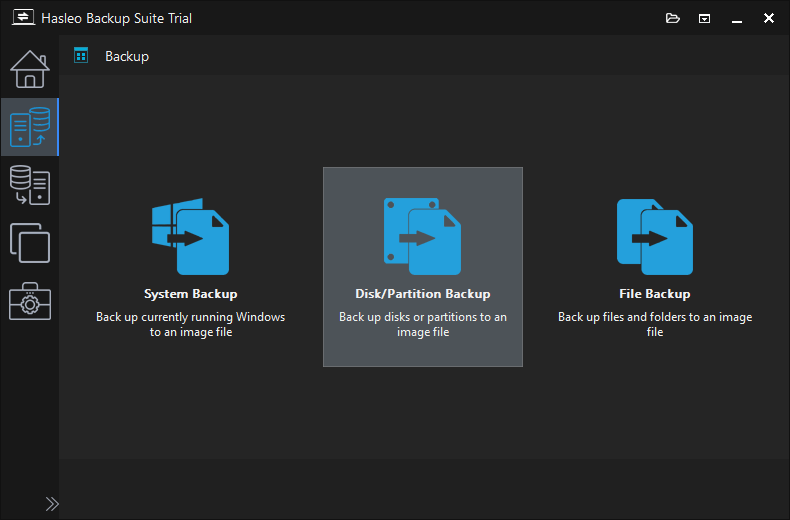
Step 1. Download, install, and run Hasleo Backup Suite. Click the "Backup" button in the navigation bar, then click "Disk/Partition Backup" in the operation area.
Step 2. In the source selection window, select the BitLocker-encrypted partition that you want to back up, and modify the task name, description, destination and backup options according to your needs, and then click the "Proceed" button.
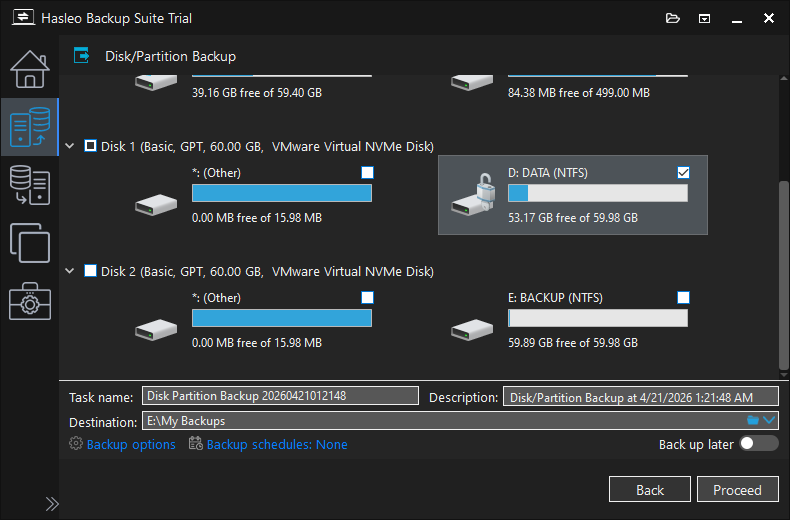
• The BitLocker-encrypted data partition should be unlocked (accessible in File Explorer) before backup, otherwise the program will use sector-by-sector mode, which takes more time and uses more storage space.
• We strongly recommend enabling "Image Encryption" to protect your backup file, since the backup image stores unencrypted data.
• For external USB drives, make sure the drive is connected and unlocked before starting the backup.
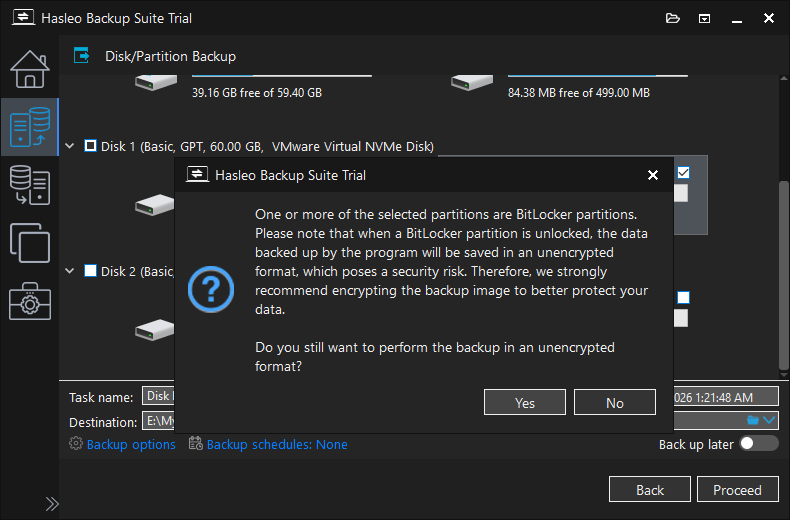
Step 3. After clicking the "Proceed" button, if you have not enabled image encryption for this backup task, Hasleo Backup Suite will prompt you to enable it.
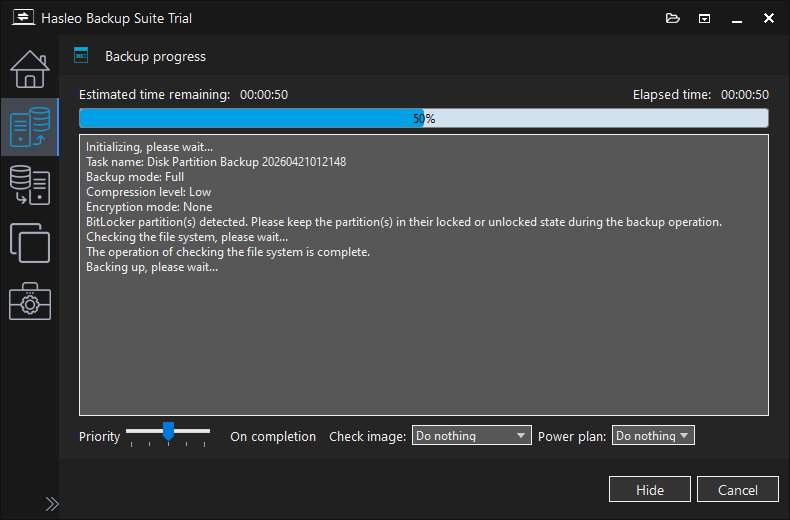
Step 4. Hasleo Backup Suite starts backing up the partition to the storage path you specify. The backup time depends on the size of the data being backed up, so please be patient.
How to Restore a BitLocker Data Partition While Keeping Encryption Status
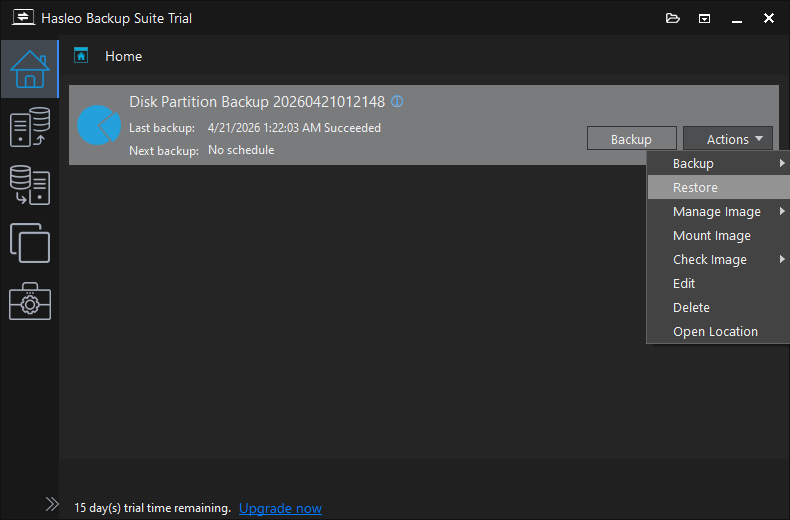
Step 1. Click the "Home" button in the navigation bar. Find the backup task you want to restore, click "Actions", and select "Restore" from its menu.
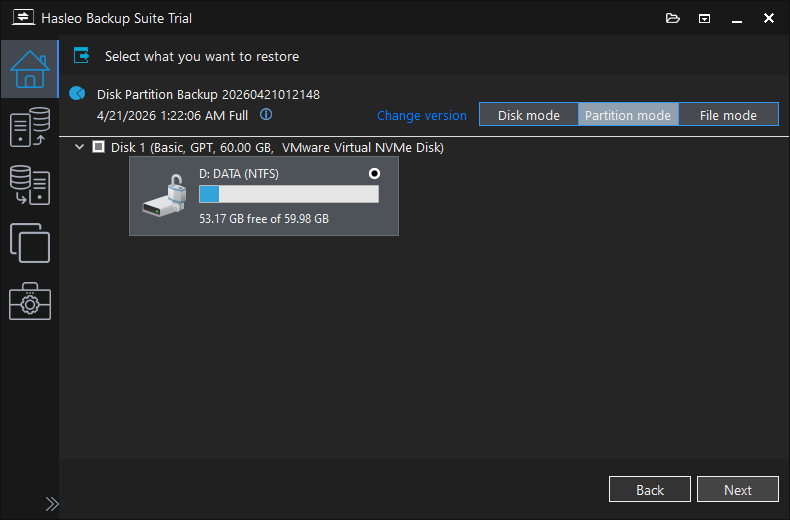
Step 2. Click "Change version" to select the backup version you want to restore (if you have multiple versions), and select the partition you want to restore, then click "Next".
Step 3. Select the destination location for the restore, and make sure check the "Retain BitLocker encryption" checkbox, then click "Proceed".
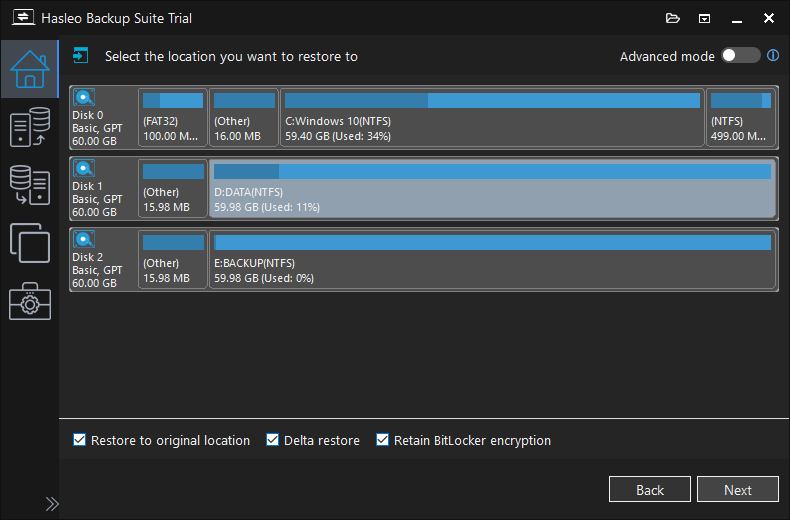
• Make sure to check the "Retain BitLocker encryption" checkbox before proceeding. Otherwise, the restored partition will be unencrypted.
• The destination location can be the original partition or a different location on the same drive or another drive.
• If the "Restore to original location" checkbox is not checked, you can adjust the size and location of the target partition as needed.
• For BitLocker management on Windows Home editions, consider Hasleo BitLocker Anywhere For Windows.
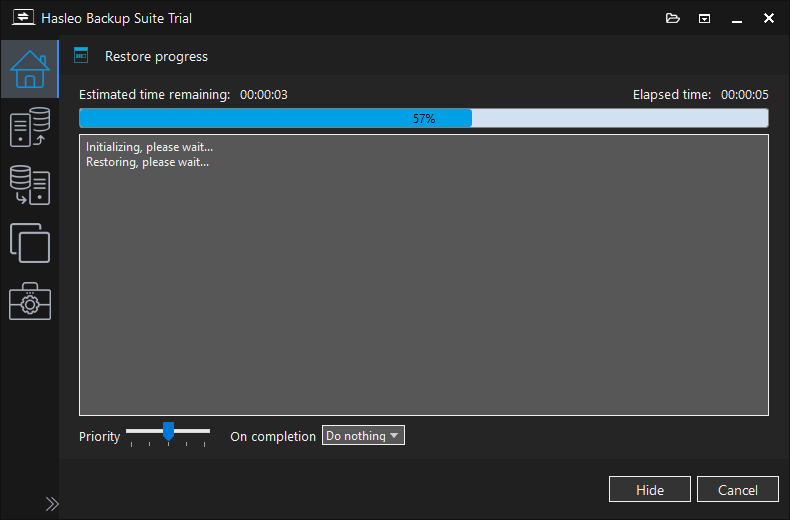
Step 4. After clicking "Proceed", the restore operation will run directly in the background. You can continue working on other tasks while the restore completes.
Step 5. Once the restore is complete, open File Explorer. The restored partition should still show as "BitLocker Encrypted". You can verify by opening Command Prompt as Administrator and running (replace D: with your actual drive letter):
What to look for in the output:
Conversion Status: Fully Encrypted— indicates the partition is encryptedPercentage Encrypted: 100%— confirms full encryptionProtection Status: On— This is related to whether protection was enabled at the time of backup
Frequently Asked Questions (FAQ)
A: Yes. In the source selection window, simply check all the BitLocker-encrypted data partitions you want to include. They will be backed up together as a single backup task and can be restored together later.
A: Connect the external USB drive and make sure it is unlocked (accessible in File Explorer). Then open Hasleo Backup Suite, click Disk/Partition Backup, select the external drive as the source, and proceed normally. The same encryption retention feature applies to external drives.
A: As long as the target partition is large enough to hold all the used data from the source partition, you can restore a larger partition to a smaller one while retaining BitLocker encryption. The free space on the source does not need to be replicated.
A: Yes. The Delta Restore feature can be used on BitLocker-encrypted data partitions. It restores only the changed data since the last backup, which significantly speeds up the restore process.
A: The backup file itself is not encrypted because VSS reads decrypted data. To protect your backup file, enable the Image Encryption feature when creating the backup task.
A: Open Command Prompt as Administrator and run: manage-bde -status D: (replace D: with your actual drive letter). Look for Conversion Status: Fully Encrypted and Percentage Encrypted: 100% to confirm the partition is properly encrypted.
A: No. When you restore with the "Retain BitLocker encryption" option checked, Hasleo automatically re-encrypts the data and restores BitLocker metadata during the restore process. The partition is immediately recognized as encrypted.
A: This depends on how much data is on the partition. On a modern SSD, restoring a 100GB partition typically takes just a few minutes. The re-encryption happens automatically during the restore process with no additional time required.
Best Practices for BitLocker-Encrypted Data Partitions
1. Keep Your BitLocker Recovery Key Safe
Even if the partition retains its BitLocker encryption status after restoration, you still need your BitLocker recovery key to access the partition if TPM issues occur or if you move the drive to another computer. Store it in multiple safe locations (Microsoft account, printed copy, USB drive).
2. Always Unlock Before Backup
Make sure your BitLocker-encrypted data partition is unlocked before starting a backup task. If the partition is not unlocked, Hasleo Backup Suite will back up the partition in sector-by-sector mode, which generates a larger backup image and occupies more storage space.
3. Enable Image Encryption for Backup Files
Since backup files contain decrypted data, always enable the "Image Encryption" feature in the backup options. This protects your backup from unauthorized access.
4. Use a Regular Backup Schedule
Set up a backup schedule (daily, weekly, or monthly) for your important encrypted data partitions. Hasleo Backup Suite's schedule feature works perfectly with BitLocker-encrypted partitions as long as they are unlocked during the scheduled backup time.
5. Test Your Restore Process
Periodically test restoring a backup to a spare partition to ensure your backup is valid and the encryption preservation feature works correctly.
Final Verdict
Hasleo Backup Suite V5.8+ offers a reliable solution for backing up and restoring BitLocker-encrypted data partitions while keeping encryption status intact after restore. Unlike traditional backup software, which removes BitLocker protection during the restoration process, Hasleo can seamlessly preserve BitLocker encryption, eliminating the need to manually re-encrypt the partition after restoration.
For data partitions specifically, this means a faster, simpler workflow: backup, restore, and your encrypted data is ready to use immediately, with no manual re-encryption step.
What Makes Hasleo Different
- Backup phase: Uses standard VSS to read decrypted data (same as other tools)
- Restore phase: The innovation — re-encrypts data on-the-fly and restores BitLocker metadata
- User experience: One checkbox ("Retain BitLocker encryption") during restore does it all
When This Matters Most
- Project work: Regularly back up encrypted project folders without worrying about re-encryption
- Data migration: Move encrypted data to a new drive while keeping BitLocker active
- Disaster recovery: Quickly restore a corrupted encrypted partition

Related Articles
- How to Restore BitLocker-Encrypted Windows While Keeping Encryption?
- How to back up and restore Windows 11 for free?
- How to Encrypt Backup Tasks Using Hasleo Backup Suite Free?
- How to set up a schedule to automatically back up Windows Server?
- How to set up backup schedules to automatically backup Windows?


