

- Why Do I Get a Permission Error When Creating an Emergency Disk?
- Solution A: Set the Hasleo Process as an Exclusion
- Solution B: Add the Hasleo Process to the Allowlist
- Other Possible Causes and Solutions
- Frequently Asked Questions
- Conclusion
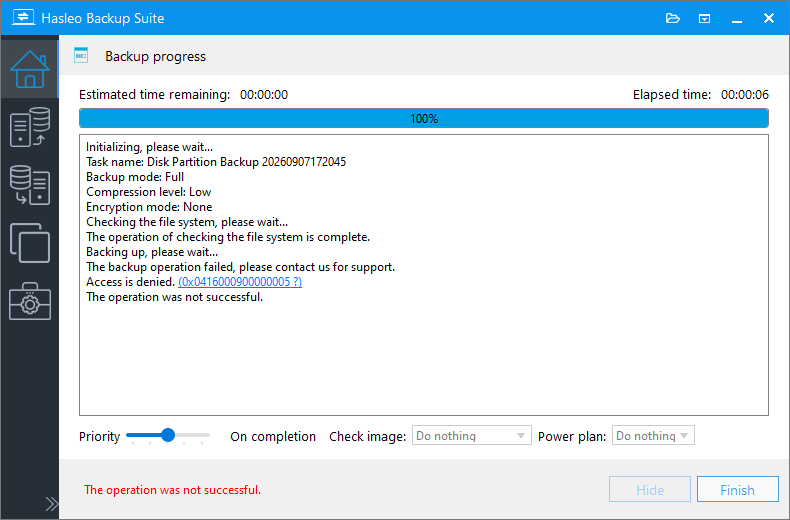
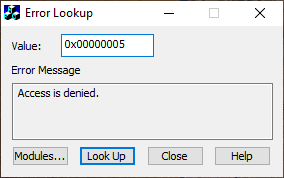
We have analyzed error code 0x0D1B000900000005. Windows returned 0x5 (Access is denied) when Hasleo Backup Suite attempted to write to the USB drive. This error during rescue disk creation is typically caused by real-time protection in antivirus software (e.g., Windows Defender) or MBR protection software (e.g., Acronis Active Protection) blocking the process.
To resolve this, temporarily disable your antivirus, or add Hasleo Backup Suite to the list of allowed applications (sometimes called "Trusted Apps" or "Whitelisted Apps") or the exclusion list, and then try again. The steps below use Windows Defender as an example.
Why Do I Get a Permission Error When Creating an Emergency Disk?
The root cause is an interception by Windows Defender's Controlled Folder Access. This feature is a ransomware protection mechanism built into Windows Security Center. By default, it protects critical system and user data folders to prevent unauthorized applications from encrypting or deleting files. Once enabled, it will:
- Prevent untrusted applications from modifying files in protected folders (such as Documents, Pictures, and Desktop).
- Block formatting operations on removable storage devices (e.g., USB flash drives and external drives).
When Hasleo Backup Suite attempts to write an emergency disk image to a USB drive, Controlled Folder Access identifies this as a "suspicious operation" and blocks the write, resulting in an "Access Denied" error.
Solution A: Set the Hasleo Process as an Exclusion 💡
After adding the Hasleo process to Microsoft Defender's exclusions, Defender will no longer scan that item, resolving this issue.
Step 1. Type Windows Security into the Windows search box and open the app.
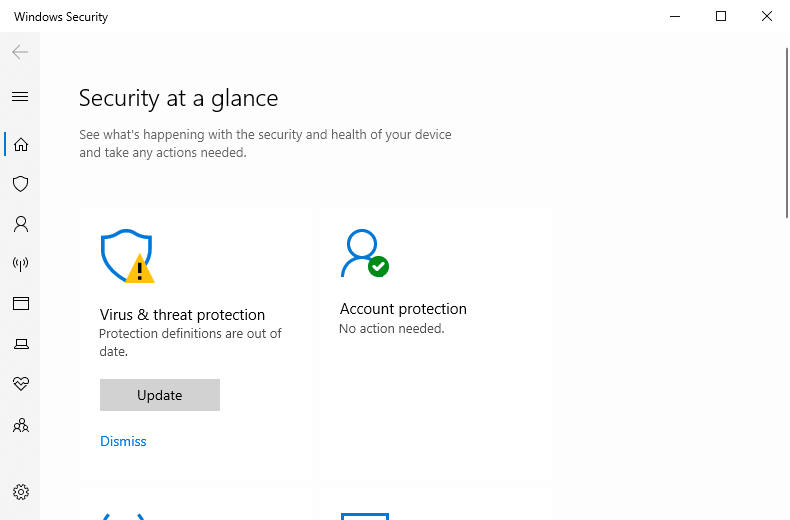
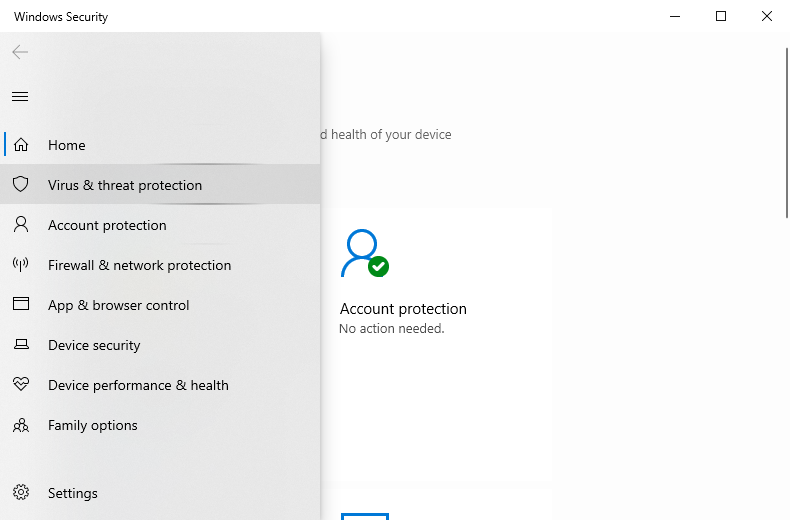
Step 2. Click Virus & threat protection in the left-hand menu.
Step 3. Scroll down the page, locate the Virus & threat protection settings section, and click Manage settings.
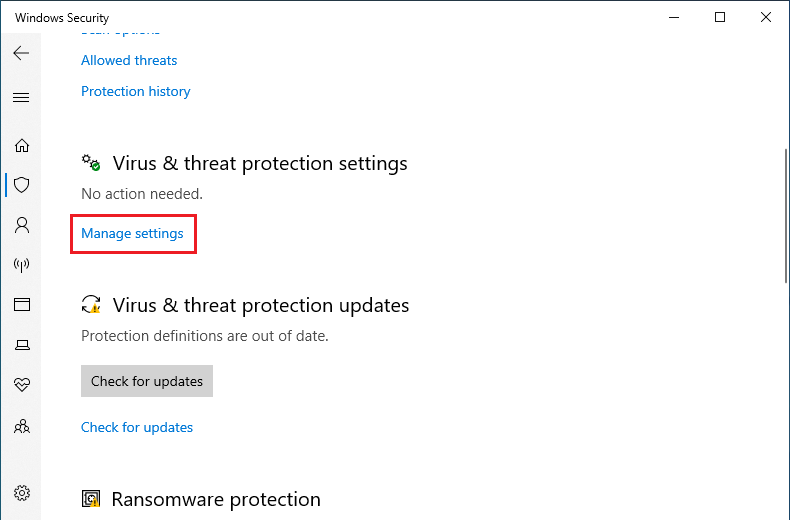
Step 4. Then, on the page that opens, locate Exclusions and click Add or remove exclusions below it.
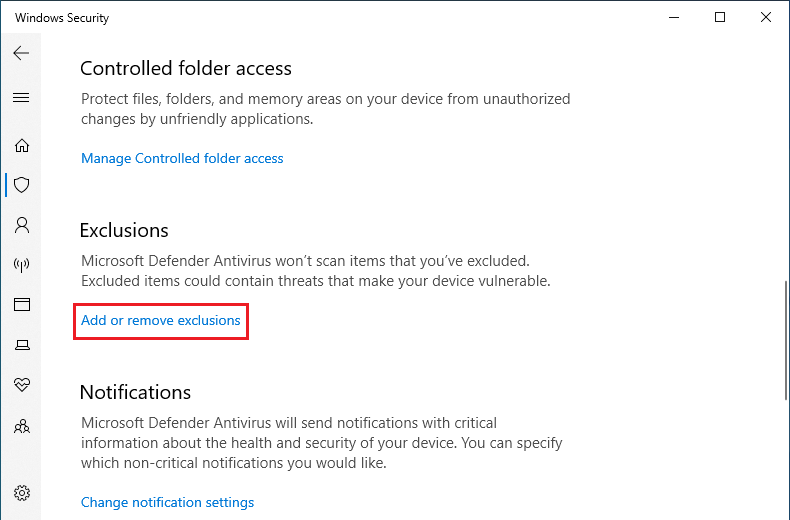
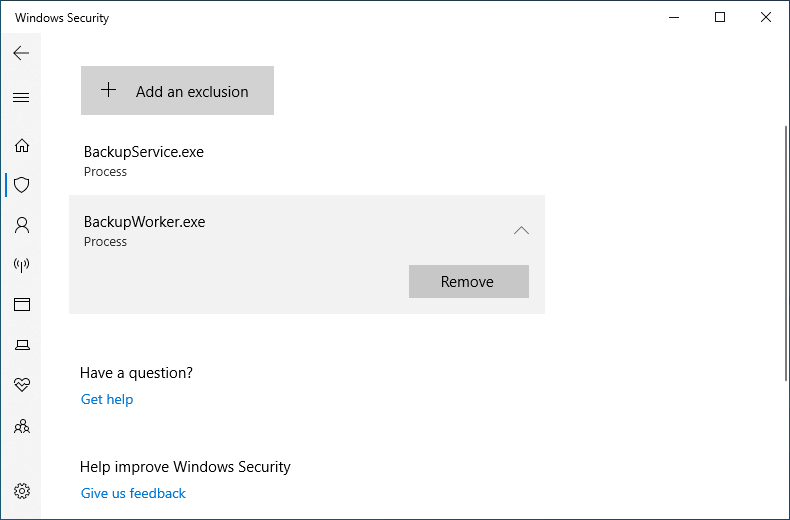
Step 5. On the Exclusions screen, click Add an exclusion and select Process.
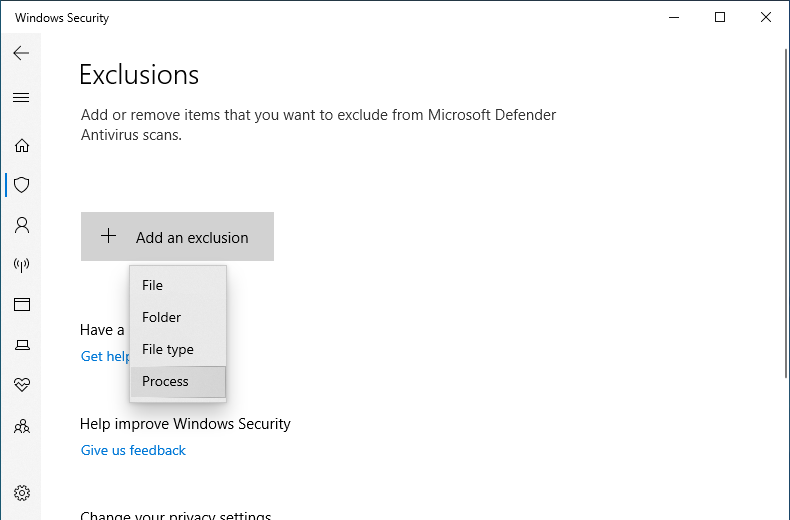
Step 6. In the pop-up box, enter the name of a Hasleo Backup Suite process, such as BackupService.exe.
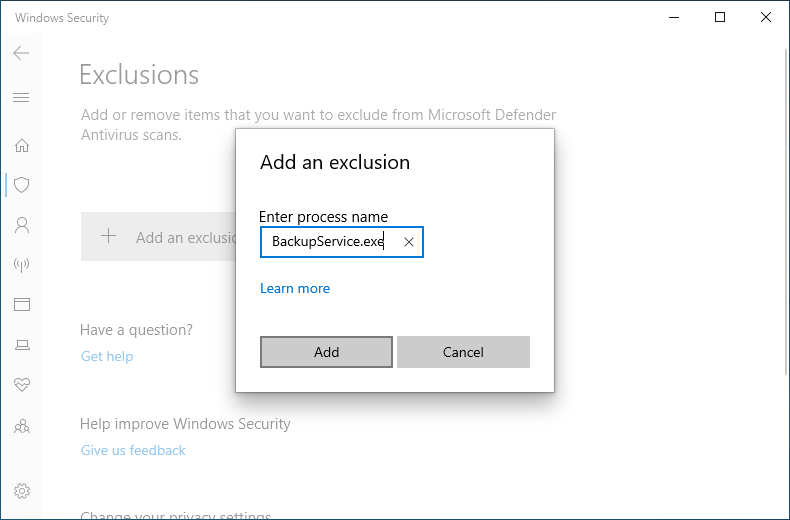
Step 7. Repeat the above steps to add multiple processes. After successfully adding the processes, restart Hasleo Backup Suite and create the emergency disk again
Solution B: Add the Hasleo Process to the Allowlist 💡
Adding the relevant Hasleo Backup Suite processes to the Allowed Apps list in Windows Defender can effectively resolve this issue.
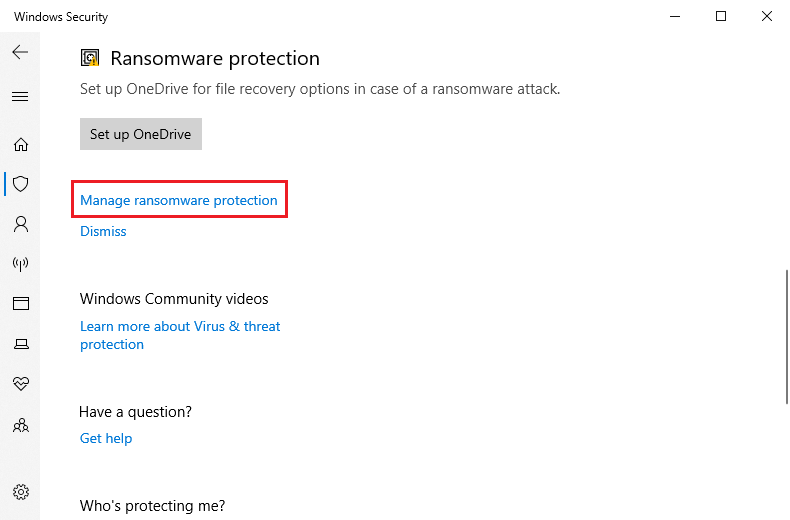
Step 1. Still in the Virus & Threat Protection section, scroll down to locate the Ransomware protection section, then click Manage ransomware protection.
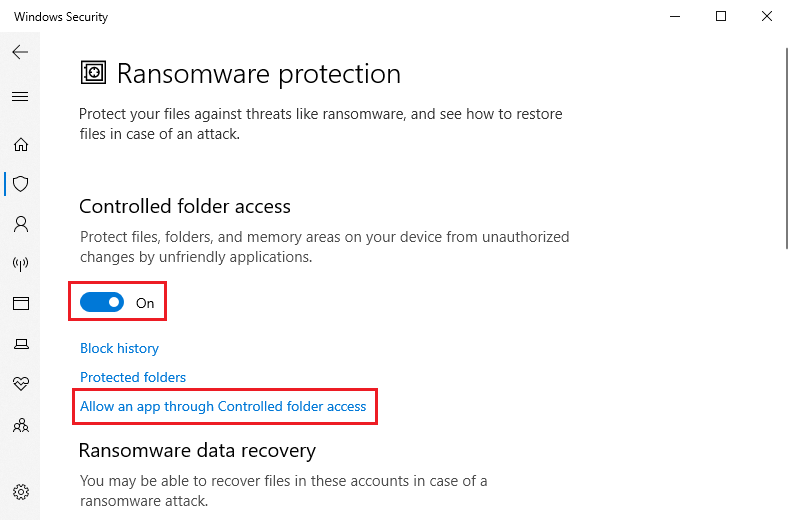
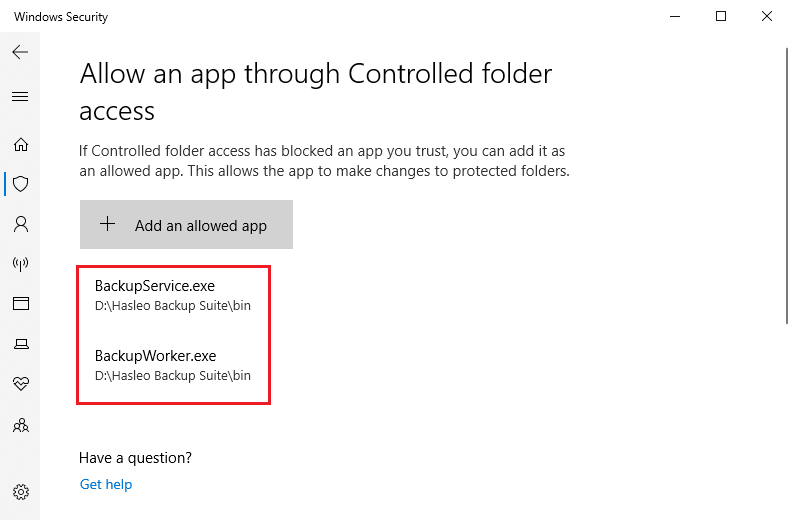
Step 2. Under Controlled folder access, ensure the feature is turned on (if it is off, this issue will not occur). Then click Allow an app through Controlled folder access.
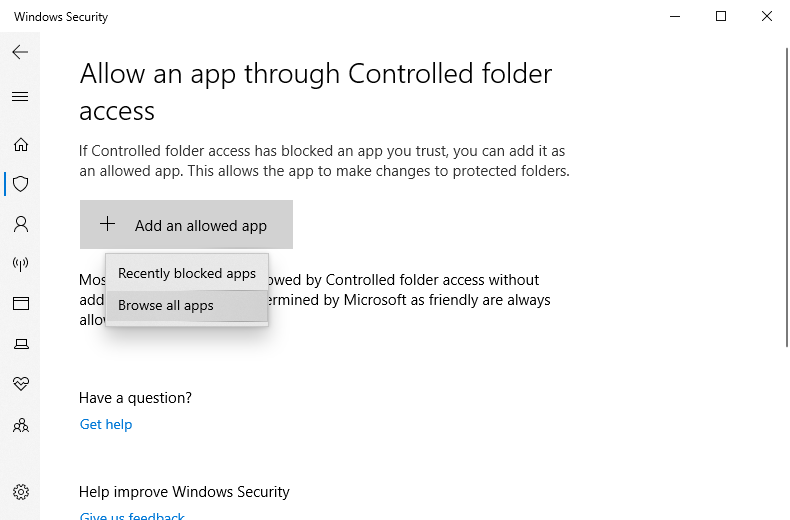
Step 3. Click Add an allowed app, then select Browse all apps.
Step 4. Navigate to the Hasleo Backup Suite installation directory (e.g., C:\Program Files\Hasleo\Hasleo Backup Suite\bin\), locate executable files such as BackupService.exe and BackupWorker.exe, and add them one by one.
Step 5. After successfully adding the files, restart Hasleo Backup Suite and create the emergency disk again - it should now work normally.
Other Possible Causes and Solutions 🎯
If the methods above do not resolve the issue, we recommend troubleshooting with the following steps:
Verify the USB Drive's Status
- Try using a USB drive of a different brand or capacity.
- Check in File Explorer to ensure the drive can be read from and written to normally.
- Run the chkdsk command to check for file system errors.
Verify the Software Installation
- Ensure the bin\WinPE\Program Files directory in the Hasleo Backup Suite installation folder is intact. If it is missing or corrupted, the creation process may fail.
- Try uninstalling and reinstalling Hasleo Backup Suite to restore the complete file structure.
Check Third-Party Antivirus Software
- If you use third-party antivirus software (e.g., Acronis Active Protection, McAfee, Norton), temporarily disable its "Protected Folders" or "MBR Protection" features.
- Alternatively, add the Hasleo process or the entire installation folder to the software's trust list or whitelist.
Frequently Asked Questions 🔥
Q: Why do I get a permission error when creating an emergency disk?
A: This error is typically caused by antivirus software—most commonly Windows Defender's Controlled Folder Access feature—which blocks Hasleo Backup Suite from writing to the USB drive. To resolve it, add the Hasleo processes to the allowed list in Windows Defender.
Q: What if the issue persists after adding Hasleo to the allowed list?
A: Try the following troubleshooting steps: check the USB drive status and try a different drive, verify the software installation is complete, temporarily disable other third-party antivirus software, or check the Windows Security protection history to identify which process was blocked.
Q: Will disabling Controlled Folder Access resolve the issue?
A: You can temporarily disable this feature to test if it is the cause. However, we do not recommend leaving it off for long, as this reduces protection against ransomware.
Q: Do I need to add all .exe files from the Hasleo installation directory?
A: Yes, we recommend adding all .exe files in the installation directory - especially BackupService.exe and BackupWorker.exe - to the Windows Defender exclusion list. This helps prevent antivirus blocking that could cause task creation failures.
Conclusion
If you encounter a "Access is denied" error while creating a Hasleo Backup Suite emergency disk, the root cause is usually your antivirus software blocking the program's attempts to format and write to the USB drive. The fix is simple: add Hasleo Backup Suite to your antivirus whitelist (or exclusion list). This approach maintains real-time protection while granting the necessary permissions, ensuring security and successful emergency disk creation.

Related Articles
- How to Fix 'The System Cannot Find the Device Specified' Error?
- From First Backup to Regular Schedule - A Beginner's Guide to Hasleo Backup Suite
- Best Free Windows Backup Software
- How to Create Full/Differential/Incremental Backups in Windows Using Hasleo Backup Suite Free?
- How to Backup and Restore Windows 11 for Free?


