

- What Does Error Code 0x1B1 Mean?
- How to Fix "The System Cannot Find the Device Specified" Error?
- Other Troubleshooting Suggestions
- Frequently Asked Questions
- Conclusion
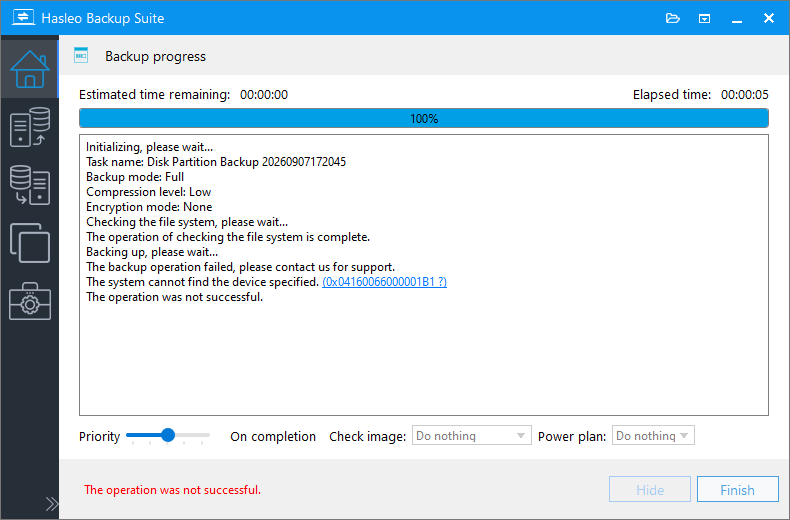
This is a relatively common issue when using an external USB hard drive as a backup destination. It is usually not caused by a flaw in the software itself, but rather by the stability of the USB connection, the external drive's power supply, or Windows power management settings.
What Does Error Code 0x1B1 Mean?
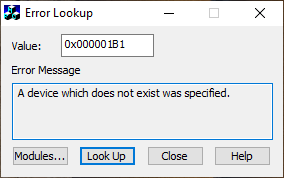
The last 8 bits (000001B1) of error code 0x04160066000001B1 correspond to the error code returned by the Windows kernel. This indicates that Windows returned error 0x1B1 (A device which does not exist was specified), which typically means the destination disk (your Seagate external hard drive) was improperly removed or disconnected while a backup or cloning task was in progress.
Common Causes
Physical connection issues
Poor-quality USB cables, loose connectors, or underpowered front-panel USB ports can cause detection failures or intermittent disconnections.
Insufficient power supply
2.5-inch portable drives draw power entirely from the USB port. During sustained high-volume writes, insufficient power may cause undervoltage disconnects.
Windows power management interference
The "USB Selective Suspend" feature is enabled by default, allowing the system to power down idle ports. During prolonged intensive read/write operations, the system may incorrectly suspend the port, leading to error 0x1B1.
Bridge chip incompatibility
Enclosure bridge chips (e.g., JMS, ASM, Realtek) vary in driver behavior and power-saving logic. Some lower-cost or older chips don't handle Windows' UASP protocol reliably, causing resets or disconnects during large data transfers.
External drive firmware
Some HDDs/SSDs have aggressive power-saving firmware (e.g., auto-hibernation). During backups, the drive may actively enter low-power mode and interrupt the process.
How to Fix "The System Cannot Find the Device Specified" Error? ⭐
Please try the following methods in order.
Check Physical Connections and Hardware
First, rule out potential sources of instability at the physical level.
Try a different USB port
Connect the hard drive to a USB port on the back of the computer. These ports are soldered directly to the motherboard, so their power supply is typically more stable than front-panel ports.
Replace the USB cable
Try using another high-quality USB cable to eliminate the possibility of a faulty cable.
Check the hard drive's status
Ensure the drive is securely connected. If possible, perform a simple file copy test on another computer to verify whether the drive has any read/write issues.
Disable USB Selective Suspend Settings
Disabling this feature prevents Windows from automatically suspending USB ports to save power, ensuring a stable and uninterrupted backup and clone process.
Step 1. Open Control Panel and go to System and Security.
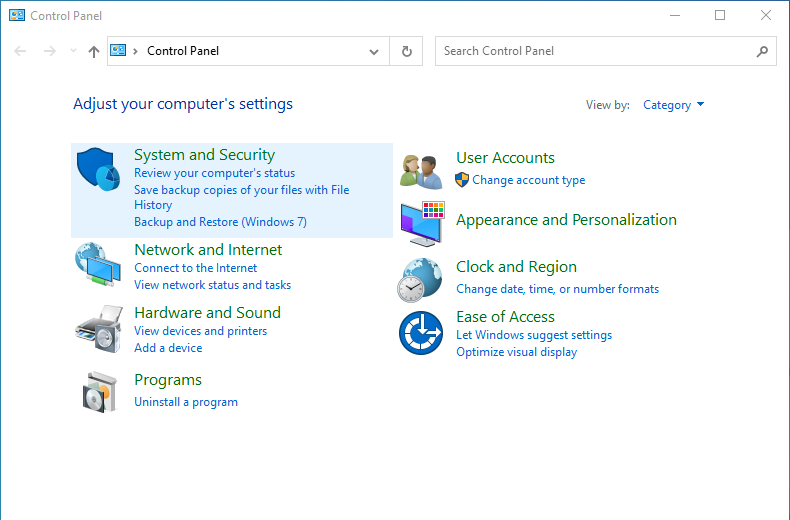
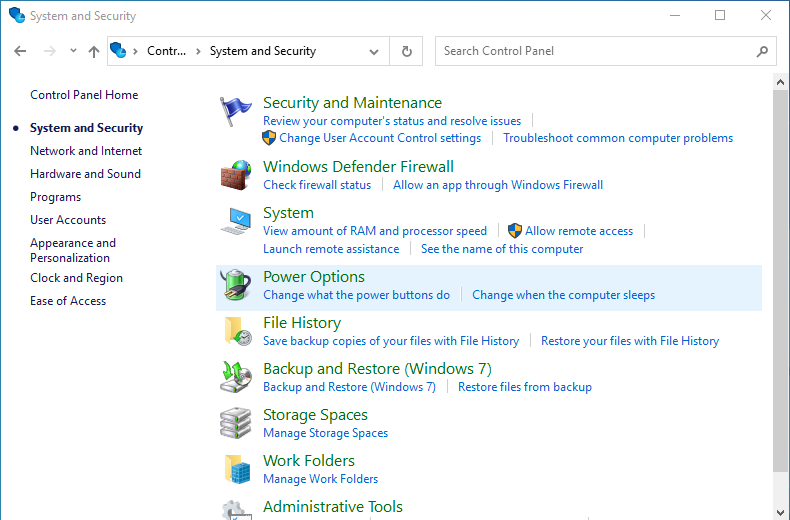
Step 2. In the navigation page, select Power Options.
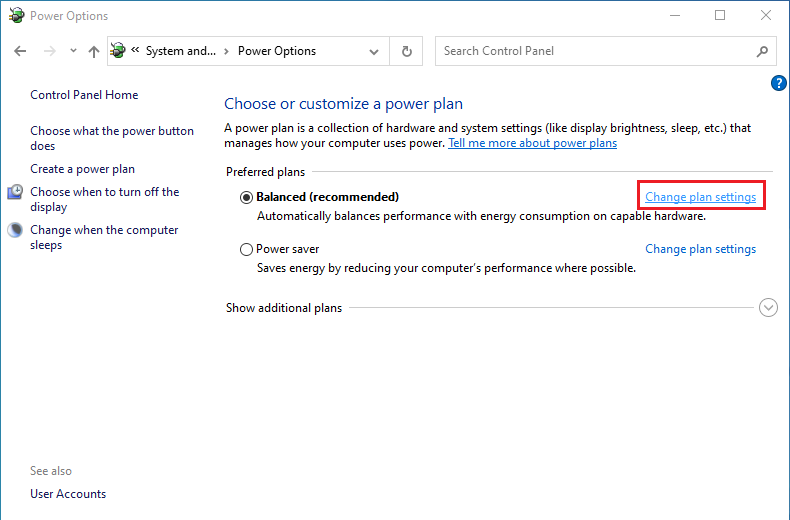
Step 3. Next to the power plan currently in use (e.g., Balanced or High Performance), click Change plan settings.
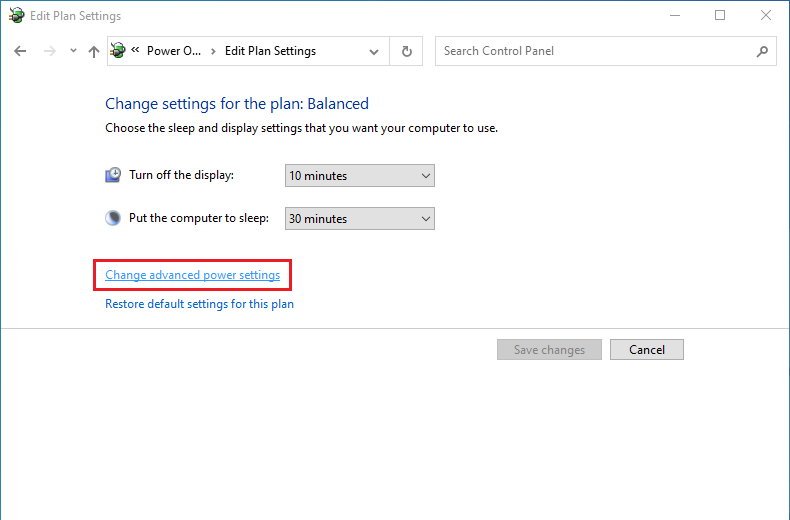
Step 4. In the interface, locate and click Change advanced power settings.
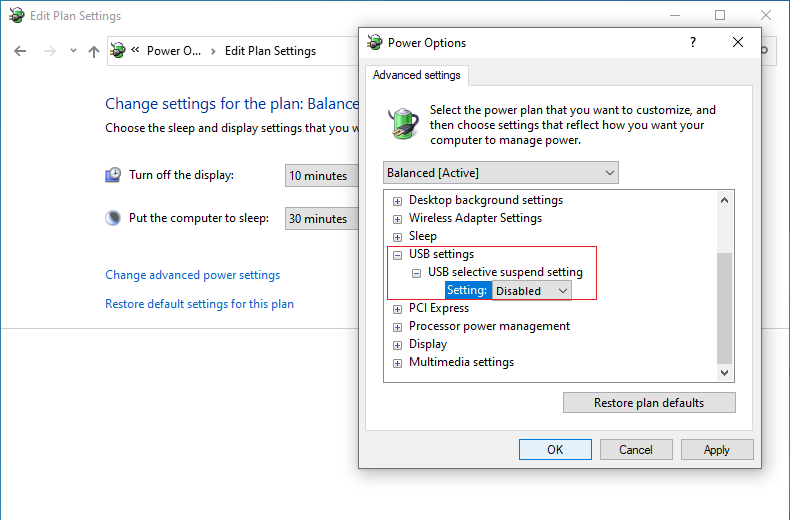
Step 5. In the Power Options window, scroll down, locate and double-click to expand USB Settings > USB selective suspend setting, then set it to Disabled.
(Optional) For long-term backups or large data cloning, it is recommended to set Turn off hard disk after (Minutes) to 0 under the Hard disk settings.
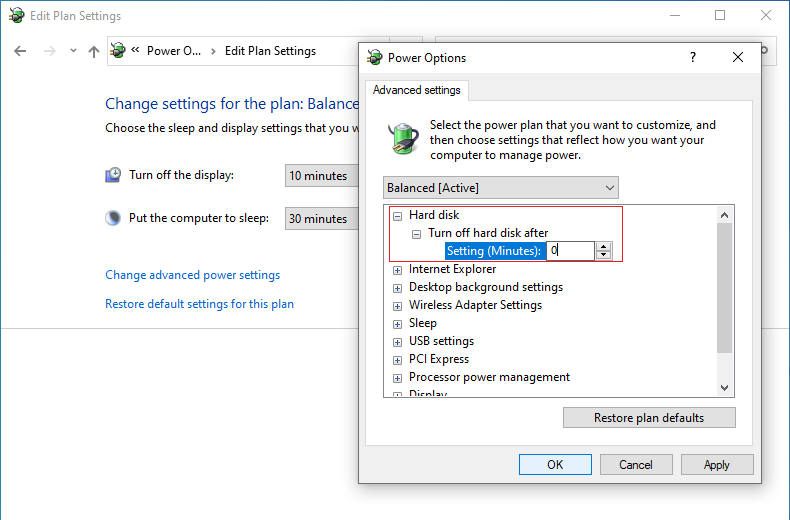
Hard disk: Configure power management settings for the hard disk.
Turn off hard disk after: Specify the idle time after which the hard disk is turned off.
Step 6. Click OK to save the settings.
Update to the Latest Version
Ensure you are running the latest version of Hasleo Backup Suite. Software updates often include compatibility optimizations for specific hardware, USB drivers, and other components. Download the latest version from the official Hasleo website.
Other Troubleshooting Suggestions 🎯
If the problem persists after completing the steps above, consider the following more in-depth troubleshooting methods:
Replace the USB External Hard Drive Enclosure/Dock
Remove your hard drive from its original enclosure and install it in another external enclosure or dock. Note: On some models, the USB port may be directly soldered to the hard drive itself, making replacement impossible. If the issue is resolved, it indicates a compatibility problem with the bridge chip or circuitry in the original enclosure.
Replace the Hard Drive or SSD with a Well-known Brand
Try using another USB drive from a reputable brand, especially one with a built-in HDD or SSD. If the backup succeeds, the issue is likely due to the power-saving policies in your original drive's firmware or its hardware characteristics.
Use a USB Hub with an External Power Supply
If your hard drive does not have its own power adapter, connect it to a USB hub with a separate power adapter to provide more stable and sufficient power. This helps prevent disconnections caused by insufficient power from the motherboard's USB ports.
Check Power Management Settings in Device Manager
In addition to the global settings in the power plan, each USB controller port has its own power management options.
Step 1. Right-click the Start button and select Device Manager.
Step 2. Double-click to expand Universal Serial Bus controllers.
Step 3. Right-click each USB Root Hub or Generic USB Hub, then select Properties.
Step 4. Go to the Power Management tab, and uncheck Allow the computer to turn off this device to save power.
Step 5. Click OK and repeat for each hub.
Test with a Different External Hard Drive
If possible, try backing up or cloning your data using a different external hard drive (preferably from a different brand or model) to determine whether the issue is specific to your current device.
Frequently Asked Questions 🔥
Q: What does error code 0x1B1 mean?
A: Error code 0x1B1 corresponds to the Windows system error "A device which does not exist was specified." This typically indicates that the destination disk was disconnected or went offline during a backup or cloning operation.
Q: Does error code 0x1B1 only occur on Seagate hard drives?
A: No. This is a generic Windows disk write error that is not specific to any brand. It can occur on any external USB drive or flash drive if the connection is interrupted during the write process.
Q: Will disabling USB selective suspend affect my laptop's battery life?
A: Yes. After disabling this feature, all connected USB devices will stay active and no longer enter low-power mode. This will cause a slight increase in battery consumption.
Conclusion
If a backup fails with the error "The System Cannot Find the Device Specified", the issue is typically related to the stability of the external hard drive connection. In most cases, this can be resolved by troubleshooting hardware compatibility:
- Switch to a stable USB port (preferably on the back of the computer).
- Disable Windows' USB Selective Suspend feature.
- If the issue persists, try replacing the external hard drive enclosure or the drive itself.
Hasleo Backup Suite is a stable and reliable backup tool. Proper configuration of external devices is key to ensuring backup tasks complete successfully. For further assistance, please visit the official Hasleo forum or contact our technical support team.


