

- Why back up Surface ARM64 to an external hard drive?
- Overview of Hasleo Backup Suite
- How to Back Up Surface (ARM64) Disk to External Hard Drive Using Hasleo Backup Suite?
- Verify backup files
- Frequently Asked Questions
- Conclusion
Devices based on ARM64 architecture such as Microsoft Surface Pro X, Surface Pro 9 with 5G, and Surface Pro 11 Edition are equipped with Qualcomm Snapdragon processors. While providing excellent battery life and portability, these devices also have limited storage space that is not easily expandable, making backing up the entire disk to an external hard drive an important data protection measure. This tutorial will detail how to use Hasleo Backup Suite to back up Surface (ARM64) disk to an external hard drive.
Why back up Surface ARM64 to an external hard drive?
Microsoft Surface ARM64 devices, such as Surface Pro X, Surface Pro 9 with 5G, and Surface Pro 11 Edition, use ARM architecture processors and offer excellent energy efficiency and portability. However, the backup requirements for these devices differ from traditional Windows computers:
- Storage devices are not easily replaceable: Some Surface ARM64 devices use onboard SSDs that cannot be easily replaced like traditional laptops. Once the SSD fails, data cannot be recovered.
- Limited storage space: Surface devices typically offer storage options of 128GB, 256GB, or 512GB, with high upgrade costs. Backing up data to an external hard drive can effectively free up device storage space.
- Difficult system recovery: ARM64 system recovery media and recovery methods are different from x86 systems. Having backups prepared in advance allows for quick work recovery when the system crashes.
- Data security protection: External hard drive backup provides offline storage protection, allowing system and data recovery from the external hard drive even if the device is lost or damaged.
- Cross-device migration: When needing to replace with a new Surface device, the backup disk image can be restored to the new device, saving time on reconfiguring the system.
Overview of Hasleo Backup Suite👑
Hasleo Backup Suite is a professional Windows system backup and cloning software, natively optimized for the ARM64 platform. As the best backup solution for Windows ARM64 devices, Hasleo Backup Suite offers the following core features:
- ✅Native ARM64 support: Hasleo Backup Suite specifically offers an ARM64 version that can directly utilize ARM64 processor instructions, fully leveraging hardware performance during backup while effectively reducing power consumption and extending Surface device battery life.
- ✅Disk cloning function: Provides system, disk, and partition cloning functions. Can directly clone the system on Surface devices to another disk for lossless system migration.
- ✅Disk backup and restore: Supports complete disk backup, allowing one-click backup of all partitions, data, and system settings on the entire disk. When disk failures or data corruption occur, it can quickly restore to the complete state at the time of backup.
- ✅Multiple backup modes: Supports full, incremental, and differential backup modes. After the initial full backup, only changed files can be backed up, saving storage space and backup time.
- ✅Scheduled and automatic backups: Supports setting up automatic backup plans that can perform backup tasks daily, weekly, monthly, or event-triggered on a regular basis, ensuring data is always up to date.
- ✅Backup encryption protection: Supports AES encryption for backup files, ensuring backup data security and preventing unauthorized access.
- ✅WinPE emergency recovery media: Can create bootable WinPE emergency recovery disks that allow restoring system images from external hard drives when the system cannot boot.
- ✅Compression and integrity verification: Supports different levels of backup compression, allowing balance between backup file size and CPU usage. Also provides image verification functions to ensure backup file completeness and recoverability.
- ✅Truly free core features: The Free edition offers powerful backup, clone, and restore functionality to fully protect your Surface ARM64 device at no cost.

Download Hasleo Backup Suite to start protecting your Surface ARM64 device disk. For complete data security, it is recommended to also create a bootable WinPE emergency recovery disk.
How to Back Up Surface (ARM64) Disk to External Hard Drive Using Hasleo Backup Suite?
Pre-backup preparation:
- Prepare a suitable external drive: Use a drive with capacity equal to or greater than your Surface's internal disk. For optimal speed, choose a USB 3.0+ external SSD.
- Connect external hard drive: Connect the external hard drive to the Surface device's USB-C or USB-A port. Using the USB-C interface is recommended for faster backup speed.
- Verify the file system: Format the drive as NTFS (recommended for Windows backup) to support large files.
- Ensure sufficient free space: Confirm the external hard drive has sufficient free space to store the complete disk backup. It is recommended to reserve at least 20% extra space for future incremental backup needs.
- Close other programs: Before starting, close all non-essential programs and pause cloud sync services (e.g., OneDrive) to ensure backup stability.
Follow these steps to back up Surface ARM64 disk to an external drive using Hasleo Backup Suite:
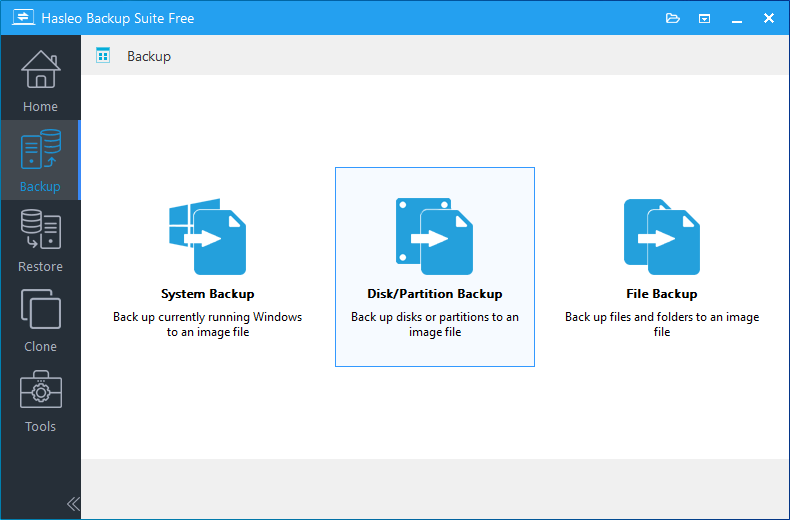
Step 1. Download, install, and run Hasleo Backup Suite (ARM64 version). Click the "Backup" button in the navigation bar, then select the "Disk/Partition Backup" button in the operation area.
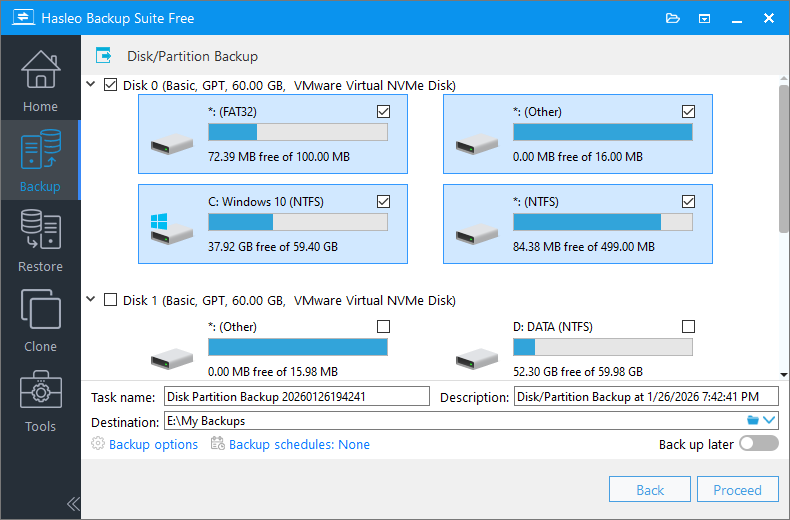
Step 2. Hasleo Backup Suite will display all detected disk lists. Select the disk corresponding to your Surface device (usually Disk 0) and ensure all its partitions are checked. Customize the task name, description, and backup options as needed, then specify your external hard drive as the backup destination.
💡Tips:
- Task name: Specify a task name so that you can quickly find and manage your backup task later.
- Description: Briefly describe the purpose of the task and any other relevant information.
- Destination: Modify the destination path where the backup image files will be stored by clicking the folder icon.
- Backup options: Advanced backup settings. For more details, please refer to Backup options.
- Backup schedule: Set up backup schedules to automatically perform your backup tasks on a regular basis. For more details, please refer to Backup schedule.
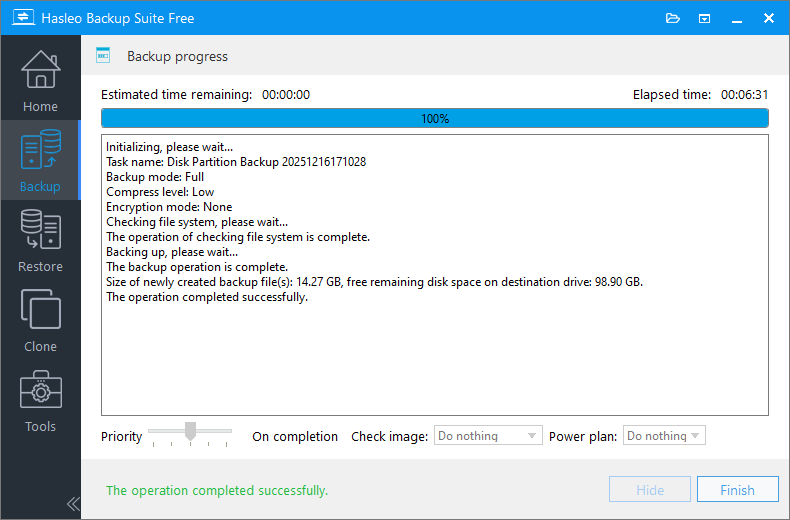
Step 3. After clicking "Proceed", Hasleo Backup Suite will begin backing up your Surface disk to the external drive. Backup time depends on the size of data to be backed up; please be patient.
💡Tips:
- Priority: Specify a priority for the backup process. A higher priority allocates more CPU time to the backup, which may cause other programs to run slower.
- Check image: Verify the integrity of the backup image files upon completion of the backup process.
- Power plan: Perform the power management action after the backup is complete.
Verify backup files
To ensure backup completeness and recoverability, the following verifications are recommended:
- ☑Check file size: After backup completion, check the backup folder on the external hard drive to confirm the image file size is reasonable. Disk image file size should be close to the used space on the Surface device disk.
- ☑Verify image integrity: In Hasleo Backup Suite homepage, find the completed backup task, click the "Actions" menu, and select the 'Check Image' function to verify backup image integrity.
- ☑Create bootable media: To enable recovery when the system cannot boot, it is recommended to create a bootable WinPE emergency recovery disk in advance to ensure complete Surface disk recovery during system crashes.
- ☑Regularly update backups: It is recommended to perform at least one complete disk backup per month, or immediately back up after major system changes (such as installing new software, updating drivers, or storing large amounts of new data).
Frequently Asked Questions
A: Run Hasleo Backup Suite (ARM64 version), click Backup > Disk/Partition Backup, select your Surface disk, choose the external hard drive as destination, and click Proceed to start the backup.
A: Use an external drive with capacity at least equal to your Surface's internal disk. It is recommended to reserve at least 20% extra space for future incremental backups. USB 3.0+ external SSD is recommended for optimal speed.
A: Yes, Hasleo Backup Suite provides native ARM64 version specifically optimized for Surface Pro X, Surface Pro 9 with 5G, Surface Pro 11 Edition, and other ARM64-based Windows devices.
A: Yes. Hasleo Backup Suite ARM64 supports restoring system backup images to either the original disk or a new disk. Even if the new disk is a blank drive, there is no need to install the operating system or manually partition it beforehand. During the restoration process, the program automatically creates partitions and writes the data. Once the restoration is complete, the device will boot up and function normally, exactly as it did before.
A: Backup time depends on the data size and connection speed. Using USB 3.0, a 256GB Surface disk typically takes 20-40 minutes. Larger disks will take proportionally longer.
A: You can create a WinPE emergency recovery disk in advance using Hasleo Backup Suite ARM64. When the system fails to boot, start the computer from the WinPE media and then restore the system using the backup image. This allows you to repair or restore the system without needing to access the main operating system.
A: Yes, Hasleo Backup Suite supports AES 128/256-bit encryption for backup images. You can enable encryption in backup options to protect sensitive data.
A: It is recommended to perform at least one complete disk backup per month, or immediately after major system changes such as installing new software, updating drivers, or storing large amounts of new data.
Conclusion
Using Hasleo Backup Suite to back up Surface (ARM64) disk to an external hard drive is a safe and efficient data protection method. Compared to system backup, disk backup can protect all data on the disk, including personal files, application settings, and system configurations, allowing complete restoration to the backup state when disk failures occur. Hasleo Backup Suite not only supports disk backup but also system backup, partition backup, and file backup to meet various backup needs of Surface devices. As a native ARM64 application, Hasleo Backup Suite is specifically optimized for the ARM64 platform, fully leveraging ARM processor performance advantages while reducing power consumption. Additionally, you can use Hasleo Backup Suite's disk cloning function to directly clone Surface disks to another hard drive or SSD for more flexible system migration and data protection.


