

- Why should you back up an external hard drive to another one?
- Best Windows backup software—Hasleo Backup Suite
- How to Back Up Data from One External Hard Drive to Another Using Hasleo Backup Suite?
- Establish the 3-2-1 Backup Rule
- Frequently Asked Questions
- Summary
External hard drives are popular for their portability, but they also face risks such as accidental drops, loss, or data corruption. Once any of these occur, it may result in internal data damage or loss. To ensure data safety, it is most reliable to regularly back up the data to another independent storage medium (such as another external hard drive). This guide will explain in detail how to back up between external hard drives in the simplest and most convenient way, with the core method being the use of the best backup tool—Hasleo Backup Suite.
Why should you back up an external hard drive to another one?
As a physical storage medium, an external hard drive has a limited lifespan, and prolonged use or accidental damage may lead to data loss. Therefore, regularly backing up an external hard drive to another external hard drive is a key measure to ensure data security. Moreover, effective data backup can bring multiple advantages.
- Prevent data loss caused by physical damage to the hard drive, accidental loss, or human error, ensuring the security and integrity of data.
- By using incremental backups or performing regular backup tasks, you can restore your data to a specific point in time, which is beneficial for version management or retrieving older file versions.
- When your primary external hard drive needs repair or is out of service, you can switch to the backup external hard drive for immediate data access. This ensures work continuity and data availability.
- Compared to the ongoing subscription costs of cloud backups, a one-time investment in an external hard drive is more economical, especially for large volumes of data.
Best Windows backup software—Hasleo Backup Suite
Compared to manual copy operations, Hasleo Backup Suite, as a professional backup software, can fully back up the source external disk to the target external disk on a sector-by-sector basis, ensuring data integrity; it supports incremental and differential backup modes, backing up only the changed data blocks, which not only significantly improves backup speed but also effectively saves storage space. Unlike Windows' built-in Robocopy, Hasleo Backup Suite does not require writing complex scripts, and the backup task can be completed simply by following the guided steps, making it extremely user-friendly. In addition, Hasleo Backup Suite also has the following notable features:
- Comprehensive and powerful: Its backup and restore features let you create system images effortlessly and recover from crashes instantly, while the cloning function promotes seamless data migration.
- Advanced technology and excellent performance: Compatible with all Windows PCs and servers, it supports Windows x86/x64 and ARM64 architectures. It boots in both UEFI and Legacy BIOS modes, ensures safe and stable program running, and operates with high efficiency and low power consumption.
- Multiple backup modes: It supports full, incremental and differential backups. Following an initial full backup, both incremental and differential backups save time and storage space by only copying the data that has changed.
- Features compression and encryption: It allows you to compress backup images to save disk space and encrypt them to protect your important data.
- Practical Toolbox: Here you can access advanced features like creating a WinPE emergency disk, merging backup images, and securely wiping disks.
- Intuitive and user-friendly interface: The interface design is clear, with the main functions immediately obvious, and guided prompts allow even beginners to get started quickly.
How to Back Up Data from One External Hard Drive to Another Using Hasleo Backup Suite?
Step 1. Connect the two external hard drives to your computer via USB or SATA cables and wait for Windows to recognize them. Then, download, install, and run Hasleo Backup Suite Free. Click the "Backup" button in the navigation bar and select "Disk/Partition Backup" in the operation area.
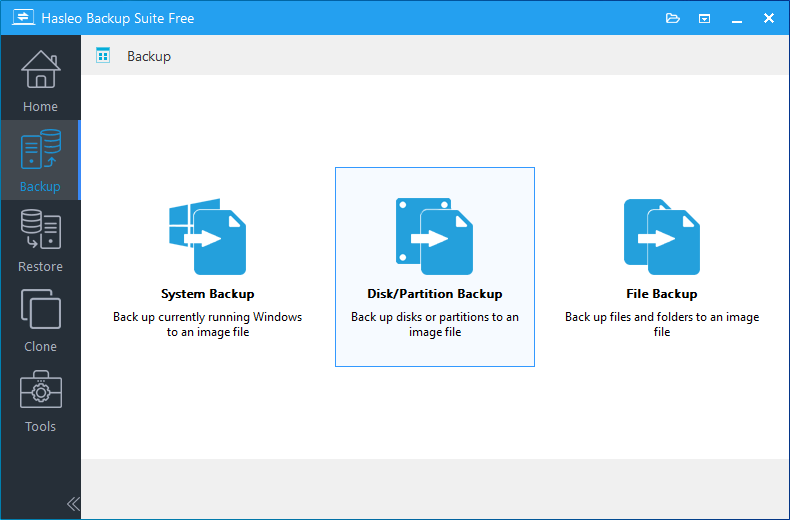
* Tips: If the computer does not fully recognize the external hard drive, it is recommended to check the following: whether the USB port and data cable are connected properly, whether the disk appears in Disk Management, and whether the USB driver is available.
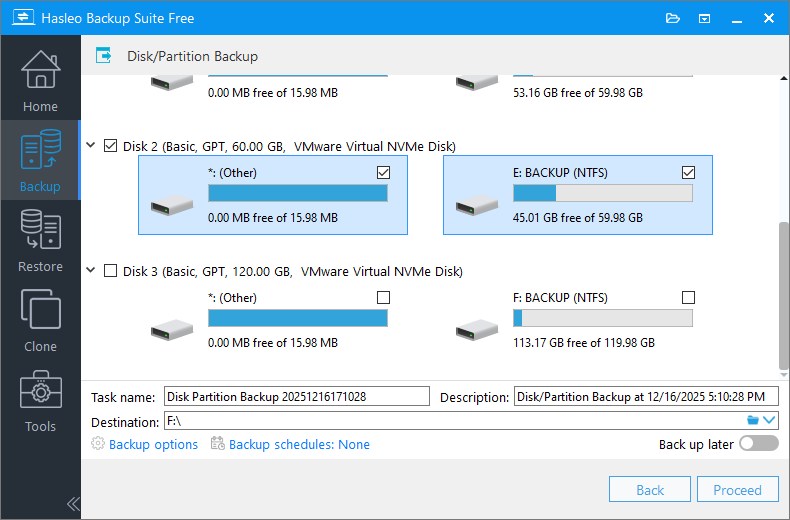
Step 2. Select the external hard drive containing your data you want to back up as the source disk, and customize the task name, description, and backup options as needed. Then, set another external hard drive as the destination. Finally, click "Proceed" to start the backup.
* Tips:
- Task name: Specify a task name so that you can quickly find and manage your backup task later.
- Description: Briefly describe the purpose of the task and any other relevant information.
- Destination: Modify the destination path where the backup image files will be stored by clicking the folder icon.
- Backup options: Advanced backup settings. For more details, please refer to Backup options.
- Backup schedule: Set up backup schedules to automatically perform your backup tasks on a regular basis. For more details, please refer to Backup schedule.
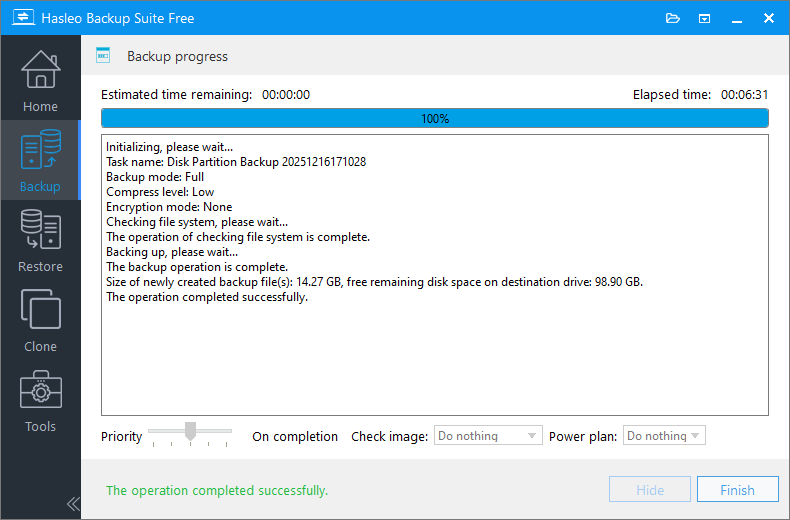
Step 3. Hasleo Backup Suite Free has started backing up from the source external hard drive to the target external hard drive. The operation will take some time; please be patient.
* Tips:
- Priority: Specify a priority for the backup process. A higher priority allocates more CPU time to the backup, which may cause other programs to run slower.
- Check image: Verify the integrity of the backup image files upon completion of the backup process.
- Power plan: Perform the power management action after the backup is complete.
Establish the 3-2-1 Backup Rule
The 3-2-1 backup rule is one of the recognized best practices in the field of data protection and effectively safeguards against the vast majority of data loss risks.
Core Elements of the 3-2-1 Rule:
- 3 Backup Copies (3 Copies): Maintain at least 3 complete data copies, including the original data and 2 backups
- 2 Different Media (2 Different Media): Use 2 different types of storage media for backup data
- 1 Offsite Copy (1 Offsite Copy): Store at least 1 backup offsite or in the cloud
Benefits of Following the 3-2-1 Rule:
- Multiple Protections: Any single failure will not result in complete data loss
- Risk Diversification: Different storage media and locations reduce systemic risks
- Quick Recovery: Local backups enable rapid recovery, offsite backups ensure data security in extreme situations
- Cost-Effectiveness: Backup costs are negligible compared to losses from data loss
- Compliance Requirements: Meet enterprise data protection and regulatory compliance requirements
Design Backup Frequency and Retention Period:
Different copies should have different update frequencies to balance the data loss window with storage costs.
| Type | Update Frequency | Retention Period | Applicable Situations |
| Original Disk | Daily | Latest Version | Data used on a daily basis |
| Local Copy | Weekly | In the last 3 to 6 months | For quick recovery of accidentally deleted or damaged files |
| Offsite Copy | Monthly | At least the past month | Responding to local disasters |
Tips: You can adjust the update frequency and retention period based on your actual needs.
Frequently Asked Questions
A: Connect both external hard drives to your computer, then use Hasleo Backup Suite to perform a Disk/Partition Backup. Select the source external drive as the backup source and the second external drive as the destination.
A: External hard drives can fail due to physical damage, accidental loss, or data corruption. Regular backups to another external drive ensure data integrity and provide disaster recovery capabilities.
A: Hasleo Backup Suite is the best Windows backup software for external drive backups. It supports full, incremental, and differential backup modes, ensuring data integrity while saving storage space.
A: Yes, Hasleo Backup Suite supports backup scheduling. You can set up automatic backup schedules (Daily, Weekly, Monthly, or Event Trigger) to automatically back up your external hard drive.
A: Incremental backup only backs up data changed since the last backup (full or incremental). Differential backup backs up all changes since the last full backup. Both save time and storage space compared to full backups.
A: Backup time depends on the amount of data on the source drive and the connection speed (USB 2.0/3.0). A full backup of a 1TB drive via USB 3.0 typically takes 30 minutes to 2 hours.
A: Yes, you can restore backup images to the original drive or a different drive using Hasleo Backup Suite. The restore function allows you to select the destination disk during the restoration process.
A: It is recommended to format the destination external drive to NTFS file system to support files larger than 4GB. Make sure the destination drive has enough capacity to store the backup images.
Summary
To prevent data loss from external hard drives due to physical damage or accidental deletion, backing them up to another external hard drive is an economical and effective way to protect your data. We recommend using Hasleo Backup Suite to perform this backup, as it is simple and convenient to operate while ensuring data integrity. After completing the first full backup, you can also choose incremental or differential backup modes to save storage space. In addition, you can set a backup schedule to allow Hasleo Backup Suite to automatically perform subsequent backup tasks. Explore more advanced features by downloading it now and start your backup journey!
Related Articles
- From First Backup to Regular Schedule - A Beginner's Guide to Hasleo Backup Suite
- How to back up and restore Windows 11 for free?
- How to Encrypt Backup Tasks Using Hasleo Backup Suite Free?
- Best Windows Server Backup and Restore Software in 2026
- How to Use the Deduplication in Hasleo Backup Suite to Save Storage Space?


