

- Why would you clone data from one disk to another?
- Best Windows disk clone software—Hasleo Backup Suite
- How to Clone Data from One Hard Drive to Another Using Hasleo Backup Suite?
- Frequently Asked Questions
- Summary
When facing insufficient hard drive space, disk failure, or the need to upgrade to a larger drive, data migration becomes a critical task. At this time, a reliable and powerful disk cloning tool can be your valuable assistant. This guide will detail how to use Hasleo Backup Suite to clone data from your old drive to a new one safely and efficiently.
Why would you clone data from one disk to another?
In daily computer use, we often need to copy all data from one hard drive to another—a process known as disk cloning. This operation involves several key considerations:
- System migration and upgrade: Suitable for replacing old disks, updating devices, or upgrading to drives with larger capacity and higher performance.
- Data security and backup: Create a complete system image, allowing immediate boot from the cloned disk in case of a system failure. Alternatively, fully clone important data to another disk, enhancing storage safety and reliability.
- Troubleshooting and recovery: When a hard drive shows signs of failure, promptly attempt to salvage data from it or clone a healthy system to a new replacement drive.
- Work efficiency and deployment: In an enterprise environment, it enables the rapid deployment of identical system images to multiple computers and the safe cloning of production environments for testing without risk to the original.
- Data organisation and optimisation: The cloning function allows for the reallocation of partition structures and capacity, or the optimisation of storage layout by selectively cloning to exclude unwanted files.
Best Windows disk clone software—Hasleo Backup Suite
There are many disk cloning software options on the market, and choosing a product that is safe, stable, efficient and easy to use is crucial. Hasleo Backup Suite is your ideal choice, combining backup, restore and cloning functions in one, offering comprehensive features and wide applicability. Its unique Delta Clone function allows only the changed data blocks to be synchronised to the target disk after the initial full clone, significantly improving cloning efficiency. This feature is especially suitable for users who frequently update files or need continuous backups, helping you achieve efficient data synchronisation and management with ease. In addition, its cloning function also has the following notable advantages:
- Supports system, disk, and partition cloning with extremely fast speed.
- Provides various disk alignment modes and allows adjusting the size of the target partition.
- Supports Delta clone and sector-by-sector cloning of disks and partitions.
- Supports MBR to GPT or GPT to MBR conversion during the cloning process.
- Compatible with all storage drive types, such as IDE, SATA, SCSI, USB and NVMe.
- Supports running on Windows Vista/Server 2008 and later (both 32-bit and 64-bit architectures).
How to Clone Data from One Hard Drive to Another Using Hasleo Backup Suite?
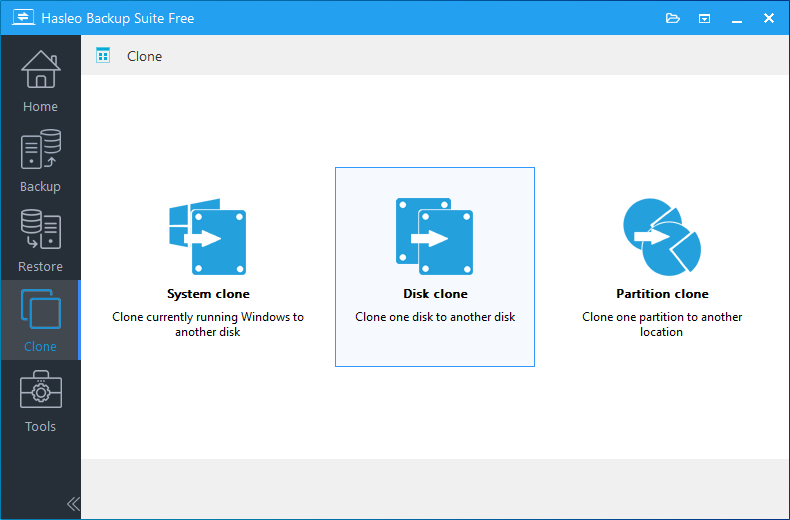
Step 1. Download, install, and run Hasleo Backup Suite. Click the "Clone" button in the navigation bar, then click the "Disk clone" button in the operation area.
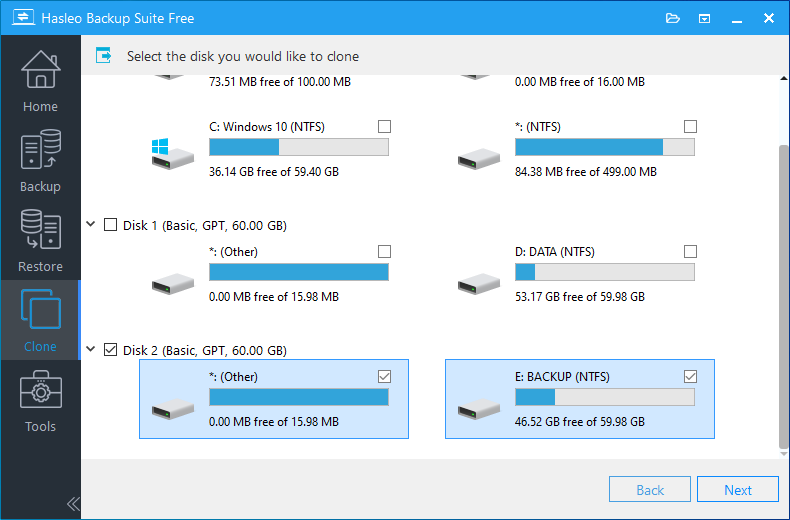
Step 2. Select the disk you want to clone and click "Next".
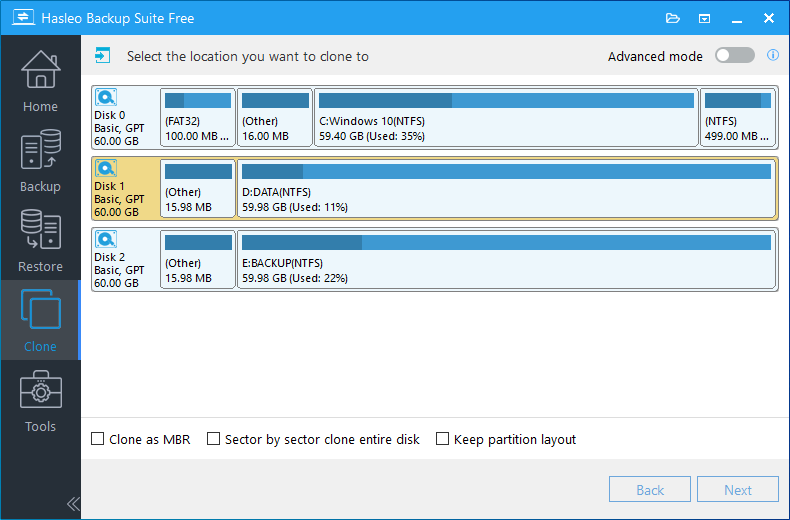
Step 3. Select the target disk and click "Next".
* Tips:
- Clone as MBR/GPT: During a full disk clone (especially for the system disk), you can choose to convert the partition table of the target disk to either MBR or GPT format.
- Delta Clone: If a full clone of the source disk already exists on the target disk, only the data changed since the last full clone will be copied. To use Delta Clone, please upgrade to the Home, Professional, Server or Enterprise version.
- Sector by sector clone entire disk: Performs a bit-for-bit copy of the entire source disk to the target disk, including all sectors including used, unused, and deleted data space.
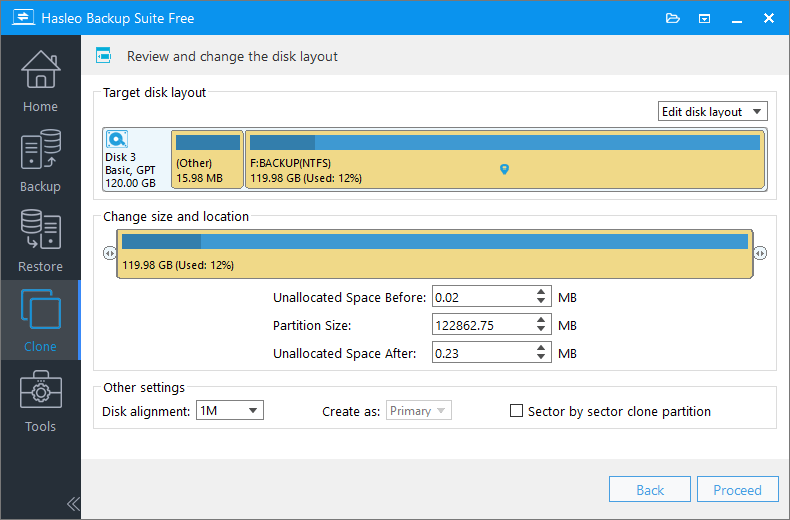
Step 4. Adjust the size and position of the partition as needed, then click "Proceed".
* Disk alignment:
- 1M (Recommended): 1M alignment is a subset of 4K alignment. Partitions aligned to 1MB are always 4K-aligned, which helps you get the best SSD performance. In Windows Vista and later operating systems, partitions created using Windows Disk Management are always aligned to 1MB bytes, regardless of whether the disk is an SSD.
- 4K: This option ensures the starting sector of every partition is aligned on a 4K bytes, which is very important for the best performance of an SSD.
- Cylinder: Ensure the starting sector of each destination partition always starts at the beginning of a cylinder. Windows XP and previous OSs use this alignment mode.
- None: The start sector of the destination partitions is not aligned.
* The Sector by sector clone partition option copies every sector from the source partition to the destination partition, including unused sectors.
Step 5. A warning message will appear, telling that all data on the destination drive will be destroyed. If the destination disk contains no important data, click "Yes" to continue.
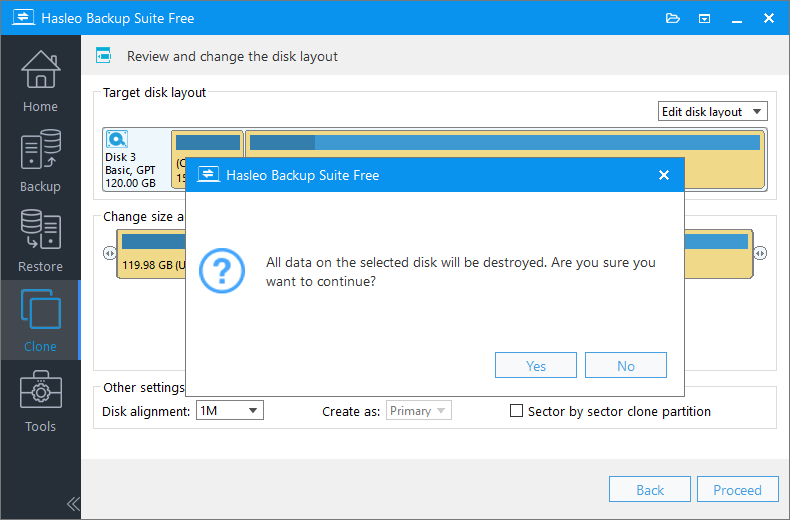
Step 6. Hasleo Backup Suite is now cloning the selected disk to the target disk. The time required depends on the amount of data; please be patient.
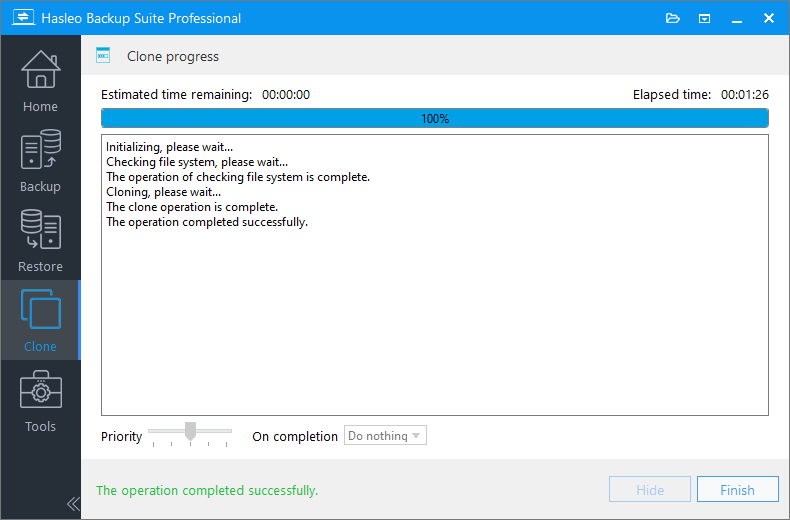
* Here you can specify a power management action to be performed after the cloning is complete.
Frequently Asked Questions
A: Download and run Hasleo Backup Suite, click Clone > Disk Clone, select the source disk, choose the target disk, adjust partition sizes if needed, then click Proceed to start cloning. The entire process typically takes 20-40 minutes depending on data size.
A: Yes, you can clone a larger disk to a smaller disk as long as the smaller disk has enough capacity to hold all the used data from the source disk.
A: No, disk cloning does not affect the original source disk. The source disk remains intact while all data is copied to the destination disk.
A: Delta Clone only copies data blocks that have changed since the last clone. This significantly improves cloning efficiency for users who frequently update files. Delta Clone is available in Home, Professional, Server, and Enterprise versions.
A: Yes, Hasleo Backup Suite supports MBR to GPT or GPT to MBR conversion during disk cloning.
A: For SSD performance optimization, 1MB alignment is recommended. It ensures partitions are always 4K-aligned, providing the best SSD performance.
A: It is not recommended to clone a disk with bad sectors directly. If the source disk has physical damage, data recovery should be performed first using data recovery software. For minor issues, sector-by-sector cloning may help recover accessible data.
A: Hasleo Backup Suite supports cloning all types of storage drives including IDE, SATA, SCSI, USB, and NVMe drives. It is compatible with both HDDs and SSDs.
Summary
Disk cloning is an efficient and reliable method for data migration. Choosing professional tools is crucial to ensure data security and work efficiency. As a professional Windows backup and cloning software, Hasleo Backup Suite can quickly clone data from one disk to another and supports fast backup and restoration of the system, disks/partitions, as well as files/folders. Additionally, it offers a WinPE emergency disk creation feature, allowing rapid system recovery in case of a system crash. With comprehensive features and excellent performance, Hasleo Backup Suite is a trusted solution for data protection and migration.
Related Articles
- How to Merge/Delete Old Backup Files using Hasleo Backup Suite Free?
- How to back up and restore Windows 11 for free?
- How to Compress Backup Files using Hasleo Backup Suite Free?
- How to set up a schedule to automatically back up Windows Server?
- How to Restore Your System From Full/Differential/Incremental Backups?


