

- The importance of merging/deleting old backup files
- Policies for safe merging/deleting old backup files
- How to Merge/Delete Old Backup Files Using Hasleo Backup Suite Free?
- Frequently Asked Questions
- Summary
As backup files continue to accumulate, managing them becomes crucial. Therefore, regularly merging/deleting old backup files can effectively save storage space. Hasleo Backup Suite provides a comprehensive data protection solution, allowing you to effortlessly back up, restore, and clone your systems, disks/partitions, and files/folders. Additionally, it offers image merging and deletion functions to help you manage old backup files. This guide provides detailed instructions on how to merge/delete old backup files using Hasleo Backup Suite Free, as well as the best practices for doing so effectively.
The importance of merging/deleting old backup files
Backups are widely used in daily life and work, and effective management of these files is a crucial practice. As backup files accumulate, regularly merging/deleting old versions is an effective strategy to free up storage space and optimize your data storage. Additionally, merging/deleting old backup files can enhance performance and simplify management. The key benefits include:
- Save storage space: Merging or deleting old backup files can free up storage space and reduce storage costs.
- Improve backup and restore performance: Especially for differential or incremental backups, merging/deleting old backup files can reduce the size and number of backup versions. This reduction, in turn, speeds up both backup and restoration processes.
- Optimize storage management: Regularly merge/delete old backup files to keep all backup versions organized and manageable, while reducing the burden on the backup server.
Policies for safe merging/deleting old backup files
When managing old backup files through merging or deletion, follow these strategies to improve storage efficiency and ensure critical data is protected.
- Establish a regular cleanup schedule: Regularly clean up old backup files to maintain an organized backup repository. Please review and merge/delete old files at specific times.
- Make a backup retention policy: Hasleo Backup Suite Free offers a flexible image retention policy, allowing you to customize the backup lifecycle within the backup process. By setting the retention period and the types of backups to keep, it automatically deletes expired backup files.
- Enable compression and encryption features: Hasleo Backup Suite Free supports various levels of compression and encryption during backup to save storage space and protect your important data from unauthorized access.
- Verify restorability: Before deleting any old backups, ensure that the new backup has completed successfully and is recoverable.
- Pay attention to chained backups: For differential and incremental backups, deleting any backup version in the chain may cause the entire chain to fail. It is important to understand the dependencies between backups before deletion.
The strategy of merging/deleting old backup files enhances backup efficiency, saves storage space, and guarantees the ability to quickly restore the data you really need following a system failure.
How to Merge/Delete Old Backup Files Using Hasleo Backup Suite Free?
Hasleo Backup Suite Free is professional and comprehensive Windows backup software. It supports backing up, restoring systems, disks/partitions, and files/folders. Beyond these core features, it also allows you to create a WinPE emergency disk and manage backup files to improve backup performance and save storage space. Below is a step-by-step guide to merging/deleting old backups using Hasleo Backup Suite Free.
Step 1. Download, install and run Hasleo Backup Suite Free.
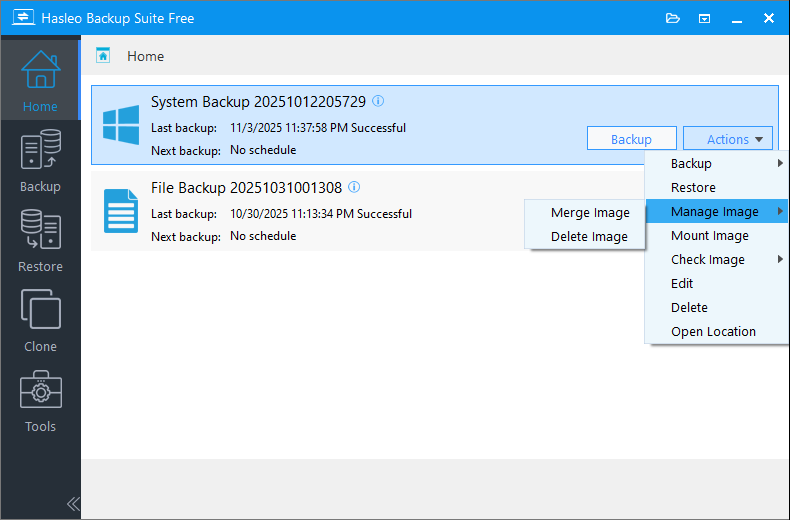
Step 2. Click the "Home" button in the navigation bar. In the operation area, you can see the various backup tasks you have created. Then, select the target backup task, click "Actions", and choose "Manage Image" from the dropdown menu. Select the "Merge/Delete Image" option.
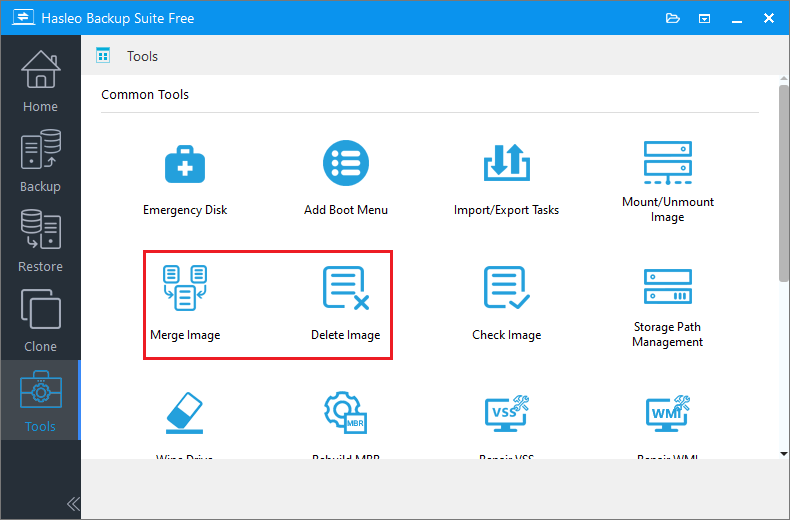
Alternatively, you can go to the "Tools" button in the navigation bar and select either the "Merge Image" or "Delete Image" tool to perform this operation.
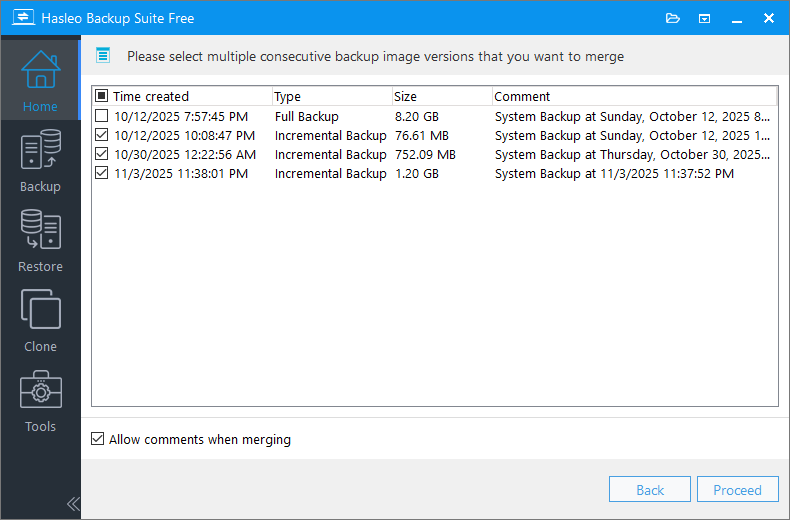
Step 3. In this window, Hasleo Backup Suite Free lists all historical versions of the target backup. Check the old backup versions you want to merge/delete, then click "Proceed".
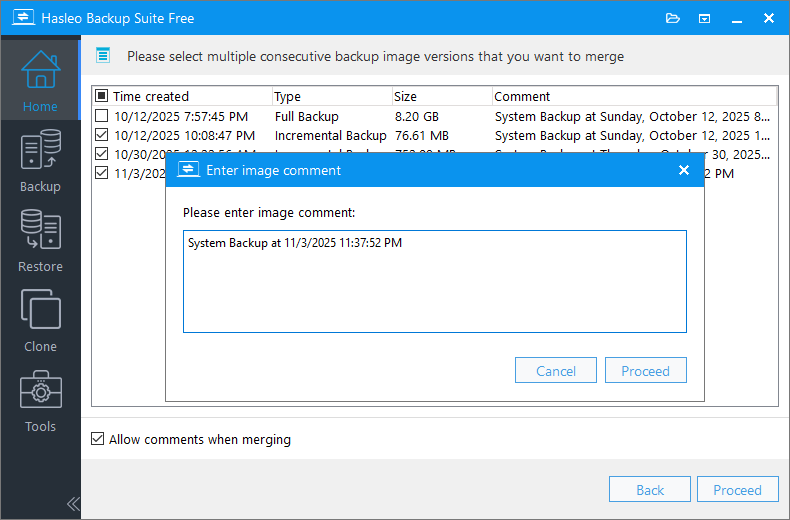
Step 4. The system will display a dialog box. Please add a note to identify the merged backup file, then click "Proceed".
When you delete old backup files, the system will display a confirmation dialog, asking if you want to delete the selected files. To proceed, click "Yes", and the program will immediately perform the deletion.
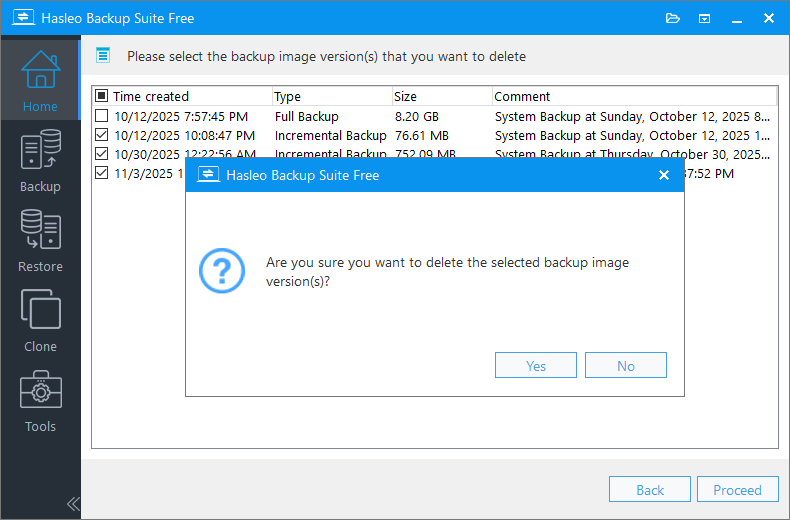
Step 5. Hasleo Backup Suite Free is now merging/deleting the selected backup files. This process may take some time; please be patient.
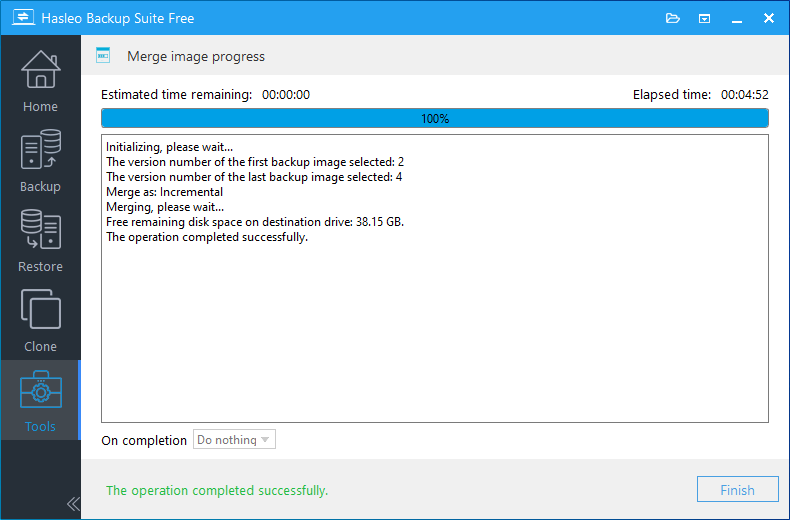
* Tips: Here you can specify a power management action to be performed after the backup is complete.
Frequently Asked Questions
A: Merging combines multiple backup versions into a single file while preserving the data, reducing the number of files but keeping all recoverable points. Deleting removes selected backup versions permanently to free up storage space immediately.
A: No, once you delete a backup version, it cannot be recovered. Make sure to verify that your remaining backups are valid and complete before deleting old versions.
A: Merging combines older backups into a single version, so you can only restore to the merged point rather than individual intermediate points. Consider whether you need those specific restore points before merging.
A: Deleting the base full backup will break the backup chain, making differential and incremental backups unusable. Always keep the base full backup when managing differential or incremental backups.
A: It depends on your backup frequency and storage capacity. Monthly review is recommended for regular backups. You can also set up automatic image retention policies in Hasleo Backup Suite to automate this process.
A: Yes, Hasleo Backup Suite Free includes an image retention policy feature that automatically deletes expired backup versions based on rules you set, eliminating the need for manual cleanup.
A: Yes, reducing the number of backup versions can improve performance, especially for differential and incremental backups that need to reference fewer files during backup and restore operations.
Summary
To free up storage space and optimize performance, it's effective to regularly merge or delete old backups in Hasleo Backup Suite Free. This professional tool supports multiple backup modes (full, incremental, and differential backup) and offers backup compression and encryption. As a powerful and free solution, it is the best choice for protecting your data.
Related Articles
- How to Create Full/Differential/Incremental Backups in Windows Using Hasleo Backup Suite Free?
- How to back up and restore Windows 11 for free?
- How to Encrypt Backup Tasks Using Hasleo Backup Suite Free?
- Best Windows Server Backup and Restore Software in 2026
- How to Use the Deduplication in Hasleo Backup Suite to Save Storage Space?


