

- Overview of Deduplication in Hasleo Backup Suite
- Best Windows backup software — Hasleo Backup Suite
- How to Use the Deduplication in Hasleo Backup Suite to Save Storage Space?
- Frequently Asked Questions
- Summary
If you're troubled by duplicate backup versions consuming significant disk space, Hasleo Backup Suite can effectively resolve this issue. Beyond utilizing its merge or delete image features, you can also enable deduplication. This function automatically identifies and eliminates duplicate data blocks during file backups, thereby efficiently conserving storage space.
Overview of Deduplication in Hasleo Backup Suite
Data deduplication is a technology that saves storage space by eliminating reduplicative data. Multiple versions of the same file often contain identical data blocks, and each backup operation duplicates these blocks, consuming valuable disk space. When deduplication is enabled, Hasleo Backup Suite divides files into equal-sized data blocks, identifies duplicates, and stores only one unique copy in the backup repository.
Meanwhile, it creates an efficient index table recording data block pointers for each file. During file restoration, the program rapidly reassembles data blocks based on this index table to fully reconstruct the file content. Consequently, duplicate data occupies only a single instance of space across all file backup images. Understanding the advantages and considerations of this feature will help you use this technology more effectively.
Advantages:
- Uses advanced variable-length blocking technology: Backup data is divided into multiple data blocks, with a unique hash value computed for each chunk. These hash values are compared against existing data blocks in the database. New data blocks are stored in the system, while duplicate blocks retain pointers to the existing data blocks.
- Significantly reduces disk space: By eliminating reduplicative data, it saves more storage space, which is a core advantage.
- Reduce long-term storage costs: Significantly reduce the disk space occupied by backup files, enabling you to back up more data within limited disk space and substantially lowering storage expenses.
- Significantly boost backup speed: After the initial full backup, subsequent backups only need to store new, unique data blocks, which dramatically accelerates backup speed.
Notices:
- The data deduplication feature is currently only available for file backups.
- The deduplication process requires computing and comparing the hash values of data blocks, which adds a certain amount of CPU computational load during backup and may slightly reduce backup speed.
- After data deduplication, backup files stored in the same backup repository share deduplicated data blocks. This means you cannot delete or move individual backup files, as doing so may compromise backup integrity. Backup management must be performed through the Hasleo Backup Suite interface.
- File backups created using the deduplication feature must be restored using a version of Hasleo Backup Suite that supports this functionality. Other backup software may not recognize its format.
Best Windows backup software—Hasleo Backup Suite
Hasleo Backup Suite not only features data deduplication but also offers compression, file filtering, and image file deletion/merging capabilities, providing comprehensive solutions to help users save storage space. It supports efficient backup and restore for Windows operating systems, disks/partitions, and files/folders. Beyond that, it enables cloning of systems, disks, and partitions, featuring advanced capabilities like Delta Clone and Delta Restore. This truly achieves integrated backup, restore, and cloning functionality, making it your best backup solution. Below are the key features of Hasleo Backup Suite:
- Comprehensive and powerful free edition: Its backup and restore features let you create system images effortlessly and recover from crashes instantly, while the cloning function promotes seamless data migration.
- Advanced technology and excellent performance: Compatible with all Windows PCs and servers, it supports Windows x86/x64 and ARM64 architectures. It boots in both UEFI and Legacy BIOS modes, ensures safe and stable program running, and operates with high efficiency and low power consumption.
- Multiple backup modes: It supports full, incremental and differential backups. Following an initial full backup, both incremental and differential backups save time and storage space by only copying the data that has changed.
- Features compression and encryption: It allows you to compress backup images to save disk space and encrypt them to protect your important data.
- Practical Toolbox: Here you can access advanced features like creating a WinPE emergency disk, merging backup images, and securely wiping disks.
- Intuitive and user-friendly interface: The interface design is clear, with the main functions immediately obvious, and guided prompts allow even beginners to get started quickly.
How to Use the Deduplication in Hasleo Backup Suite to Save Storage Space?
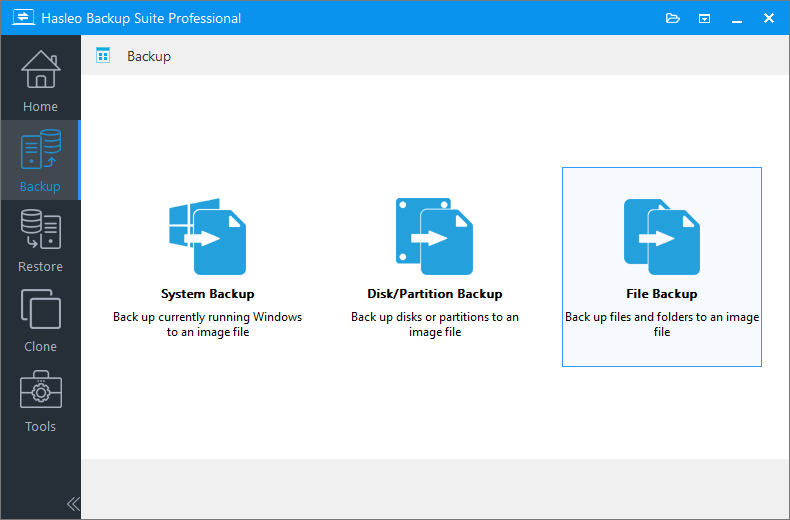
Step 1. Download, install, and run Hasleo Backup Suite. Click the "Backup" button in the navigation bar, then select "File Backup" in the operation area.
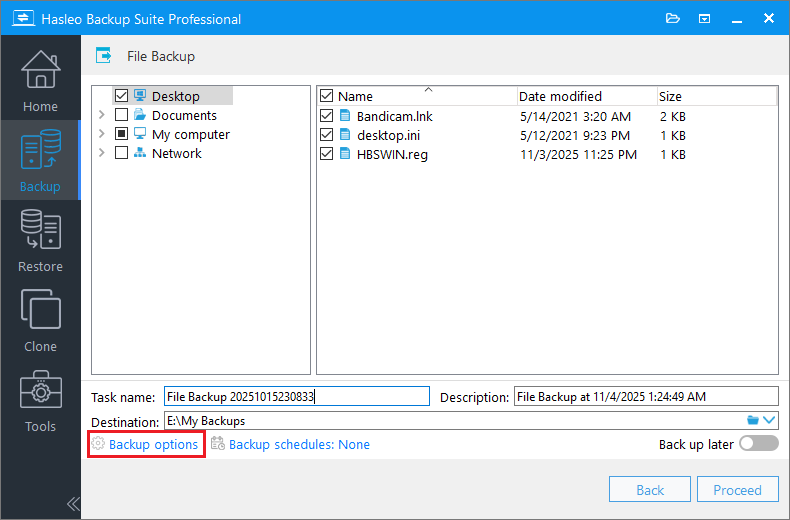
Step 2. Select the files/folders you want to back up, then customize the task name, description, and destination as needed. Click "Backup options" to open the settings interface.
* Tips:
- Task name: Specify a task name so that you can quickly find and manage your backup task later.
- Description: Briefly describe the purpose of the task and any other relevant information.
- Destination: Modify the destination path where the backup image files will be stored by clicking the folder icon.
- Backup options: Advanced backup settings. For more details, please refer to Backup options.
- Backup schedule: Set up backup schedules to automatically perform your backup tasks on a regular basis. For more details, please refer to Backup schedule.
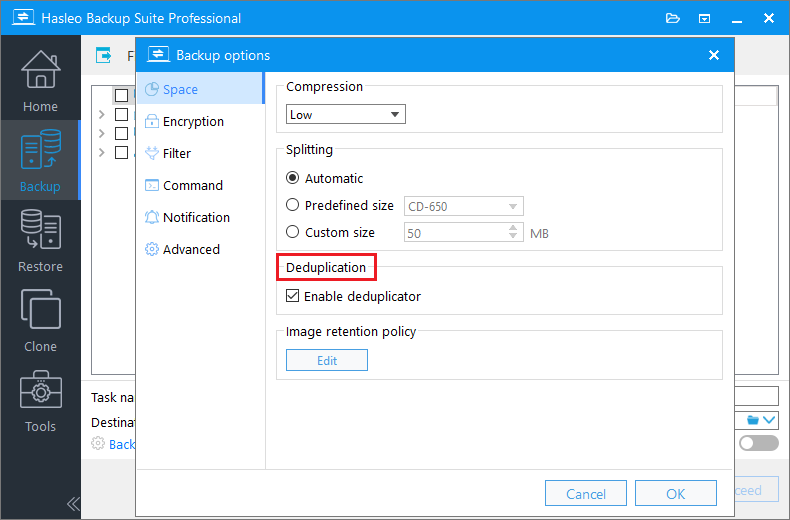
Step 3. In the left navigation bar, select "Space". Then, locate the "Deduplication" section and check the "Enable deduplicator" checkbox. Click "OK" to save the settings.
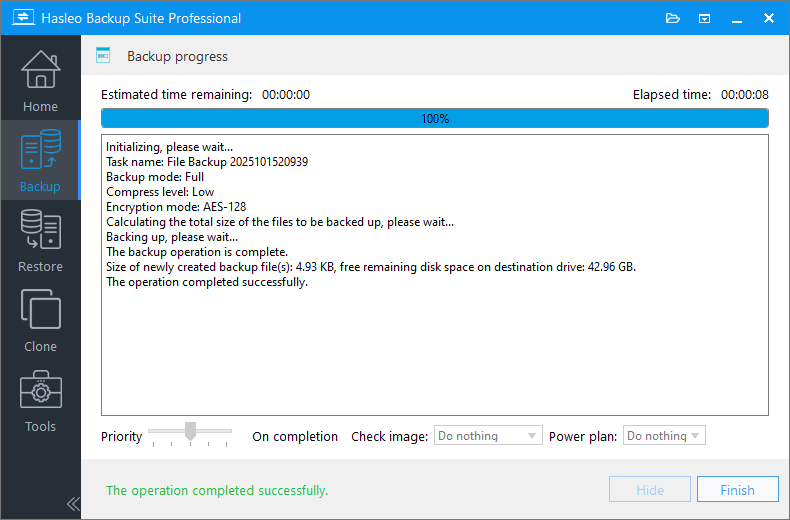
Step 4. Click "Proceed" to start the file backup task in Hasleo Backup Suite. This process may take some time; please wait patiently.
* Tips:
- Priority: Specify a priority for the backup process. A higher priority allocates more CPU time to the backup, which may cause other programs to run slower.
- Check image: Verify the integrity of the backup image files upon completion of the backup process.
- Power plan: Perform the power management action after the backup is complete.
Frequently Asked Questions
A: Data deduplication is a technology that eliminates redundant data blocks during backup. It divides files into equal-sized blocks, identifies duplicates using unique hash values, and stores only one copy of each unique block, significantly reducing storage space.
A: No, the deduplication feature in Hasleo Backup Suite is currently only available for file backups, not for system or disk/partition backups.
A: Deduplication requires computing and comparing hash values for data blocks, which adds CPU load during backup. The initial backup may be slightly slower, but subsequent backups are much faster since only new unique data blocks are stored.
A: No, you cannot delete or move individual backup files created with deduplication, as they share data blocks within the repository. Backup management must be performed through Hasleo Backup Suite interface to maintain integrity.
A: No, file backups created with deduplication must be restored using Hasleo Backup Suite that supports this functionality. Other backup software may not recognize the deduplicated format.
A: Storage savings depend on your data redundancy level. For backup scenarios with multiple versions containing similar files (like documents, VMs, or databases), deduplication can save 50-90% of storage space.
A: Yes, deduplication and compression can be used together. Deduplication eliminates redundant data blocks first, then compression further reduces the size of unique blocks, providing even greater storage savings.
Summary
Deduplication is a highly practical feature of Hasleo Backup Suite. By intelligently identifying and removing reduplicative data, it significantly saves storage space, making it especially suitable for backup scenarios requiring long-term retention of multiple file versions. Additionally, Hasleo Backup Suite supports creating WinPE emergency disks to help you quickly restore from system crashes. Download now and enjoy an efficient backup experience!
Related Articles
- How to Create Full/Differential/Incremental Backups in Windows Using Hasleo Backup Suite Free?
- How to back up and restore Windows 11 for free?
- How to Merge/Delete Old Backup Files using Hasleo Backup Suite Free?
- Best Windows Server Backup and Restore Software in 2026
- How to set up backup schedules to automatically backup Windows?


