

- Overview of ARM64
- Overview of Windows ARM64 operating system
- Why choose Hasleo Backup Suite Free as your Windows ARM64 backup software?
- Tutorial to Back up Windows/Disks/Partitions/Files/Folders on Windows ARM64
- Tutorial to Restore Windows/Disks/Partitions/Files/Folders on Windows ARM64
- Frequently Asked Questions
- Conclusion
Why choose Hasleo Backup Suite Free for your Windows ARM64 system? In this tutorial, we will explore the reasons.
Overview of ARM64
- Performance & Efficiency: Enhanced through the use of 64-bit registers, support for larger memory addressing (up to 16 exabytes), and optimized instruction sets (e.g., NEON SIMD), all while maintaining low power consumption.
- Applications: Dominant in mobile devices (e.g., iPhones, Android phones) and embedded systems (e.g., Raspberry Pi), its influence is also expanding into the emerging PC/server markets (e.g., Apple M-series chips, Qualcomm Snapdragon, MediaTek Dimensity processors).
- Backward Compatibility: Most ARM64 processors support 32-bit ARM (AArch32) applications. However, running these applications is dependent on a system-level compatibility layer, like Android's 32-bit mode.
ARM64 is a cornerstone of the mobile era, combining power efficiency, scalability, and performance. It has expanded beyond smartphones into PCs, servers, and cloud infrastructure, challenging x86 dominance. With innovations like Apple's M-series chips and cloud-native ARM64 servers (e.g., AWS Graviton), the ecosystem continues to grow, reshaping computing across industries.
Overview of Windows ARM64 operating system
Windows ARM64 is Microsoft's 64-bit operating system engineered for devices powered by ARM64 processors, such as Qualcomm Snapdragon PCs and the Surface Pro X. It is optimized for efficiency and always-on connectivity, with the following core features:
- Native ARM64 Support: Runs apps compiled for ARM64 natively, with performance close to native x86 versions (e.g., Edge browser, Office 365).
- x86 App Compatibility: Runs legacy 32/64-bit Windows apps via an x86 emulation layer (e.g., Windows 11's x64 emulation), but with performance overhead (~10-30% slower).
- Low Power Consumption & Long Battery Life: ARM-based devices leverage this energy efficiency for all-day battery life (e.g., Surface Pro X: 15+ hours).
- Supported Devices: Compatible with a range of ARM-based devices, including Qualcomm Snapdragon PCs, Apple Macs (via virtualization tools like Parallels Desktop), and ARM64 development boards with UEFI support.
- Software Ecosystem Status: Windows ARM64's software ecosystem currently offers native support for optimized apps (e.g., Microsoft Suite, developer tools) and gradual third-party adoption, while most legacy x86/x64 apps rely on emulation with performance overhead, and gaming support remains limited.
Windows ARM64 is Microsoft's effort to break free from traditional x86 ecosystems. It leverages advantages in low power consumption, long battery life, and 5G connectivity to carve a niche in ultraportables and 2-in-1 devices. However, its growth faces challenges due to limited software support and performance in demanding tasks. With increasing native ARM64 app adoption (e.g., AI toolchains, cloud-native services), it may expand further in mobile productivity and edge computing.
Why choose Hasleo Backup Suite Free as your Windows ARM64 backup software?
- Free Software: Zero cost for greater financial efficiency.
- Native Windows ARM64 Application: Maximize performance and efficiency with direct hardware execution.
- Fast backup speed: One of the fastest backup and restore software on the market.
- Comprehensive features: You can enjoy many functions, including powerful tools such as cloning, Delta restore, compression, encryption, and more.
- Free Technical Support: Available via email and our user forums.
Hasleo Backup Suite is a comprehensive, professional-grade data protection solution for Windows. It supports system, disk, partition, and file backup and cloning, featuring incremental, differential, and full backup modes. With capabilities like AES encryption, emergency bootable media, scheduled tasks, and compatibility with multiple Windows versions and MBR/GPT/UEFI architectures, it ensures robust data security and efficient recovery for both personal and enterprise users. Furthermore, as a native Windows ARM64 application, it stands out as the best backup and restore software on the market.

Download Hasleo Backup Suite Free now to back up your Windows ARM64 system, disks, partitions, or files/folders. For maximum security, we recommend creating a bootable WinPE emergency recovery disk, which allows you to restore your backups when needed.
Tutorial to Back up Windows/Disks/Partitions/Files/Folders on Windows ARM64
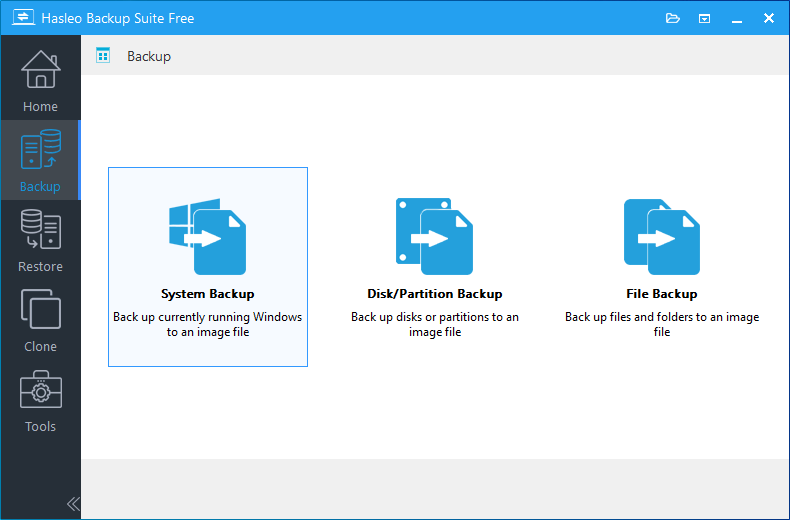
Step 1. Download, install, and run Hasleo Backup Suite Free. Click the "Backup" button in the navigation bar, then click "System Backup", "Disk/Partition Backup", or "File Backup" button in the operation area.
Step 2. Select the system, disks, partitions, or files/folders you want to back up. Specify the task name, description, destination, and backup options according to your needs. Then click the "Proceed" button.
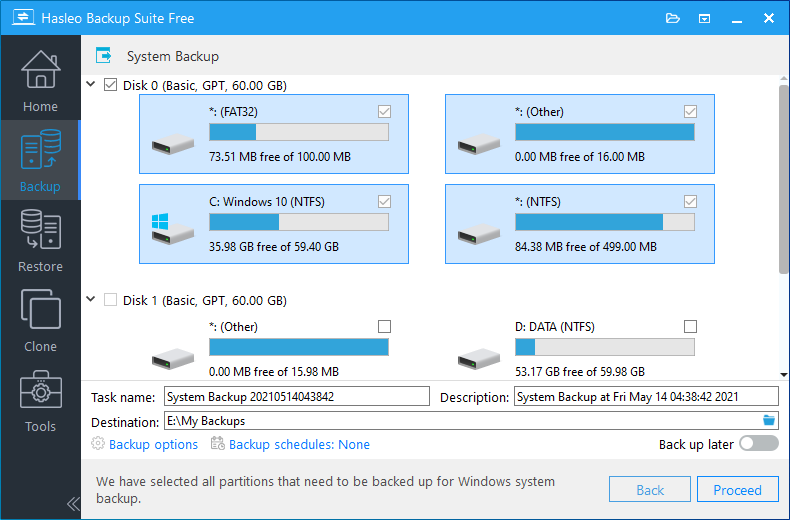
* Tips: If you select "System Backup", Hasleo Backup Suite Free will automatically select all partitions required for a Windows system backup.
* Task name: Specify a task name so that you can quickly find and manage your backup task later.
* Description: Briefly describe the purpose of the task and any other relevant information.
* Destination: Modify the destination path where the backup image files will be stored by clicking the folder icon.
* Backup options: Advanced backup settings. For more details, please refer to Backup options.
* Backup schedule: Set up backup schedules to automatically perform your backup tasks on a regular basis. For more details, please refer to Backup schedule.
Step 3. After clicking the "Proceed" button, Hasleo Backup Suite Free will begin backing up your Windows operating system, disks, partitions, or files/folders to the storage path you specify. Please note that the backup time depends on the size of the data that needs to be backed up; please be patient.
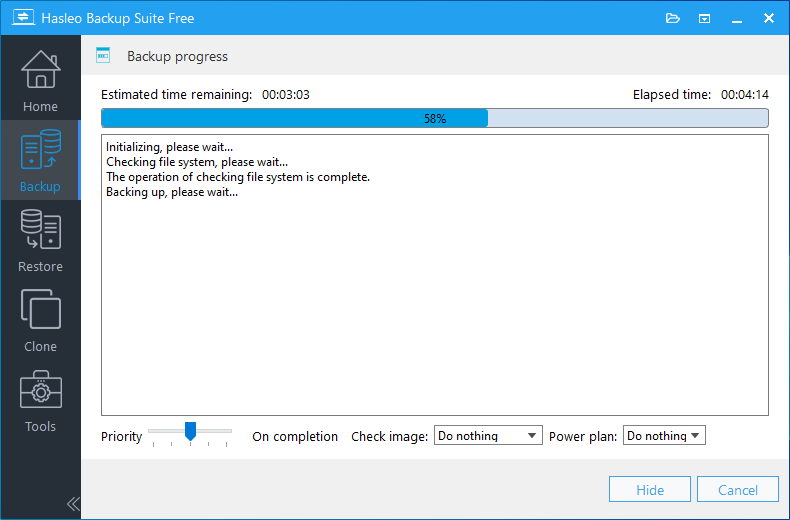
* Priority: Specify a priority for the backup process. A higher priority allocates more CPU time to the backup, which may cause other programs to run slower.
* Check image: Verify the integrity of the backup image files upon completion of the backup process.
* Power plan: Perform the power management action after the backup is complete.
Tutorial to Restore Windows/Disks/Partitions/Files/Folders on Windows ARM64
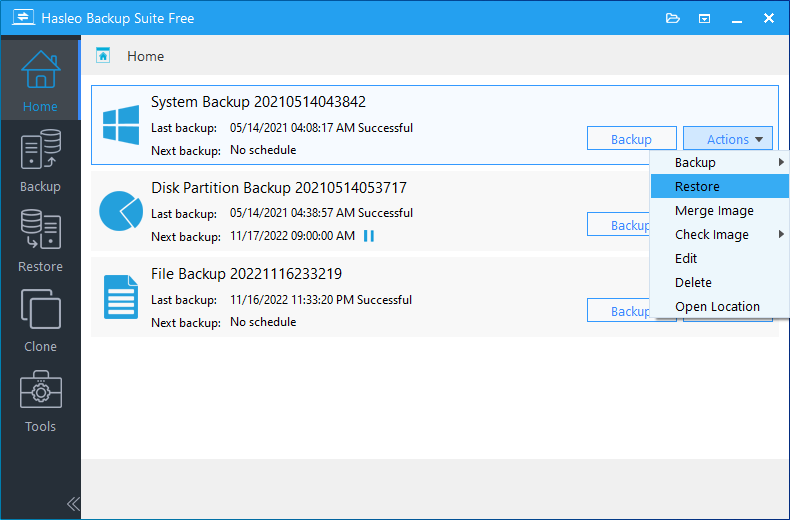
Step 1. Click the "Home" button in the navigation bar. Then, find the backup task you want to restore, click "Actions", and select "Restore" from its menu.
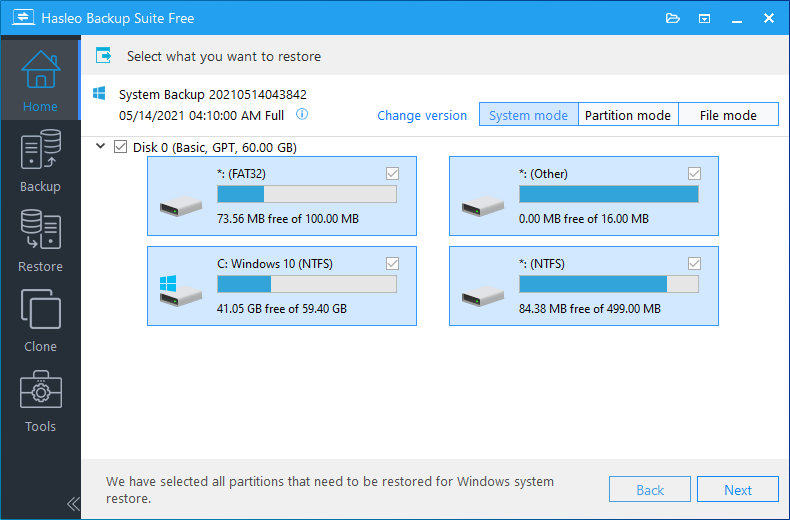
Step 2. For system backup or disk/partition backup tasks, please select the backup version and the disk or partition you want to restore here. Then click the "Next" button.
For file backup tasks, please select the backup version and the files/folders you want to restore. Specify the destination location here, then click "Proceed" to start the restoration.
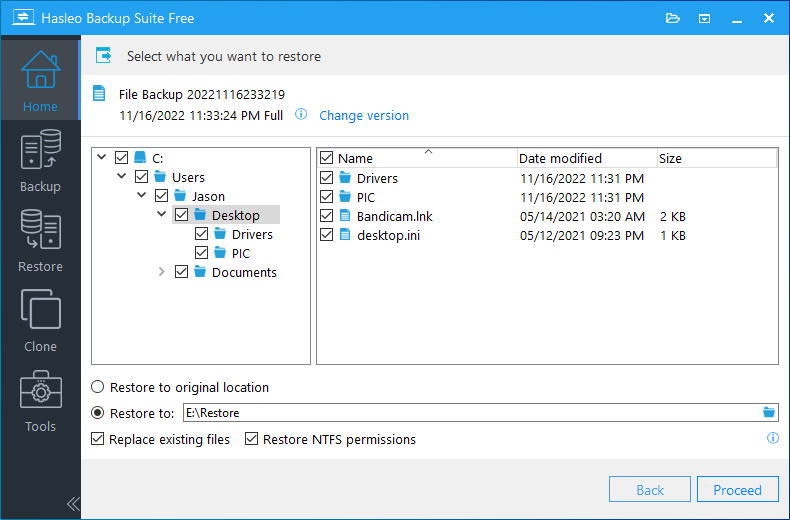
* Tips: Please note that steps 3 and 4 apply only to System Restore and Disk/Partition Restore.
Step 3. Select the destination to restore the system, disk, or partition to, then click "Next".
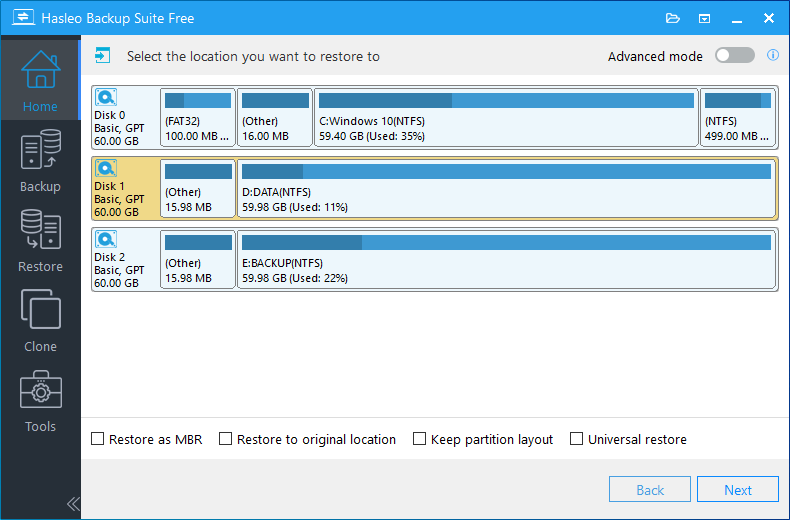
Step 4. Adjust the size and location of the partitions according to your needs and click "Proceed". A warning message will appear, telling that all data on the destination drive will be destroyed. If the destination disk contains no important data, click "Yes" to continue.
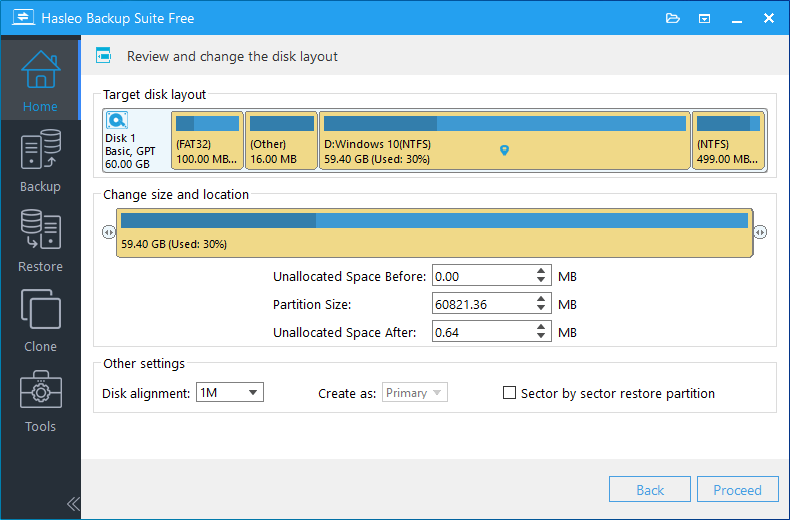
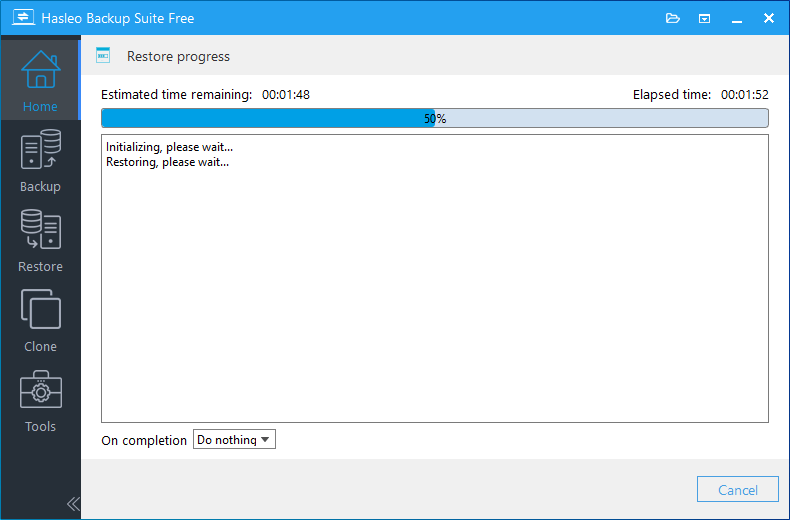
Step 5. Hasleo Backup Suite Free is now restoring the Windows operating system, disks, partitions, or files/folders to the destination disk. The required time depends on the size of the data that needs to be restored; please be patient.
* Here you can specify a power management action to be performed after the backup is complete.
Frequently Asked Questions
A: Hasleo Backup Suite Free is the best free Windows ARM64 backup software in 2026. It is a native Windows ARM64 application that provides system, disk, partition, and file backup and restore functionality with optimal performance and reduced power consumption.
A: It means the software runs directly on your device's hardware, without any translation layer. This gives you faster performance, better efficiency, and lower power consumption—plus, it avoids the compatibility issues that can come with x86 emulation.
A: Hasleo Backup Suite ARM64 uses Windows VSS directly for backups, guaranteeing transactional consistency. Combined with offline recovery via the ARM64 WinPE environment, this ensures the backed-up system remains complete and bootable.
A: Both the 'sector-by-sector backup' feature and standard disk backup use sector-level backup. However, standard disk backup only backs up data blocks within a partition that are currently in use by the file system, whereas 'sector-by-sector backup' backs up all data blocks in the partition, regardless of whether they are in use by the partition's file system.
A: Hasleo Backup Suite for ARM64 fully supports both GPT layouts. It captures not only your data but also the exact partition table, disk GUID, and the order of partition entries. This allows it to perfectly reconstruct the original disk layout when restoring.
A: You can use the built-in WinPE tool in Hasleo Backup Suite ARM64 to create a bootable USB drive or ISO file in advance. When the system fails to boot, insert the USB drive and boot the ARM64 device to enter the recovery environment and restore your system.
A: During backup, Hasleo Backup Suite for ARM64 uses VSS to read and back up decrypted data along with BitLocker metadata. During restoration, if the "Preserve BitLocker Encryption" option is selected, Hasleo re-encrypts the data in real-time and restores the BitLocker metadata to the target partition. Once complete, the partition or system will automatically be BitLocker-encrypted—no additional encryption steps required.
Conclusion
As powerful free Windows backup software, Hasleo Backup Suite Free supports system/disk/file backup and restoring, featuring AES encryption, emergency bootable media, scheduled tasks, and multi-platform compatibility to ensure efficient and secure backup and recovery for both personal and enterprise use. As a native Windows ARM64 application, it improves backup performance while reducing power consumption, making it one of the best free Windows ARM64 backup software in 2026 on the market.
Hasleo Backup Suite Free is not only the best free backup software for Windows ARM64, but also the best free disk cloning software for Windows, allowing you to migrate your disks/partitions to another disk
Related Articles
- How to Create Full/Differential/Incremental Backups in Windows Using Hasleo Backup Suite Free?
- How to back up and restore Windows 11 for free?
- How to Restore Your System From Full/Differential/Incremental Backups?
- How to set up a schedule to automatically back up Windows Server?
- How to set up backup schedules to automatically backup Windows?


