

- Why Use a Single Backup Task to Manage Multiple Schedules?
- Best Windows Server backup software—Hasleo Backup Suite Server
- How to Create a Backup with Multiple Schedules on Windows Server
- Frequently Asked Questions
- Conclusion
A limitation of the native Windows Server Backup feature is its inability to configure multiple schedules within a single backup job. Each backup task is restricted to one schedule, forcing administrators to create and manage numerous separate tasks for varied backup timings or conditions. This significantly increases administrative overhead. To overcome this limitation, we recommend Hasleo Backup Suite Server. This professional solution enables the flexible configuration of multiple, distinct schedules within a single backup task, streamlining management and improving efficiency. The following guide details how to implement this powerful feature in your Windows Server environment.
Why Use a Single Backup Task to Manage Multiple Schedules?
Creating multiple backup schedules within a single task offers several advantages, significantly enhancing the efficiency and flexibility of backup management. By centralising configuration, it reduces repetitive operations and, through the reuse of policies, maintains consistency in backup rules, thereby lowering the risk of human error.
In addition, this approach optimises system resource allocation and avoids task conflicts. Within a single task framework, it facilitates data deduplication—common data in incremental backups only needs to be stored once, and backup images from multiple plans can share the base image, significantly improving storage efficiency. The combination of single-task multi-schedule strategies is also more flexible, simplifying operations during the restoration stage, allowing users to initiate recovery directly from a unified task interface and select the appropriate backup version independently.
More importantly, this method can effectively reduce operational and maintenance costs. When business needs change, administrators only need to adjust the single task configuration to simultaneously update all related schedules, simplifying management processes and saving maintenance time. A unified task structure also helps simplify the overall architecture of the backup system and reduce employee training costs. Furthermore, this centralization enables more efficient monitoring and log tracking, which accelerates issue resolution and strengthens overall data protection reliability.
Best Windows Server backup software—Hasleo Backup Suite Server 👑
The native Windows Server Backup utility limits each task to a single schedule, forcing administrators to resort to complex command-line scripts for advanced scheduling. In contrast, Hasleo Backup Suite Server provides an intuitive and easy-to-use graphical interface, allowing you to flexibly set multiple backup schedules in the same task with simple selections, easily achieving automated backups triggered daily, weekly, monthly or by events.
Hasleo Backup Suite Server is a comprehensive, professional-grade solution for enterprise data protection and disaster recovery. It combines essential backup, cloning, and restoration capabilities—covering systems, disks, partitions, and files—into a single platform. To make backups smarter and more efficient, it integrates advanced features like encryption, compression, and email notifications, fully meeting the demands of modern IT environments. Key features in detail:
- Comprehensive Backup Modes: Supports full, incremental, and differential backups. After the first full backup, subsequent backups can only include changed data, greatly saving time and storage space.
- Efficient Cloning: Features Delta Clone technology, which clones only the data blocks changed since the last full backup for speed. It also supports conversion between MBR and GPT disk formats during cloning, cloning an entire Windows system to a USB drive, and flexible adjustment of partition layouts and sizes during the cloning process.
- Flexible Recovery: Enable Delta Restore, which compares historical backups with existing data to keep unchanged parts and restore only the changed data, greatly enhancing restoration efficiency. It also offers Universal Restore, allowing system images to be restored to different computers.
- Broad Compatibility and Excellent Performance: Provides native support for all major Windows editions (Server, Education, Enterprise) across x86, x64, and ARM64 architectures. Ensures reliable deployment on both UEFI and Legacy BIOS systems, delivering robust and efficient operation.
- Storage Optimization: Employs data deduplication (storing duplicate blocks once), compression, and smart filtering (excluding unnecessary files) to drastically reduce storage overhead.
- Integrated Toolbox: Provides a suite of advanced utilities including WinPE boot media creation, PXE Server deployment, secure disk wiping, and more.
- Intuitive and User-Friendly Interface: Features a clear layout with guided wizards, making it easy for even beginners to get started quickly.
How to Create a Backup with Multiple Schedules on Windows Server?
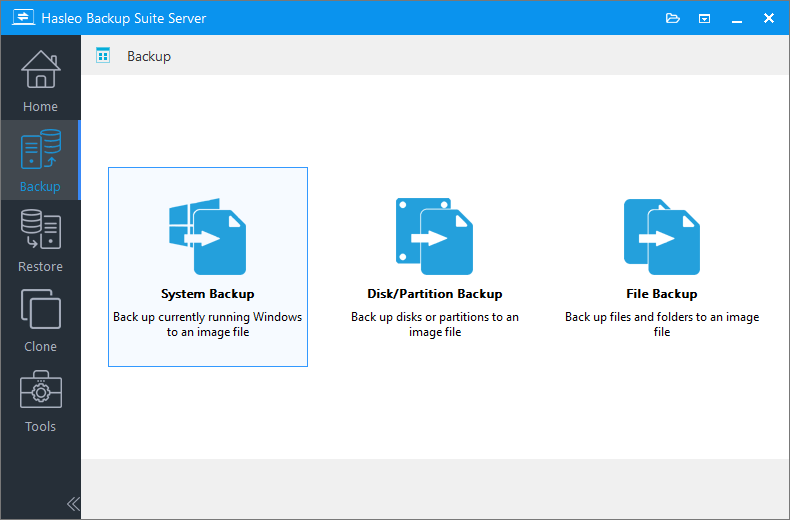
Step 1. Download, install, and run Hasleo Backup Suite Server. Click the "Backup" button in the navigation bar, then click "System Backup", "Disk/Partition Backup", or "File Backup" button in the operation area.
Step 2. Select the system, disks/partitions, or files/folders you want to back up. Then customize the task name, description and destination as needed. Click "Backup schedules" to open the settings interface.
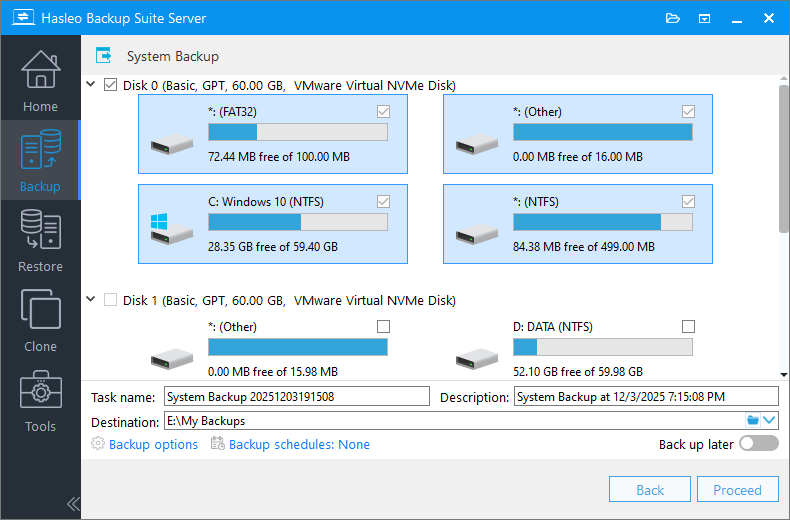
If you choose "System Backup", Hasleo Backup Suite Free will automatically select all partitions required for a Windows system backup.
* Tips:
- Task name: Specify a task name so that you can quickly find and manage your backup task later.
- Description: Briefly describe the purpose of the task and any other relevant information.
- Destination: Modify the destination path where the backup image files will be stored by clicking the folder icon.
- Backup options: Advanced backup settings. For more details, please refer to Backup options.
- Backup schedule: Set up backup schedules to automatically perform your backup tasks on a regular basis. For more details, please refer to Backup schedule.
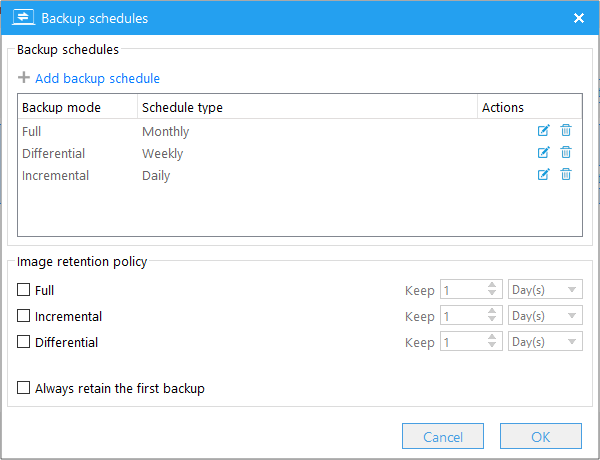
Step 3. Click "Add backup schedule" to configure it.

Step 4. In the pop-up window, select the schedule type: "One-time", "Daily", "Weekly", "Monthly", or "Event-triggered". Then set the backup run time and backup mode as needed. Click "OK" to save the settings. By repeating the same steps, you can add multiple backup schedules for this backup task.

Step 5. (Optional) You can also configure the "Image retention policy" as needed to automatically clean up backup versions.
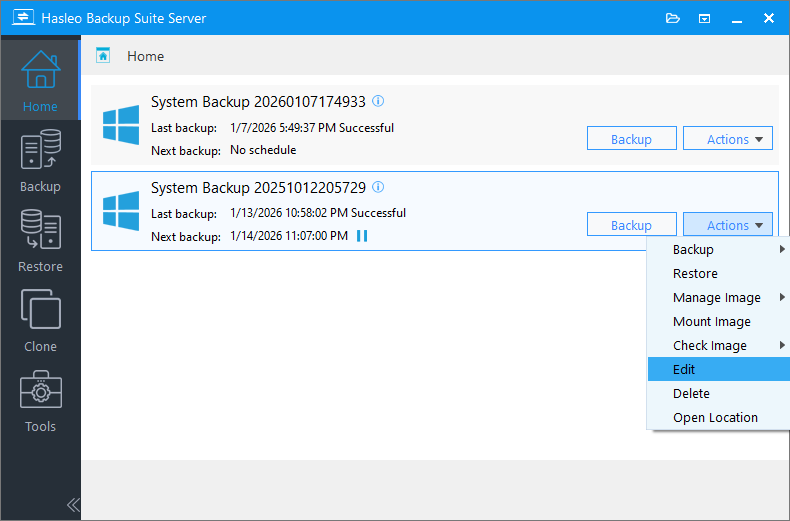
Step 6. After configuring your backup, click "Save". Hasleo Backup Suite Server will then run this task automatically on the schedule you set. You can return to the "Home" screen to see all your tasks. To make changes later, find the task there and select "Action" > "Edit".
Frequently Asked Questions
A: You can add multiple backup schedules to a single backup task. There is no strict limit on the number of schedules you can create, allowing you to set up daily, weekly, monthly, and event-triggered backups all within one task.
A: Yes, you can configure different backup modes (full, incremental, or differential) for each schedule when setting up your multi-schedule backup task. This allows you to optimize storage usage and backup speed based on your specific requirements.
A: Hasleo Backup Suite Server supports multiple trigger types including one-time backups, daily schedules, weekly schedules, monthly schedules, and event-triggered backups.
A: Multi-schedule backups within a single task share the same base image through data deduplication. This means common data in incremental backups is stored only once, and backup images from multiple schedules can share the base image, significantly improving storage efficiency.
A: Yes, you can edit or delete individual schedules at any time. Simply go to the Home screen, find your task, and select "Action" > "Edit" to modify the schedule settings or remove specific schedules from the task.
A: Yes, Hasleo Backup Suite Server provides native support for ARM64 architecture, ensuring reliable deployment and efficient operation on ARM-based Windows Server devices.
A: The image retention policy automatically cleans up old backup versions based on rules you set. When configured with multi-schedule backups, it helps manage storage space by removing unnecessary backup versions while keeping the ones you need for recovery.
Conclusion
At this point, you have successfully created a backup task containing multiple backup schedules. As you've experienced, the entire process is very simple and convenient. Hasleo Backup Suite Server is such a professional and easy-to-use backup tool, allowing you to manage the backup strategies of the same task uniformly according to different schedules or trigger conditions, thereby greatly improving the efficiency and convenience of backup management.
In addition, Hasleo Backup Suite for Server offers robust support for the modern ReFS file system, addressing the large-scale data storage and integrity needs of enterprise environments. It integrates comprehensive backup, restore, and disk cloning capabilities into a single solution, satisfying users' daily backup requirements. This suite provides a professional and reliable toolset for safeguarding critical business data.
Related Articles
- How to Merge/Delete Old Backup Files using Hasleo Backup Suite Free?
- How to back up and restore Windows 11 for free?
- How to Compress Backup Files using Hasleo Backup Suite Free?
- How to set up a schedule to automatically back up Windows Server?
- How to Restore Your System From Full/Differential/Incremental Backups?


