

- Overview of Add Boot Menu
- Best Windows backup and restore software—Hasleo Backup Suite
- How to Emergency Recover Your Computer Without Windows Boot Media?
- Frequently Asked Questions
- Summary
What should you do to urgently recover your computer when your system crashes and cannot start normally, and you haven't created Windows boot media in advance? Don't worry. This guide introduces a powerful software—Hasleo Backup Suite. Its built-in "Add Boot Menu" feature allows you to quickly restore system startup without the need for external boot media. Follow these detailed steps to help you easily deal with unexpected issues.
Overview of Add Boot Menu
In Hasleo Backup Suite, the "Add Boot Menu" feature is mainly used to handle emergencies when the system cannot boot normally. This feature adds a separate entry "Windows PE (Hasleo Backup Suite)" to the computer's boot menu. When the system crashes and cannot enter Windows, you can select this new boot option at startup to directly enter the Hasleo recovery environment, allowing you to perform system restore operations without using a Windows PE boot USB drive or disc.
This feature significantly enhances the convenience and efficiency of system recovery, making it especially suitable for situations where external boot media is not readily available or when the system cannot boot at all. You only need to configure it in advance while the system is running normally to prepare for any potential future system failures, enabling rapid rescue. Additionally, this boot option operates independently of the main system, so even if the original Windows system is damaged or the hard drive's boot record is corrupted, you can still access the recovery environment through this option and quickly restore the system to normal using previously created backup images. This provides a faster and more user-friendly localized disaster recovery solution for both personal and enterprise users.
📌Important Recommendation: Although this feature is very convenient, we still recommend creating a bootable WinPE emergency drive with Hasleo Backup Suite as a complementary safeguard. The local boot entry created by "Add Boot Menu" relies on the hard drive itself; if the hard drive suffers physical damage, the local option becomes unavailable. For maximum safety, enable "Add Boot Menu" immediately after creating a system backup. You can later remove this entry at any time using the "Remove Boot Menu" function.
Best Windows backup and restore software—Hasleo Backup Suite 👑
The "Add Boot Menu" feature enables access to the recovery environment after a severe system failure, but it fundamentally depends on having a viable backup image available. This underscores the critical importance of a robust backup strategy. Hasleo Backup Suite addresses this core need directly. As dedicated backup and restore software, it delivers a comprehensive, efficient, and user-friendly solution by integrating system backup, disk cloning, and reliable restoration into one tool. It is widely trusted for its exceptional backup speed, operational stability, and unwavering reliability.
Furthermore, Hasleo Backup Suite simplifies backup management with intelligent scheduling, flexible storage options, and incremental backup technology. Whether for individual users or businesses, it allows comprehensive protection of systems and data through its intuitive interface and reliable recovery mechanisms. Discover its key features:
- Comprehensive and powerful: Its backup and restore features let you create system images effortlessly and recover from crashes instantly, while the cloning function promotes seamless data migration.
- Advanced technology and excellent performance: Compatible with all Windows PCs and servers, it supports Windows x86/x64 and ARM64 architectures. It boots in both UEFI and Legacy BIOS modes, ensures safe and stable program running, and operates with high efficiency and low power consumption.
- Multiple backup modes: It supports full, incremental and differential backups. Following an initial full backup, both incremental and differential backups save time and storage space by only copying the data that has changed.
- Features compression and encryption: It allows you to compress backup images to save disk space and encrypt them to protect your important data.
- Practical Toolbox: Here you can access advanced features like creating a WinPE emergency disk, merging backup images, and securely wiping disks.
- Intuitive and user-friendly interface: The interface design is clear, with the main functions immediately obvious, and guided prompts allow even beginners to get started quickly.
How to Emergency Recover Your Computer Without Windows Boot Media?
To perform an emergency system recovery without Windows boot media using Hasleo Backup Suite, follow these steps:
1. Enable the "Add Boot Menu" feature to add a separate boot option
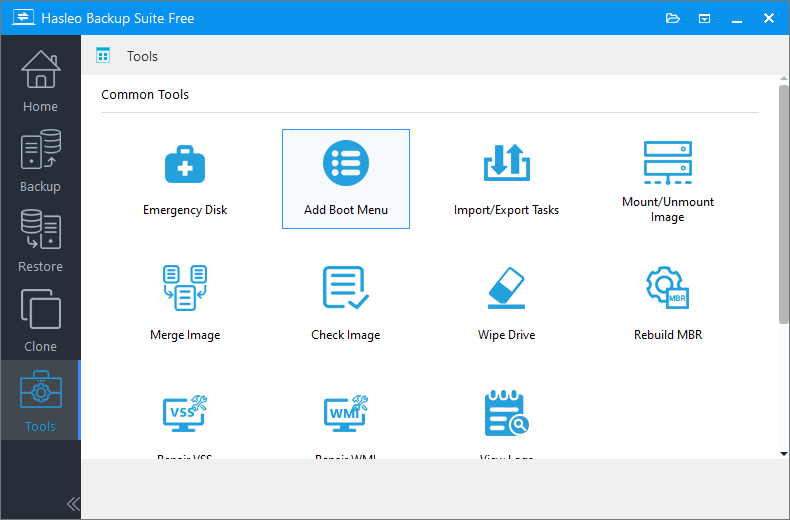
Step 1. When the computer is working normally, download, install, and run Hasleo Backup Suite. Click the "Tools" button in the navigation bar, then select "Add Boot Menu" in the operation area.
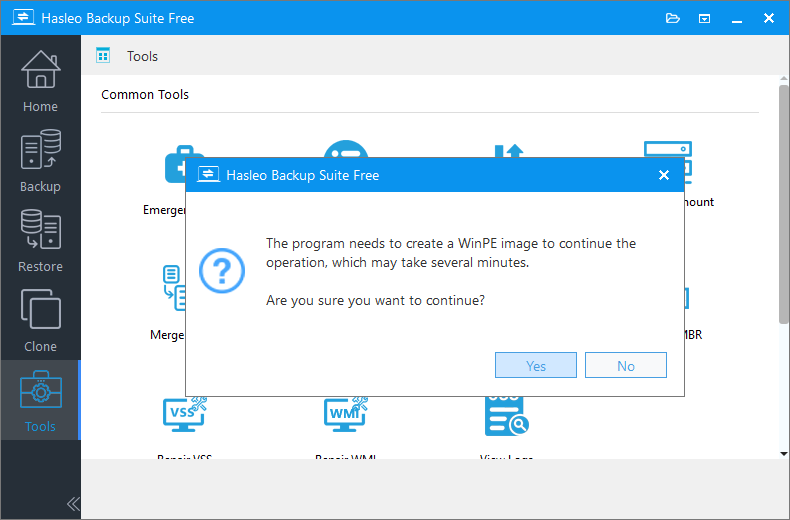
Step 2. If you have not created bootable WinPE media, Hasleo Backup Suite will prompt you to create a WinPE image. To proceed, click "Yes".
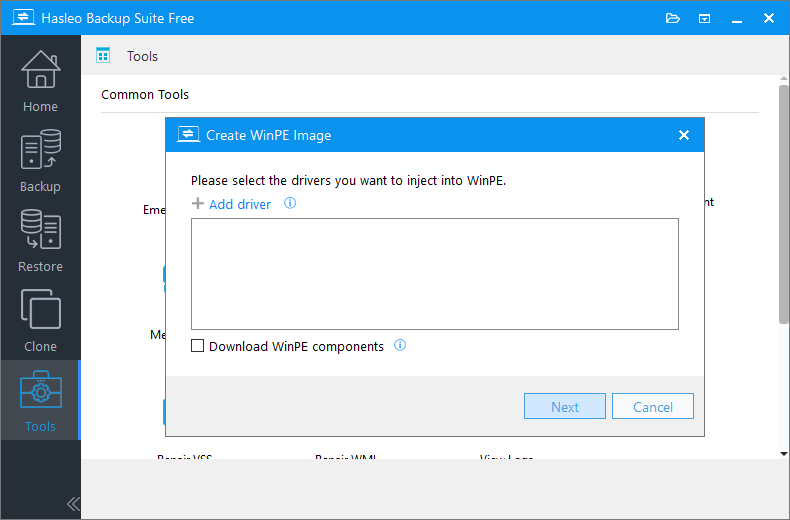
Step 3. Check the "Automatic driver injection" or "Download WinPE components" option to have the required drivers added to WinPE, then click "Next". To add any additional drivers, click "Add driver" and make your selection.
* Tips:
- Only drivers that are based on an .inf file can be injected into WinPE.
- The "Download WinPE components" option allows you to obtain them from Microsoft.
- The "Automatic driver injection" option supports extracting drivers from the current Windows operating system and injecting them into WinPE.
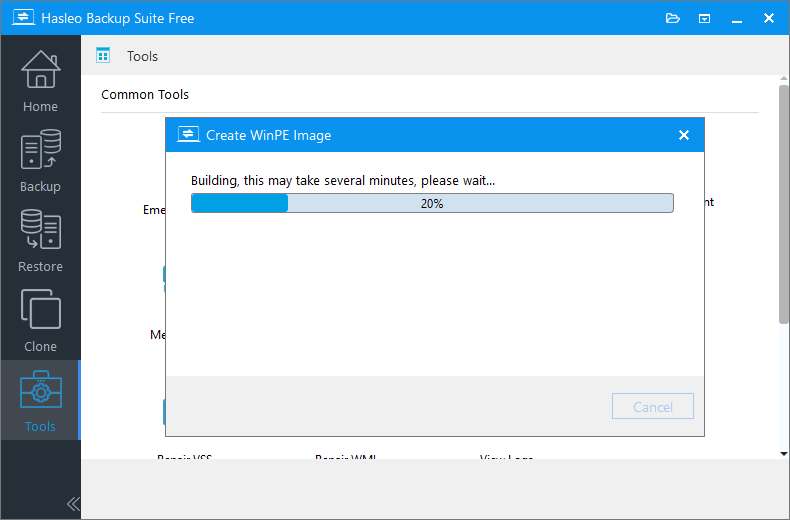
Step 4. Hasleo Backup Suite is now creating a WinPE bootable image.
Step 5. Once the WinPE image is successfully created, the program adds it to the boot menu automatically. The button text will then change to "Remove Boot Menu", indicating the entry is now active.
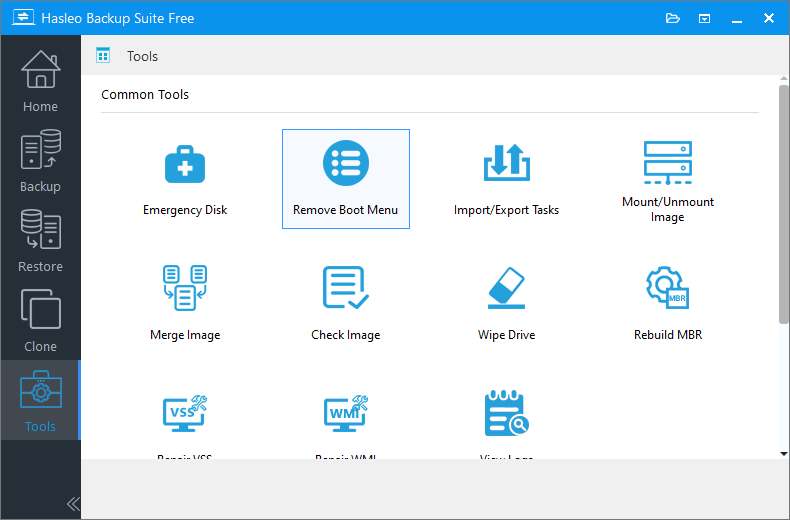
* Tips: If you no longer need this startup item, click "Home" > "Remove Boot Menu" to remove it with one click.
2. Boot and restore
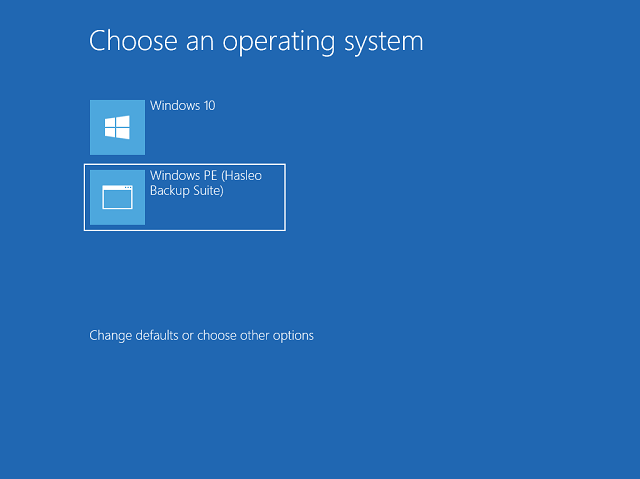
Step 1. When the system crashes and fails to boot normally, restart the computer. After the initial Windows boot animation (spinning dots), a screen titled "Choose an operating system" will appear. Please select the "Windows PE (Hasleo Backup Suite)" option.
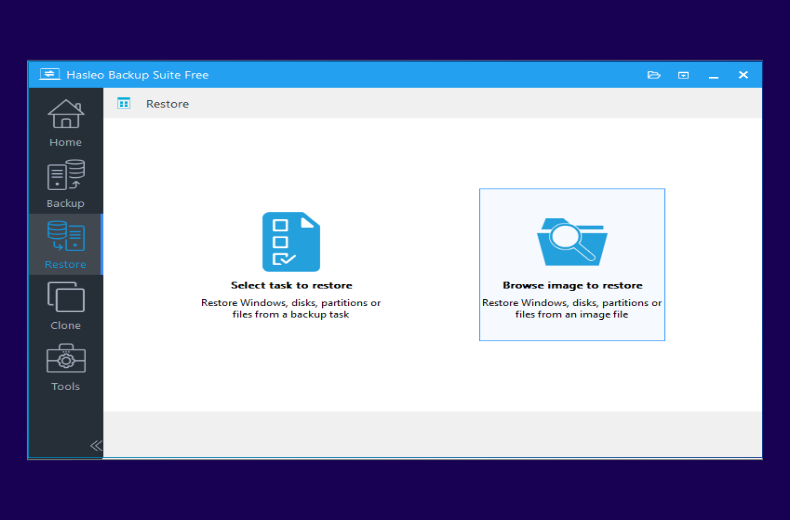
Step 2. After entering the Hasleo recovery environment, the familiar interface of the Hasleo Backup Suite will load. Click the "Restore" button in the navigation bar, then select "Browse image to restore" in the operation area to find the system image file you want to restore.
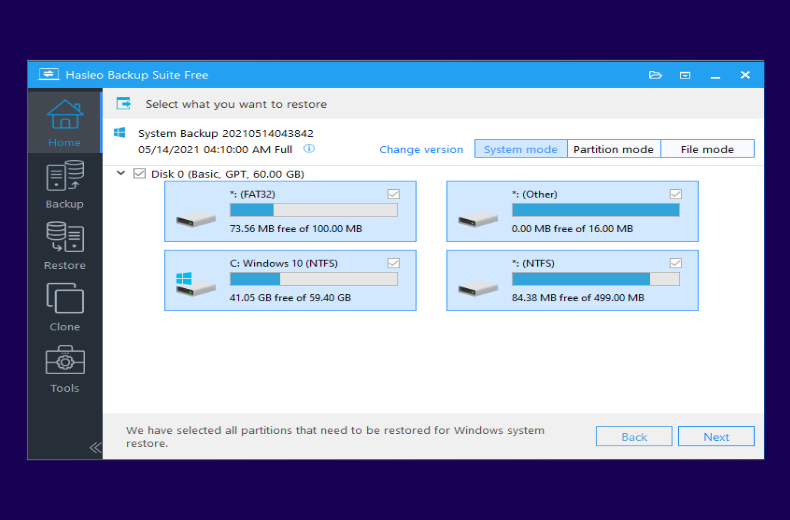
Step 3. Select "System mode" to restore the entire system, then click "Next".
Step 4. Select the target disk for restoration. If you check the "Restore to original location" option, the "Delta restore" option will be automatically selected to speed up the process. Then, click "Next" to begin restoring the Windows image to the target computer.
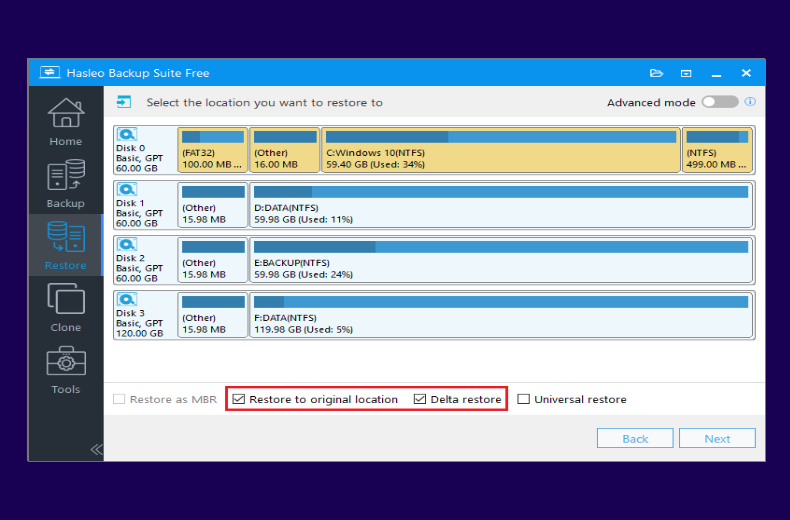
Step 5. After the restoration completes successfully, restart the computer. Upon successful boot, verify that all systems and applications are functioning normally.
Frequently Asked Questions (FAQ) for Emergency Computer Recovery
A: When your computer crashes and won't boot without Windows boot media, you can use Hasleo Backup Suite's "Add Boot Menu" feature. This feature adds a Windows PE recovery environment entry to your boot menu, allowing you to enter the recovery environment directly at startup and restore your system from a previously created backup image.
A: The "Add Boot Menu" feature adds a "Windows PE (Hasleo Backup Suite)" entry to your computer's boot menu. When your system crashes and cannot boot normally, you can select this boot option to enter the Hasleo recovery environment without needing external boot media like USB or DVD.
A: Yes, you need to have a previously created system backup image. The "Add Boot Menu" feature provides access to the recovery environment, but actual system restoration requires a valid backup image. It is recommended to create a full system backup immediately after enabling the boot menu feature.
A: The main difference is portability. The Add Boot Menu creates a local boot entry stored on your hard drive, while WinPE bootable media is stored on an external USB drive. If your hard drive fails physically, the local boot entry won't work, but WinPE USB drive will still work. It is recommended to use both methods together for maximum security.
A: Yes, you can remove the boot menu entry at any time. Simply open Hasleo Backup Suite, go to the Home screen, and click "Remove Boot Menu" to remove the recovery environment boot entry with one click.
A: If your computer fails to boot after restore, try the following: 1) Check if the correct backup image was restored; 2) Ensure the target disk is properly selected; 3) Try restoring to original location with Delta restore enabled; 4) If the problem persists, try an earlier backup point or recreate the boot menu entry and attempt recovery again.
A: The restore time depends on your backup image size and disk speed. If you check "Restore to original location" and "Delta restore", the process will be significantly faster as it only restores changed data. Full system restore typically takes 5-30 minutes depending on your system size.
A: Yes, Hasleo Backup Suite supports both UEFI and Legacy BIOS modes. The "Add Boot Menu" feature automatically detects your system configuration and adds the appropriate boot entry. However, ensure your system backup was created in the same boot mode you plan to restore to.
Summary
Facing a sudden system crash, even without a Windows boot media on hand, you are no longer helpless. Hasleo Backup Suite's "Add Boot Menu" feature embeds a recovery environment directly into your system's boot menu. Configure this feature in advance when your system is healthy, and if the main OS fails to boot, you can select the corresponding boot option after rebooting, allowing you to enter the recovery environment with one click. From there, you can perform critical operations like system restoration, dramatically reducing downtime.
In addition, Hasleo Backup Suite provides an all-in-one data defense system. It seamlessly integrates backup, restore, and cloning into a single, intuitive platform, empowering you to protect your data and maintain your systems with confidence.
Related Articles
- How to Merge/Delete Old Backup Files using Hasleo Backup Suite Free?
- How to back up and restore Windows 11 for free?
- How to Compress Backup Files using Hasleo Backup Suite Free?
- How to set up a schedule to automatically back up Windows Server?
- How to Restore Your System From Full/Differential/Incremental Backups?


