

- Overview of Windows Server
- Why Do You Need Windows Server Cloning Software?
- A Tutorial: How to Clone/Migrate Windows Server Using Hasleo Backup Suite
- Frequently Asked Questions
- Conclusion
This tutorial describes how to migrate Windows Server to another disk using Hasleo Backup Suite, the best Windows Server cloning software.
Overview of Windows Server
Regular computer users have likely only used consumer-oriented Windows Desktop versions, like Windows XP, Vista, 7, 8, 10, and 11. In contrast, advanced users are probably familiar with Windows Server — including versions such as 2008, 2012, 2016, 2019, 2022, and 2025 — which is a class of operating systems designed primarily for servers. While Windows Server and Desktop OS share a common codebase and visual interface, they serve completely different purposes. Since servers are usually only used in enterprises, the Windows Server operating system is mainly used in business environments to help companies deal with Internet/intranet hosting, databases, and similar functions more effectively. Here are the key differences between a Windows Server and a Windows desktop:
✦ Windows Server Supports More Memory
✦ Windows Server Uses CPUs More Efficiently
✦ More Network Connections Allowed on a Windows Server
✦ The Server OS is Configured for Background Tasks
Why Do You Need Windows Server Cloning Software?
Since Windows Servers primarily run critical enterprise applications, it is very important to ensure long-term and stable operation of the server. Let's imagine that if a clone of the Windows Server operating system exists, we can quickly and efficiently restore Windows Server operating system in the event of a disaster, which makes perfect sense. Another common scenario is the need to migrate a Windows Server from one disk to another, whether to increase storage capacity or enhance performance—for instance, by replacing a smaller disk with a larger one or upgrading from a traditional HDD to an SSD. Windows Server Cloning Software is a software specially used to safely and effectively clone/migrate Windows Server operating system to another disk.
Are you looking for a software to migrate/clone your Windows Server OS? Hasleo Backup Suite is a professional Windows cloning software. Effortlessly transfer your system to a new disk—download now to try it for yourself.
A Tutorial: How to Clone/Migrate Windows Server Using Hasleo Backup Suite
Step 1. Download, install and run Hasleo Backup Suite.

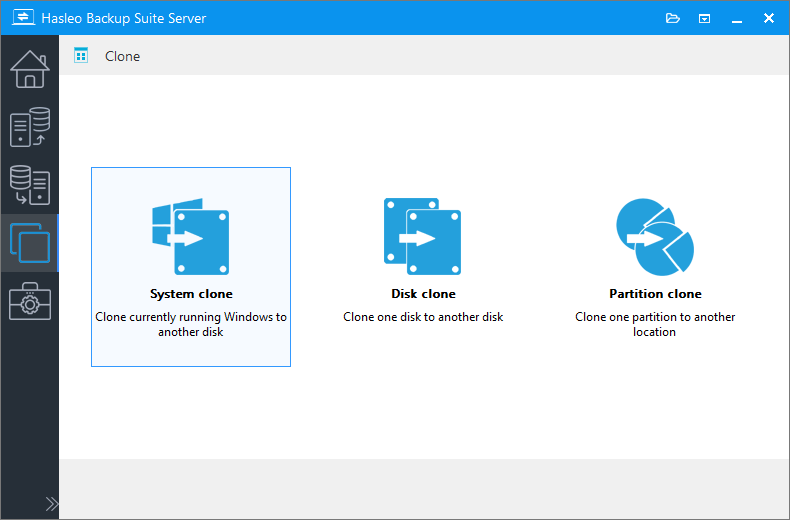
Step 2. Click "Clone" button in the navigation bar, then click "System clone" button in the operation area.
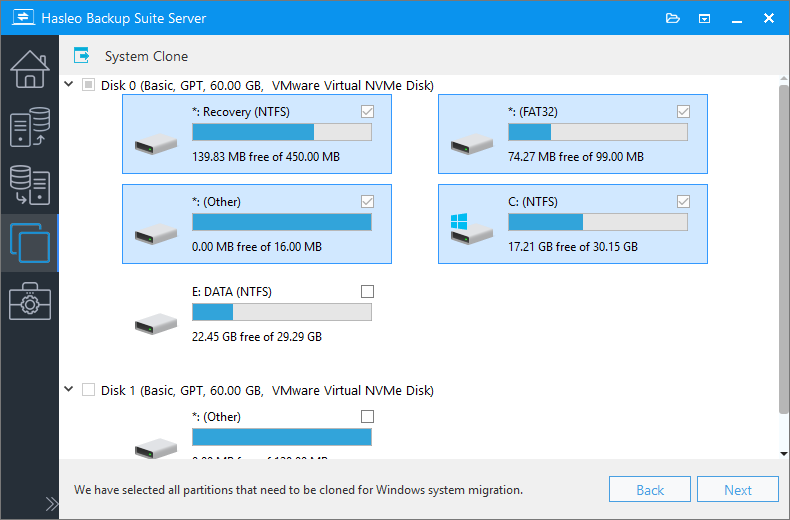
Step 3. Hasleo Backup Suite will automatically select all partitions required for Windows Server migration. Click "Next" to continue.
Step 4. Choose the destination that you want to clone to, and then click the "Next" button.
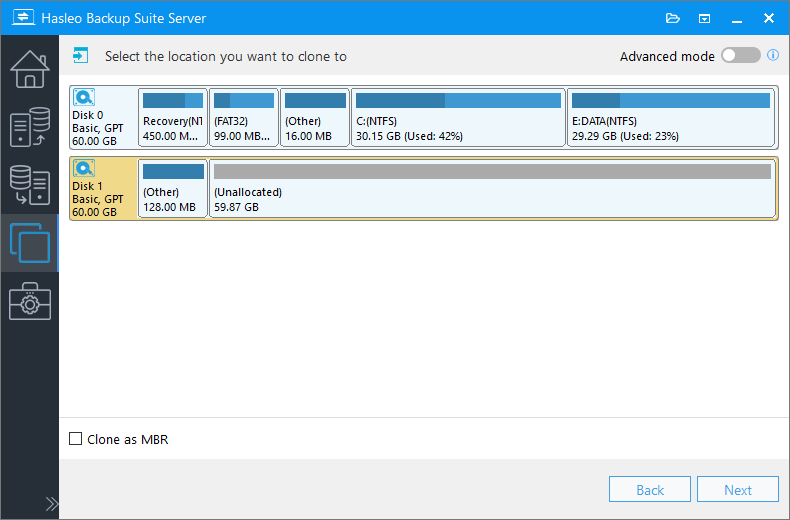
* The Keep partition layout option can ensure that the destination disk's layout is identical to the source disk after cloning.
Step 5. Adjust the size and location of the partitions according to your needs and click "Proceed". A warning message will appear, telling that all data on the destination drive will be destroyed. If the destination disk contains no important data, click "Yes" to continue.
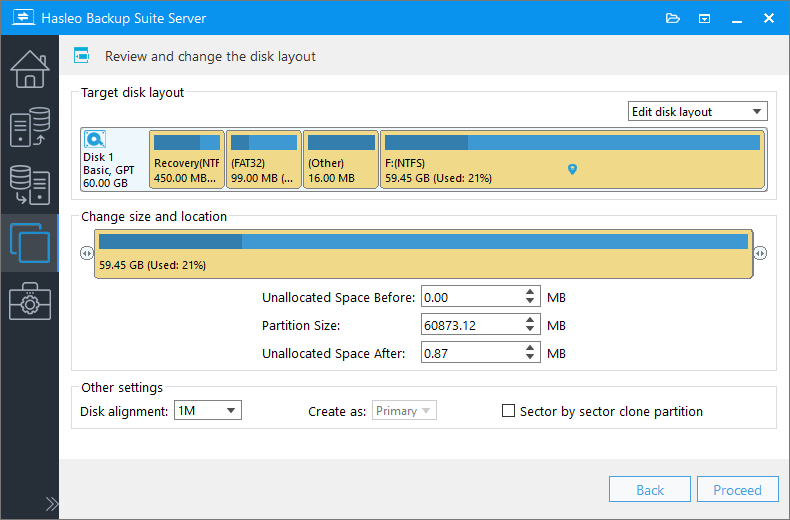
- 1M (Recommended): 1M alignment is a subset of 4K alignment. Partitions aligned to 1MB are always 4K-aligned, which helps you get the best SSD performance. In Windows Vista and later operating systems, partitions created using Windows Disk Management are always aligned to 1MB bytes, regardless of whether the disk is an SSD.
- 4K: This option ensures the starting sector of every partition is aligned on a 4K bytes, which is very important for the best performance of an SSD.
- Cylinder: Ensure the starting sector of each destination partition always starts at the beginning of a cylinder. Windows XP and previous OSs use this alignment mode.
- None: The start sector of the destination partitions is not aligned.
* The Sector by sector clone partition option copies every sector from the source partition to the destination partition, including unused sectors.
Step 6. Hasleo Backup Suite is now cloning Windows Server to the destination disk. The required time depends on the size of the data that needs to be cloned; please be patient.
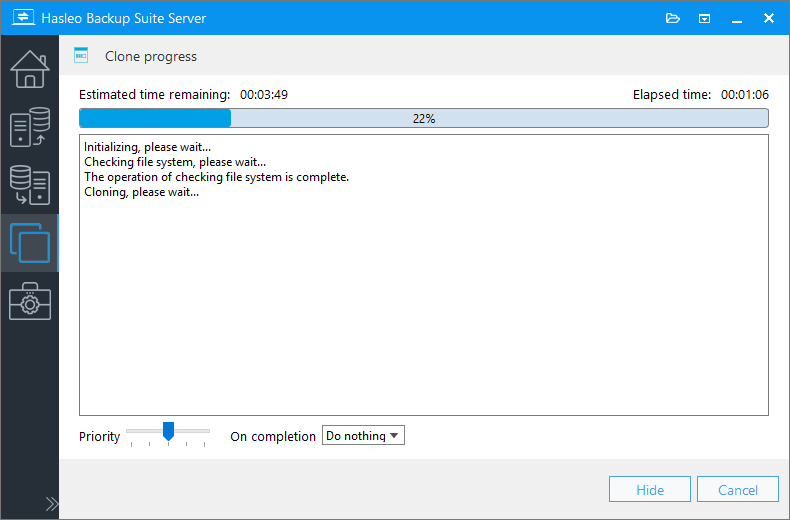
* Here you can specify a power management action to be performed after the cloning is complete.
Frequently Asked Questions
A: Hasleo Backup Suite is the best Windows Server cloning software in 2026. It supports cloning and migrating Windows Server 2008 and later versions to another disk.
A: Yes, you can clone Windows Server to a larger or smaller disk as long as the destination disk has enough capacity to hold all the data from the source disk.
A: Yes, Hasleo Backup Suite supports cloning Windows Server to all types of storage drives including SSD, NVMe, HDD, SATA, and USB drives.
A: Yes, Hasleo Backup Suite supports cloning Windows Server between MBR and GPT disks. You can migrate from MBR to GPT or vice versa.
A: Disk alignment ensures partitions start at optimal positions for SSD performance. Hasleo Backup Suite supports 1MB, 4K, Cylinder, and None alignment modes. 1MB alignment is recommended for best SSD performance.
A: No, cloning does not affect the original Windows Server system. The source disk remains intact while the data is copied to the destination disk.
A: Cloning time depends on the data size and disk speed. Using USB 3.0, cloning a typical Windows Server installation takes about 20-40 minutes.
A: Yes, Hasleo Backup Suite provides a 'Keep partition layout' option that ensures the destination disk's partition layout is identical to the source disk after cloning.
Conclusion
Hasleo Backup Suite is the best Windows cloning software that can be used to clone or migrate Windows Server operating systems to another disk. And Hasleo Backup Suite is a backup and restore software for Windows, supporting backing up and restore Windows Server OS and Windows Desktop OS.


