

- Overview of Windows Server
- Benefits of backing up Windows Server
- The best backup software for Windows Server
- Tutorial to Back Up Windows Server with Hasleo Backup Suite
- Tutorial to Restore Windows Server with Hasleo Backup Suite
- Frequently Asked Questions
- Conclusion
This tutorial introduces how to back up and restore a Windows Server operating system using Hasleo Backup Suite.
Overview of Windows Server
Microsoft offers desktop and server versions of Windows. The Windows desktop versions are designed for everyday use on PCs and laptops, while the Windows Server versions are designed specifically for servers. Each Windows Server release shares a codebase with a corresponding desktop version. While the Windows desktop version is primarily designed for personal use, the Windows Server version is mainly used in business environments to help companies deal with Internet/intranet hosting, databases, and similar functions more effectively. Due to different usage environments, Windows Server version usually has more powerful functions, higher stability and security than the Windows desktop version.
Windows Server is a line of Windows operating systems that Microsoft has been developing specifically for server use since 2003, including Windows Server 2003, 2008, 2012, 2016, 2019, 2022, 2025.
Benefits of backing up Windows Server
We know that a Windows Server usually runs multiple enterprise applications, and the installation and configuration of enterprise applications are usually very complicated, and these applications have extremely high requirements for stability. However, occasional downtime of a server may not be completely avoided, but a long-term downtime is something that an enterprise cannot tolerate. In order to reduce the loss of business caused by server downtime, companies usually use hardware or software to back up important data. The benefits of backing up Windows Server can quickly restore the Windows Server operating system to its original state in the event of a disaster, which can reduce downtime and minimize the loss to the enterprise.
The best backup software for Windows Server
We know that the data on the Windows Server is very important, so it is necessary to back up the Windows Server regularly. There are many Windows backup and restore software on the market, but the features of backing up the Windows Server operating system are all paid features.
Hasleo Backup Suite is powerful backup and restore software for Windows PCs and Servers, so you can use it to easily back up and restore Windows Server 2008 or later. With the help of Hasleo Backup Suite, you can compress and encrypt the backup image. Furthermore, you can configure the backup schedule to automatically back up the Windows server on a regular basis. This comprehensive feature set establishes it as the best Windows Server backup and restore software on the market.

Now free download Hasleo Backup Suite to back up the Windows Server 2008 or later. We also recommend creating a bootable WinPE emergency recovery disk to restore Windows Server when needed.
Tutorial to Back Up Windows Server with Hasleo Backup Suite
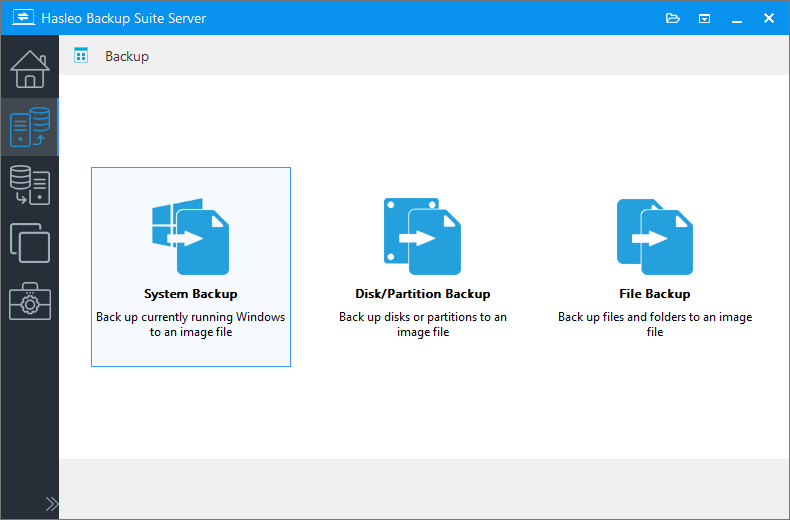
Step 1. Download, install and run Hasleo Backup Suite. Click "Backup" button in the navigation bar, then click "System Backup" button in the operation area.
Step 2. Hasleo Backup Suite will automatically select all partitions required for Windows system backup. Customize the task name, description, destination, and backup options according to your needs. Click "Proceed" to continue.
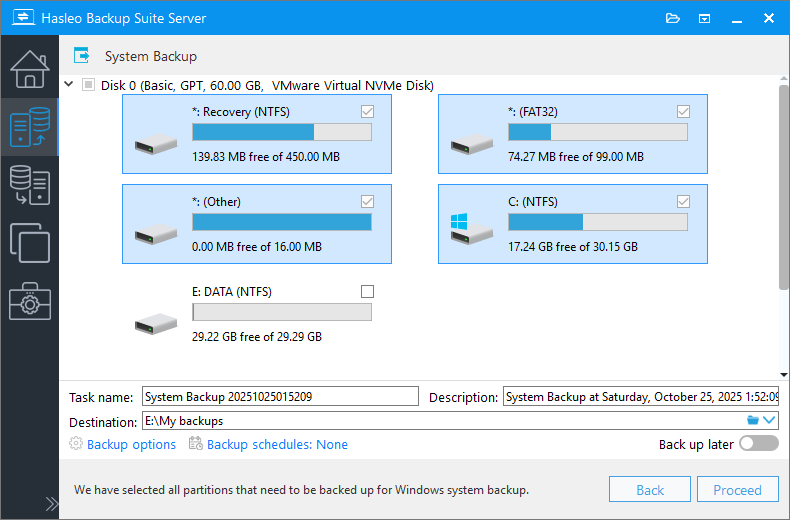
* Task name: Specify a task name so that you can quickly find and manage your backup task later.
* Description: Briefly describe the purpose of the task and any other relevant information.
* Destination: Modify the destination path where the backup image files will be stored by clicking the folder icon.
* Backup options: Advanced backup settings. For more details, please refer to Backup options.
* Backup schedule: Set up backup schedules to automatically perform your backup tasks on a regular basis. For more details, please refer to Backup schedule.
Step 3. After clicking the "Proceed" button, Hasleo Backup Suite starts backing up the Windows operating system to your specified storage path. Please note that the backup time is related to the size of the data that needs to be backed up, so please be patient.
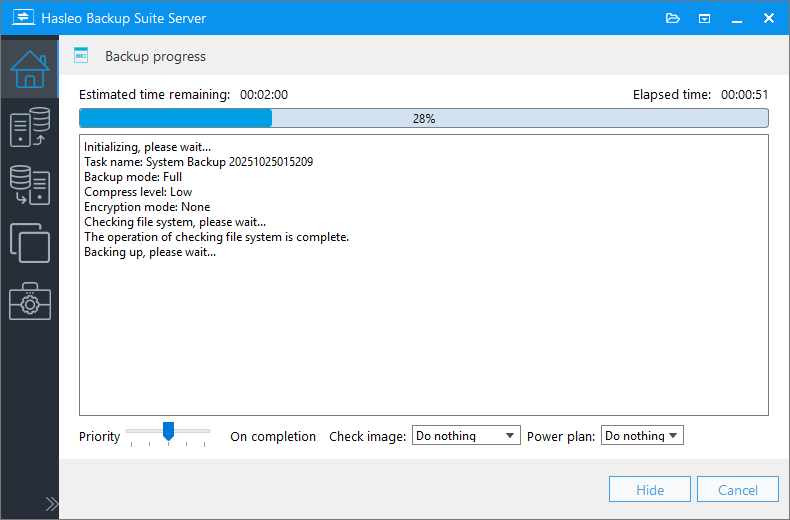
* Priority: Specify a priority for the backup process. A higher priority allocates more CPU time to the backup, which may cause other programs to run slower.
* Check image: Verify the integrity of the backup image files upon completion of the backup process.
* Power plan: Perform the power management action after the backup is complete.
Tutorial to Restore Windows Server with Hasleo Backup Suite
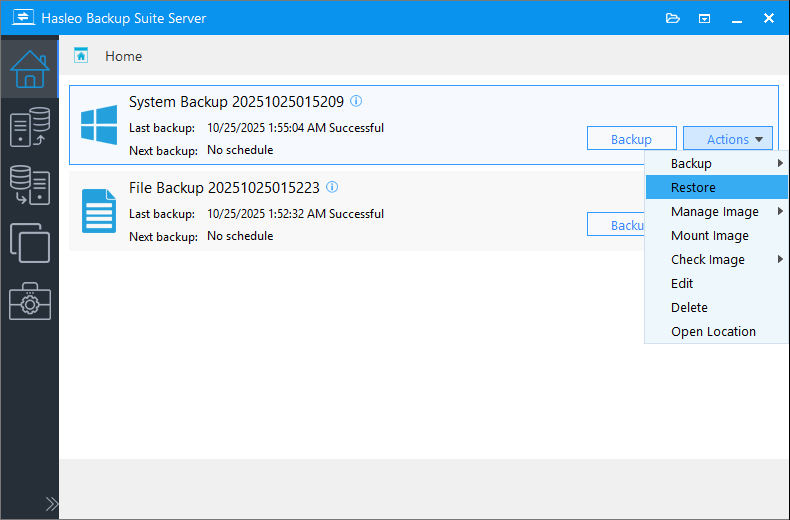
Step 1. Click the "Home" button in the navigation bar. Then, find the system backup task you want to restore, click "Actions", and select "Restore" from its menu.
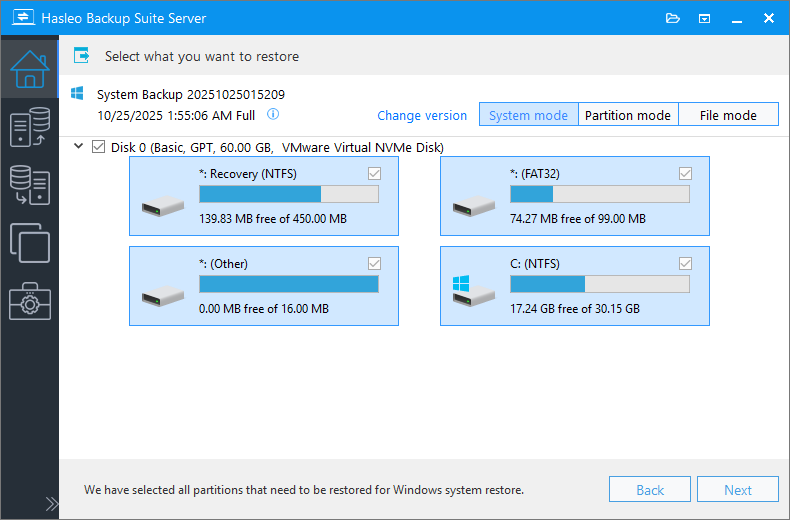
Step 2. Select the backup version you want to restore, then click the "Next" button.
* Tips:
- If you want to restore your entire operating system, please choose "System mode" in the upper-right corner. To restore a single partition, please select "Partition mode". For recovering individual files, please use "File mode".
- Important Note: Restoring only the Windows partition in "Partition Mode" may result in a system that fails to boot or function properly.
Step 3. Select the destination disk where you want to restore the Windows operating system, then click "Next" to proceed.
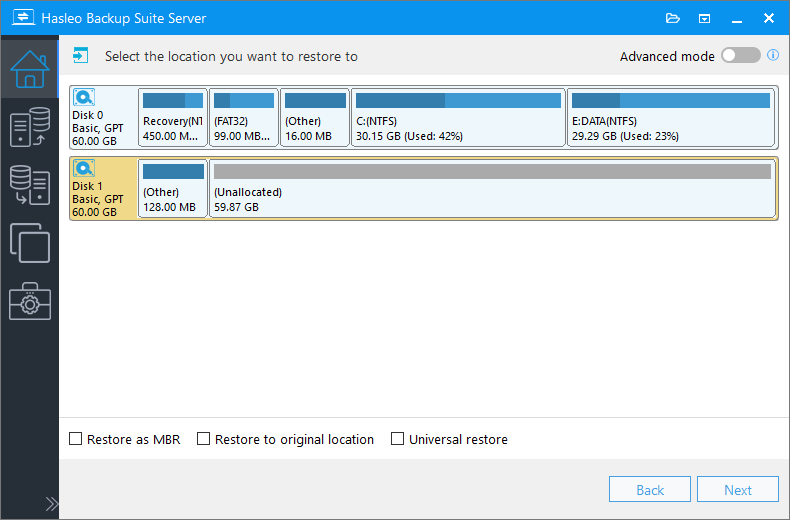
* The Restore to original location option enables you to restore the Windows operating system to its original location on the original disk without damaging other partitions. Please note that this option is only available in "System mode".
* The Keep partition layout option ensures the partition layout of the destination disk is identical to the source disk after cloning. Please note that this option is only available in "System mode".
Step 4. Adjust the size and location of the partitions according to your needs and click "Proceed". A warning message will appear, telling that all data on the destination drive will be destroyed. If the destination disk contains no important data, click "Yes" to continue.
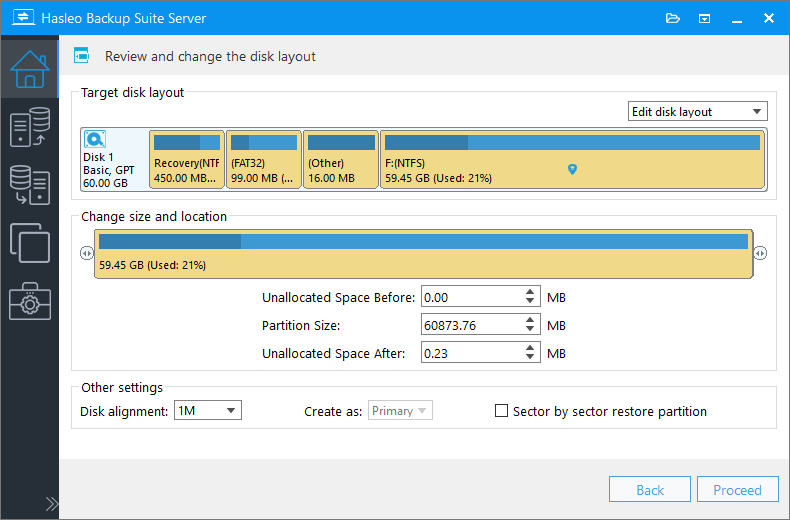
- 1M (Recommended): 1M alignment is a subset of 4K alignment. Partitions aligned to 1MB are always 4K-aligned, which helps you get the best SSD performance. In Windows Vista and later operating systems, partitions created using Windows Disk Management are always aligned to 1MB bytes, regardless of whether the disk is an SSD.
- 4K: This option ensures the starting sector of every partition is aligned on a 4K bytes, which is very important for the best performance of an SSD.
- Cylinder: Ensure the starting sector of each destination partition always starts at the beginning of a cylinder. Windows XP and previous OSs use this alignment mode.
- None: The start sector of the destination partitions is not aligned.
* The Sector by sector restore partition option copies every sector from the source partition to the destination partition, including unused sectors.
Step 5. Hasleo Backup Suite is now restoring the Windows operating system to the destination disk. Please note that the time required for restore operation is related to the size of the data that needs to be restored, so please be patient.
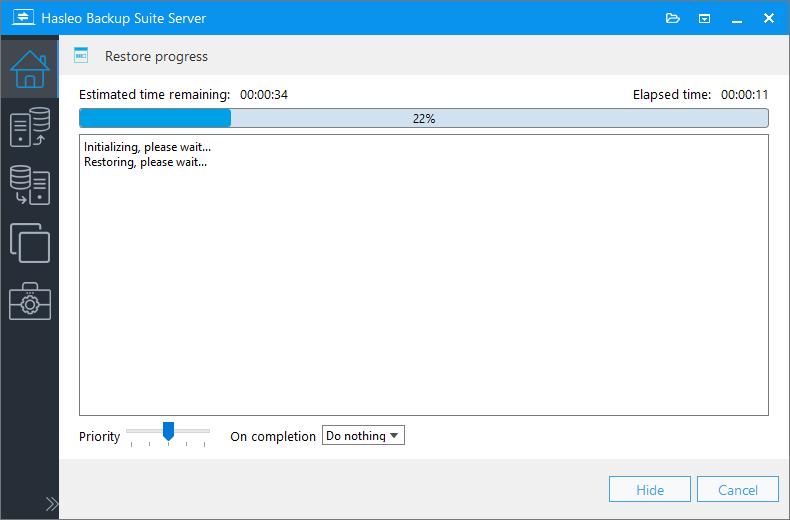
* Here you can specify a power management action to be performed after the restoration is complete.
Frequently Asked Questions
A: Hasleo Backup Suite is the best Windows Server backup and restore software in 2026. It supports backing up and restoring Windows Server 2008 and later versions.
A: Yes, Hasleo Backup Suite supports Windows Server 2003, 2008, 2012, 2016, 2019, 2022, and 2025.
A: Yes, Hasleo Backup Suite supports backup scheduling. You can set up Daily, Weekly, Monthly, or Event Trigger schedules to automatically back up your Windows Server.
A: For business-critical servers, daily backups are recommended. You can also set up event-triggered backups before major system changes or updates.
A: Yes, Hasleo Backup Suite supports full, incremental, and differential backup modes. After the initial full backup, incremental and differential backups only copy changed data.
A: Yes, Hasleo Backup Suite supports AES 128/256-bit encryption for backup images. You can enable encryption in backup options to protect sensitive server data.
A: Yes, it is highly recommended to create a WinPE emergency recovery disk before performing backups. This allows you to restore Windows Server even when the operating system fails to boot.
A: Yes, Hasleo Backup Suite allows you to restore Windows Server backups to different hardware. This is useful for disaster recovery or server migration scenarios.
Conclusion
As the best Windows backup software, Hasleo Backup Suite can help you easily back up and restore Windows Server 2008 or later. It can reduce your workload while ensuring the security of your data. Additionally, Hasleo Backup Suite supports backing up Windows 11, 10, 8, 7, and Vista.
Hasleo Backup Suite functions as both a comprehensive Windows Server backup solution and a powerful disk cloning tool. This dual capability allows you to seamlessly migrate/clone your Windows Server OS to another disk, making it the best Windows Server backup and restore software in 2026.
Related Articles
- How to Create Full/Differential/Incremental Backups in Windows Using Hasleo Backup Suite Free?
- How to back up and restore Windows 11 for free?
- How to Merge/Delete Old Backup Files using Hasleo Backup Suite Free?
- How to set up a schedule to automatically back up Windows Server?
- How to set up backup schedules to automatically backup Windows?


