

- Backup vs. Clone: What's the Difference
- Backup Use Cases: When to Back Up
- Clone Use Cases: When to Clone
- Why Choose Hasleo Backup Suite
- Frequently Asked Questions
- Conclusion
In data protection, backup and cloning are often compared to twins - similar in appearance but fundamentally different in purpose. From their outcomes to their use cases, these two approaches follow entirely distinct logic. As a result, many users find themselves torn between 'Should I back up or clone' when first exploring data protection tools.
The choice between backup and clone doesn't have to be a dilemma. Hasleo Backup Suite gives you the best of both by integrating both features into a single, unified solution. It handles all your data protection needs in one go.
Backup vs. Clone: What's the Difference
Overview of Backups and Clones
A backup is the process of copying original data - such as files, data blocks, or system state - to a separate storage medium for restoration in case of data loss, corruption, or accidental deletion.
Cloning, on the other hand, creates an exact, sector-by-sector copy of a hard drive or partition, resulting in a fully identical and bootable duplicate.
The key difference lies in the outcome. A backup produces a compressed image file stored on the destination drive without affecting existing files. Cloning, however, creates a bootable drive that is identical to the source, overwriting all existing content on the destination.
Comparison
To help you quickly understand the key differences between backups and clones, we've prepared the following comparison:
| Comparison Criteria | Backup | Clone |
|---|---|---|
| Output | Generates a compressed image file | Creates a bootable drive identical to the source disk |
| Storage Space | Relatively small (supports compression and incremental backups) | Equal to source disk usage (destination disk must have more free space than the used space) |
| Version Management | Supports multiple historical versions and point-in-time restoration | Represents only the current state; no rollback capability |
| Impact on Target Disk | Does not affect existing files on the target disk | Completely overwrites all data on the target disk |
| Usage | Requires a restore operation before use | Bootable and ready immediately after cloning |
| Essential Characteristics | A long-term, continuous data protection strategy | A one-time migration or duplication operation |
As shown in the table, backups provide continuous, rollback-capable data protection, while clones offer a one-time, ready-to-use hardware replacement solution - each with its own unique and irreplaceable uses. The true value of Hasleo Backup Suite lies in the fact that it integrates both professional-grade backup and cloning modules, so you never have to choose between them.
Backup Use Cases: When to Back Up 🎯
For long-term, regular data protection, backup is the superior choice. Choose backup over cloning in these scenarios:
Protection Against Viruses and Ransomware
If your system is infected by a virus or ransomware, you may be unable to boot normally - or even find that your files have been encrypted. In such cases, regular backups let you restore your system to a clean state before the infection, eliminating the need to pay a ransom or perform a full system reinstall.
Dealing with Hardware Failures and Unexpected Power Outages
Hard drives can fail at any time due to physical damage, power outages, or other unforeseen events. Regularly backing up drives that contain critical data is a prudent practice. Should a disaster occur, you can recover lost files from backup images.
Keeping Multiple Historical Versions
Accidents happen - you might overwrite a critical file or install an incompatible driver. Backup support allows you to keep versions from multiple points in time, giving you the freedom to roll back to any healthy state.
Automated and Unattended Operation
Backups can be scheduled (one-time, daily, weekly, monthly, or event-triggered), eliminating the need for manual intervention each time. You can also configure email notifications to receive real-time status updates on your backup jobs.
Flexible Storage for Backup Files
Backups are generated as image files and can be stored on a variety of media, including local hard drives, NAS devices, external drives, and the cloud, giving you great flexibility in managing your backup data.
Clone Use Cases: When to Clone 🎯
If your goal is to replace hardware and start working immediately, cloning is the right choice. You should choose cloning without hesitation in the following scenarios:
Hard Drive Upgrade
Upgrade from an HDD to an SSD while keeping your entire system intact. The goal is a seamless migration - avoiding the time-consuming reinstallation of Windows, apps, and personal settings.
Replacing a Faulty Hard Drive
If your hard drive shows signs of failure, such as bad sectors, unusual noises, or frequent system crashes, it needs to be replaced immediately. Cloning the drive ensures a complete data migration, minimizing downtime and maintaining business continuity.
Migrating Your System to a Larger Hard Drive
When your system drive runs out of space and needs replacing with a larger one, the system cloning feature lets you migrate the entire Windows operating system, along with all installed applications and drivers to the new drive, without the need for reinstallation.
A Bootable Backup Drive for Immediate Use
Sometimes, you need an exact, bootable copy of your main drive for emergency recovery or testing. With cloning, the new drive is ready to plug in and boot immediately, no recovery wait time.
Upgrading Hardware or Replacing Your Computer
When you purchase a new computer or upgrade your motherboard, cloning enables a complete migration of data from your old drive. Hasleo even supports MBR-to-GPT or GPT-to-MBR conversion during cloning, ensuring compatibility across both legacy and modern hardware.
Why Choose Hasleo Backup Suite 👑
It supports backup, restore, and cloning for systems, disks/partitions, and files, and also includes practical features like creating bootable WinPE rescue media and mounting image files—delivering one-stop data protection.
Its value lies not in a choice between backup and cloning, but in the powerful capabilities it offers in both areas.
📦 Backup
Supports full, incremental, and differential backup modes, plus enterprise-level features including scheduled backup plans, AES 128/256-bit image encryption, adjustable compression levels (none/low/medium/high), image splitting, and retention policies.
💻 Clone
Supports system, disk, and partition cloning. During the process, it can intelligently resize partitions to fit the new hard drive's capacity and also supports conversion between MBR and GPT disks - especially useful when replacing a computer or upgrading a hard drive.
⚙ Compatibility
Natively supports Windows x86, x64, and ARM64 architectures; compatible with all Windows versions from Vista/Server 2008 onward; fully supports GPT disks and UEFI boot.
Backup Module: Enterprise-Class Automated Protection
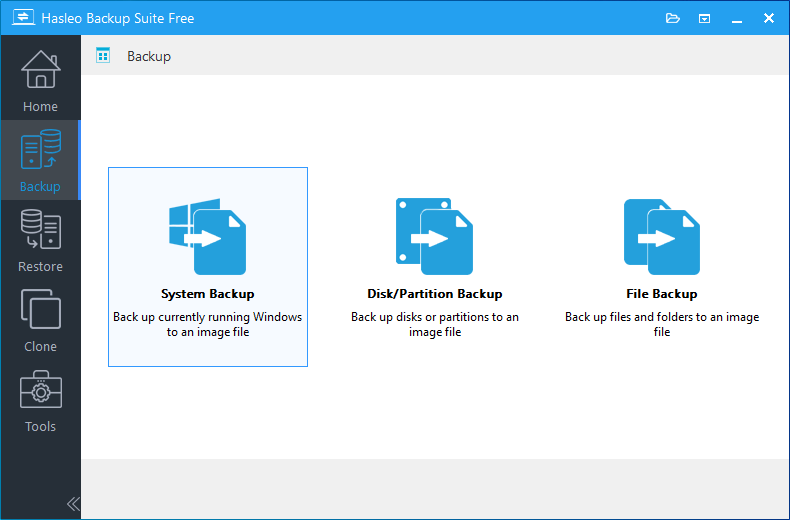
Hasleo Backup Suite's backup module provides a comprehensive solution covering various levels of granularity, from system-level to file-level.
System Backup and Recovery
Backs up the Windows operating system and all related partitions, including user settings, drivers, and installed applications. This ensures that, in the event of a system crash, the entire system can be quickly restored to a healthy state without the need for reinstallation.
Disk/Partition Backup and Recovery
Backing up an entire disk or a specific partition is a proven way to protect your data against loss. Virus attacks, sudden power outages, and other unforeseen incidents can corrupt or delete files. In such cases, you can quickly restore your data from the backup image, minimizing downtime and business impact.
File/Folder Backup
Select specific files or folders to back up instead of the entire drive - ideal for protecting important daily data like documents, photos, and project files. This approach makes backups more flexible and efficient.
Three Backup Modes
- Full Backup: Creates a complete backup image of all source data, typically used for the initial backup.
- Incremental Backup: Backs up only data changed since the last backup (whether full or incremental). This is the fastest and most storage-efficient method.
- Differential Backup: Backs up all data changed since the last full backup.
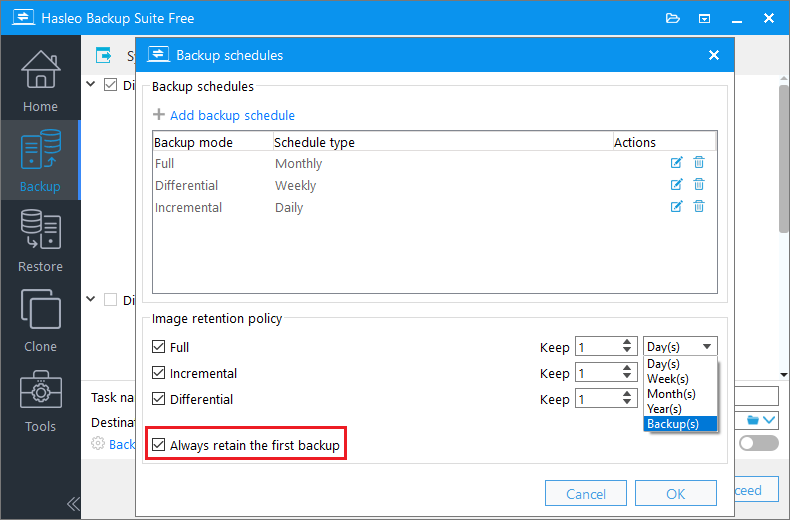
Backup Schedule
Automate your backups with flexible schedules - one-time, daily, weekly, monthly, or event-triggered. This ensures backups run on time without manual intervention, so you never miss a protection cycle.
Image Retention Policy
As the number of backup versions grows, image files consume increasing storage space. The retention policy lets you keep only the versions you need. After each backup, the program automatically removes older versions according to your settings, balancing data security with storage efficiency.
Backup Image Encryption
AES 128-bit and 256-bit encryption algorithms protect your backup image files, ensuring that even if the files are compromised, their contents remain unreadable. This makes it ideal for storing sensitive data or meeting enterprise backup requirements.
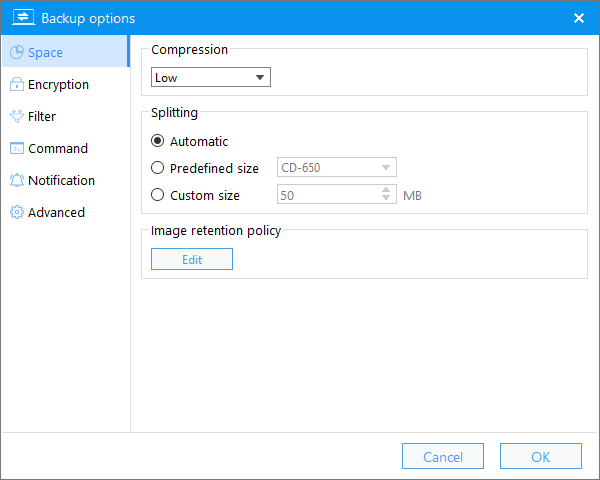
Backup Image Compression
Choose from multiple compression levels (None, Low, Medium, High) to balance backup performance against storage space savings.
Splitting and Merging Backup Images
- Splitting Image: During a backup job, the image can be split into files of a specified size for easier storage on media with format restrictions, such as CDs/DVDs, USB drives, or FAT32 partitions.
- Merging Image: Consecutive backup versions can be merged into a single file, saving storage space while maintaining data security.
Check Backup Image
This feature verifies the integrity of the backup image and confirms whether it can be successfully restored.
Mounting Backup Images
Mount a backup image as a virtual disk and browse its contents just like a regular folder - no restore needed. This is far more efficient than a full restore when you only need to retrieve one or two files.
Email Notifications
Configure email notifications to receive real-time updates on backup task status, whether successful or requiring manual intervention. This is especially useful for enterprise users and unattended operation scenarios.
Backup Task Management
Centrally manage all your backup tasks - including running full, differential, and incremental backups; restoring from tasks; and editing or deleting tasks.
Import/Export Tasks
Export the configuration data for all backup tasks to a backup settings file, or import backup tasks from a settings file or backup image file - this way, you won't need to reconfigure all backup schedules after switching computers or reinstalling the operating system.
Clone Module: One-Click Migration, Ready to Use Immediately
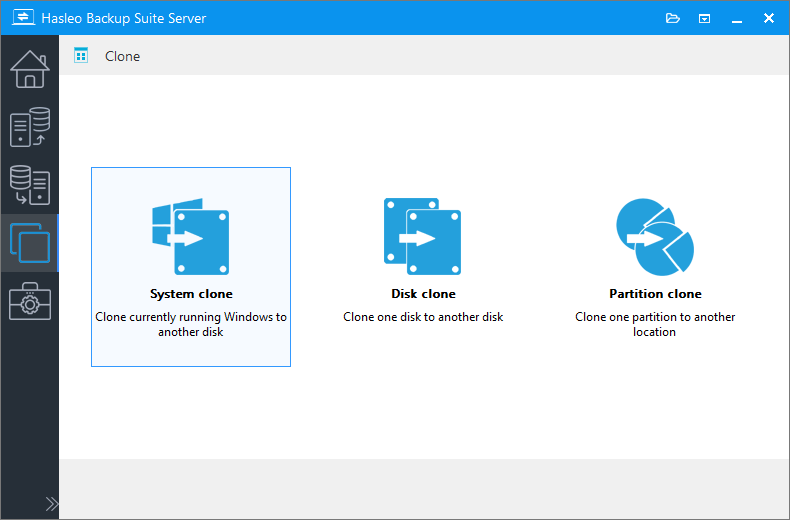
The cloning module in Hasleo Backup Suite also fully addresses all your needs:
System Cloning
Clone your Windows operating system to another disk without reinstalling the system, applications, or drivers. Once complete, you can boot directly into your original system, with all personal settings, account logins, and passwords fully preserved. This makes it the ideal solution for upgrading your hard drive.
Disk Cloning
Clone an entire disk to another, ensuring that the source and destination are exactly identical. Ideal for replacing a hard drive or creating a full backup of an old disk.
Partition Cloning
Clones a specified partition (e.g., data drive D) entirely to a target location on the same disk or another disk, with the data remaining unchanged. This solution is designed for scenarios where you need to migrate a single partition without replacing the entire system.
Smart Partition Resizing
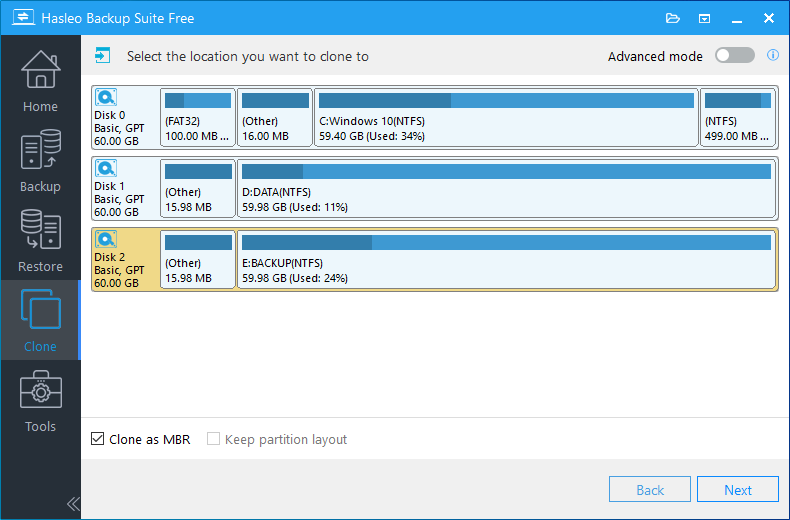
During cloning, Hasleo Backup Suite intelligently resizes partitions to fit the new drive's capacity. For example, when cloning from a 256GB drive to a 1TB drive, the system partition automatically expands to use the available space - though you can also adjust it manually.
MBR/GPT Conversion
Supports converting an MBR disk to GPT, or vice versa, during cloning. This ensures the target disk's boot mode is compatible with the new hardware, especially useful when replacing a PC or upgrading a drive.
Delta Cloning
Delta Cloning copies only the data that has changed since the previous clone, significantly reducing cloning time.
More Built-in Utilities
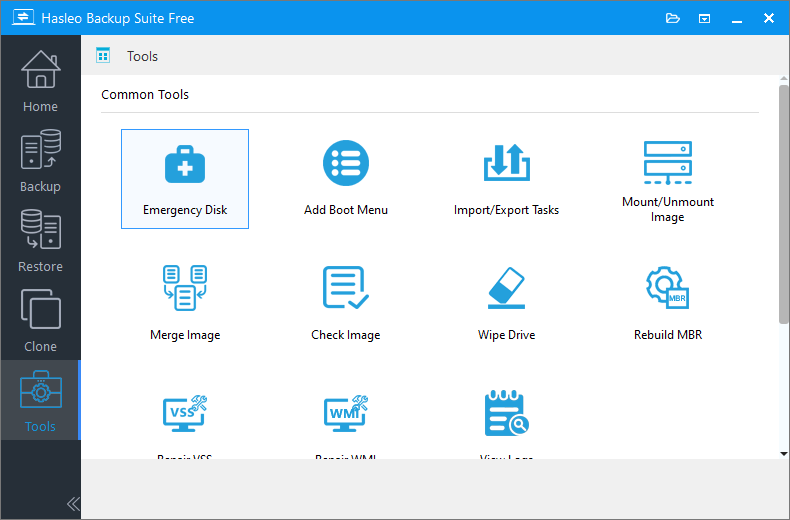
Beyond its three core modules - Backup, Restore, and Clone - Hasleo Backup Suite includes a range of built-in utilities that form a complete data protection ecosystem.
| Tool | Function Description |
|---|---|
| WinPE Emergency Disk | Creates bootable WinPE media to perform backup, recovery, and cloning tasks when the system fails to start. |
| Wipe Hard Drive | Permanently erases all data to prevent leakage when a drive is sold, recycled, or retired. |
| Delete Backup Images | Deletes unnecessary old backup images to free up space when the backup drive is running low. |
| PXE Server | Boots client machines over the network to launch the Hasleo recovery environment, ideal for enterprise bulk deployment. |
| Command-Line Interface (CLI) | Supports script-based backup execution (batch files, PowerShell, etc.), suitable for automated maintenance workflows. |
Frequently Asked Questions 🔥
Q: What is the main difference between backup and clone?
Backup creates compressed image files for long-term, versioned data protection. Clone creates an exact bootable copy of a drive for immediate use or hardware migration. Backup preserves target disk files and supports version rollback; clone overwrites the target disk entirely and provides a plug-and-play result.
Q: Which should I choose for upgrading my hard drive: backup or clone?
Clone is the right choice for hard drive upgrades. Cloning creates an exact bootable copy on the new drive, allowing you to start using it immediately without reinstalling Windows, applications, or drivers. Backup would require a separate restore step.
Q: Is a cloned drive bootable immediately after the cloning process?
Yes. Unlike backup images which require a restore step before use, a cloned drive is bootable and ready immediately after cloning. You can plug it in and start the system right away, making it ideal for emergency recovery or hardware migration.
Q: What backup modes does Hasleo Backup Suite support?
Hasleo Backup Suite supports three backup modes: full backup (creates a complete image of all source data), incremental backup (backs up only data changed since the last backup), and differential backup (backs up all data changed since the last full backup). These flexible modes balance performance and storage efficiency.
Conclusion
Backup and cloning have never been an either-or choice. Backups let you revert to a previous state after viruses, accidental deletions, or system crashes. Cloning, on the other hand, provides one-click migration and immediate setup when upgrading a hard drive or switching devices. They serve distinct purposes - not as substitutes, but as complementary solutions.
Hasleo Backup Suite combines both into a single, comprehensive solution, putting everything at your fingertips. You no longer have to choose. With multiple capabilities in one package, simply use what you need and leave the rest to Hasleo.
Data is priceless, and prevention is always better than cure. Whether you choose backup or cloning, taking action now is the best way to protect your data.
Related Articles
- How Delta Clone Speeds Up System Cloning in Hasleo Backup Suite?
- How to Restore BitLocker-Encrypted Windows While Keeping Encryption?
- How to Encrypt Backup Tasks Using Hasleo Backup Suite Free?
- How to Compress Backup Files Using Hasleo Backup Suite Free?
- How to Flexibly Adjust Target Partition Size When Cloning a System?


