

- Overview of ReFS (Resilient File System)
- Differences and Connections Between ReFS and NTFS
- Why Do You Need to Backup ReFS Partitions?
- How to Back Up the ReFS Partition Using Hasleo Backup Suite?
- Frequently Asked Questions
- Summary
With the explosive growth of enterprise data volumes, traditional file systems face challenges in data resilience, scalability, and integration with virtualization environments. ReFS, as a modern file system introduced by Microsoft, is specifically designed to address these demands. Hasleo Backup Suite, as a professional Windows backup software, is compatible with ReFS (Resilient File System) and can perform efficient intelligent sector backup and recovery on it. This tutorial will detail the core features of the ReFS file system, its key differences and connections with NTFS, and demonstrate step by step how to safely backup and restore ReFS partitions using Hasleo Backup Suite.
Overview of ReFS (Resilient File System)
ReFS (Resilient File System) is a modern file system introduced by Microsoft starting with Windows Server 2012. It is not designed to directly replace the traditional NTFS file system, but rather focuses on meeting the specific needs of large-scale data storage, especially in data center, virtualization, and Software-Defined Storage (SDS) scenarios. The core design philosophy of ReFS revolves around data integrity, scalability, and automatic repair capabilities.
👍Core Advantages and Features of ReFS:
Data Integrity Protection:
- Checksum Mechanism: ReFS generates checksums for all metadata and data, enabling automatic detection and reporting of data corruption.
- Automatic Repair Function: When used with Storage Spaces, ReFS can automatically repair corrupted data from redundant copies without manual intervention.
- Copy-on-Write: Ensures consistency of metadata updates and avoids data inconsistency issues caused by system crashes.
Massive Scalability:
- Theoretical Capacity Support: Maximum 35PB (Petabytes) per volume, maximum 35PB per individual file.
- Unlimited File Count: Each volume can store billions of files without traditional file system directory depth limitations.
- Dynamic Storage Pool: Storage capacity can be easily expanded without service interruption.
Performance Optimization Features:
- Block Cloning: Also known as "data deduplication acceleration," can instantly copy large files or virtual hard disk files, significantly improving virtualization environment performance.
- Sparse File Optimization: Native support for sparse files, reducing storage space consumption.
- Parallel Metadata Operations: Supports concurrent execution of multiple metadata operations, improving performance under high-load scenarios.
Advanced Data Protection:
- Storage Spaces Integration: Perfect compatibility with Storage Spaces, providing multiple redundancy protection levels such as mirroring and parity.
- Quick Disk Replacement: Supports hot-swapping failed disks with minimal performance impact during data rebuild.
- Integrity Stream Control: Administrators can choose to enable or disable integrity checks for specific files, balancing performance and data protection needs.
Differences and Connections Between ReFS and NTFS
Understanding the differences between ReFS and NTFS is crucial for selecting the appropriate file system. The following table provides a detailed comparison of their main differences:
| ReFS (Resilient File System) | NTFS (New Technology File System) | |
| Release Year | 2012 (Windows Server 2012) | 1993 (Windows NT 3.1) |
| Primary Design Goal | Enterprise data storage, high availability | General-purpose file system, personal and desktop systems |
| Maximum Volume Capacity | 35 PB (theoretical) | 256 TB |
| Maximum File Size | 35 PB (theoretical) | 256 TB |
| Data Integrity Protection | Built-in checksums, automatic repair | Metadata checksums |
| Compression Function | Supported | Supported |
| BitLocker Encryption | Supported | Supported |
| File System Encryption | Supported | Supported |
| Block Cloning Feature | Supported | Not Supported |
| Data Deduplication | Supported | Supported |
| Removable Media Support | Not Supported | Supported |
| Best Use Cases | Data centers, virtualization, S2D | Desktop systems, legacy applications |
Connections Between ReFS and NTFS:
- Not a Replacement Relationship: Microsoft has clearly stated that ReFS will not completely replace NTFS, as they target different use cases.
- Shared Same API: ReFS and NTFS use the same Win32 API set, allowing existing applications to access ReFS volumes without modification.
- Can Coexist: Both ReFS and NTFS volumes can be used simultaneously on the same system, providing flexibility based on requirements.
- Complementary: In mixed environments, NTFS can be used for system drives and sensitive data requiring encryption, while ReFS is used for large-capacity data storage.
ℹ️ Selection Guide:
- Choose ReFS for: Hyper-V virtualization storage, file server large-capacity volumes, Storage Spaces Direct deployments, critical business data requiring high data integrity.
- Choose NTFS for: Operating system installation, personal files requiring encryption, removable storage devices, scenarios requiring compatibility with older Windows versions.
Why Do You Need to Backup ReFS Partitions?
Although the ReFS file system itself possesses powerful data integrity protection and automatic repair capabilities, backing up ReFS partitions remains absolutely essential. The reasons are as follows:
🚨 Risks That ReFS Cannot Protect Against:
- Human Errors: ReFS cannot prevent files from being accidentally deleted, overwritten, or encrypted by ransomware. It faithfully preserves the current state of data, even if that state is incorrect.
- Logical Errors: Application errors, database corruption, or file system metadata errors may render data unavailable, and ReFS cannot automatically recover from such issues.
- Catastrophic Failures: When hardware failure scale exceeds redundancy protection capabilities (such as multiple disk failures simultaneously), or when facing physical disasters like fires, floods, or site-level outages, ReFS itself cannot provide protection.
- Compliance Requirements: Many industry regulations require retention of historical data versions and long-term archiving capabilities, which are core backup functions, not ReFS design goals.
Core Value of Backing Up ReFS:
- Point-in-Time Recovery: Backups enable restoration to a specific point in time, which is crucial for handling data corruption or logical errors.
- Offsite Protection: Storing backups offsite can protect against data loss from local disasters.
- Version Control: Maintaining multiple backup versions supports restoration to data states at any historical point in time.
- Regulatory Compliance: Meet legal and audit requirements with verifiable backup records and retention policies.
🎯 Why Choose Hasleo Backup Suite for Backing Up ReFS?
- Native ReFS Intelligent Sector Backup Support: Hasleo Backup Suite is one of the few software solutions that support ReFS intelligent sector backup mode. Unlike software that doesn't support ReFS and must perform sector-by-sector backup of the entire partition, Hasleo Backup Suite only backs up data blocks actually in use in the ReFS volume, significantly improving backup efficiency and saving storage space.
- Efficient Data Processing: Leveraging ReFS's block cloning feature, Hasleo Backup Suite can more efficiently handle duplicate data, avoiding unnecessary redundant backups.
- Comprehensive Backup Mode Support: Supports three modes: full backup, incremental backup, and differential backup. After the initial full backup, you can choose incremental backup to only backup changed data, or differential backup to backup all changes since the last full backup.
- Incremental Restore Feature: Supports Delta Restore, only restoring data blocks that have changed on the target disk, significantly reducing restore time.
- Compression and Encryption: Supports backup image compression to save storage space, while providing AES 128/256-bit encryption to protect backup data security.
- Flexible Backup Schedule: Supports setting up automatic backup schedules, which can trigger backups hourly, daily, weekly, monthly, or on specific events.
- Image Retention Policy: Automatically manages backup image versions, automatically deleting old versions or backups exceeding retention periods to save storage space.
How to Back Up the ReFS Partition Using Hasleo Backup Suite?
Hasleo Backup Suite is a comprehensive backup software designed specifically for Windows PCs and servers, supporting intelligent sector backup mode for ReFS partitions. Compared to software that doesn't support ReFS and must perform sector-by-sector full backup of the entire partition, Hasleo Backup Suite's intelligent sector backup mode only backs up data blocks actually in use in the ReFS volume, significantly improving backup efficiency and saving storage space.
Backup Preparation:
- Download and install Hasleo Backup Suite Server/Enterprise version
- Prepare target storage device with sufficient capacity (recommended target volume capacity at least 1.5 times the used space of the source ReFS volume).
- Ensure the target storage device is formatted as NTFS (avoid using FAT32, as ReFS backup images may exceed 4GB).
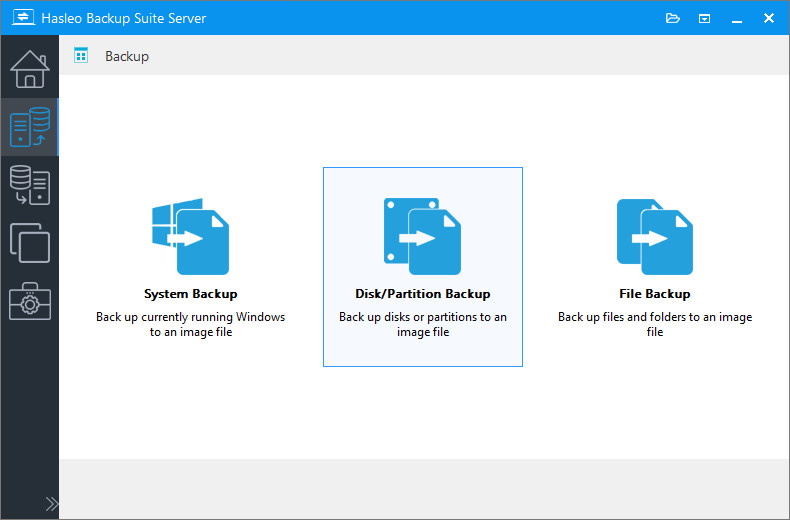
Step 1. Run Hasleo Backup Suite. Click the "Backup" button in the navigation bar, then select "Disk/Partition Backup" in the operation area.
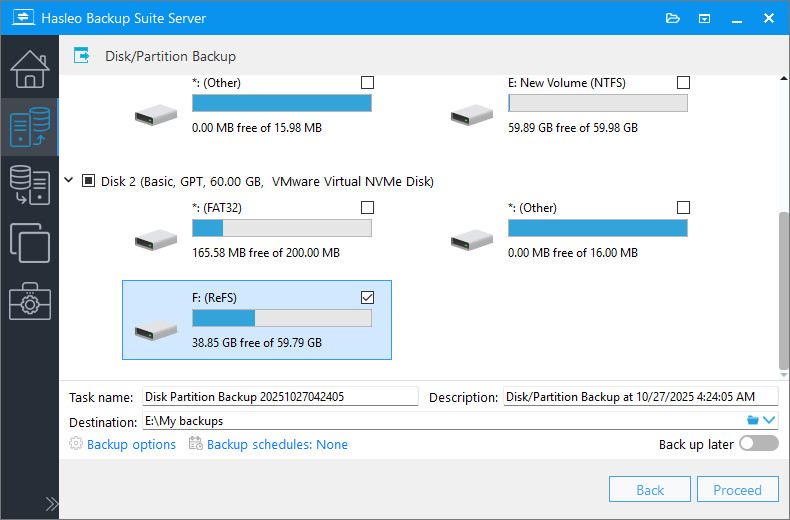
Step 2. Select the ReFS partition you want to back up. Configure the task name, description, destination, and backup options as needed. Then, click "Proceed" to continue.
💡Tips:
- Task name: Specify a task name so that you can quickly find and manage your backup task later.
- Description: Briefly describe the purpose of the task and any other relevant information.
- Destination: Modify the destination path where the backup image files will be stored by clicking the folder icon.
- Backup options: Advanced backup settings. For more details, please refer to Backup options.
- Backup schedule: Set up backup schedules to automatically perform your backup tasks on a regular basis. For more details, please refer to Backup schedule.
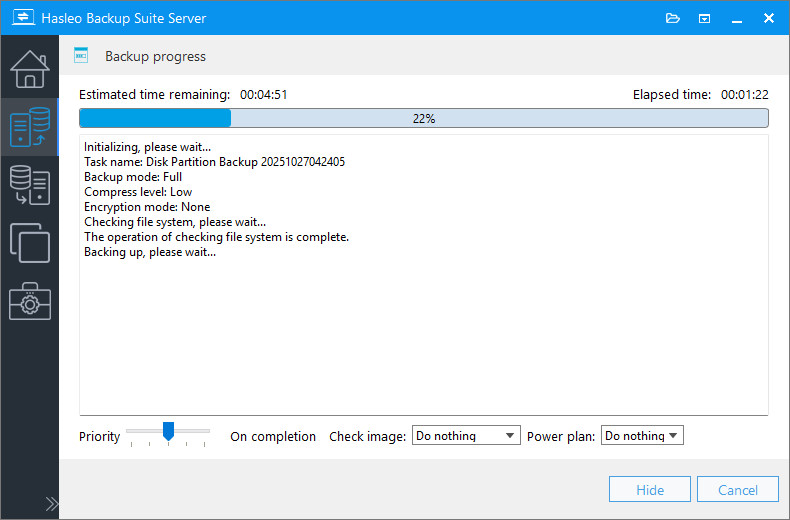
Step 3. After clicking "Proceed," Hasleo Backup Suite will begin backing up the ReFS partition you selected. Please note that backup time directly depends on the amount of data, so please be patient.
💡Tips:
- Priority: Specify a priority for the backup process. A higher priority allocates more CPU time to the backup, which may cause other programs to run slower.
- Check image: Verify the integrity of the backup image files upon completion of the backup process.
- Power plan: Perform the power management action after the backup is complete.
✅Congratulations! You have successfully completed the backup of your ReFS partition!
Frequently Asked Questions
A: Run Hasleo Backup Suite, click Backup > Disk/Partition Backup, select the ReFS partition you want to back up, choose the destination, and click Proceed. The software supports intelligent sector backup mode for ReFS, only backing up used data blocks.
A: Unlike sector-by-sector backup that copies the entire partition, intelligent sector backup only backs up data blocks actually in use in the ReFS volume, significantly improving backup efficiency and saving storage space.
A: Yes, Hasleo Backup Suite supports full, incremental, and differential backup modes for ReFS partitions. After the initial full backup, incremental backups only backup changed data, saving time and storage space.
A: Yes, you can restore ReFS partition backups to the original disk or a different disk using Hasleo Backup Suite's restore function.
A: Hasleo Backup Suite supports intelligent sector backup for ReFS, which is more efficient than full sector backup. NTFS also supports intelligent sector backup. Both file systems are supported for backup and restore operations.
A: Yes, Hasleo Backup Suite supports AES 128/256-bit encryption for backup images. You can enable encryption in backup options to protect sensitive data.
A: It is recommended to format the destination storage device as NTFS. Avoid using FAT32 as ReFS backup images may exceed 4GB, which is the FAT32 file size limit.
A: Backup frequency depends on your data change rate. For critical business data, daily or weekly backups are recommended. You can set up automatic backup schedules in Hasleo Backup Suite.
Summary
ReFS (Resilient File System) is a next-generation file system launched by Microsoft to address modern enterprise data storage needs. Through built-in data integrity verification, automatic repair capabilities, and massive scalability support, it provides a solid file system foundation for data centers, virtualization environments, and Software-Defined Storage. Although ReFS itself possesses powerful data protection capabilities, combining it with professional backup solutions remains indispensable. Hasleo Backup Suite, as professional Windows backup software, supports intelligent sector backup mode for ReFS partitions, enabling efficient backup and restore of data in ReFS volumes. It also supports various backup modes such as full backup, incremental backup, and differential backup, as well as advanced features like Delta Clone.
In addition to ReFS partition backup, Hasleo Backup Suite also fully supports native Windows file systems such as FAT, exFAT, and NTFS. You can not only backup ReFS volumes using intelligent sector backup mode, but also quickly backup Windows systems installed on ReFS partitions.
Related Articles
- The Best ReFS Backup and Restore Software - Hasleo Backup Suite
- How to Back Up and Restore Windows 11 for Free?
- Backup & Restore BitLocker-Encrypted Partition - Keep Encryption Status
- How to Set Up Schedule to Automatically Backup Windows Server?
- How to Clone Surface (ARM64) SSD to a Larger SSD with Hasleo Backup Suite?
- How to Safely and Efficiently Back Up Installed Programs in Windows?


