

- Why Restoring BitLocker-Encrypted Backups Is a Challenge for the Industry
- The Dilemma of Traditional Solutions
- Hasleo Backup Suite's Innovation—Real-Time Re-Encryption During Restore
- How to Restore a BitLocker-Encrypted Windows System While Preserving Encryption
- Hasleo Backup Suite VS. Traditional Solutions
- Frequently Asked Questions
- Conclusion
This is not a problem faced by a single user, but rather a long-standing challenge for the entire backup software industry. However, Hasleo Backup Suite has taken the lead in overcoming this issue. Starting with version 5.8 (Home, Professional, Server, and Enterprise), it natively supports restoring BitLocker-encrypted volumes while preserving their encryption.
Why Restoring BitLocker-Encrypted Backups Is a Challenge for the Industry
Most backup software relies on Microsoft's Volume Shadow Copy Service (VSS) to create backups. When backing up a BitLocker-encrypted partition in Windows, the partition must be unlocked for normal data access. Since VSS reads the decrypted data directly, the backup file actually contains plaintext content. Consequently, when the data is restored, the BitLocker encryption on the original partition is lost.
The Dilemma of Traditional Solutions
When backing up BitLocker-encrypted partitions, backup software typically takes one of two main approaches: sector-by-sector copying or VSS plaintext mode. However, both have their limitations.
Option A: Keep Encryption During Backup (Sector-by-Sector Copy Mode)
The sector-by-sector copy mode reads raw sector data directly from the encrypted disk without decryption, backing up the ciphertext as-is. Since it performs a direct sector-level copy, the resulting backup size equals the full capacity of the partition, making compression or deduplication impossible. Consequently, this method is slower and requires significantly more storage space. More importantly, when backing up the system partition, VSS is not available, which may cause Windows to fail to boot normally after restoration and may result in a blue screen error.
Option B: Do Not Preserve Encryption During Backup (VSS Plaintext Mode)
VSS Plaintext Mode uses the Volume Shadow Copy Service (VSS) to work with the BitLocker driver, retrieving decrypted plaintext data during the backup process. This supports features such as file-level backup, incremental backup, and data compression. However, after restoration, the data must be manually re-encrypted, a process that often takes several hours. During this period, the data remains unencrypted for an extended period, creating a significant window of plaintext exposure. For critical industries such as finance, healthcare, and government—which have strict data security and compliance requirements—this time window may directly pose regulatory compliance risks and could even constitute a violation of relevant regulations.
Hasleo Backup Suite's Innovation—Real-Time Re-Encryption During Restore ✨
We recognized that VSS limitations during the backup phase cannot be resolved at present (as this is a Windows-level constraint). So we shifted our focus to the restore phase.
Backup Phase:
VSS reads decrypted data (just like other tools) to generate backup files, while also backing up BitLocker metadata (encryption parameters, protector information, etc.).
💡 Restore Phase:
When users restore a backup and check the Retain BitLocker encryption option, Hasleo re-encrypts the data in real time while writing it to the destination partition, and restores the associated BitLocker metadata.
✅ Result:
Once the restore is complete, Windows immediately recognizes the destination partition as a normal BitLocker-encrypted volume. No manual encryption steps are required, and there is no need to wait for hours.
🎯 How to Restore a BitLocker-Encrypted Windows System While Preserving Encryption
The following steps assume that your Windows system can boot normally and demonstrate how to restore a system backup. If your system cannot boot, you will need to perform the recovery using a WinPE rescue disk; please refer to Chapter 4 of How to Restore BitLocker-Encrypted Windows While Keeping Encryption. If you are restoring a single partition rather than the entire system, please refer to Backup & Restore BitLocker-Encrypted Partition - Keep Encryption Status.
Preparation
Please ensure that you have performed a full backup of the BitLocker-encrypted Windows system partition using Hasleo Backup Suite. For detailed instructions, refer to Chapter 2, How to Restore BitLocker-Encrypted Windows While Keeping Encryption.
Restore the Backup Image
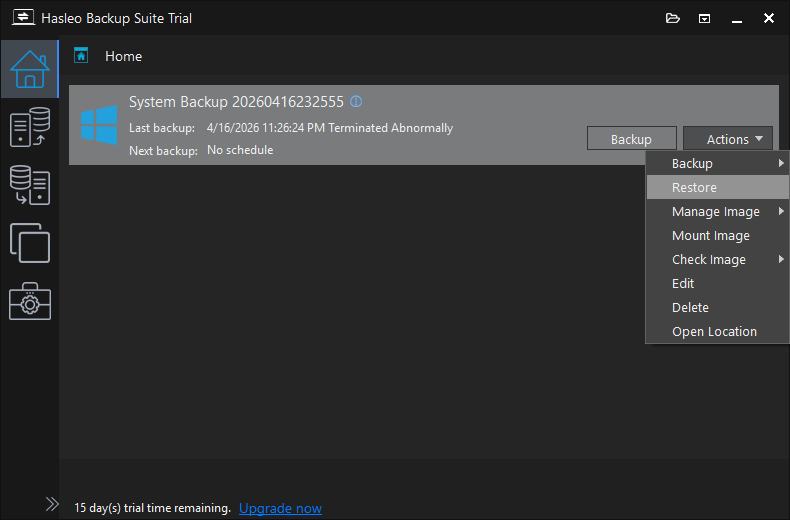
Step 1. Launch Hasleo Backup Suite and click Home in the left navigation pane. Find the system backup job you want to restore, click Actions, and select Restore from the drop-down menu.
Step 2. The program will automatically select the partitions required for system restoration. Please ensure you are performing the restore in System mode. To choose a different backup version, click Change version and then click Next.
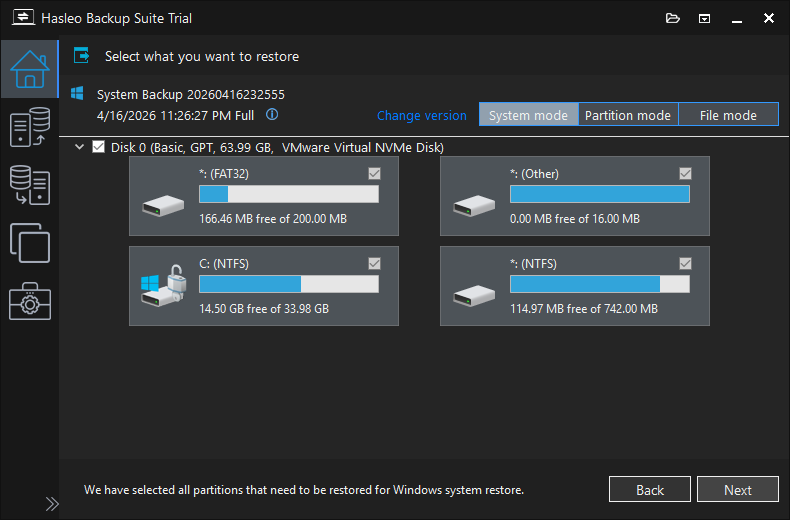
⚠ Important: Recovering only Windows partitions using Partition mode may prevent the system from booting or functioning properly.
Step 3. Select the target disk for the Windows restore, check the Retain BitLocker encryption box, and click Next.
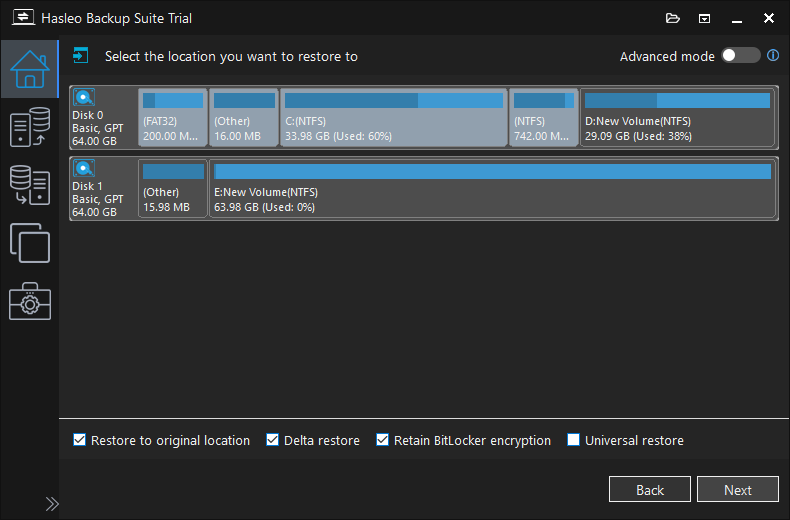
Delta restore: When restoring a backup image to its original location, check the Delta restore option. The system will compare and write only the changed data blocks, significantly reducing restoration time.
Universal restore: This option allows you to safely restore a system image to a computer with different hardware.
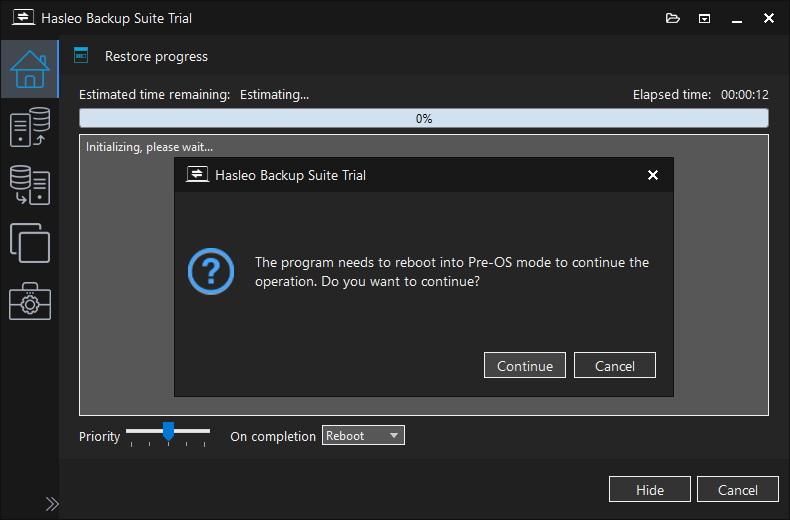
Step 4. Hasleo Backup Suite prompts you to restart and enter Pre-OS mode to perform the restore operation. Please click Continue to proceed.
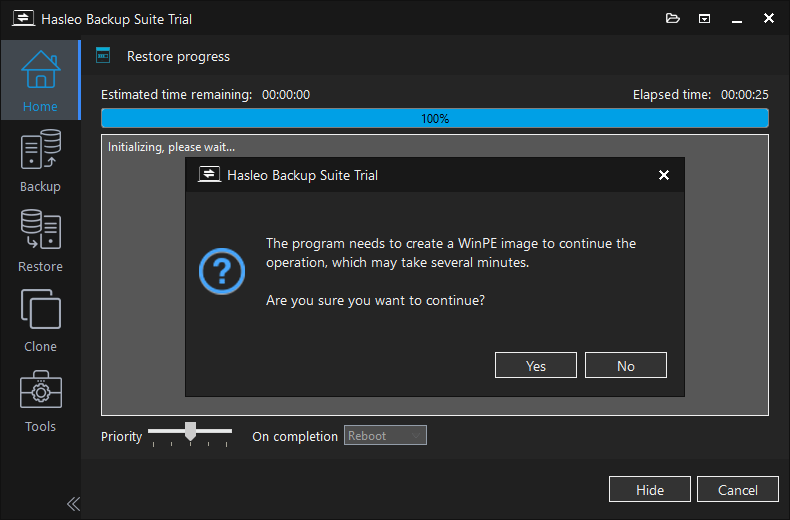
Step 5. The program prompts you to create WinPE image. Click Yes to proceed.
Step 6. Check the Automatic driver injection box to have WinPE automatically include the drivers it needs, then click Next. To add extra drivers, click Add driver and select the ones you require.
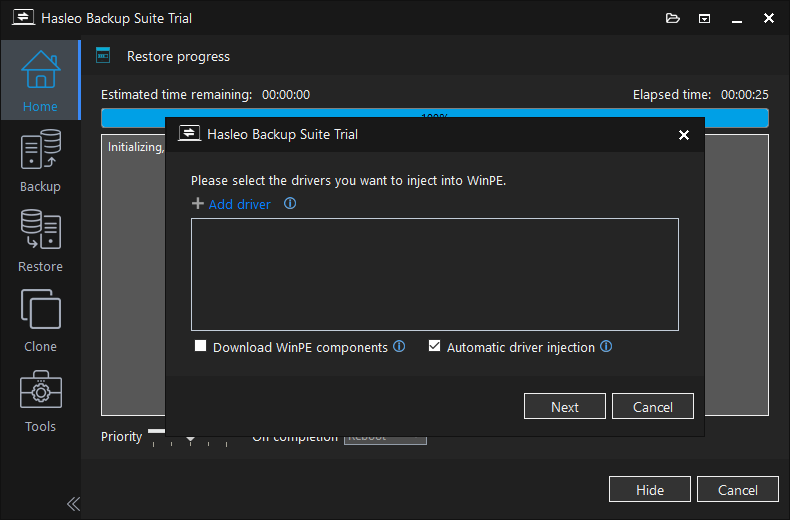
Download WinPE components: This option supports downloading WinPE components from Microsoft.
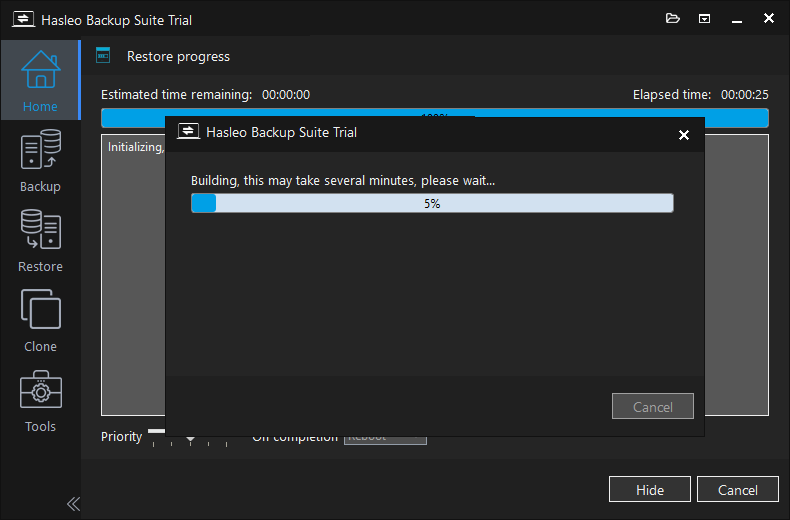
Step 7. Hasleo Backup Suite is now creating WinPE. Once the process is complete, the program will automatically restart your computer and enter Pre-OS mode.
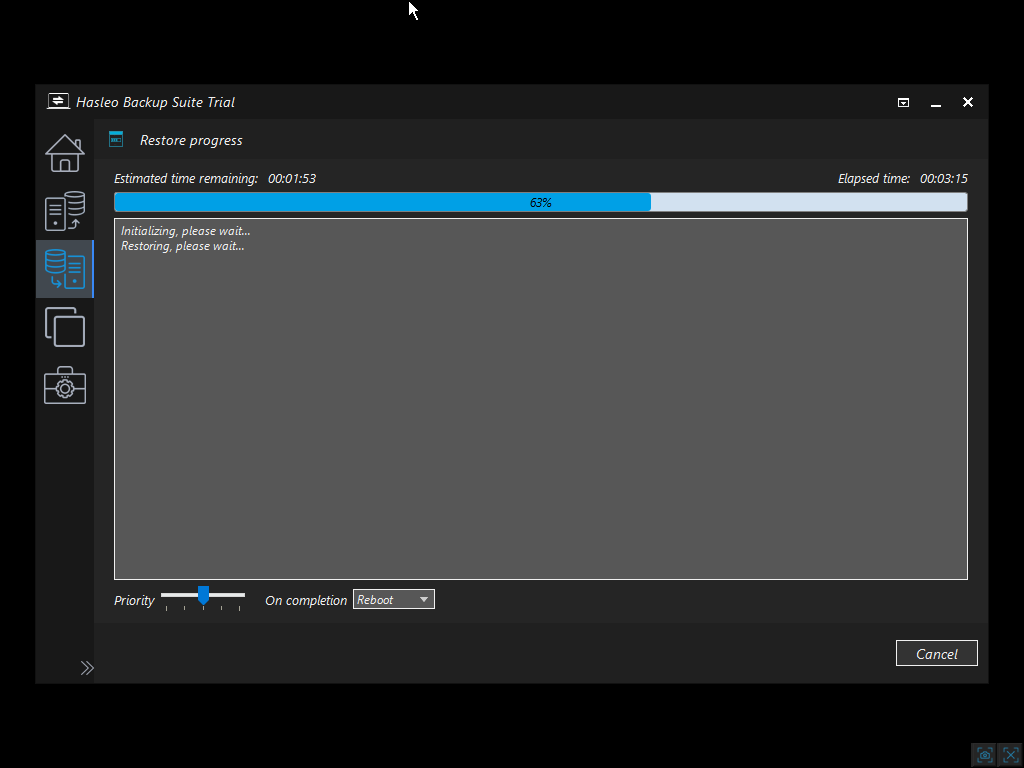
Step 8. Once you enter the pre-operating system environment, Hasleo Backup Suite will automatically begin the system restore. The duration depends on the data size; please be patient. After the restore completes, the system will restart automatically. You will know the process is finished when you can log in to the Windows desktop as usual.
Verify BitLocker Encryption Status
After logging in, open an administrative Command Prompt and run the following command:
Expected results:
Conversion Status: Fully EncryptedPercentage Encrypted: 100%Protection Status: On or Off(This status depends on whether protection was enabled at the time of the backup.)
Hasleo Backup Suite VS. Traditional Solutions
The table below provides a visual comparison of the differences between Hasleo Backup Suite V5.8+ and traditional solutions, enabling quick evaluation.
| Comparison Criteria | Solution A (Sector-by-Sector Copy) | Solution B (VSS Plaintext) | 👑 Hasleo Backup Suite V5.8+ |
|---|---|---|---|
| Backup File Size | Huge (includes empty sectors) | Small | Small |
| Backup Speed | Slow | Fast | Fast |
| Encryption Status After Restore | ✅ Preserved | ❌ Lost | ✅ Preserved |
| System Partition Restore Bootable | ⚠️ May cause boot failure (BSOD) | ✅ Bootable | ✅ Bootable |
| Manual Encryption Required | No | Yes (takes several hours) | No |
| Technical Complexity | Low (direct sector copy) | Low | High (real-time re-encryption during restore) |
🔥 Frequently Asked Questions
Q: What happens if I restore BitLocker-encrypted data to a different drive?
When restoring to a different drive with the "Retain BitLocker encryption" option enabled, Hasleo Backup Suite will encrypt the new target drive during the restore process using the saved BitLocker metadata, ensuring the restored system remains fully encrypted without any manual intervention.
Q: Does real-time re-encryption slow down the restore process?
The real-time re-encryption happens concurrently with the data writing process, so the performance impact is minimal. Users can typically expect the restore to complete in roughly the same time as a standard restore without re-encryption.
Q: Will my BitLocker password or recovery key change after restore?
No. All BitLocker protectors (password, recovery key, TPM, PIN, etc.) are preserved along with the encryption metadata. You can continue using the same password or recovery key to unlock the drive after restore.
Q: Can I restore a BitLocker-encrypted backup in WinPE rescue environment?
Yes. The "Retain BitLocker encryption" option is also available when restoring from a WinPE rescue disk. Simply boot from the WinPE media created by Hasleo Backup Suite, locate your backup image, and the same real-time re-encryption mechanism will apply during the restore process.
Q: Is the "Retain BitLocker encryption" feature available in the free version?
No. It is available only in paid editions (Home, Professional, Server, and Enterprise).
Conclusion
A major breakthrough in Hasleo Backup Suite V5.8+, the introduction of a real-time re-encryption mechanism during the restore phase, is not merely a new feature, but a fundamental shift in problem-solving strategy. Rather than attempting to modify Windows' VSS rules (a challenge that remains unresolved), it shifts the focus from the backup side to the restore side. This strategic change has fully resolved a long-standing pain point for BitLocker users: the need to choose between backup efficiency and encryption status. In other words, you can now restore a BitLocker-encrypted Windows system or partition while retaining its encrypted state.
For every BitLocker user who values both data security and work efficiency, Hasleo's latest innovation could mark the beginning of saying goodbye to backup anxiety.

Related Articles
- From First Backup to Regular Schedule - A Beginner's Guide to Hasleo Backup Suite
- How to Emergency Recover Your Computer Without Windows Boot Media?
- How to Encrypt Backup Tasks Using Hasleo Backup Suite Free?
- How to Use Delta Clone in Hasleo Backup Suite to Clone Your System Quickly?
- Edit Backup Image Comment in Hasleo Backup Suite? Step-by-Step Guide


