

- Why Most Backup Tools Break BitLocker After Restoring a Windows System (And How Hasleo Backup Suite V5.8+ Solves It)
- Tutorial to Back up a BitLocker-Encrypted Windows System with Hasleo Backup Suite
- Tutorial to Restore a BitLocker-Encrypted Windows System from Within Windows While Keeping Encryption Using Hasleo Backup Suite
- Tutorial to Restore a BitLocker-Encrypted Windows System While Keeping Encryption with Hasleo Backup Suite WinPE Emergency Disk
- Verifying BitLocker Encryption After Restore
- Troubleshooting: Common Issues After Restore
- Detailed Best Practices for BitLocker Users
- Frequently Asked Questions (FAQ) and More Useful Information
- Real-World User Experiences
- Final Verdict
If you use BitLocker to encrypt your Windows system drive, you've likely encountered a frustrating problem: most backup tools restore the system in an unencrypted state, forcing you to spend hours re-encrypting the entire drive.
Hasleo Backup Suite offers a practical solution. Starting from version V5.8, it introduced native support for restoring BitLocker volumes while preserving their encryption status.
Why Most Backup Tools Break BitLocker After Restoring a Windows System (And How Hasleo Backup Suite V5.8+ Solves It)
To understand why Hasleo Backup Suite V5.8+ is different, you first need to understand how backup software interacts with BitLocker-encrypted drives.
The VSS Problem
Most backup software uses Microsoft's Volume Shadow Copy Service (VSS) technology for backups. When you backup your system drive from within Windows:
- • Your BitLocker drive is unlocked (that's why you can use your computer normally)
- • VSS reads the drive in its unencrypted state
- • The backup image contains plain, unencrypted data
This is why, after restoring a backup from most tools, BitLocker is disabled - you've restored unencrypted data to the drive.
How Hasleo Backup Suite V5.8+ Fixes This
Hasleo's developers recognized this limitation and implemented a solution. Rather than trying to backup encrypted data (which isn't possible from within Windows), they built a feature that re-encrypts the data during the restore process.
The result: When you restore using Hasleo Backup Suite V5.8+ with the proper option enabled, your system drive is automatically re-encrypted during the restore process. No hours of waiting for BitLocker to re-encrypt the entire drive.
Two Ways to Restore: Which One Should You Use?
| Restore Method | When to Use | Boot Media Required? |
|---|---|---|
| Windows Internal Restore (Recommended) | Windows can still boot normally, and you want to roll back to a previous backup | No |
| WinPE Emergency Disk Restore | Windows won't boot, system crash, or replacing the hard drive | Yes (USB or ISO) |

Tutorial to Back up a BitLocker-Encrypted Windows System with Hasleo Backup Suite
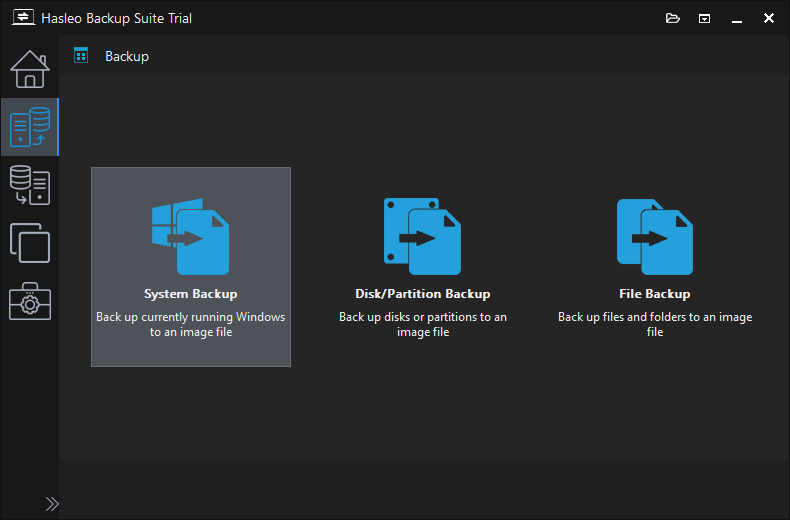
Step 1. Download, install, and run Hasleo Backup Suite. Click the "Backup" button in the navigation bar, then click "System Backup" button in the operation area.
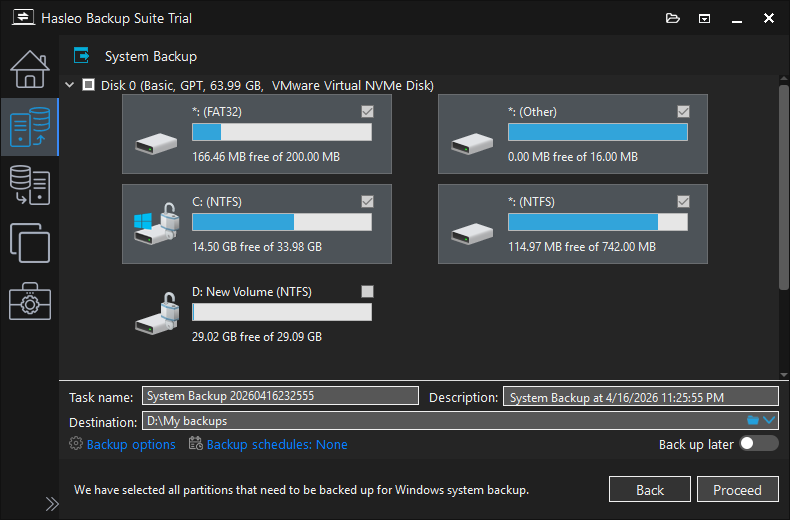
Step 2. Hasleo Backup Suite will automatically select all partitions required for a Windows system backup. You only need to customize the task name, description, destination, and backup options as needed, then click the "Proceed" button.
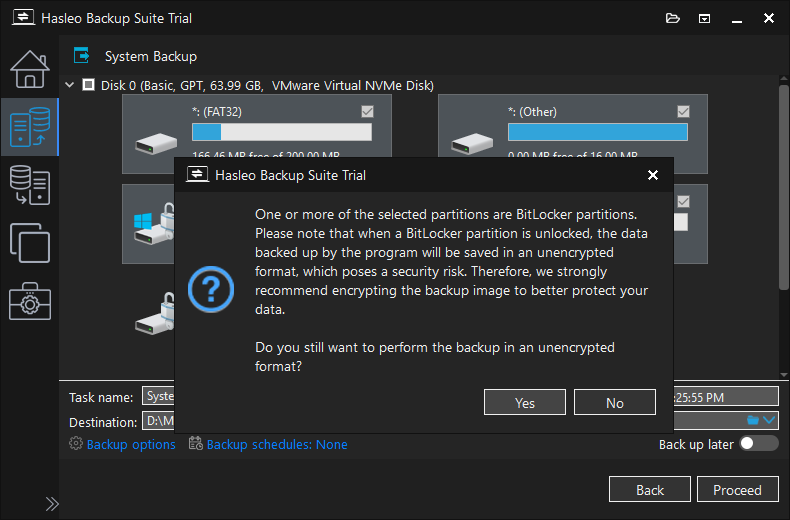
Step 3. After clicking the "Proceed" button, if you have not enabled image encryption for this backup task, Hasleo Backup Suite will prompt you to enable it.
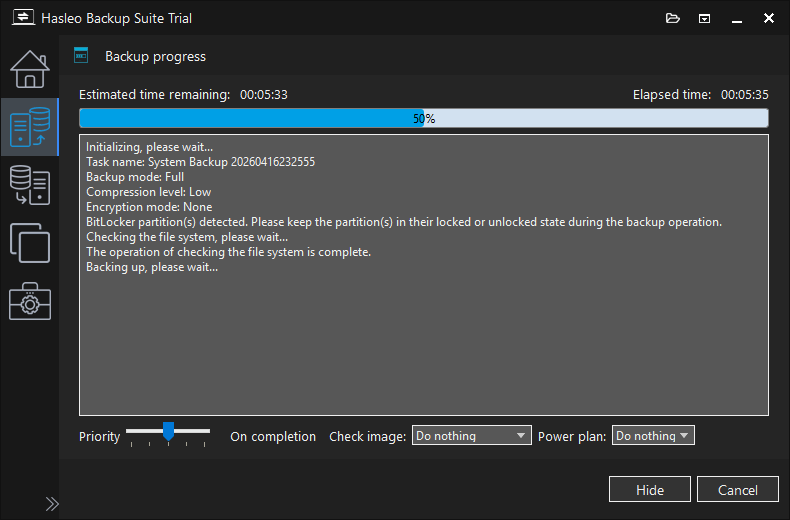
Step 4. Hasleo Backup Suite will begin backing up your Windows operating system to the storage path you specify. Please note that the backup time depends on the size of the data that needs to be backed up, so please be patient.
Tutorial to Restore a BitLocker-Encrypted Windows System from Within Windows While Keeping Encryption Using Hasleo Backup Suite
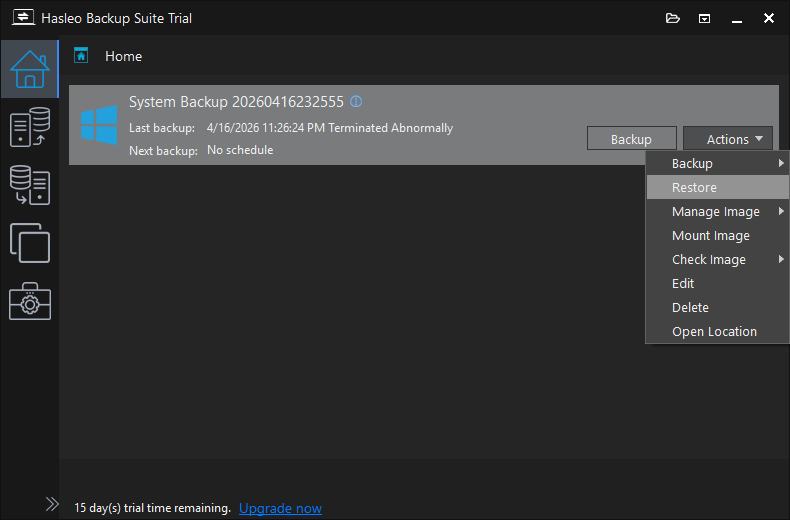
Step 1. Click the "Home" button in the navigation bar. Then, find the system backup task you want to restore, click "Actions", and select "Restore" from its menu.
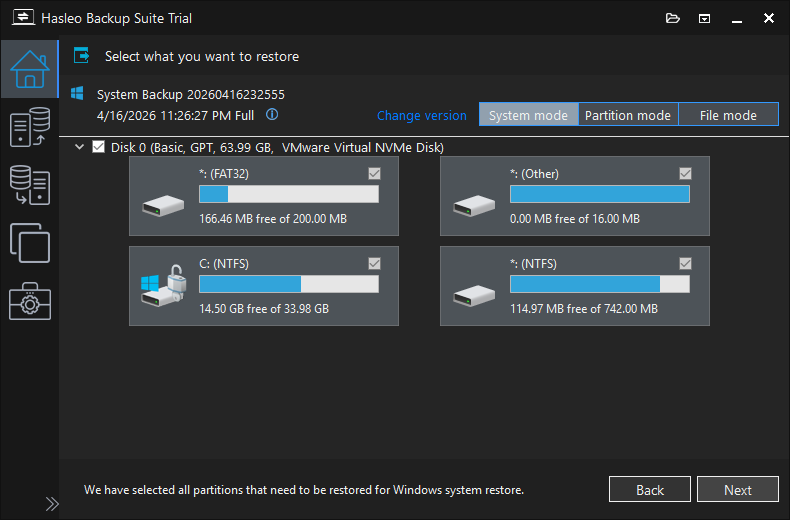
Step 2. Click "Change version" to select the backup version you want to restore, then click "Next".
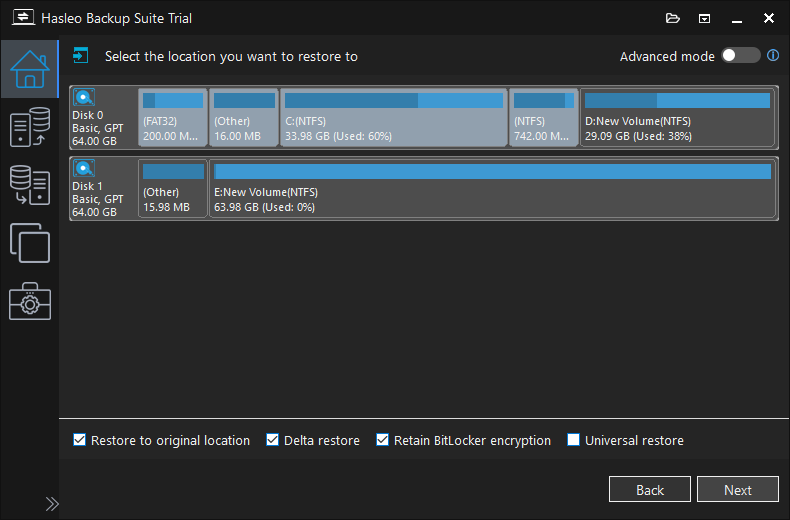
Step 3. Hasleo Backup Suite will automatically select all target partitions for restoration. Please check the "Retain BitLocker encryption" checkbox, then click "Next".
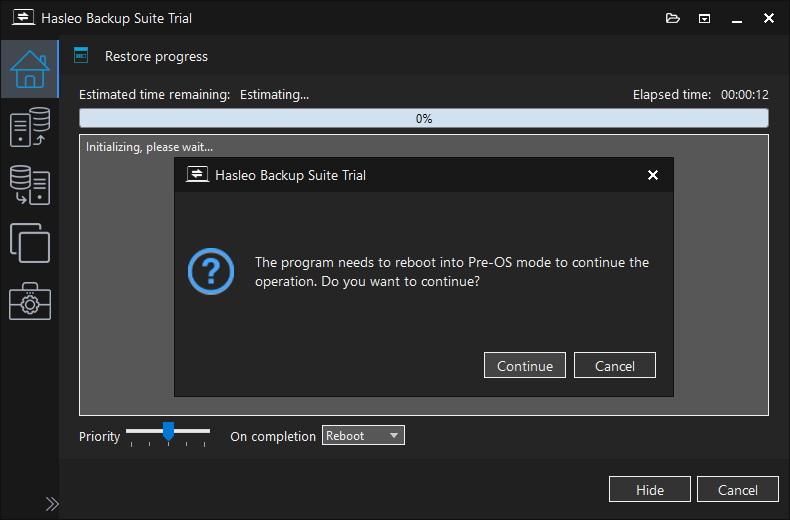
Step 4. Hasleo Backup Suite will prompt you to reboot into Pre-OS mode to perform the restore. Click "Continue" and follow the prompts to create WinPE. Once creation is complete, the program will automatically reboot the computer and enter Pre-OS mode.
Step 5. After restarting the computer and entering Pre-OS mode, Hasleo Backup Suite automatically begins the restoration process. The required time depends on the size of the data that needs to be restored, please be patient.

Step 6. Restart your computer after the restore is complete. Once the system has booted successfully, follow the instructions later in this article to verify BitLocker encryption.
Tutorial to Restore a BitLocker-Encrypted Windows System While Keeping Encryption with Hasleo Backup Suite WinPE Emergency Disk
Step 1. Follow the user guide below to create a bootable WinPE emergency media:How to create a bootable WinPE media for Hasleo Backup Suite?
Step 2. Connect the WinPE emergency media you created in the previous step to the computer on which you want to restore Windows, and configure the BIOS to boot from the emergency media.
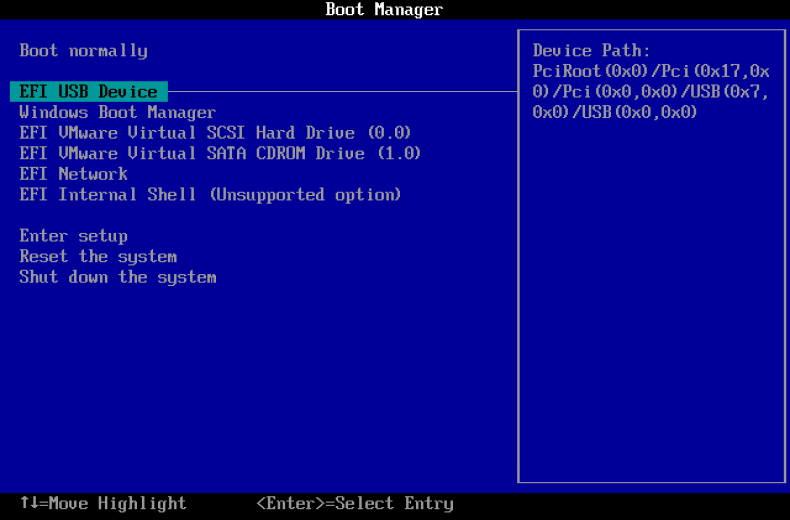
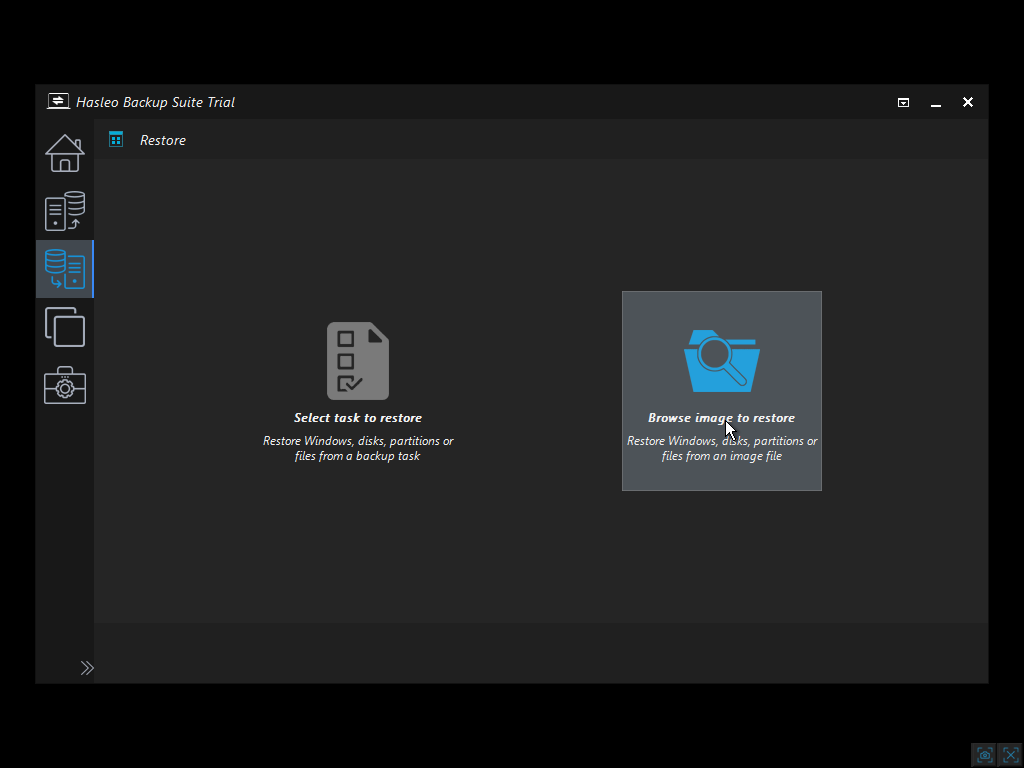
Step 3. In the "Restore" operation area, select "Browse image to restore" and locate the backup image you wish to restore.
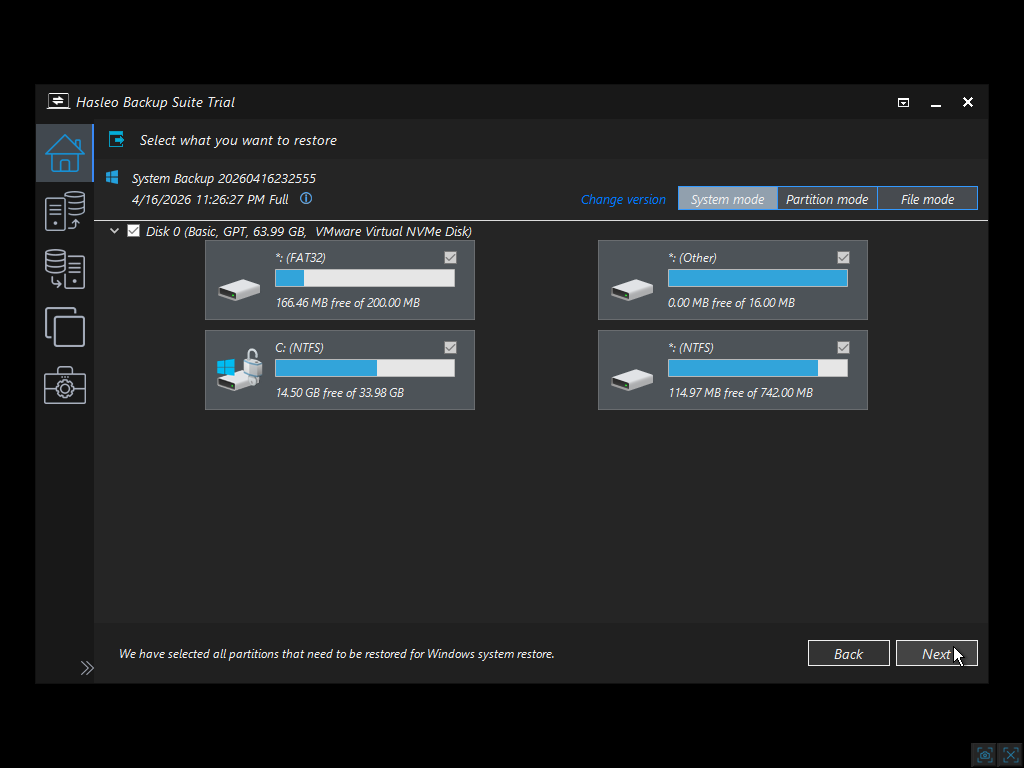
Step 4. Select "System mode" to restore the entire system, and click "Change version" to select the backup version you want to restore, then click "Next".
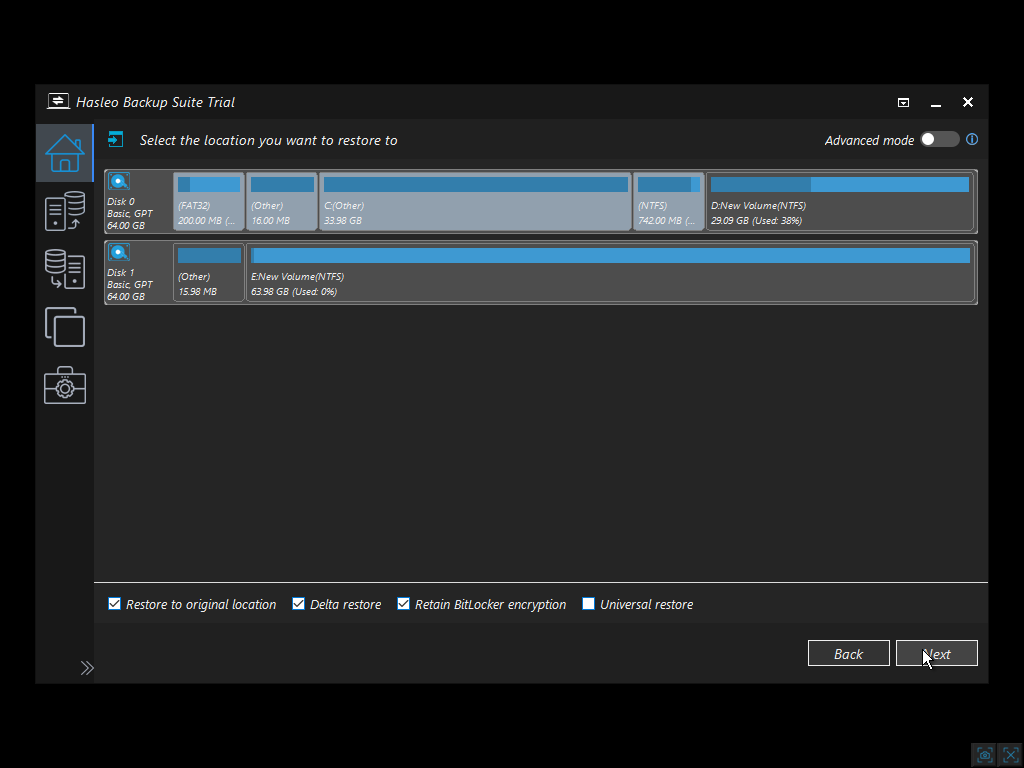
Step 5. Hasleo Backup Suite will automatically select all target partitions for restoration. Please check the "Retain BitLocker encryption" checkbox, then click "Next".
Step 6. Hasleo Backup Suite begins the restoration process. The required time depends on the size of the data that needs to be restored, please be patient.

Step 7. Remove the WinPE boot disk and restart the computer. Once the system has booted successfully, follow the instructions later in this article to verify BitLocker encryption.
Verifying BitLocker Encryption After Restore
After logging in, open Command Prompt as Administrator and run:
Expected output:
Conversion Status: Fully EncryptedPercentage Encrypted: 100%Protection Status: On or Off(This is related to whether protection was enabled at the time of backup)
Troubleshooting: Common Issues After Restore
| Issue | Solution |
|---|---|
| BitLocker is disabled after restore | Confirm you're using Hasleo V5.8+ and that you checked the encryption preservation option during restore |
| "Protection Status: Off" but "Fully Encrypted" | Run as Administrator: manage-bde -protectors -enable C: |
| Recovery key prompt at every boot | Check TPM: Run tpm.msc - ensure TPM is recognized. You may need to clear TPM and re-enable BitLocker |
| WinPE doesn't see BitLocker drive | Use Tools => Unlock BitLocker Drive to unlock it manually |
| Delta restore not working on encrypted target | On target drives that have not been fully encrypted, Hasleo performs a full restore for reliability |
Detailed Best Practices for BitLocker Users
Following these best practices will ensure your BitLocker-encrypted system remains protected and recoverable at all times.
1. Always Keep Your BitLocker Recovery Key in Multiple Safe Locations
Your BitLocker recovery key is the only way to access your data if you forget your password or if TPM issues occur. Never store it only on your encrypted drive.
Recommended storage locations:
- Microsoft Account (Cloud) - Automatically saved when you enable BitLocker on most modern systems. Access it here
- Printed copy - Store in a secure physical location (safe, lockbox)
- USB flash drive - Dedicated USB drive stored separately from your computer
- IT department database - For business environments using Active Directory
manage-bde -protectors -add C: -rk "D:\"
2. Keep Hasleo Backup Suite Updated to the Latest Version
The BitLocker preservation feature was introduced in V5.8 and continues to improve. Always use the latest version for optimal compatibility.
- V5.8.0 - Initial BitLocker preservation feature
- V5.8.1.1+ - Fixed Windows 11 Device Encryption compatibility
- Check for updates: Help => Check for Updates
3. Create Your WinPE Emergency Disk Before Disaster Strikes
You cannot create a bootable emergency disk from a system that won't boot. Create it while your system is healthy.
Step-by-step:
- Launch Hasleo Backup Suite => Tools => Emergency Disk
- Select USB Drive (recommended) - requires a 1GB+ USB flash drive
- Choose driver options - "Download WinPE components" for best hardware compatibility
- Label the USB drive clearly and store it in a safe place
- Test it - Boot from it once to confirm it works before you need it
4. Test Your Restore Process Regularly
A backup is only as good as your ability to restore it. Don't wait for a disaster to discover issues.
Recommended testing schedule:
- Quarterly - Full restore test to a spare drive
- After major Windows updates - Test backup/restore compatibility
- After hardware changes - Verify TPM and BitLocker still work
How to test without risk:
- Use a spare SSD/HDD of equal or larger size
- Perform a full restore to the spare drive
- Boot from the spare drive and verify BitLocker status
- Run
manage-bde -statusto confirm encryption is active
5. Understand When to Suspend BitLocker (And When Not To)
Suspend BitLocker before certain operations, but never leave it suspended longer than necessary.
When to suspend BitLocker:
- Firmware/BIOS/UEFI updates
- Motherboard or TPM replacement
- Dual-boot configuration changes
- Some Windows feature updates (though Windows usually handles this automatically)
When NOT to suspend BitLocker:
- Creating a backup with Hasleo Backup Suite (backup works fine with BitLocker active)
- Restoring from a backup (Hasleo V5.8+ preserves encryption without suspension)
- Daily computer usage
manage-bde -protectors -disable C: # Re-enable BitLocker protectors
manage-bde -protectors -enable C:
6. Understand the Difference Between Device Encryption and Standard BitLocker
Windows 11 automatically enables Device Encryption on supported hardware. This is slightly different from standard BitLocker.
Key differences:
| Feature | Device Encryption | Standard BitLocker |
|---|---|---|
| Availability | Windows 11/10 Home/Pro (supported hardware) | Windows Pro/Enterprise only |
| Recovery key storage | Automatic to Microsoft account | Manual selection |
| Encryption options | Limited (default settings) | Full control |
For Hasleo Backup Suite users: If you're using Windows 11/10 Device Encryption, use Hasleo V5.8.1.1 or newer. Earlier versions may convert Device Encryption to standard BitLocker after restore, which changes how recovery keys are managed.
Real-World User Experiences
Hasleo Backup Suite users have reported positive experiences with the Windows internal restore feature, particularly regarding BitLocker preservation. Here's what real users are saying:
💬 "What I can say so far: This feature is insane! I really like that HBS is now able to retain the BitLocker state and that you can even select if you want BitLocker retained or removed. You can even restore without BitLocker first and then again restore the same backup and this time reenable BitLocker. That's crazy good and I can't even imagine the things that had to be moved to make this feature possible. Huge props for that!"
— Long-time user, Hasleo Community Forums
Frequently Asked Questions (FAQ) and More Useful Information
A: No. Backup from within Windows works fine - the backup will contain unencrypted data, but Hasleo V5.8+ will re-encrypt during restore.
A: The backup file itself is not BitLocker-encrypted. If this is a security concern, you have two options: (1) Store the backup on a BitLocker-encrypted drive, or (2) Encrypt the backup image using the image encryption feature.
A: Yes, Hasleo Backup Suite supports restoring to dissimilar hardware. Windows may need to reactivate, and BitLocker may prompt for the recovery key due to TPM changes.
A: Yes, but use Hasleo V5.8.1.1 or newer. Earlier V5.8 versions had an issue where Device Encryption reverted to standard BitLocker after restore - this was fixed.
A: This depends on how much space your Windows system is currently using. On a modern SSD, a full system restore typically takes just a few minutes. The re-encryption happens automatically during the restore process with no additional time required.
Final Verdict
Hasleo Backup Suite V5.8+ addresses a fundamental technical challenge that most backup tools ignore: how to restore a BitLocker-encrypted Windows system while preserving the BitLocker encryption.
How It Works (Technical Summary)
Most backup software reads data via Windows VSS, which always presents the drive in its decrypted state. This means backup images contain plain data, and after restore, BitLocker is disabled. Hasleo V5.8+ solves this by:
- Backup phase: Uses standard VSS to read decrypted data (no change here)
- Restore phase: Re-encrypts the data during the restore process and restores BitLocker metadata
The result: A restored system that boots with BitLocker immediately active—no manual re-encryption, saving you a significant amount of time.
Two Restore Methods, Two Use Cases
| Method | How It Works | Best For |
|---|---|---|
| Windows Internal Restore | Hasleo stages a recovery environment, reboots into Pre-OS mode, performs restore, then reboots back | Routine restores when Windows still boots |
| WinPE Emergency Disk Restore | Boot from separate media, perform restore outside of Windows | Disaster recovery (system won't boot, dead drive) |
Related Articles
- Backup & Restore BitLocker-Encrypted Partition - Keep Encryption Status
- How to back up and restore Windows 11 for free?
- How to Encrypt Backup Tasks Using Hasleo Backup Suite Free?
- How to set up a schedule to automatically back up Windows Server?
- How to set up backup schedules to automatically backup Windows?


