

- What is Hasleo Delta Clone?
- Comparison of Delta Clone and Traditional Full Clone
- Delta Clone Application Scenarios on ARM64 Devices
- Important Notes and Limitations for Delta Clone
- How to Speed Up Windows ARM64 System Cloning with the Delta Clone Feature?
- Frequently Asked Questions
- Conclusion
As ARM64 devices such as the Surface Pro 11 and Surface Laptop 7 equipped with Qualcomm Snapdragon X-series processors become increasingly popular, users' needs for system migration, disk upgrades, or data backups have also grown accordingly. Traditional full cloning requires copying all data on the disk, which is time-consuming. The Delta Clone feature provided by Hasleo Backup Suite can intelligently identify data blocks that have changed since the last full clone and only clone the changed parts, significantly reducing the time required for cloning. This tutorial will provide a detailed guide on how to efficiently perform Windows ARM64 system cloning using the Delta Clone feature.
What is Hasleo Delta Clone?
Delta Clone is an advanced cloning technology in Hasleo Backup Suite. Its core principle is to detect the data differences between the source disk and the target disk using intelligent algorithms based on an existing full clone, and only synchronize the data that has changed since the last full clone to the target disk, thereby avoiding the overhead of full copying. This technology draws on the concept of incremental backup but is deeply optimized for cloning scenarios, enabling fast and resource-efficient data synchronization.
👍Core Technical Features of Hasleo Delta Clone:
- Intelligent Change Detection: Using deep file system analysis technology, it can quickly identify allocated and used data blocks in file systems such as NTFS and ReFS, and precisely locate sectors that have changed since the last clone.
- Incremental Data Copying: Only the detected changed data blocks are copied, avoiding repeated reading and writing of unchanged data, thereby significantly reducing I/O operations and CPU usage.
- Data Consistency Guarantee: By analyzing file system logs and metadata, ensure that the cloned target disk is completely consistent with the source disk in terms of data content, maintaining the integrity and bootability of the file system.
- Efficient Resource Utilization: Since only changed data is processed, the CPU and memory usage during the entire cloning process remains low, causing no significant impact on the normal operation of the system.
Comparison of Delta Clone and Traditional Full Clone
The following table details the key differences between Delta Clone and Full Clone across several aspects, highlighting the unique advantages of each method.
| Delta Clone | Full Clone | |
| Working Principle | Only copies changed data blocks | Copies all sectors of the source disk |
| Cloning Speed | Fast (typically only 5%-30% of full clone time) | Slow (depends on total disk capacity) |
| I/O Load | Low (only processes changed data) | High (full disk read/write) |
| Power Consumption | Low (reduced data read/write) | High (full disk operation) |
| Target Disk Space Usage | Low (only stores incremental data) | High (complete data copy) |
| Independence | Low (depends on the previous full clone) | High (completely independent copy) |
| Partition Structure Tolerance | Low (requires identical partition structures on source and target disks) | High (allows modification of target disk partition layout) |
| Applicable Scenarios | Regular synchronization, quick cloning after frequent updates | Initial cloning, partition structure adjustment, cross-disk migration |
🎯Typical Advantage Scenarios for Using Delta Clone:
- Quick Synchronization After System Updates: After Windows updates, Delta Clone can complete system synchronization within a few minutes, while a full clone may take tens of minutes.
- Development and Testing Environment Maintenance: For developers who need to frequently rebuild testing environments, Delta Clone can significantly save time on environment synchronization.
- Enterprise Batch Deployment: In enterprise environments, Delta Clone can quickly synchronize standardized images to multiple devices.
- Mobile Device Data Protection: For mobile devices like Surface, the low power consumption characteristic of Delta Clone can reduce battery drain.
Delta Clone Application Scenarios on ARM64 Devices
On ARM64-based devices such as Microsoft Surface Pro X, Surface Pro 11, and Surface Laptop 7, the Qualcomm Snapdragon X Elite/Plus processors bring unique architectural advantages and performance features. Delta Clone has a wide and practical range of applications on these devices, mainly including the following aspects:
Main Application Scenarios:
- System Migration to Larger Capacity SSD: The SSD capacity of Windows ARM64 devices is limited. As usage time increases, users may need to upgrade to larger capacity SSDs. After the initial full clone, subsequent capacity expansion synchronization can be quickly completed using Delta Clone.
- Creating System Backup Images: Regularly creating incremental backup images for ARM64 systems can ensure data security while saving storage space and backup time.
- Multi-Device Environment Synchronization: For users who need to use multiple Surface devices simultaneously, Delta Clone can quickly synchronize systems and data between devices.
✨Special Advantages of Using Delta Clone on ARM64 Devices:
- Reduce Power Consumption and Extend Battery Life: Delta Clone only processes incremental data, significantly reducing storage I/O operations, thereby lowering power consumption. This is especially important for mobile devices like Surface that rely on battery power.
- Maximize ARM64 Native Performance: Hasleo Backup Suite offers a native version optimized for the ARM64 platform. Combined with Delta Clone technology, it enables more efficient data processing and transfer on ARM64 processors, fully leveraging hardware potential.
- Reduce Heat and Protect Devices: Compared to the intensive disk read/write required for full cloning, Delta Clone's low-load operation mode significantly reduces the device's workload, helping to lower heat generation, maintain stable operating temperatures, and extend hardware lifespan.
- Quick Response to Emergency Needs: When an urgent backup is required, Delta Clone can complete the operation in the shortest possible time, minimizing workflow interruptions and ensuring efficiency and continuity.
Important Notes and Limitations for Delta Clone ℹ️
To ensure a successful Delta Clone operation, please note the following notes and limitations:
Version Requirements:
- The Delta Clone feature is available in Hasleo Backup Suite Home, Professional, Server, and Enterprise editions. It is not included in the Free edition.
- Always ensure your software is updated to the latest version before initiating a clone.
Supported Partition Types:
- Delta Clone currently only applies to cloning NTFS and ReFS partitions.
- For FAT32, exFAT, or other file system partitions, the full clone method will be used.
- Source NTFS/ReFS partition and target NTFS/ReFS partition must have the same cluster size.
Disk Space Requirements:
- Target NTFS/ReFS partition must be greater than or equal to the source NTFS/ReFS partition.
- Target non-NTFS/non-ReFS partition must be exactly the same size as the source partition.
Partition Structure Requirements:
- All Windows operating system related source partitions (system, boot, and recovery partitions) must have corresponding copies on the target disk, and the order must remain consistent with the source partitions.
- Delta Clone requires that the source disk and target disk have essentially identical partition structures and does not support adjusting partition structures during incremental cloning.
⚠️Data Security Notes:
- Delta Clone operation will overwrite corresponding data on the target disk. Please confirm that the target disk has no important data or has been backed up before operation.
- It is recommended to create a complete system backup first, then use Delta Clone for subsequent synchronization.
- If the original clone data on the target disk is corrupted, it is recommended to perform a full clone first, then use Delta Clone.
How to Speed Up Windows ARM64 System Cloning with the Delta Clone Feature?
Below are the detailed steps for cloning a Windows ARM64 system using the Delta Clone feature in Hasleo Backup Suite:
Preparations:
- Ensure Hasleo Backup Suite Home, Professional, Server, or Enterprise version is installed (Delta Clone feature requires paid version support).
- Prepare the target disk (connected via USB-C enclosure).
- Ensure the target disk has data from a previous full clone.
- Connect the power adapter to avoid power interruption during cloning.
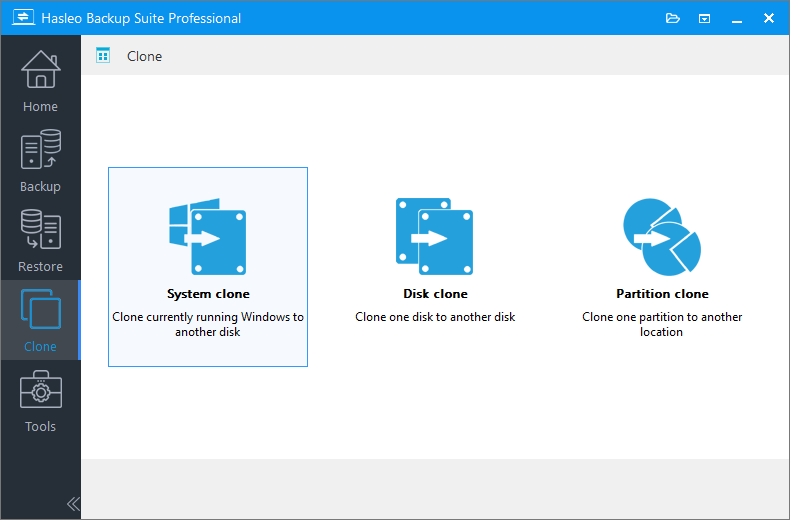
Step 1. Run Hasleo Backup Suite. Click the "Clone" button in the navigation bar, then select "System Clone" in the operation area.
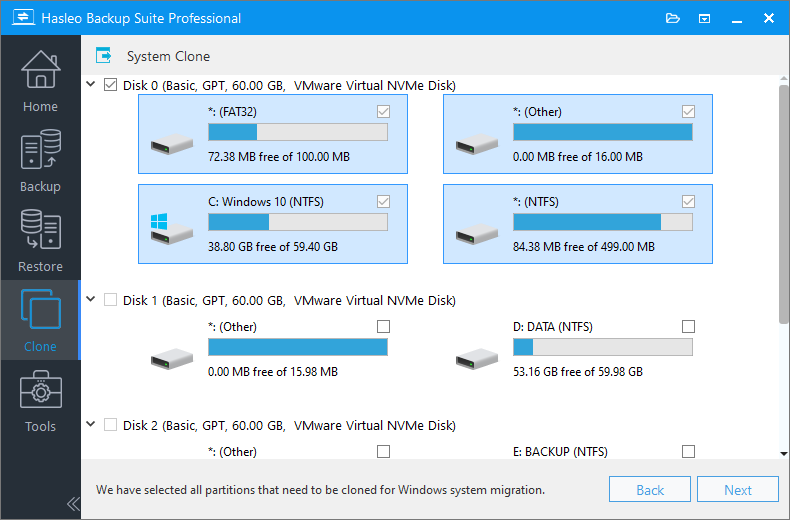
Step 2. Hasleo Backup Suite will automatically select all partitions required for Windows system cloning. After confirming the selection is correct, click "Next" to continue.
Step 3. Select the target disk that contains existing source system clone data, then check the "Delta Clone" checkbox and click "Next" to continue.
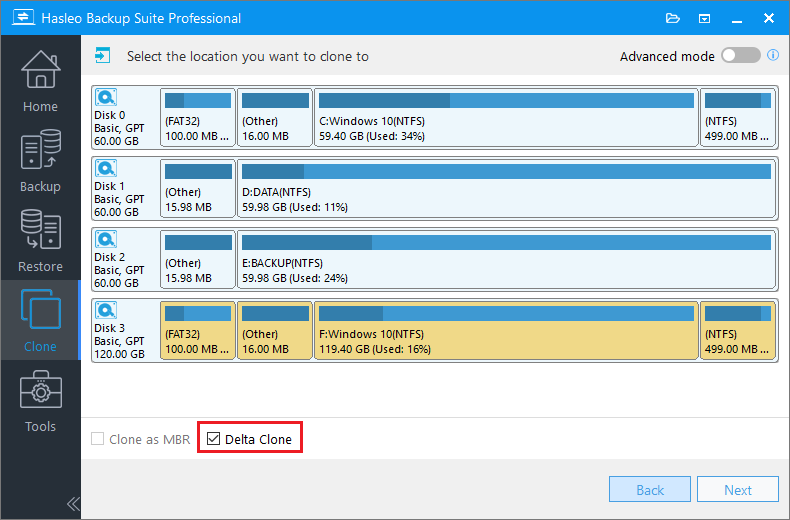
💡Tips: Delta Clone operation will overwrite corresponding sectors on the target disk. Please ensure there are no other important files on the target disk.
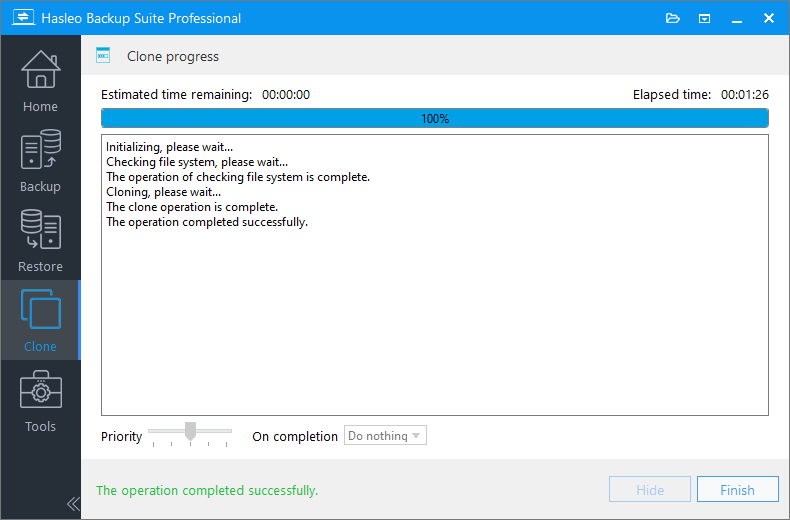
Step 4. Hasleo Backup Suite is now performing a Delta Clone, copying only the data blocks that have changed on the source Windows system to the target disk. The operation time depends on the number of data blocks that have changed on the source system disk. In extreme cases, the incremental clone can be completed in a few seconds.
✅Congratulations! You have successfully completed incremental cloning of your Windows ARM64 system using Delta Clone!
Frequently Asked Questions
A: Delta Clone only copies data blocks that have changed since the last clone, while full clone copies all data on the source disk. Delta Clone is typically 5-30 times faster than full clone and uses less power.
A: Yes, Delta Clone requires an existing full clone on the target disk as a baseline. It detects changes from the source disk and copies only the incremental data to the target.
A: No, Delta Clone is available in Home, Professional, Server, and Enterprise editions. It is not included in the Free edition.
A: No, Delta Clone requires identical partition structures between source and target disks. For partition resizing, use full clone instead.
A: Delta Clone currently supports NTFS and ReFS partitions. For FAT32, exFAT, or other file systems, full clone method will be used automatically.
A: Delta Clone typically takes only 5-30% of the time required for full clone. After Windows updates, it can complete in just a few minutes versus tens of minutes for full clone.
A: No, the target NTFS/ReFS partition must be greater than or equal to the source partition size. The target non-NTFS/non-ReFS partition must be exactly the same size as the source.
Conclusion
Through the introduction in this tutorial, you have learned about the Delta Clone feature of Hasleo Backup Suite and its application on Windows ARM64 devices. The Delta Clone technology significantly improves cloning efficiency by intelligently detecting and copying only the changed data blocks.
With native ARM64 support, efficient Delta Clone technology, and comprehensive backup features, Hasleo Backup Suite is the professional choice for Windows data protection. Upgrade the edition of Hasleo Backup Suite now to experience the efficient cloning brought by Delta Clone!
Related Articles
- How to Use Delta Clone to Speed Up System Cloning?
- How to Clone Surface (ARM64) SSD to a Larger SSD?
- How to Back Up Microsoft Surface (ARM64) Computers Using Hasleo Backup Suite?
- How to Use Delta Restore in Hasleo Backup Suite to Speed Up System Restoration?
- How to Flexibly Adjust Target Partition Size When Cloning a System?


