

- Overview of Microsoft Surface ARM64 Computers
- Why You Need to Create Backups for Your Surface Computer
- The Best Backup Software for Surface ARM64—Hasleo Backup Suite👑
- How to Back Up Surface Computer Using Hasleo Backup Suite
- How to Restore Surface Computer Using Hasleo Backup Suite
- Frequently Asked Questions
- Summary
Microsoft Surface devices, like the Pro X and Pro 11, are favorites for business professionals and creative workers due to their powerful performance, lightweight design, and long battery life. Yet, Surface and other ARM64 devices face risks of data loss and system failures. This step-by-step guide shows you how to use Hasleo Backup Suite to achieve comprehensive data protection for your Microsoft Surface device.
Overview of Microsoft Surface ARM64 Computers
Microsoft Surface ARM64 devices in the Surface series represent the future direction of Windows computing devices. These devices are powered by ARM-based processors, such as the Qualcomm Snapdragon series, providing advantages that traditional x86 devices cannot match.
Main Surface ARM64 devices include:
- Surface Pro X: Equipped with Microsoft SQ1 or SQ2 processor, features a 13-inch PixelSense display, supports LTE connectivity, and provides extended battery life.
- Surface Pro 11: Equipped with Snapdragon X Elite/Plus processor, supports 5G connectivity, and is the latest ARM64 version of the Surface Pro series.
- Surface Laptop 7: Equipped with Snapdragon X Elite/Plus processor, a laptop designed for mobile office work.
👍Core advantages of Surface ARM64 devices:
- Extended Battery Life: The low power consumption characteristic of ARM architecture enables Surface devices to operate for over 15 hours on a single charge, meeting all-day mobile office needs.
- Instant On: Supports Modern Standby technology, allowing devices to wake instantly like smartphones without waiting for boot-up.
- Slim and Lightweight Design: Fanless design makes devices more slim and portable, ideal for business professionals who travel frequently.
- 5G/LTE Support: Some models support mobile network connectivity, staying online anytime and anywhere.
Why You Need to Create Backups for Your Surface Computer
Although Surface computers are known for their reliability and stability, the risks of data loss and system failures still exist. Creating system backups for your Surface device is a key measure to protect data and ensure business continuity.
Main reasons to backup your Surface computer:
- Prevent System Crashes: Windows systems can crash due to software conflicts, driver issues, or malware. Having a backup allows quick recovery when system problems occur.
- Protect Important Data: Your documents, photos, work files, and personal data are invaluable. Backups ensure this data won't be permanently lost due to hardware failures or accidental deletion.
- Save Recovery Time: When system problems occur, restoring from backup is much faster than reinstalling Windows, drivers, and all applications, significantly reducing downtime.
- Handle Hardware Failures: If your Surface device experiences hardware failure (such as hard drive damage), backup images can be restored to a new device, ensuring work continuity.
- Support System Migration: When upgrading to a new Surface device, backups can easily migrate all data and settings to the new computer.
📌Important notes before backing up:
- Choose the Right Storage Device: It is recommended to use external storage with capacity at least 1.5 times the used space of the Surface drive. SSD is better if you prioritize speed and durability; HDD can also meet needs if you prioritize cost-effectiveness.
- Format Your Storage Device: Since system image files may exceed 4GB, please format the external storage device to NTFS file system to support large file storage.
- Use High-Speed Interface: It is recommended to use USB 3.0/3.1/3.2 interface to connect external storage devices, which can significantly shorten backup time. Connect the device to the rear USB ports on the motherboard, and avoid using front panel ports to prevent power or signal instability causing transmission interruptions.
- Ensure System Stability: Before starting backup, ensure the system is running stably, and close antivirus software and large applications to ensure file sync consistency.
The Best Backup Software for Surface ARM64—Hasleo Backup Suite👑
Choosing the right backup software for your Surface ARM64 device is crucial. After comparative testing, we strongly recommend Hasleo Backup Suite as your Surface backup solution.
Why Hasleo Backup Suite is the best choice for Surface ARM64:
- Native ARM64 Support: Hasleo Backup Suite provides a native ARM64 version, specifically optimized for ARM64 processors, able to fully leverage Snapdragon chip performance advantages while reducing power consumption and extending Surface device battery life.
- Free Version Features: Offers system backup/restore, disk or partition backup/restore, file backup/restore and cloning functions, allowing you to enjoy professional-level data protection at no cost.
- Extremely Fast Backup Performance: The optimized backup engine provides industry-leading backup and restore speed, minimizing the impact of backup on your work.
- Multiple Backup Modes: Supports full backup, incremental backup, and differential backup modes. After the initial full backup, incremental and differential backups only backup changed data, saving storage space and backup time.
- Compression and Encryption: Supports backup compression to save storage space, while providing AES 128/256-bit encryption to protect your sensitive data.
- Bootable WinPE Recovery Media: When the Surface system cannot boot, you can use WinPE boot media for system recovery.
- Intuitive and User-Friendly Interface: The interface design is clear and intuitive, with main functions obvious at a glance, allowing even beginners to get started quickly.

Download Hasleo Backup Suite ARM64 version now to provide professional data protection for your Surface computer. For maximum data security, we also recommend creating WinPE boot recovery media to restore backups when the system cannot boot.
How to Back Up Surface Computer Using Hasleo Backup Suite
Here are the detailed steps for creating backups for your Surface ARM64 computer using Hasleo Backup Suite:
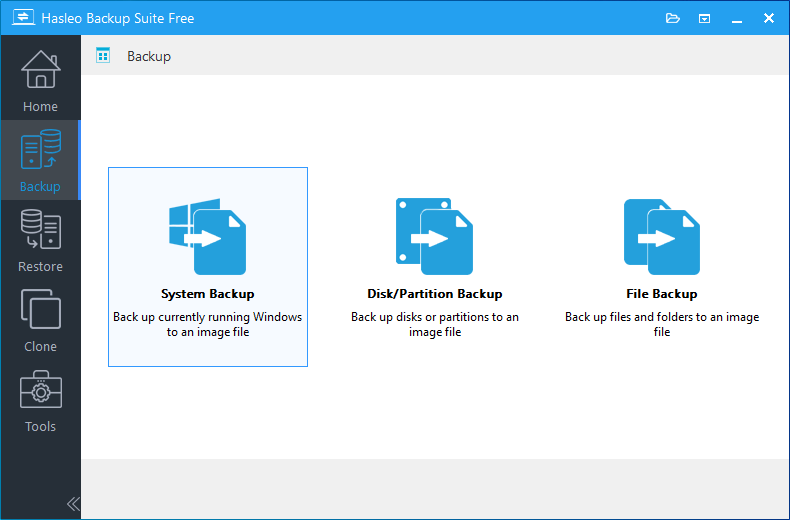
Step 1. Download, install, and run Hasleo Backup Suite. Click the "Backup" button in the navigation bar, then select "System Backup", "Disk/Partition Backup", or "File Backup" in the operation area.
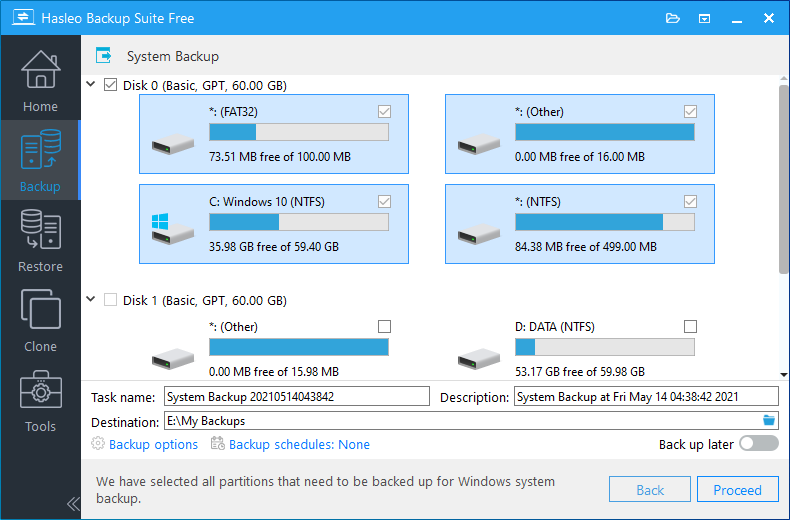
Step 2. Select the system, disks, partitions or files/folders to back up. For a system backup, the required partitions are selected automatically. Set the task name, description, destination, and backup options as needed. Once configured, click "Proceed" to start the backup process.
💡Tips:
- Task name: Specify a task name so that you can quickly find and manage your backup task later.
- Description: Briefly describe the purpose of the task and any other relevant information.
- Destination: Modify the destination path where the backup image files will be stored by clicking the folder icon.
- Backup options: Advanced backup settings. For more details, please refer to Backup options.
- Backup schedule: Set up backup schedules to automatically perform your backup tasks on a regular basis. For more details, please refer to Backup schedule.
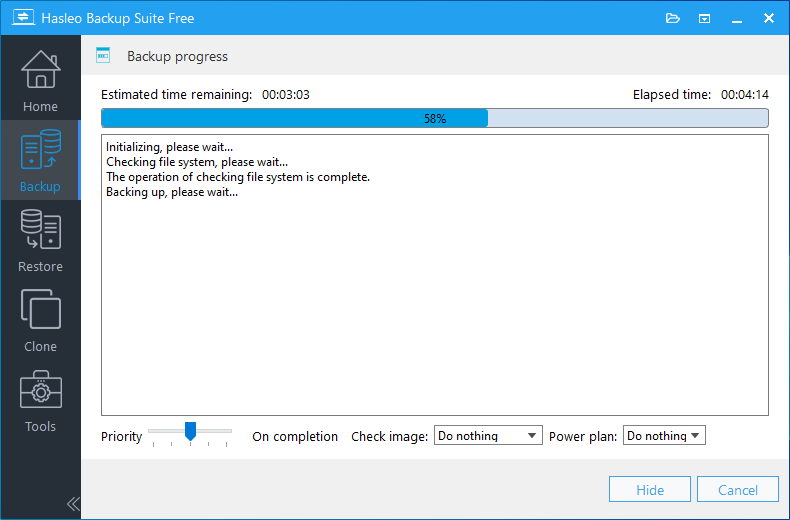
Step 3. After clicking "Proceed", Hasleo Backup Suite will begin backing up your Surface computer system, disks, partitions, or files/folders to the specified destination. Backup time depends on the size of data to be backed up; please be patient.
💡Tips:
- Priority: Specify a priority for the backup process. A higher priority allocates more CPU time to the backup, which may cause other programs to run slower.
- Check image: Verify the integrity of the backup image files upon completion of the backup process.
- Power plan: Perform the power management action after the backup is complete.
How to Restore Surface Computer Using Hasleo Backup Suite
When problems occur with your Surface computer system, you can follow these steps to restore from backup:
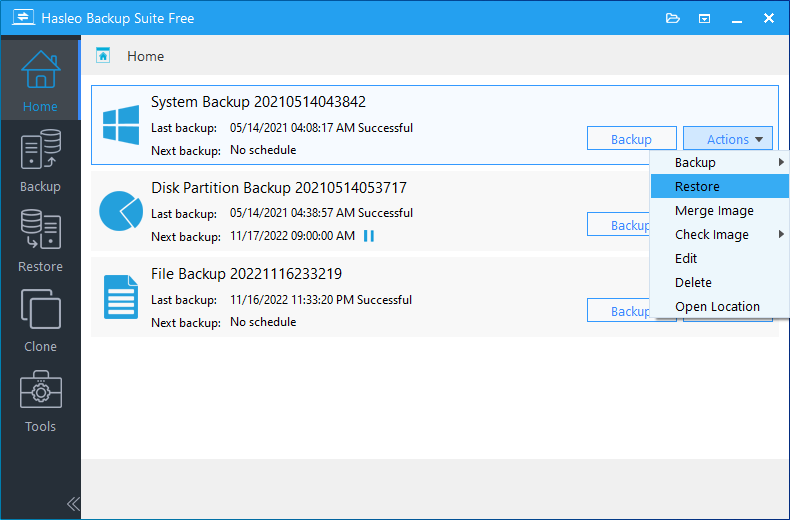
Step 1. Click the "Home" button in the navigation bar. Then find the backup task you want to restore, click "Actions", and select "Restore" from the menu.
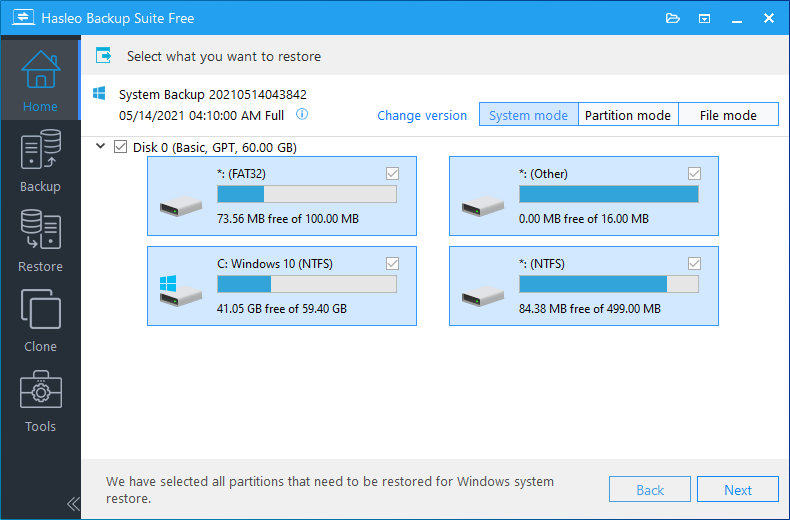
Step 2. For system backup or disk/partition backup tasks, select the backup version and the disk or partition you want to restore here. Then click "Next".
⚠️Tips:
- If you want to restore your entire operating system, please choose "System mode" in the upper-right corner. To restore a single partition, please select "Partition mode". For recovering individual files, please use "File mode".
- Important Note: Restoring only the Windows partition in "Partition Mode" may result in a system that fails to boot or function properly.
For file backup tasks, select the files/folders and backup version you want to restore. Specify the destination location, then click "Proceed" to start restoration.
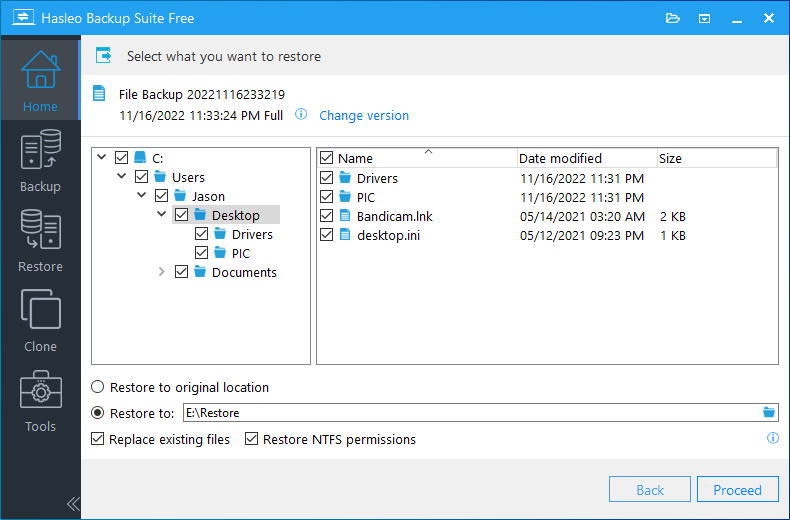
⚠️Note: Steps 3 and 4 apply only to System Restore and Disk/Partition Restore.
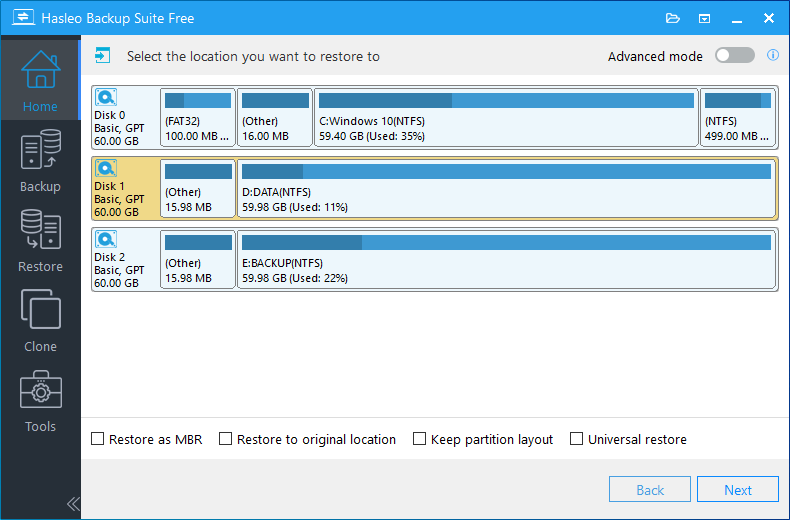
Step 3. Select the destination to restore the system, disk, or partition to, then click "Next".
💡Tips:
- The Restore to original location option enables you to restore the Windows operating system to its original location on the original disk without damaging other partitions. Please note that this option is only available in "System mode".
- The Keep partition layout option ensures the partition layout of the destination disk is identical to the source disk after cloning. Please note that this option is only available in "System mode".
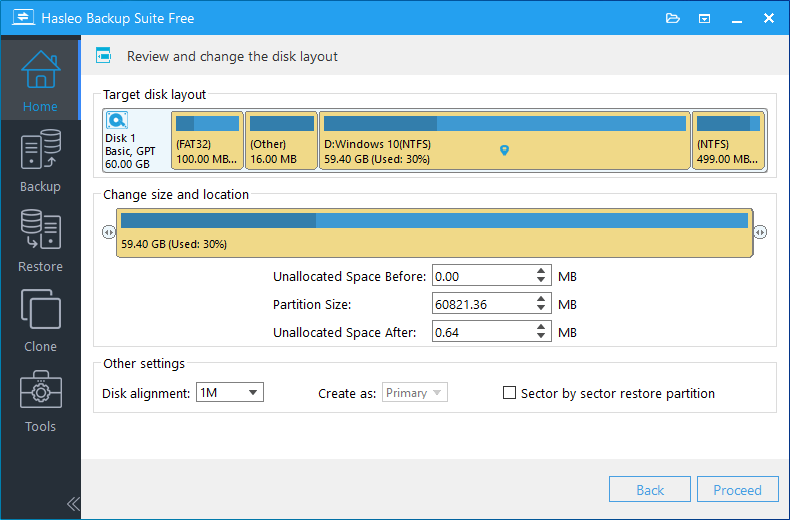
Step 4. Adjust the size and location of partitions according to your needs and click "Proceed". A warning message will appear stating that all data on the destination drive will be destroyed. If the destination disk contains no important data, click "Yes" to continue.
💡Disk alignment:
- 1M (Recommended): 1M alignment is a subset of 4K alignment. Partitions aligned to 1MB are always 4K-aligned, which helps you get the best SSD performance. In Windows Vista and later operating systems, partitions created using Windows Disk Management are always aligned to 1MB bytes, regardless of whether the disk is an SSD.
- 4K: This option ensures the starting sector of every partition is aligned on a 4K bytes, which is very important for the best performance of an SSD.
- Cylinder: Ensure the starting sector of each destination partition always starts at the beginning of a cylinder. Windows XP and previous OSs use this alignment mode.
- None: The start sector of each the destination partitions is not aligned.
* The Sector by sector restore partition option restores every sector from the source partition to the destination partition, including unused sectors.
Step 5. Hasleo Backup Suite is now restoring the system, disks/partitions, or files/folders to the destination. Required time depends on the size of data to be restored; please be patient.
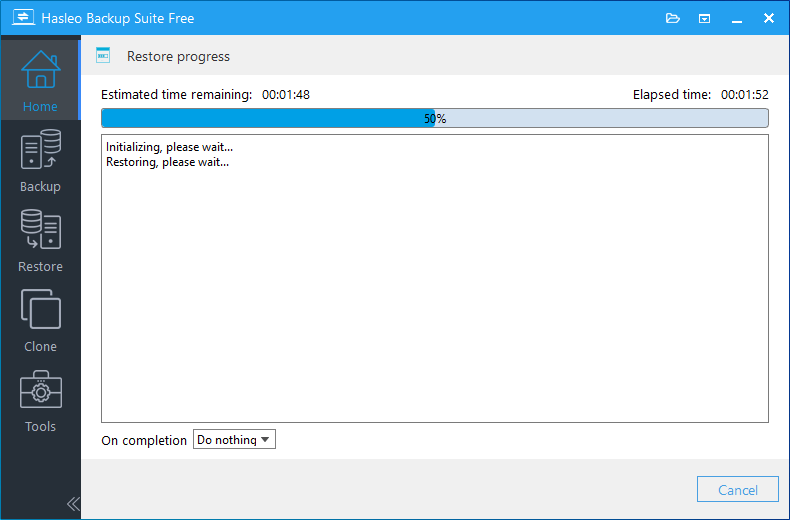
💡Here you can specify a power management action to be performed after the backup is complete.
Frequently Asked Questions
A: Yes, Hasleo Backup Suite provides a native ARM64 version specifically optimized for Surface Pro X, Surface Pro 11, and other ARM64-based Windows devices, fully leveraging Snapdragon chip performance while reducing power consumption.
A: Hasleo Backup Suite supports multiple backup types including system backup, disk/partition backup, and file backup. You can choose the appropriate backup type based on your needs.
A: Hasleo Backup Suite ARM64 uses Windows VSS directly for backups, guaranteeing transactional consistency. Combined with offline recovery via the ARM64 WinPE environment, this ensures the backed-up system remains complete and bootable.
A: Both the "sector-by-sector backup" feature and standard disk backup use sector-level backup. However, standard disk backup only backs up data blocks within a partition that are currently in use by the file system, whereas "sector-by-sector backup" backs up all data blocks in the partition, regardless of whether they are in use by the partition's file system.
A: You can create a WinPE emergency recovery disk in advance using Hasleo Backup Suite ARM64. When the system fails to boot, start the computer from the WinPE media and then restore the system using the backup image. This allows you to repair or restore the system without needing to access the main operating system.
A: Yes. Hasleo Backup Suite ARM64 supports restoring system backup images to either the original disk or a new disk. Even if the new disk is a blank drive, there is no need to install the operating system or manually partition it beforehand. During the restoration process, the program automatically creates partitions and writes the data. Once the restoration is complete, the device will boot up and function normally, exactly as it did before.
A: Yes, it supports full, incremental, and differential backup modes. After an initial full backup, incremental and differential backups only copy changed data, saving storage space and backup time.
A: Yes, Hasleo Backup Suite supports AES 128/256-bit encryption for backup images. You can enable encryption in backup options to protect sensitive data.
Summary
Microsoft Surface ARM64 devices redefine mobile productivity with unmatched portability and battery life. Protecting your data on these premium devices is crucial. Hasleo Backup Suite, the professional Windows backup software, delivers native ARM64 support to fully harness your Surface's performance. Experience blazing-fast backup and restore, ensuring your work is always secure and uninterrupted.
Hasleo Backup Suite is not only a powerful backup software but also an excellent disk cloning software that can help you migrate Surface systems to other devices. We recommend creating regular backups and WinPE boot media to handle emergency situations where the system cannot boot. Start protecting your Surface device and valuable data today!


