

- Common Causes of ARM64 Device Boot Failure
- Method 1: Restore Your System Using Hasleo Backup Suite
- Alternative Troubleshooting Methods
- Preventive Measures and Recommendations
- Frequently Asked Questions
- Summary
With the release of Qualcomm's new Snapdragon X Elite and X Plus processors, Windows ARM64 devices are experiencing significant market growth. The new generation chips have achieved tremendous breakthroughs in multi-core CPU performance, power efficiency, and AI computing power, attracting major manufacturers like Microsoft (Surface Pro 11), Lenovo, ASUS, and Samsung to launch new notebooks and 2-in-1 devices. These devices, leveraging the inherent power efficiency of ARM architecture, deliver sufficient daily and professional performance while achieving excellent battery life and low heat output, earning favor from users with high mobility requirements. Thanks to the increasingly rich native ARM64 applications and Qualcomm Prism translator's efficient emulation of traditional x86/64 applications, most usage scenarios are now obstacle-free. However, in extreme cases (such as driver conflicts or system update failures), they may encounter system boot issues similar to those on x86 platforms.
Common Causes of ARM64 Device Boot Failure
Understanding the root causes of ARM64 device boot failure is the first step to solving the problem. Here are the most common factors that prevent the system from booting:
- Windows Update Failure: Power outage, network interruption, or corrupted update files during Windows update can cause the update process to be interrupted, resulting in corrupted system files or boot configuration errors. This is especially common on ARM64 devices because some driver updates may have compatibility issues with the system.
- Driver Conflicts: The driver ecosystem for ARM64 devices is relatively new, and installing incompatible drivers may cause system boot failure. Especially after graphics driver, firmware update, or system component updates, blue screen errors or boot freeze may occur.
- Malware Infection: Viruses, trojans, or ransomware may corrupt system boot records, boot managers, or critical system files, preventing Windows from loading normally. ARM64 devices are also vulnerable to malware threats and require keeping security software updated.
- System File Corruption: Bad sectors on hard drive, sudden power outage, program crash, or software conflicts may cause critical system files to be corrupted or lost. Corruption of files like bootmgfw.efi and winload.efi required for Windows boot will directly cause boot failure.
- UEFI/BIOS Settings Issues: Incorrect boot order configuration, Secure Boot settings, hardware configuration changes, or firmware corruption may prevent the system from booting from the correct device. Some ARM64 devices' UEFI firmware may have bugs and require firmware version updates.
- Storage Device Failure: ARM64 devices typically use NVMe SSD as primary storage. SSD firmware issues, controller failures, or NAND flash chip damage can prevent the system from booting. Additionally, insufficient storage space may affect normal system operation.
- System Configuration Errors: Registry errors, Boot Configuration Data (BCD) corruption, system service configuration issues, or third-party software conflicts can cause boot failure. In this case, the system may boot to a certain stage but eventually crash.
Method 1: Restore Your System Using Hasleo Backup Suite👑
Hasleo Backup Suite is professional backup and recovery software optimized for Windows ARM64 devices, featuring full system recovery capabilities. When ARM64 devices fail to boot normally, using Hasleo Backup Suite is a reliable data protection solution.
Before You Begin
To ensure you're prepared for an emergency, complete these steps while your system is running normally:
- Download and install Hasleo Backup Suite (ARM64 edition)
- Create a full system or disk backup and save it to an external storage device
- Create a WinPE emergency recovery disk (see detailed steps below).

WinPE (Windows Preinstallation Environment) is a lightweight Windows system environment that can perform system recovery operations without booting the full operating system. Creating WinPE emergency recovery media in advance is a key preparation for handling ARM64 device system failures.
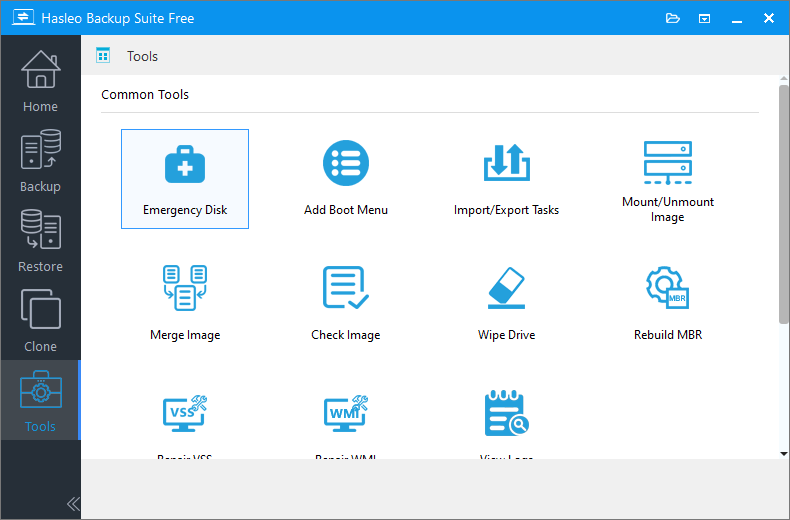
Step 1. Launch the ARM64 version of Hasleo Backup Suite on your ARM64 device. Click the "Tools" button in the navigation bar, then select "Emergency Disk" in the operation area.
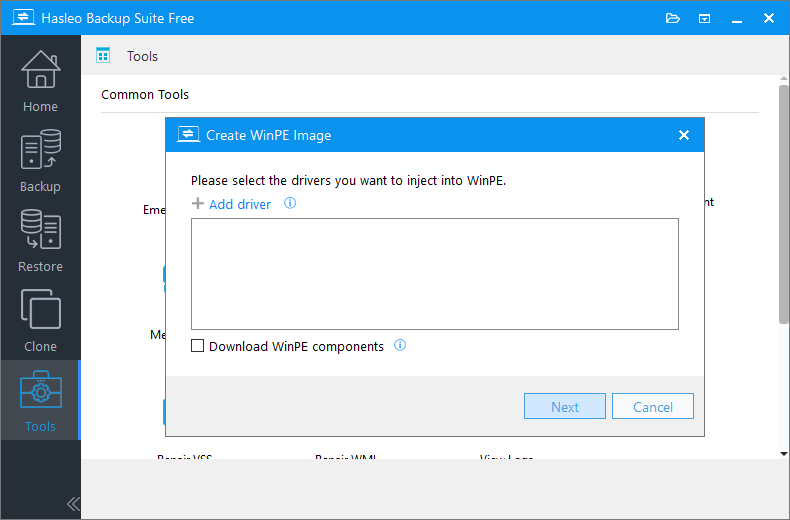
Step 2. Check "Automatic driver injection" or "Download WinPE components" to inject necessary drivers for WinPE. If you need to inject some additional drivers, click "Add driver" and select the drivers you want to inject. Click "Next" to proceed.
💡Tips:
- Only drivers that are based on an .inf file can be injected into WinPE.
- The Download WinPE components option allows you to obtain them from the current Microsoft.
- The Automatic driver injection option will automatically extract drivers from the current Windows operating system and inject them into WinPE. Please note that while Hasleo Backup Suite endeavors to extract and inject all drivers into WinPE, this process is not infallible, and we do not warrant that all hardware will be fully operational in the WinPE environment.
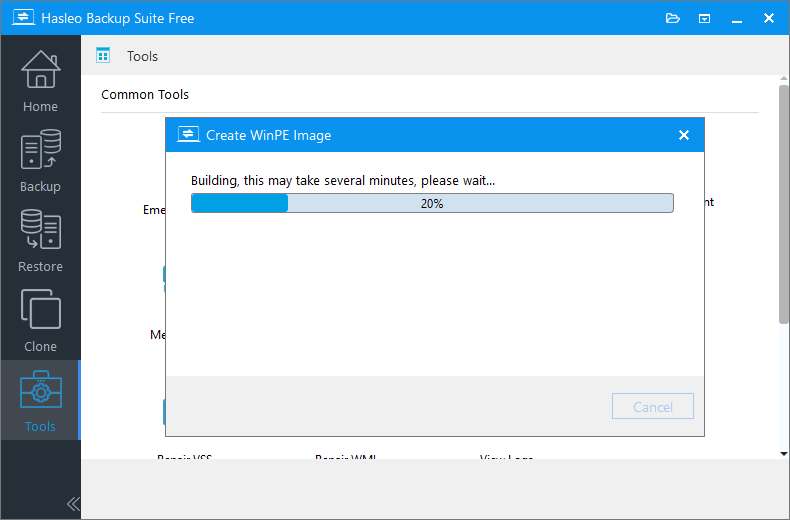
Step 3. Hasleo Backup Suite is now building the WinPE image. This process may take several minutes. Thank you for your patience.
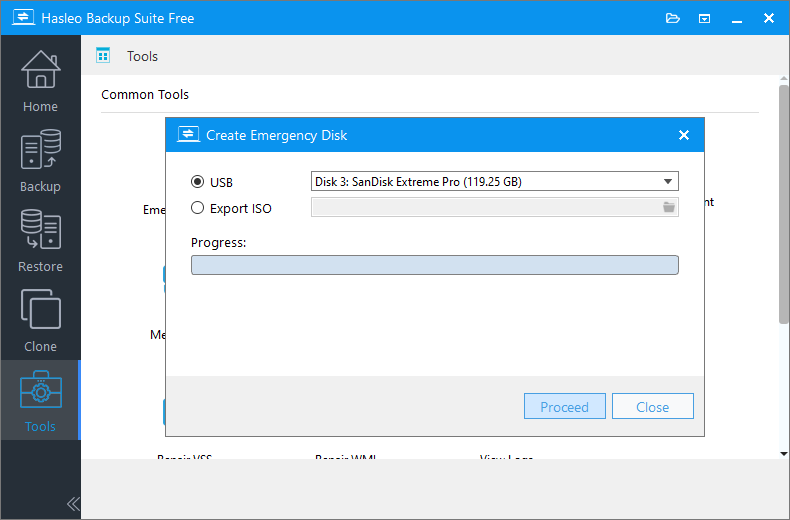
Step 4. After the WinPE image is created successfully, select "USB" and click "Proceed" to create the bootable USB drive.
💡Tips:
- USB: Select the "USB" option to write the WinPE image directly to a USB flash drive. It is recommended to use a USB 3.0 or higher flash drive with capacity of at least 8GB for faster read/write speeds.
- Export ISO: Select the "Browse ISO" option to export the WinPE image as an ISO file. This method is more flexible and allows you to burn the ISO file to a CD/DVD/USB device using third-party burning software (such as Nero Burning ROM, Hasleo WinToUSB, etc.).
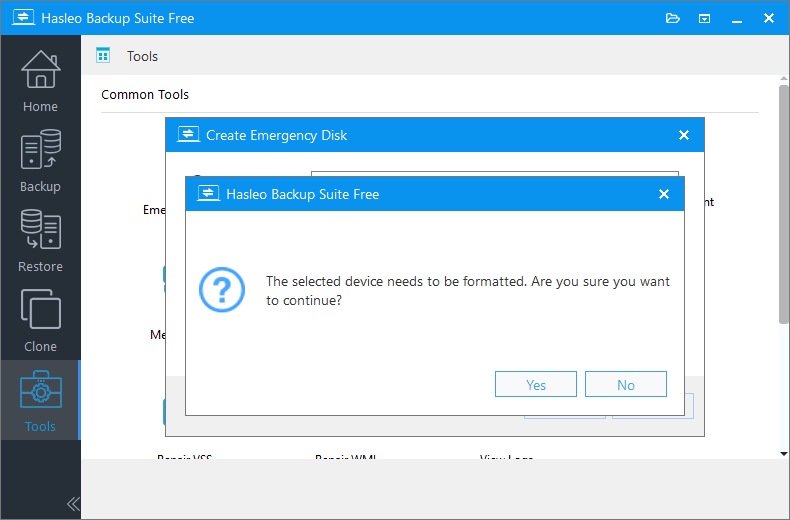
Step 5. The program will prompt you that the selected USB drive will be formatted. Please ensure any important files are backed up beforehand. To confirm and proceed with creating the bootable drive, click "Yes".
ℹ️Tips:
- Disable Secure Boot: Most ARM64 devices have UEFI Secure Boot enabled by default, which may prevent booting from external USB devices. You need to temporarily disable Secure Boot in UEFI/BIOS settings, or use a WinPE image that supports Secure Boot.
- Regular Updates: When major Windows system updates or hardware changes occur, it is recommended to recreate the WinPE emergency recovery disk to ensure it contains the latest drivers and components.
- Storage Location: Store the WinPE emergency recovery disk in a secure location, and it is recommended to save ISO backup files in multiple locations.
Boot from WinPE Media
When your ARM64 device fails to boot normally, follow these steps:
- Insert the pre-created WinPE boot media.
- Power on and enter UEFI/BIOS settings.
- In boot options, set USB device as the first boot device.
- Important: If UEFI Secure Boot is enabled, you need to temporarily disable it to boot WinPE from external media
5. Save settings and restart the computer.
Load WinPE Environment
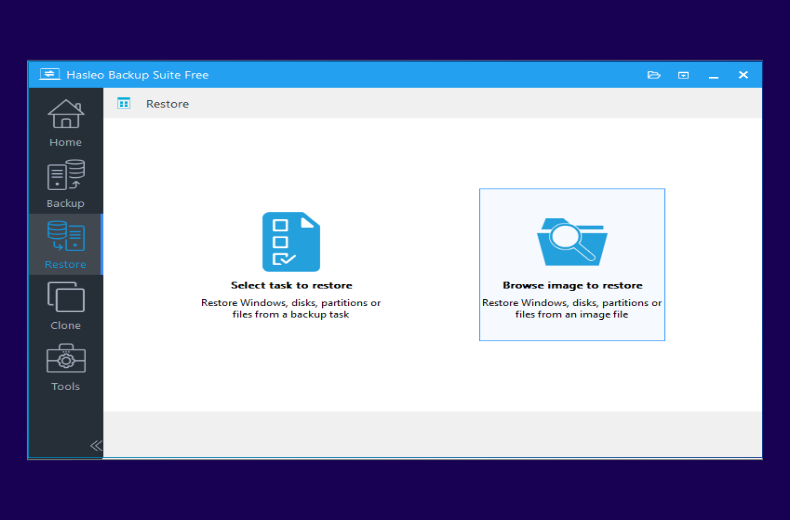
Step 1. After the computer boots from WinPE media, Hasleo Backup Suite will run automatically. Make sure the backup storage device is connected to the computer. Click the "Restore" button in the navigation bar, then select "Browse image to restore" in the operation area to find the system or disk image file you want to restore.
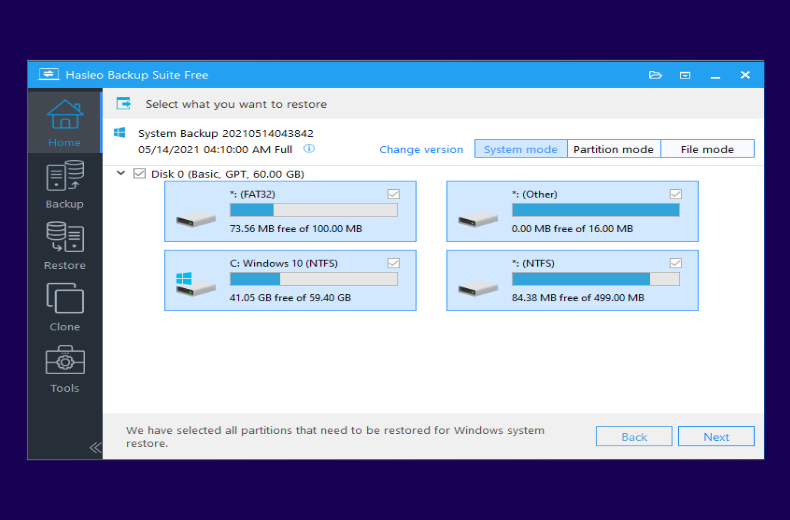
Step 2. Choose the appropriate recovery mode based on your backup type. To restore to a specific date, click "Change version" and choose your desired backup point from the list. Click "Next" to proceed.
⚠️Tips:
- If you want to restore your entire operating system, please choose "System mode" in the upper-right corner. To restore a single partition, please select "Partition mode". For recovering individual files, please use "File mode".
- Important Note: Restoring only the Windows partition in "Partition Mode" may result in a system that fails to boot or function properly.
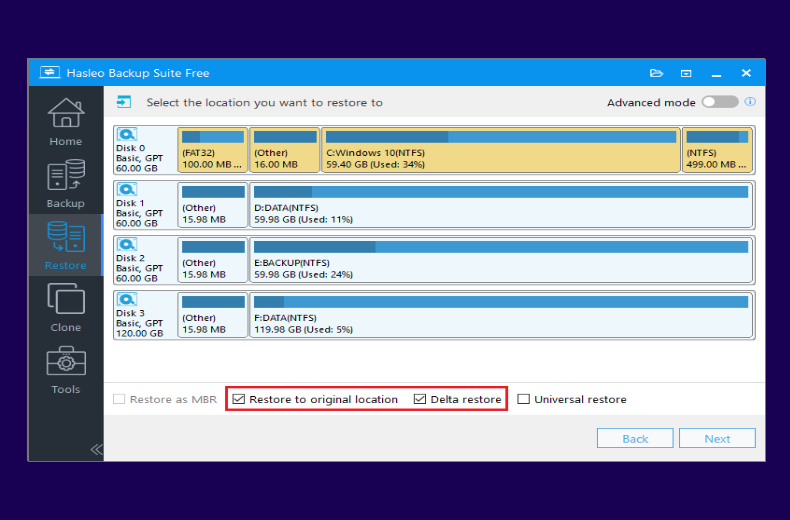
Step 3. Select the target disk to restore (usually the device built-in SSD). Checking "Restore to original location" will automatically check "Delta restore" to speed up the restore process. Then click "Next", the program will start restoring the Windows image to the target computer.
Step 4. Remove the WinPE boot media and restart the computer. Once the system boots successfully, verify that Windows and all your applications are functioning normally. If the system fails to boot or you encounter errors, please refer to alternative troubleshooting methods in the next chapter.
Alternative Troubleshooting Methods
In addition to using Hasleo Backup Suite for system recovery, the following methods can also solve boot failure issues on some ARM64 devices:
Method 1: Boot into Windows Recovery Environment (WinRE)
WinRE is a built-in recovery platform containing various repair tools. To access it:
- Repeatedly and quickly press the power button during startup to interrupt normal boot. After repeating 3 times, the system will automatically enter WinRE.
- In WinRE, navigate to "Troubleshoot" > "Advanced Options"
- You will then have access to several recovery tools:
- Startup Repair: Attempts to automatically diagnose and fix common boot issues.
- System Restore: Restores the system to a previous restore point (must be created in advance).
- Command Prompt: Manually execute repair commands like bootrec /fixmbr, bootrec /fixboot, etc. (for advanced users).
- System Image Recovery: Restore the system using a previously created system image (must be backed up in advance).
Method 2: Use UEFI/BIOS Recovery Options
Some ARM64 devices provide built-in system recovery features:
- While powered off, hold the volume up button and power button simultaneously for more than 10 seconds to enter UEFI/BIOS settings.
- Look for "Recovery" or "Reset" options (location varies by device).
- Select "Restore to factory settings" or "Reset to defaults".
- Note: This operation will clear all data and installed applications (choose carefully).
Method 3: Rebuild BCD (Boot Configuration Data)
BCD corruption is a common cause of boot problems and can be repaired with the following steps:
- Boot from WinPE media or installation media.
- Open Command Prompt.
- Execute the following repair commands in sequence:
bootrec /scanos # Scan for installed systems
bootrec /fixmbr # Repair Master Boot Record
bootrec /fixboot # Repair Boot Sector
bootrec /rebuildbcd # Rebuild BCD configuration
Method 4: Check Disk Errors
Use CHKDSK command to check and repair disk errors:
- Boot from WinPE media.
- Open Command Prompt.
- Execute command: chkdsk C: /f /r (C: is the system drive letter).
- This command will check for disk errors and attempt repairs.
Method 5: Update UEFI/BIOS Firmware
Some boot issues may be caused by UEFI/BIOS firmware bugs:
- Visit the device manufacturer's official website (such as Microsoft, Lenovo, ASUS, etc.).
- Download the latest UEFI/BIOS firmware for your device model.
- Follow the manufacturer's instructions to update the firmware.
- Note: During firmware update, ensure stable power supply and do not interrupt.
Method 6: Check Memory and Storage Hardware
Hardware failures can also prevent the system from booting:
- Check if SSD connection is loose (for devices with removable SSD).
- Use hardware diagnostic tools to check hardware health status.
- If hardware failure is confirmed, you may need to contact the manufacturer for repair.
⚠️Critical Warnings:
- Data Risk: Back up important data as much as possible before repair
- Reset Warning: Factory reset will delete all user files
- Warranty Terms: Self-disassembly may affect device warranty
⭐Preventive Measures and Recommendations
Prevention is better than cure. Taking the following measures can reduce the risk of ARM64 device boot failure:
- Create System Backups Regularly: Use Hasleo Backup Suite to create system backups or disk backups regularly. It is recommended to perform at least one complete backup per month and additional backups before major system updates. Click to learn more about backup tutorials
- Create and Update WinPE Emergency Recovery Disk: Create WinPE emergency recovery disk when the system is running normally, and recreate it after major system updates or driver changes.
- Enable System Restore Feature: Windows System Restore feature can create restore points, allowing quick rollback to a previous state when system problems occur.
- Install Drivers Carefully: Only install official drivers from device manufacturers or Microsoft. Avoid using third-party driver update tools.
- Manage Disk Space: Keep sufficient free space on the system drive (at least 10GB recommended) to avoid system problems caused by insufficient disk space.
- Update System Firmware: Regularly check for and install UEFI/BIOS and firmware updates released by device manufacturers to fix known compatibility and stability issues.
Frequently Asked Questions (FAQ) for ARM64 Device Boot Recovery
A: You can use the built-in WinPE tool in Hasleo Backup Suite ARM64 to create a bootable USB drive or ISO file in advance. When the system fails to boot, insert the USB drive and boot the ARM64 device to enter the recovery environment and restore your system.
A: Yes, Hasleo Backup Suite offers a dedicated ARM64 version that supports full system backup and recovery for ARM64 devices like Surface Pro X and Surface Pro 11.
A: Launch Hasleo Backup Suite (ARM64 edition), click "Tools" > "Emergency Disk", check "Automatic driver injection" or "Download WinPE components", then select USB or export ISO to create the bootable recovery media.
A: Yes, you can try alternative methods like booting into WinRE for Startup Repair, rebuilding BCD using Command Prompt, or using UEFI recovery options. However, having a backup is strongly recommended for guaranteed recovery.
A: Blue screen errors on ARM64 devices are often caused by driver conflicts, Windows Update failures, or malware infections. Try booting into WinPE and restoring from a clean backup, or use WinRE's Startup Repair tool.
A: Power off the device, hold the volume up button and power button simultaneously for more than 10 seconds to enter UEFI/BIOS settings. Navigate to the Boot or Security section and disable Secure Boot. Save settings and restart.
A: A USB 3.0 or higher flash drive with at least 8GB capacity is recommended for faster read/write speeds during boot and recovery operations.
A: It is recommended to recreate the WinPE emergency recovery disk after major Windows system updates, driver changes, or hardware modifications to ensure it contains the latest drivers and components.
Summary
ARM64 device boot failure is a relatively tricky problem, but with the right tools and methods, most cases can be successfully recovered. Hasleo Backup Suite ARM64 version supports complete system backup and recovery. Combined with WinPE emergency recovery media, it can effectively solve most system boot problems. In addition to using Hasleo Backup Suite for recovery, this tutorial also introduces multiple troubleshooting methods, and users can choose appropriate solutions based on their specific situations. More importantly, it is recommended that users develop good backup habits, regularly create system backups and update WinPE emergency recovery media, so that when system problems occur, they can recover quickly, minimizing data loss and work interruption. Hasleo Backup Suite not only supports system recovery but also supports various functions such as disk cloning, system backup, and file backup, making it an ideal choice for ARM64 device data protection.
Related Articles
- Best Free Windows ARM64 Backup Software in 2026
- How to Back Up Surface (ARM64) to External Hard Drive Using Hasleo Backup Suite?
- 3 Ways to Create a Windows Recovery Drive for Free
- How to Restore a Windows 11 Backup to a New Drive Using Hasleo Backup Suite?
- From First Backup to Regular Schedule - A Beginner's Guide to Hasleo Backup Suite


