

- Overview of Windows PE (WinPE)
- Best Free WinPE Boot Disk Creator - Hasleo Backup Suite Free
- How to Create a WinPE Bootable Drive for Free
- Frequently Asked Questions
- Conclusion
Windows PE (Preinstallation Environment) is a lightweight, critical tool for system emergency maintenance. When your primary operating system crashes and cannot boot, Windows PE provides a standalone, bootable environment. This allows you to access hard drives, repair boot problems, reinstall the OS, and ultimately minimize downtime to restore normal operation. This guide will introduce how to use a powerful, free tool to create your own customized Windows PE bootable drive. Follow our detailed steps to build this essential toolkit and confidently address a wide range of system failures.
Overview of Windows PE (WinPE)
What is Windows PE (WinPE)?
Windows PE (Windows Preinstallation Environment, abbreviated as WinPE) is a lightweight Windows system officially provided by Microsoft, mainly used for system deployment, fault recovery, and Windows installation. It is not a complete operating system, but a "tool environment".
WinPE is characterised by its compact size, usually only a few hundred MB in size. This allows it to be easily stored on and booted from portable media like USB drives or CDs/DVDs. Unlike a full OS, WinPE offers limited native functionality, often relying on a command-line or basic graphical interface. However, users can inject additional drivers or integrate various utility software as needed, thus expanding it into a fully functional system maintenance and rescue platform.
Important Notes
It is important to note that WinPE is non-persistent: temporary changes made in the PE environment after a restart (such as installed software or adjusted system configurations) will be lost, but operations on the target drive (such as file deletion or partition adjustments) will be retained. This feature ensures a clean operating environment but requires users to confirm that the target of any critical operations is the intended disk rather than the PE system itself, to avoid mistakes.
WinPE Use Cases
In addition, WinPE is widely used in the following scenarios:
- Pre-installing Windows on new computers.
- Diagnosing and repairing unbootable systems.
- Performing disk operations like partitioning, backup, and restoration.
- Conducting offline tasks such as virus scanning and data recovery.
- Providing a standardized environment for enterprise bulk OS deployment.
Thanks to its high customisability and portability, WinPE is an important tool within the Windows ecosystem. It enables IT support, system administrators, and advanced users to perform critical system maintenance, repair, and deployment tasks, meeting needs that range from individual troubleshooting to enterprise-level management.
Best Free WinPE Boot Disk Creator - Hasleo Backup Suite Free👑
To create a practical and powerful WinPE bootable drive, specialised tools are usually required. Among numerous software options, Hasleo Backup Suite Free stands out for its free, user-friendly and reliable performance. It is not only a professional backup and cloning tool, but also includes a convenient WinPE emergency disk creation feature, allowing ordinary users to easily build their own system maintenance environment. After booting into the system with a Hasleo WinPE boot disk, you will see the familiar interface of Hasleo Backup Suite Free, where you can directly perform system recovery and other operations in emergency situations, which is very user-friendly.
Why Choose This WinPE Boot Disk Creator?
In addition, Hasleo Backup Suite Free offers key advantages for everyday data protection:
- Comprehensive and powerful free edition: It supports backing up and restoring system, disks/partitions, and files/folders, provides cloning function, and enables seamless data migration.
- Advanced technology and excellent performance: It supports Windows x86/x64 and ARM64 architectures. It boots in both UEFI and Legacy BIOS modes, ensures safe and stable program running, and operates with high efficiency and low power consumption.
- Multiple backup modes: It supports full, incremental and differential backups. Following an initial full backup, both incremental and differential backups save time and storage space by only copying the data that has changed.
- Features compression and encryption: It allows you to compress backup images to save disk space and encrypt them to protect your important data.
- Practical Toolbox: Here you can access advanced features like creating a WinPE emergency disk, merging backup images, and securely wiping disks.
- Intuitive and user-friendly interface: The interface design is clear, with the main functions immediately obvious, and guided prompts allow even beginners to get started quickly.
How to Create a WinPE Bootable Drive for Free
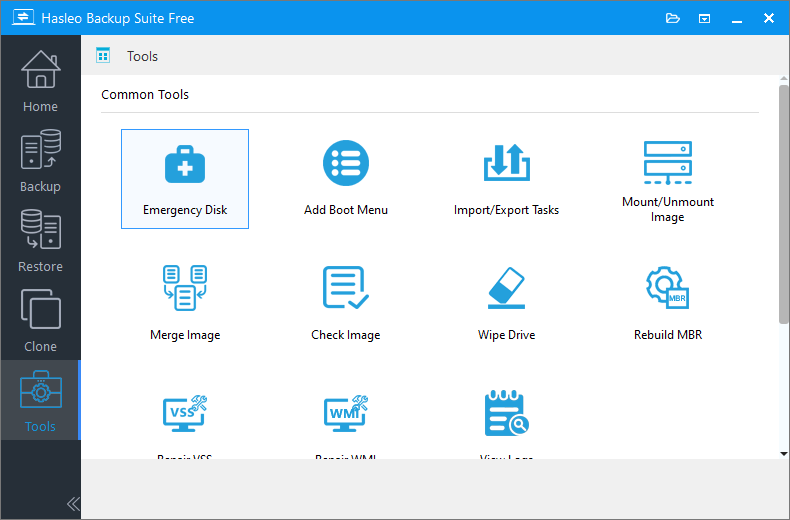
Step 1. Insert the USB flash drive into a working computer. Download, install, and run Hasleo Backup Suite Free. Click the "Tools" button in the navigation bar, then select "Emergency Disk" in the operation area.
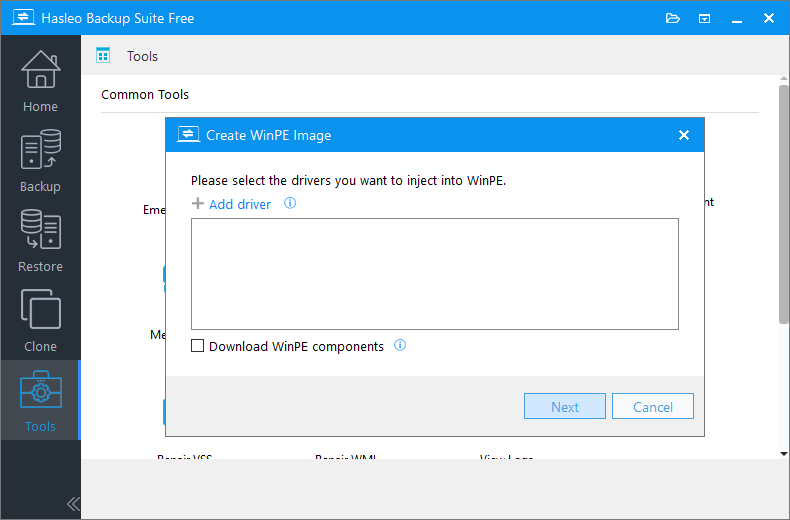
Step 2. Check the "Automatic driver injection" or "Download WinPE components" option to have the required drivers added to WinPE, then click "Next". To add any additional drivers, click "Add driver" and make your selection.
* Tips:
- Only drivers that are based on an .inf file can be injected into WinPE.
- The "Download WinPE components" option allows you to obtain them from Microsoft.
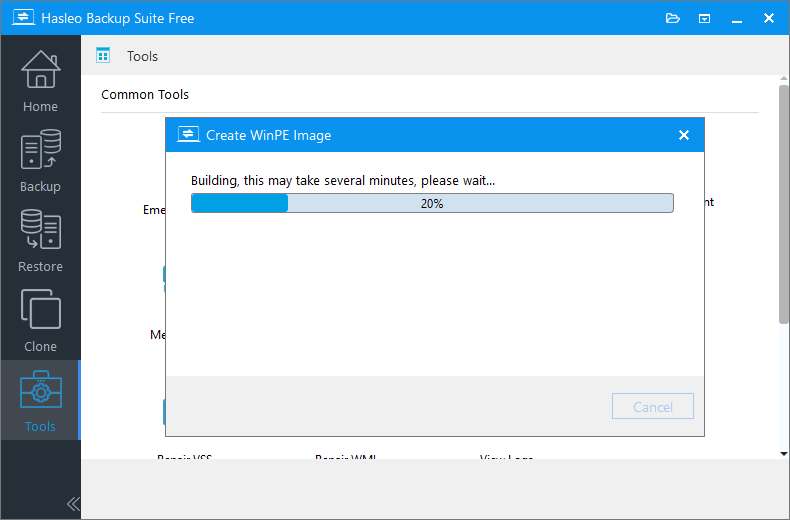
Step 3. Hasleo Backup Suite Free is now creating a WinPE bootable image.
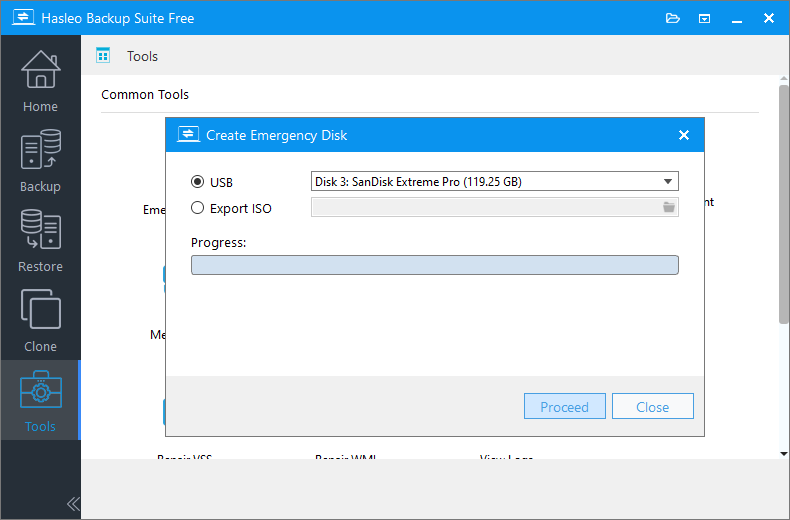
Step 4. After successfully creating the WinPE image, select USB and click "Proceed" to create a bootable WinPE drive.
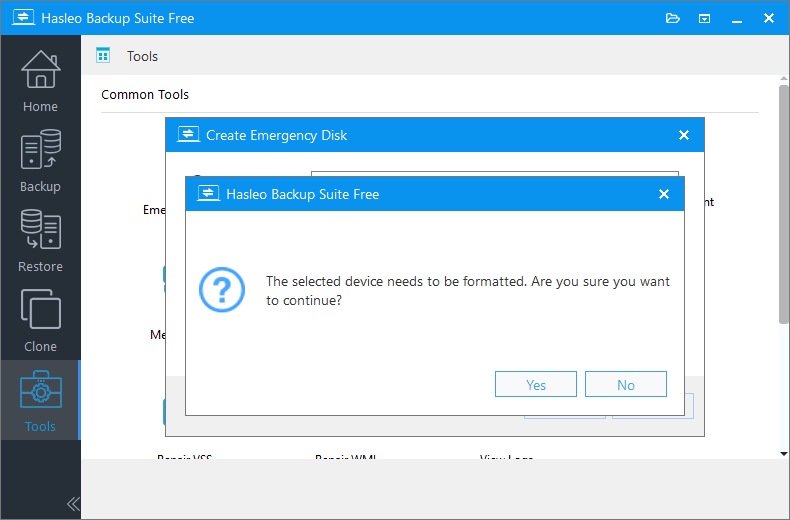
Step 5. The program will prompt you that the selected USB drive will be formatted. Please ensure any important files are backed up beforehand. To confirm and proceed with creating the bootable drive, click "Yes".
Step 6. Hasleo Backup Suite Free has started creating a bootable USB drive. After the process finishes, you can enhance its functionality by adding various repair tools and system backup images to it, creating a customized and powerful recovery solution.
Frequently Asked Questions
A: Hasleo Backup Suite Free is the best free tool to create a WinPE boot disk. It allows you to create a customized WinPE bootable drive with automatic driver injection support.
A: Windows PE boot disk can be used for system deployment, diagnosing and repairing unbootable systems, performing disk operations like partitioning and backup/restore, conducting offline virus scanning and data recovery, and enterprise bulk OS deployment.
A: Run Hasleo Backup Suite Free, click Tools > Emergency Disk, check the automatic driver injection option, then click Next to create the WinPE image. Select USB and click Proceed to create the bootable drive.
A: Yes, Hasleo Backup Suite Free creates WinPE boot disks that support both UEFI and Legacy BIOS boot modes.
A: Yes, you can add custom drivers to a WinPE boot disk using the 'Add driver' feature. Only drivers based on .inf files can be injected into WinPE.
A: No, WinPE is non-persistent. Temporary changes made in the WinPE environment after a restart will be lost, but operations on the target drive will be retained.
A: Yes, after booting into the system with a Hasleo WinPE boot disk, you will see the familiar interface of Hasleo Backup Suite Free, where you can directly perform system recovery and other operations.
A: A USB drive with at least 8GB is recommended. WinPE is usually only a few hundred MB in size, but you may want extra space for additional tools and backup images.
Conclusion
At this point, the WinPE bootable disk has been successfully created. We strongly recommend creating this bootable disk in advance while the system is running normally, so that you can quickly recover in the event of a system crash. Please note that since this device can directly access the data on the hard drive, it must be kept securely.
Hasleo Backup Suite Free provides an integrated solution for both emergency recovery and routine maintenance. Its powerful WinPE-based emergency boot disk handles critical tasks like system installation and data recovery. For daily operations, the software itself enables effortless system backup and disk cloning. This combination ensures comprehensive protection for your system and data.
Related Articles
- How to Merge/Delete Old Backup Files using Hasleo Backup Suite Free?
- How to back up and restore Windows 11 for free?
- How to Compress Backup Files using Hasleo Backup Suite Free?
- How to set up a schedule to automatically back up Windows Server?
- How to Restore Your System From Full/Differential/Incremental Backups?


