- Why Delta Clone Is Faster Than Traditional Full Cloning
- When to Use Delta Clone (Primary Use Cases)
- How to Perform a Delta Clone (Step-by-Step Guide)
- Important Limitations and Usage Notes
- Frequently Asked Questions
- Conclusion
After a major Windows update, cloning or syncing the system drive to an external drive often takes 30 minutes or longer. On ARM64 devices such as the Surface Pro, this process is not only slow but also drains battery and causes overheating. This is a real problem that many users encounter during routine system maintenance.
The Delta Clone feature in Hasleo Backup Suite provides a fundamentally different approach: it synchronizes only the changes made since the last clone. An initial full clone is required to establish a baseline, but subsequent synchronizations typically complete in as little as 3 minutes and generally do not exceed 5 minutes.
Why Delta Clone Is Faster Than Traditional Full Cloning
Traditional full cloning copies every sector of the source disk from start to finish, regardless of whether data has changed. Even when the destination disk already contains an identical copy, the process still overwrites all data, wasting time and unnecessary write operations.
Delta Clone takes a fundamentally different approach. Its core technology is an intelligent block-level change detection algorithm that deeply analyzes the NTFS/ReFS file systems to precisely identify data blocks changed since the last clone, copying only those portions. All unchanged blocks are referenced directly from the existing copy, eliminating repeated writes and significantly reducing cloning time.
The main advantages of this mechanism are as follows:
- Speed Boost: Cloning time is directly proportional to the volume of changed data, not total capacity - delivering several-fold speed increases in routine clone scenarios.
- SSD-Friendly: Significantly reduces write amplification on SSDs, extending the lifespan of solid-state drives.
Comparison
Using a 200GB system drive as an example, a Windows update typically results in about 15GB of data changes. The table below compares a full clone with a Delta Clone, clearly illustrating the efficiency of Delta Clone.
| Comparison Criteria | Full Clone | Delta Clone |
|---|---|---|
| Data Processed | 200 GB | ~15 GB (changes only) |
| Time Required | 25-30 minutes | Less than 4 minutes |
| Impact on SSD Wear | High (heavy writes across the entire drive) | Low (writes only changed data) |
| CPU Usage | Moderate | Low |
| Power Consumption | High | Low |
| Suitable Scenarios | Initial cloning, drive replacement, partition adjustments | Daily sync, periodic clone, incremental updates |
Delta Clone typically takes only 5% to 30% of the time required for a full clone. The benefits are even more pronounced on ARM64 devices, as processing only incremental data significantly reduces I/O operations, which in turn lowers power consumption and heat generation - a critical advantage for battery-powered laptops.
When to Use Delta Clone (Primary Use Cases)
Regular System Disk Backups
For users who require regular backups - especially those who clone their system to an external drive for plug-and-play use - performing a full clone every time is a huge waste of time. Delta Clone makes regular system clone as quick as a daily sync.
ARM64 Device Users (Surface Pro, etc.)
Users of ARM64 devices - such as the Surface Pro 11, Surface Laptop 7, and other Qualcomm Snapdragon X-series-powered systems - are among the biggest beneficiaries of Delta Clone.
Extended Battery Life
Delta Clone processes only incremental data, significantly reducing storage I/O and power consumption - a critical advantage for battery-powered mobile devices.
Reduced Heat Generation & Hardware Protection
Compared to the high read/write load of a full clone, Delta Clone's low-load operation generates less heat, helping maintain stable temperatures and extend hardware lifespan.
Native ARM64 Optimization
Hasleo Backup Suite offers a native ARM64-optimized version. Combined with Delta Clone technology, it enables more efficient data processing and transmission on ARM64 processors.
Maintain a Unified Environment Across Multiple Devices
Developers and IT operations teams often need to keep systems consistent across many devices. Delta Clone simplifies this by allowing you to perform one full initial setup, followed by quick incremental synchronizations.
WinToUSB Quick Updates
If you use WinToUSB to access the same Windows environment from different locations, you need to sync changes to the USB drive whenever Windows updates or you install new software. Delta Clone transforms this process by syncing only changed data - not the entire system - delivering speed improvements of 3-10 times.
How to Perform a Delta Clone (Step-by-Step Guide)
Prerequisites
A full clone of the source system must already exist on the target disk as a baseline. Delta Clone relies on this existing copy to compare and detect changes.
Operating Steps
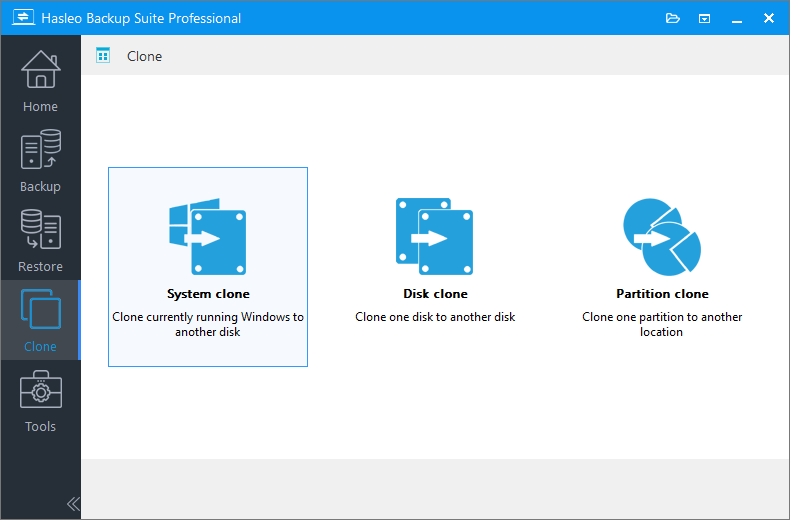
Step 1. Download, install, and run Hasleo Backup Suite. Make sure your target drive is connected. Click the Clone button in the navigation bar, then click System Clone in the operation area.
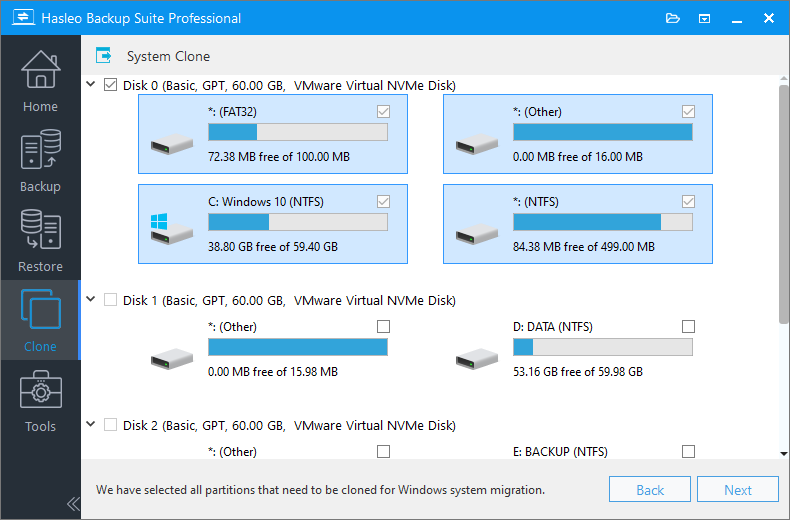
Step 2. Hasleo Backup Suite will automatically select all partitions required for the Windows system clone. Click Next.
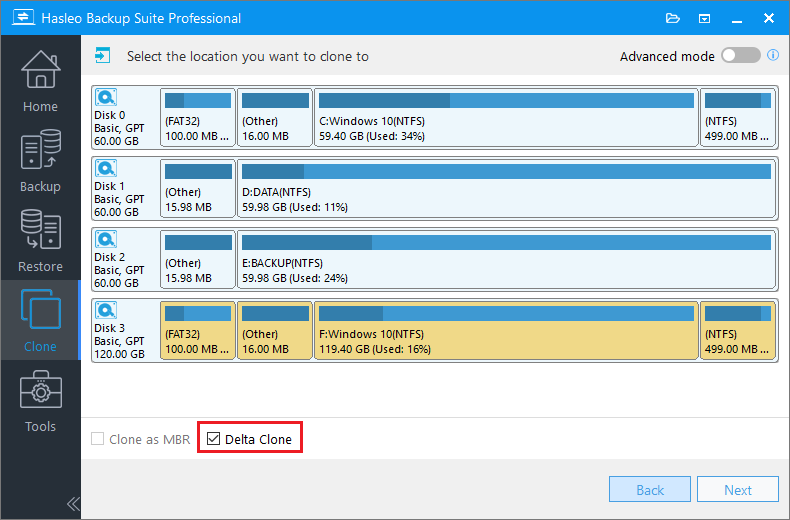
Step 3. Select the target disk that contains a clone of the existing source Windows operating system. Check the Delta Clone box and click Next.
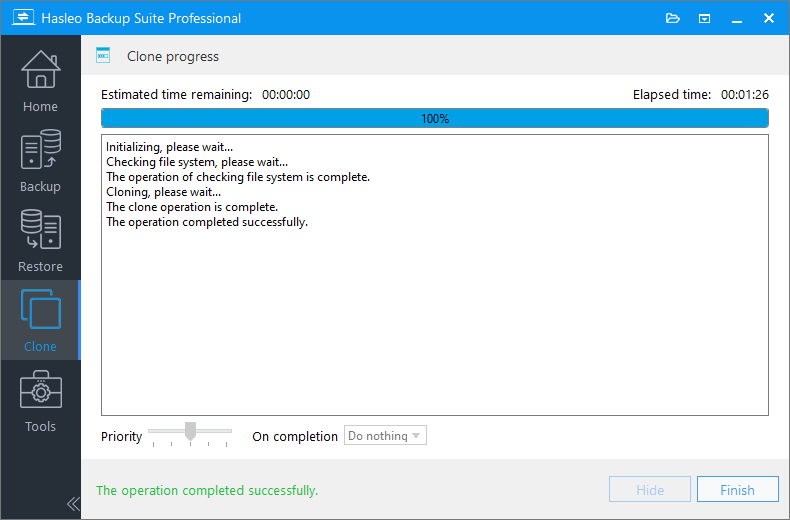
Step 4. Hasleo Backup Suite performs an incremental clone by copying only changed data blocks from the source Windows system to the destination disk. The operation duration depends on the volume of changed blocks and can, in extreme cases, complete in just seconds.
Usage Restrictions and Precautions 🚨
While Delta Clone is fast, it does have certain version and technical limitations. Please review these carefully before proceeding.
Version Requirements
Delta Clone is available in paid editions only (Home, Professional, Server, and Enterprise). It is not included in the free edition.
File System Support
1. Currently, this feature only supports cloning of NTFS and ReFS partitions. All other file systems (non-NTFS and non-ReFS) will be cloned using the full-clone method.
2. For both NTFS and ReFS partitions, the cluster size of the source and destination partitions must be identical.
Partition Structure and Capacity Requirements
1. The target NTFS and ReFS partitions must be larger than or equal to the source NTFS and ReFS partitions, respectively. The target non-NTFS and non-ReFS partitions must be the same size as their source partitions.
2. All source partitions related to the Windows operating system (system partition, boot partition, and recovery partition) must have corresponding copies on the target drive, and these copies must maintain the same order as the source partitions.
3. Delta Clone does not support adjusting the partition structure during an incremental clone. If you need to resize partitions, please use a full clone.
Data Security Tips
1. The Delta Clone operation will overwrite the corresponding data on the target disk. Before proceeding, verify that the target disk contains no important data or that it has been backed up.
2. We recommend creating a full system backup first, then using Delta Clone for regular synchronization.
3. If the original cloned data on the target disk is corrupted, we recommend first performing a full clone to rebuild the base image before using Delta Clone.
Frequently Asked Questions 🔥
Q: How much faster is Delta Clone compared to a full clone?
Delta Clone typically takes only 5% to 30% of the time required for a full clone. For example, cloning a 200GB system drive with 15GB of changes takes less than 4 minutes with Delta Clone, compared to 25-30 minutes with a full clone. The time saved is directly proportional to the volume of changed data.
Q: Can Delta Clone be used on ARM64 devices like Surface Pro?
Absolutely. Hasleo Backup Suite offers a natively optimized ARM64 version, and Delta Clone works exceptionally well on ARM64 devices. By only processing incremental data, it significantly reduces I/O operations and power consumption, making it ideal for battery-powered devices like Surface Pro.
Q: Does Delta Clone require an initial full clone first?
Yes. Delta Clone requires an existing full clone on the target disk as a baseline. It detects and copies only the changed data blocks since the last clone. Without a full base clone, Delta Clone will fall back to a full clone automatically.
Q: Can I use Delta Clone with WinToUSB to update my Windows USB drive?
Yes. If you use WinToUSB to access the same Windows environment from different locations, Delta Clone transforms the update process by syncing only changed data instead of the entire system, delivering speed improvements of 3 to 10 times.
Q: What are the file system and partition requirements for Delta Clone?
Delta Clone supports NTFS and ReFS partitions only. Target NTFS/ReFS partitions must be larger than or equal to the source, and all Windows system partitions must maintain the same order on the target drive. Partition resizing is not supported during incremental clones.
Q: Is Delta Clone available in the free edition of Hasleo Backup Suite?
Delta Clone is available in paid editions only (Home, Professional, Server, and Enterprise). It is not included in the free edition.
Conclusion
Delta Clone does something simple - it copies only the changed data. But this simple approach cuts system backup time from half an hour to just 3 minutes.
A full clone acts as the baseline, and subsequent syncs only wait for incremental data to be written. The time saved, reduced I/O overhead, and lower power consumption deliver tangible efficiency gains with every use.
Whether you're a regular backup user, an ARM64 device owner, or an IT professional managing multiple systems, Delta Clone is worth a try. The first setup takes a bit longer, but every subsequent use helps you earn that time back.