

- Why Do Driver Issues Occur in WinPE?
- The Hasleo Solution: Backup Suite + WinToUSB
- Functional Roles of the Two Tools
- Step-by-Step Guide: Backup to Restoration
- Frequently Asked Questions
- Conclusion
One effective approach is to use Hasleo Backup Suite with Hasleo WinToUSB to create a bootable WinToUSB drive, then perform a system restore from it. This method bypasses WinPE driver compatibility issues, ensuring a smoother and more reliable restore process.
Why Do Driver Issues Occur in WinPE?
The root cause is that WinPE is a stripped-down pre-installation environment, not a full Windows system. It includes only the most basic drivers, whereas modern hardware - such as laptop touchpads, wireless adapters, and USB-C peripherals - often require specific drivers. When WinPE fails to recognize this hardware, the devices become unusable.
The Hasleo Solution: Backup Suite + WinToUSB 🌈
Use Hasleo Backup Suite to create a complete system backup image, then import it into Hasleo WinToUSB. This lets you install a full version of Windows onto a USB drive, boot from it, and enter a fully functional Windows environment. During startup, this environment automatically detects and loads the necessary drivers, ensuring all hardware devices are correctly recognized, effectively bypassing the driver issues commonly found in WinPE. Within this stable system, you can confidently restore your backup data to your primary hard drive. Hasleo Backup Suite and WinToUSB integrate seamlessly, making them the perfect pair for this solution.
Functional Roles of the Two Main Tools
Hasleo Backup Suite
It is a powerful all-in-one Windows backup, restore, and cloning tool. It supports backing up and restoring operating systems, disks/partitions, and files/folders, offering full, incremental, and differential backup modes to cover diverse data protection needs. It also integrates advanced features like image compression, encryption, and scheduled tasks for more flexible and secure backup management.
Hasleo WinToUSB
It is a professional Windows To Go creation tool and the world's first third-party Windows To Go creation software. Its core function is to install or migrate Windows to an external drive for portability and plug-and-play use. It supports fresh installations from ISO, WIM, and ESD image files, as well as cloning the currently running system directly to an external drive. It can even deploy systems from .DBI backup images created by Hasleo Backup Suite. Fully compatible with both Legacy BIOS and UEFI, it ensures proper booting across diverse hardware.
Step-by-Step Guide: Backup to Restoration 🎯
Part 1: Create a System Backup with Hasleo Backup Suite
This is the foundation of the entire solution: create a backup while the system is in good condition and store it on an external disk.
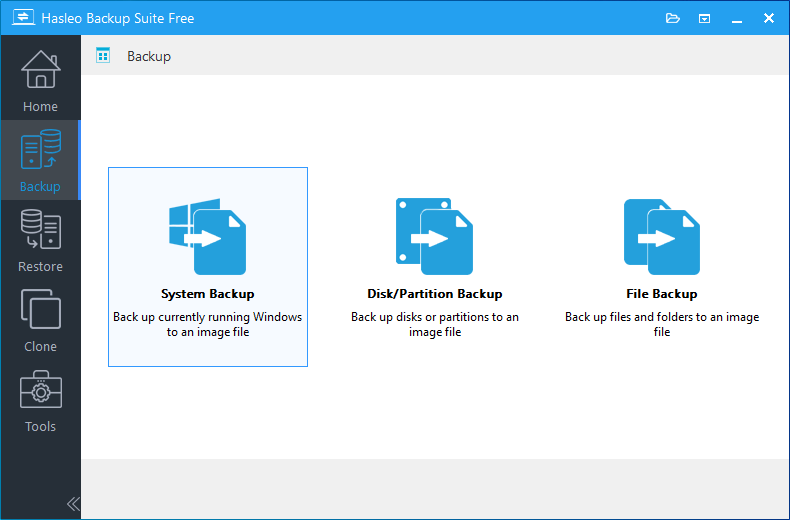
Step 1. Download, install, and run Hasleo Backup Suite. Click Backup in the navigation bar, then select System Backup.
Step 2. The program automatically selects all partitions required for the Windows system backup. Simply customize the task name, description, and backup options as needed, specify an external drive as the destination, and click Proceed.
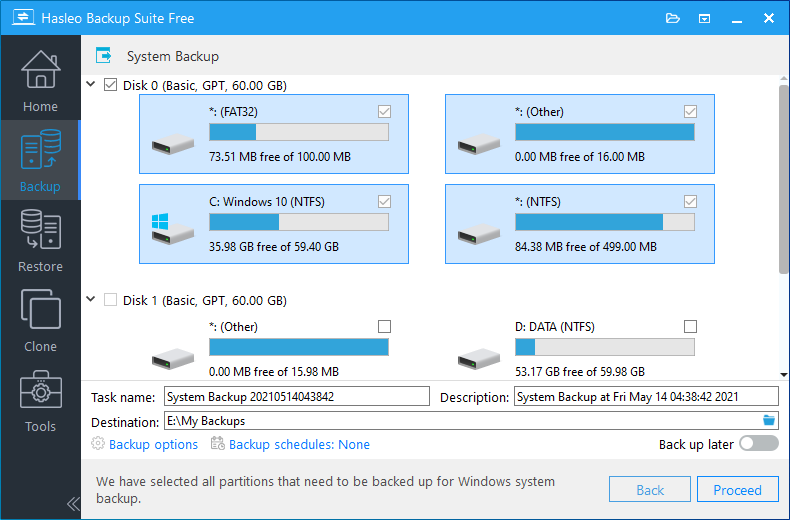
Description: Briefly describe the purpose of the task and any other relevant information.
Destination: Modify the destination path where the backup image files will be stored by clicking the folder icon.
Backup options: Advanced backup settings. For more details, please refer to Backup options.
Backup schedule: Set up backup schedules to automatically perform your backup tasks on a regular basis. For more details, please refer to Backup schedule.
Step 3. Hasleo Backup Suite is now backing up your Windows operating system to the external drive. The time required depends on the total data size; please be patient.
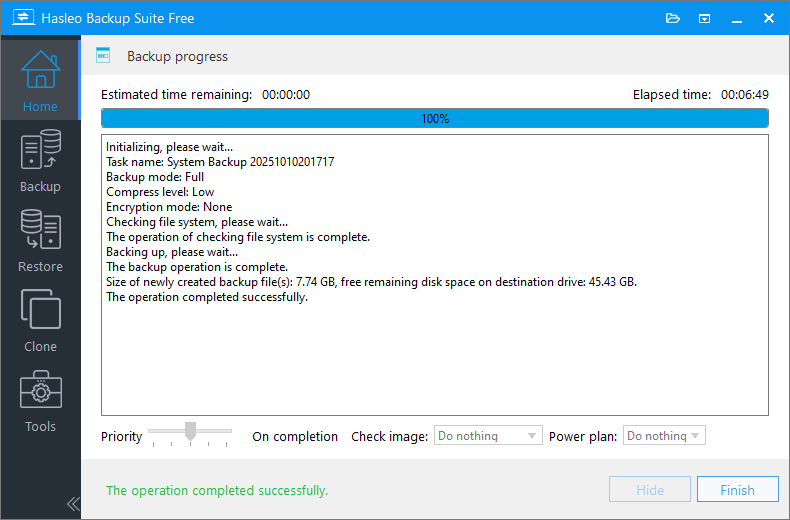
Check image: Verify the integrity of the backup image files upon completion of the backup process.
Power plan: Perform the power management action after the backup is complete.
Part 2: Create a Portable Windows Recovery Drive with WinToUSB
When the source system fails to boot, perform the recovery using another fully functional Windows system to avoid potential driver issues in the WinPE environment. To do this, use WinToUSB to create a bootable portable Windows USB drive from the system backup image (.DBI file) previously generated by Hasleo Backup Suite - this will serve as your recovery medium.
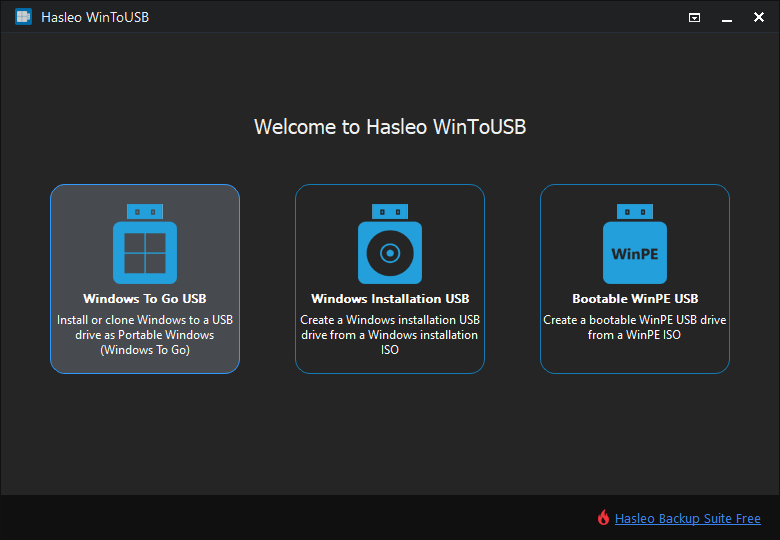
Step 1. Connect both the USB drive and the external hard drive containing the system backup image to a working computer. Then, download, install, and run Hasleo WinToUSB. On the main interface, click Windows To Go USB.
Step 2. Click Select installation source, then choose Browse image file. Next, select the system backup image (.DBI file) generated by Hasleo Backup Suite from your external drive as the installation source.
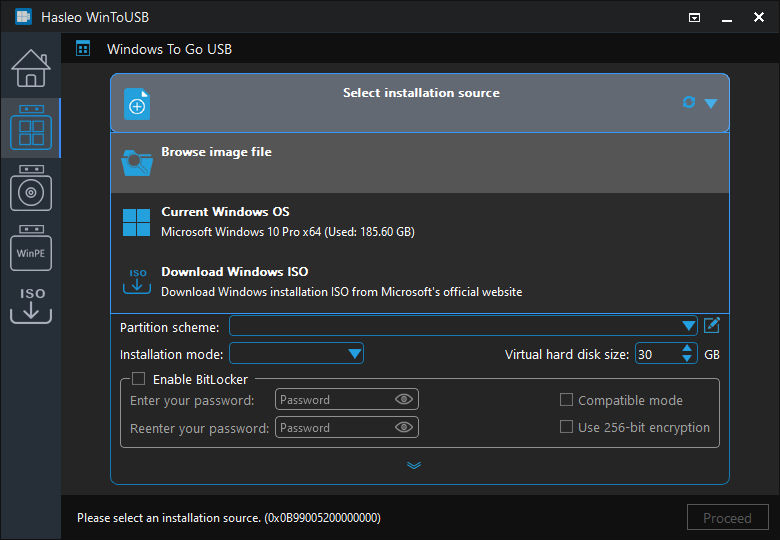
Step 3. Click Select destination drive, then choose the target drive from the list.
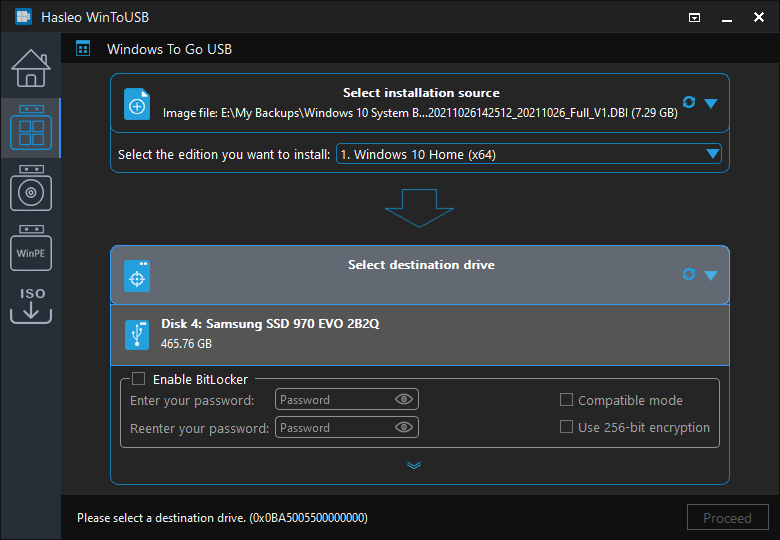
Step 4. Select a partitioning scheme and installation mode based on your needs. You can also add additional drivers or enable BitLocker encryption for a Windows To Go drive. After configuring the settings, click Proceed.
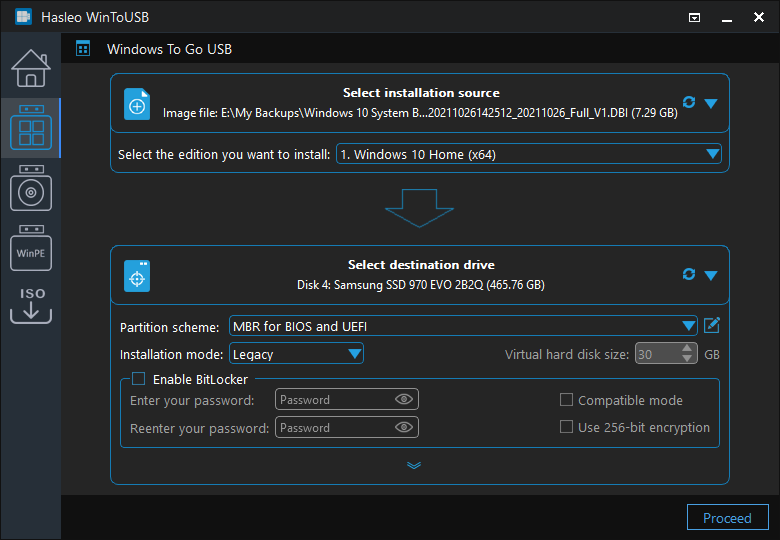
If you select Keep the existing partition scheme option, you need to manually prepare the USB drive partitions before this step. View guide: How to Manually Prepare Partitions for Windows To Go.
Step 5. A confirmation dialog will appear asking if you want to format the drive. If everything is correct, click Yes.
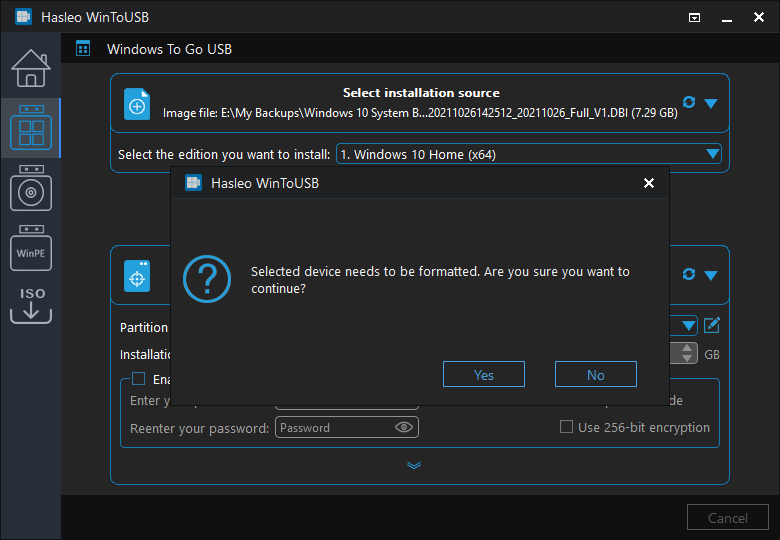
Step 6. Hasleo WinToUSB has started installing Windows on the USB drive. This may take some time; please be patient.
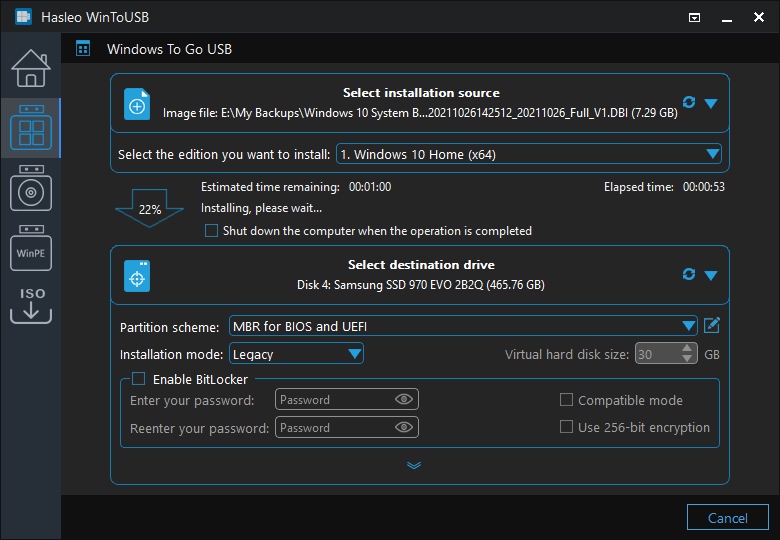
Step 7. After the installation is complete, safely eject both the USB flash drive and the external hard drive.
USB Drive Selection Recommendations
Capacity: 64GB minimum; 128GB or 256GB recommended. The portable system itself occupies about 20-30GB, so be sure to leave room for future updates and temporary files.
Speed: Choose a high-speed USB drive with an SSD controller.
Interface: USB 3.0/3.1/3.2 or later.
Part 3: Boot from the Portable System Recovery Disk and Restore Your System
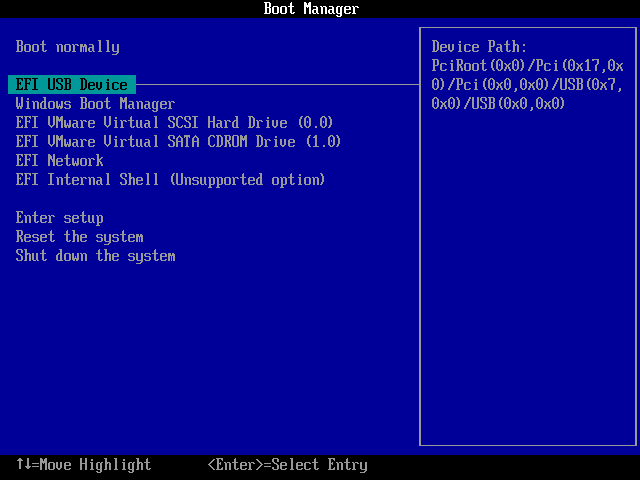
Step 1. Plug the WinToUSB bootable drive and the external drive containing the backup image into the target computer. Then restart, enter UEFI/BIOS, set the USB drive as the first boot option, save the changes, and restart again.
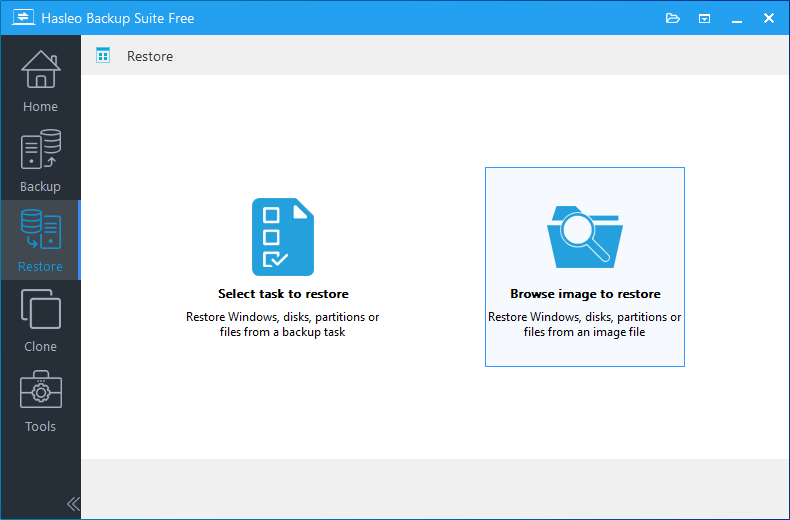
Step 2. After booting from the WinToUSB drive, launch Hasleo Backup Suite, click Restore, and select Browse image to restore.
Step 3. Locate and select the system backup image on your external hard drive. In System mode, click Change version, choose the backup version you want to restore from the list, and then click Next.
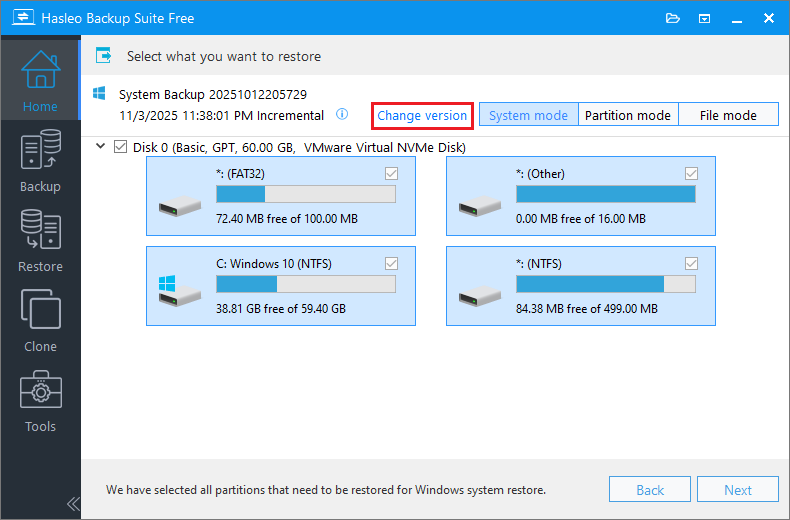
⚠ Important: Recovering only Windows partitions using Partition mode may prevent the system from booting or functioning properly.
When you select an incremental or differential backup version to restore, the program automatically extracts the data blocks required from the relevant backup chain to restore the system to its state at the time of that backup.
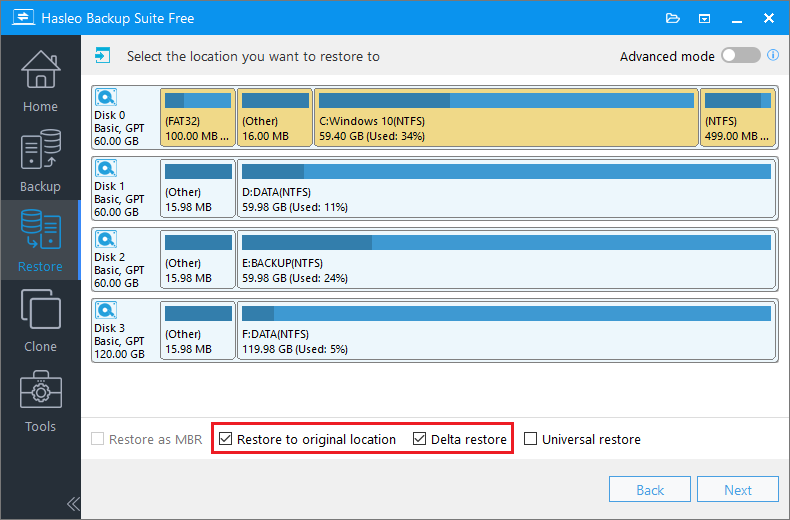
Step 4. Select Restore to original location (the target computer's system drive). Checking the Delta restore checkbox will speed up the process. Click Proceed to begin.
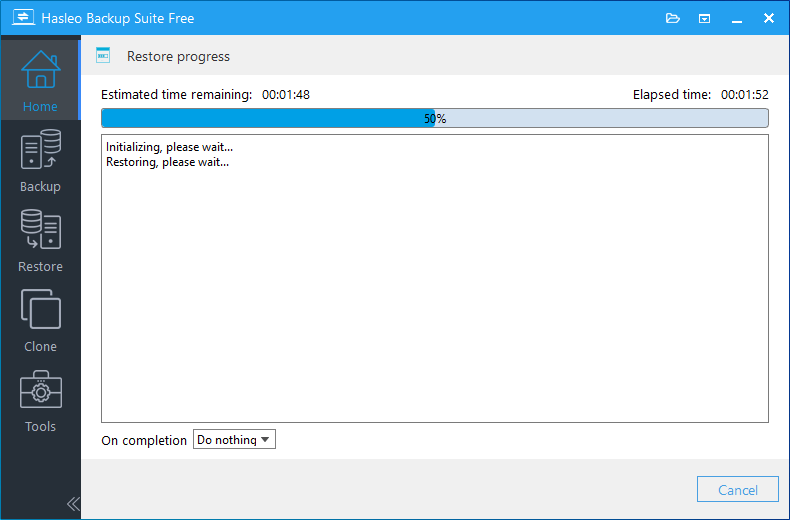
Step 5. Once the restoration is complete, remove both the USB drive and external hard drive, then restart your computer to boot from the repaired main system.
Frequently Asked Questions
Q: Why can't WinPE recognize my hardware?
WinPE is a minimal pre-installation environment that includes only generic drivers. Modern hardware - such as touchpads, wireless adapters, USB-C controllers, and NVMe RAID - often requires specialized drivers not included in WinPE by default.
Q: Can I use a .DBI backup image directly with WinToUSB?
Yes. WinToUSB natively supports .DBI files created by Hasleo Backup Suite and can deploy them directly as bootable Windows To Go devices - no additional ISO or WIM file required.
Q: What kind of USB drive is recommended for Windows To Go?
A drive with at least 64GB capacity (128GB or 256GB recommended) and SSD-class performance. For best results, use a drive that supports USB 3.0/3.1/3.2 or later.
Q: Can this solution be used for daily backups?
Yes. We recommend scheduling daily or weekly backups with Hasleo Backup Suite, storing images on external media. The WinToUSB portable system then serves as an emergency boot environment if needed.
Conclusion
Because the WinPE environment is overly streamlined, it often causes driver recognition issues during system restoration. To address this, the combined solution of Hasleo Backup Suite and WinToUSB offers a practical alternative. Hasleo Backup Suite handles daily backups and restorations, while WinToUSB converts the backup image into a full Windows To Go bootable drive. By performing the restoration in a full Windows environment, hardware drivers are automatically recognized, fundamentally bypassing WinPE's driver limitations.
This workflow - daily backup → portable recovery drive creation → restoration in a full environment - frees system recovery from WinPE driver constraints. When the system crashes, simply plug in the drive, boot from it, and the restoration will proceed smoothly within a complete Windows environment.

Related Articles
- Delta Restore Speeds Up System Restoration in Hasleo Backup Suite
- How to Restore Windows from a System Backup Image Using Hasleo Backup Suite?
- How to Create Compatible Windows Recovery Disks with Hasleo Backup Suite?
- How to Restore Your System From Full/Incremental/Differential Backups?
- Edit Backup Image Comment in Hasleo Backup Suite? Step-by-Step Guide


