

In Hasleo Backup Suite, backup comments serve as critical metadata for identifying and managing different backup versions. The software adopts a two-tier comment mechanism: a "task description" can be entered when creating a backup task, while an independent "version comment" can be added for each backup execution (including full, differential, or incremental backups). By default, the system automatically generates a timestamp as the version comment, allowing users to easily trace when each version was created. Learn more about creating system backups and disk/partition backups to understand how comments integrate into your overall backup strategy.
Starting with version V5.8, Hasleo Backup Suite officially supports editing comments for existing backup images. This enhancement enables administrators to flexibly correct comment information, supplement change records, or mark verification statuses. Timely modification of backup image comments not only helps teams quickly identify image purposes and avoid operational errors but also significantly improves traceability and work efficiency when managing multiple backup chains. This guide provides step-by-step instructions for changing comments on existing backup images, helping you quickly complete the editing and updating of comments.
Tutorial: Step-by-step guide to editing image comment in Hasleo Backup Suite.
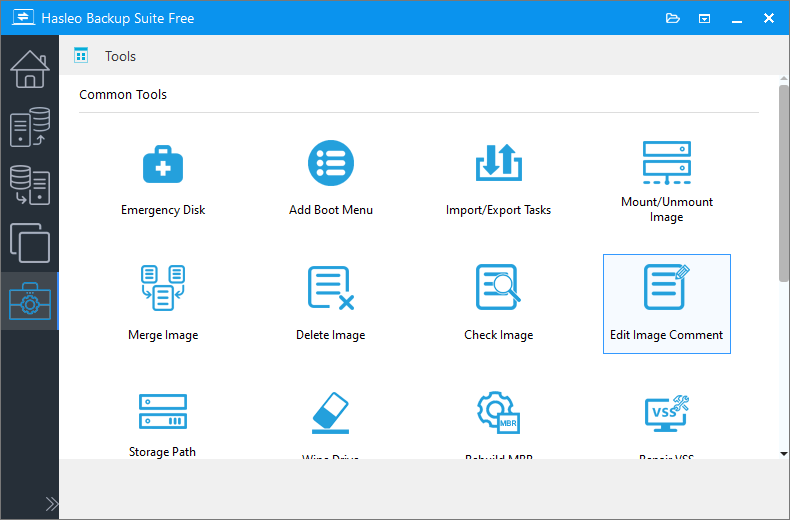
Step 1. Launch Hasleo Backup Suite, click "Tools" button in the navigation bar, then click "Edit Image Comment" button in the operation area.
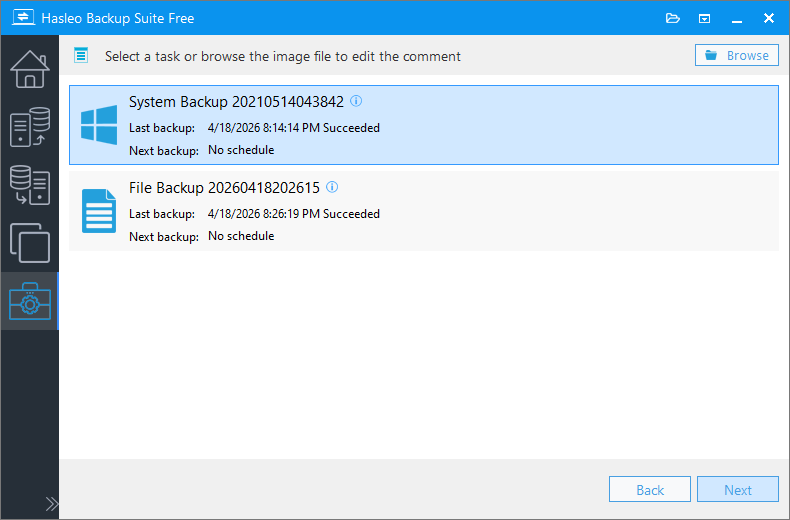
Step 2. Select the task or browse the image file you want to edit comment, then click "Next".
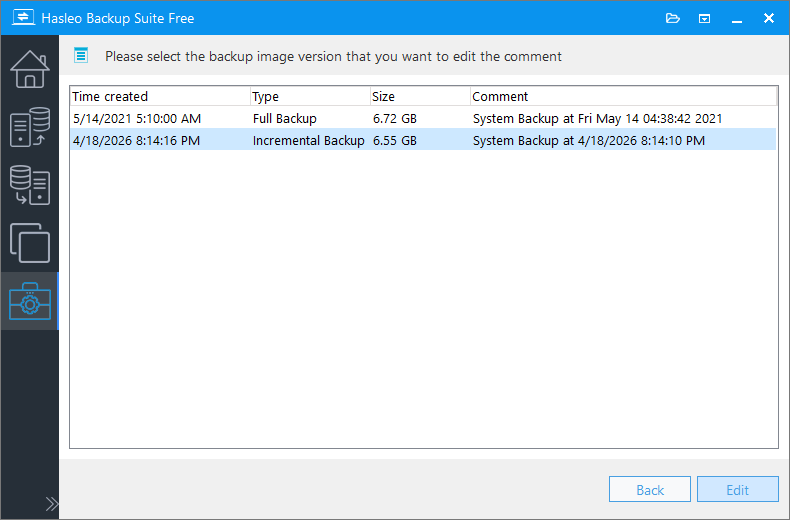
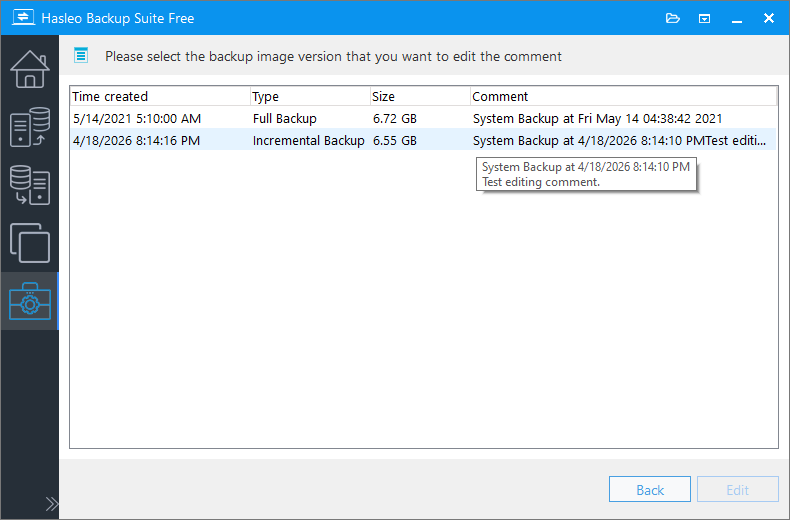
Step 3. Select the backup image versions you want to edit comment, then click "Edit". Or you can directly double-click the version you want to edit.
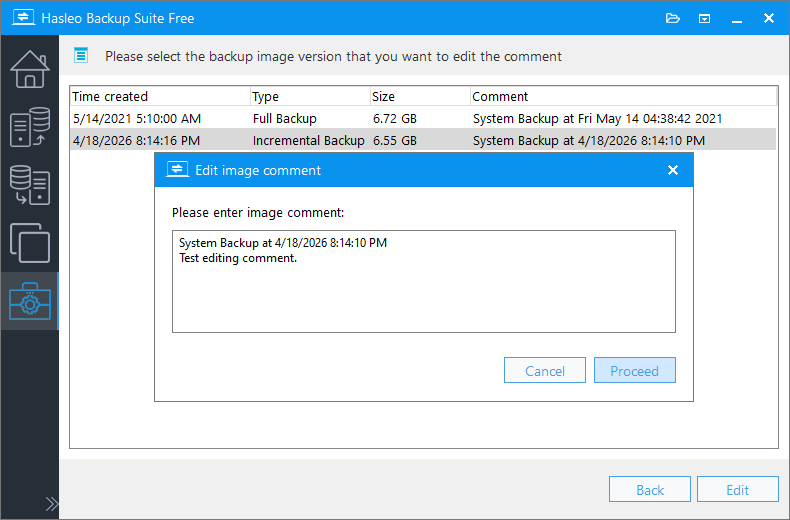
Step 4. Enter the new comment in the pop-up edit image comment window, then click 'Proceed' to save the comment.
Step 5. After completing the operation of editing the image comment, you can see that the image comment has changed.
Frequently Asked Questions
A: Use comments to mark backup purposes, mark critical restore points, track verification status, or add any notes for team reference. Comments can indicate the purpose of a backup (such as "pre-upgrade backup", "monthly financial data", or "system state before patching"), mark critical restore points that require immediate attention, or track verification status after each backup job completes. In team environments, comments facilitate communication by providing context about what changes were made and why, reducing the risk of restoring an outdated or incorrect version.
A: Yes. Select multiple backup versions and click Edit to change them all at once. This is particularly useful when you need to standardize comments across a backup chain or update the purpose of multiple related backups simultaneously.
A: Default is timestamp like "2026-01-15 14:30". System generates this automatically. You can later replace the default timestamp with a custom comment that better describes the backup's purpose or content.
A: Keep comments concise - 500 characters maximum is recommended. Shorter comments are easier to read in lists.
A: No. Comments are metadata only - the actual backup files remain unchanged. The backup image integrity, content, and restorability are not affected in any way when you modify or remove comments.
A: Yes. Comments support Unicode, allowing multilingual text like Chinese, Spanish, etc.
A: In the backup task list on the home page. Hover over the version or view details to read the full comment.
A: Yes. Enter a blank comment or just delete the text to clear it completely.


