

- The importance of system backup
- Overview of WinPE Emergency Disk
- Best Windows backup software—Hasleo Backup Suite
- How to Restore Windows from a System Backup When It Fails to Boot?
- Frequently Asked Questions
- Summary
Backup is a good habit. When a Windows failure occurs, a pre-created backup image allows you to restore your system rapidly. If the system won't boot, users can quickly enter the operating environment through a WinPE boot disk and use the existing backup image to complete the system restoration. This guide details how to use the WinPE boot disk created by Hasleo Backup Suite to restore your operating system from a backup image.
The importance of system backup
System backup is the cornerstone of data security and business continuity. Creating system backups not only effectively protects data security, but also allows rapid system recovery after a failure, maximising business continuity. In cases of virus or malware attacks, system failure to boot, hardware faults, device replacement, or accidental deletion of system files, a complete system backup will be your reliable safeguard. More importantly, system backups provide you with a range of significant advantages:
- Rapid recovery and minimized downtime: Quickly restore your entire system without reinstalling the OS or applications, drastically reducing business interruption.
- Comprehensive protection against data loss: Create a complete image of your system drive, safeguarding the OS, applications, settings, and all personal files.
- Flexible restoration with multiple points: Choose from multiple backup points to revert your system to a state prior to data corruption or failure.
- Simplified system migration: Easily transfer your entire working environment to new computers or hard drives, eliminating complex reinstallation.
- Confident risk management: Handle potential system crashes or security threats with peace of mind, knowing you have a reliable backup for recovery.
Overview of WinPE Emergency Disk
In this guide, two key items must be prepared before starting: a system image and a WinPE emergency disk. WinPE, short for Windows Preinstallation Environment, is a lightweight Windows OS environment commonly used in emergency scenarios such as system repair, data recovery, system deployment, or offline virus removal. While not a full OS, it contains core drivers and tools to help users perform critical operations when the computer cannot start normally.
WinPE emergency disks are usually made bootable from USB or CD/DVD. We recommend using a USB drive with at least 8GB capacity to create WinPE. USB media offers faster boot speed, reusability, and good compatibility (suitable for most modern computers).
Best Windows backup software—Hasleo Backup Suite
Hasleo Backup Suite is professional backup and restore software that helps you quickly and reliably perform a full backup of your operating system, including programs, settings, and personal data, and efficiently restore the system when needed, all without relying on other software. In addition, it supports creating WinPE bootable media (including USB devices, CD/DVD, and ISO files) and is compatible with both UEFI and Legacy BIOS boot modes. Hasleo Backup Suite also has the following notable features to fully meet your diverse data protection needs:
- Comprehensive and powerful: Its backup and restore features let you create system images effortlessly and recover from crashes instantly, while the cloning function promotes seamless data migration.
- Advanced technology and excellent performance: Compatible with all Windows PCs and servers, it supports Windows x86/x64 and ARM64 architectures. It boots in both UEFI and Legacy BIOS modes, ensures safe and stable program running, and operates with high efficiency and low power consumption.
- Multiple backup modes: It supports full, incremental and differential backups. Following an initial full backup, both incremental and differential backups save time and storage space by only copying the data that has changed.
- Features compression and encryption: It allows you to compress backup images to save disk space and encrypt them to protect your important data.
- Practical Toolbox: Here you can access advanced features like creating a WinPE emergency disk, merging backup images, and securely wiping disks.
- Intuitive and user-friendly interface: The interface design is clear, with the main functions immediately obvious, and guided prompts allow even beginners to get started quickly.
How to Restore Windows from a System Backup When It Fails to Boot?
If Windows fails to start, hardware is not the cause, and important data is backed up, you can try restoring using a system backup image. The following are detailed steps for this restoration in a WinPE environment using Hasleo Backup Suite, mainly including two parts: creating a WinPE bootable USB drive and performing the restore operation from the system backup image.
1. Create WinPE Bootable USB
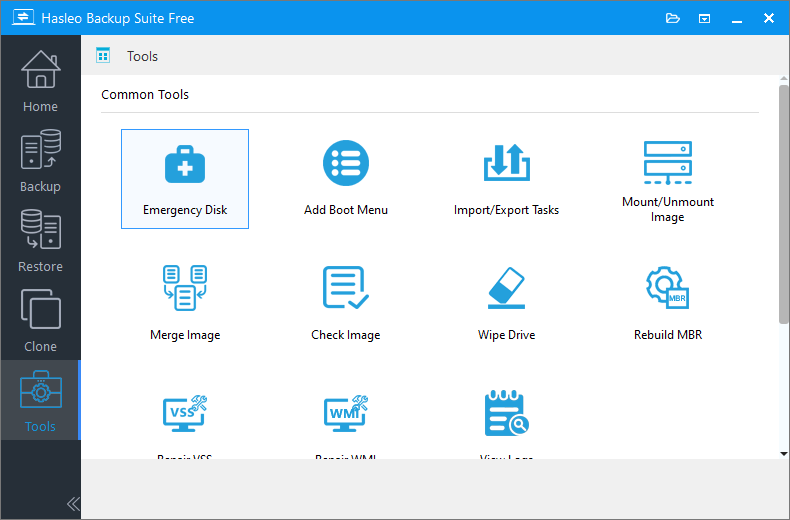
Step 1. Insert the USB into a working computer. Then, download, install, and run Hasleo Backup Suite. Click the "Tools" button in the navigation bar, and select "Emergency Disk" in the operation area.
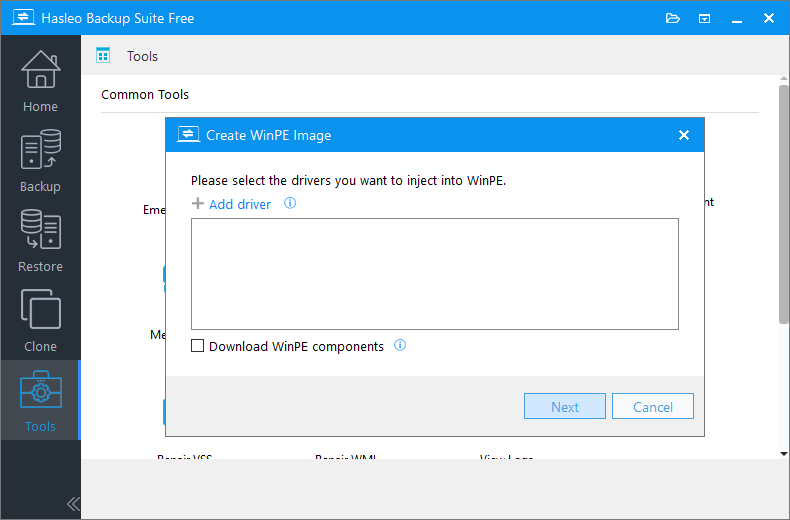
Step 2. Check the "Automatic driver injection" option to have the required drivers added to WinPE, then click "Next". To add any additional drivers, click "Add driver" and make your selection.
* Tips:
- Only drivers that are based on an .inf file can be injected into WinPE.
- The "Download WinPE components" option allows you to obtain them from Microsoft.
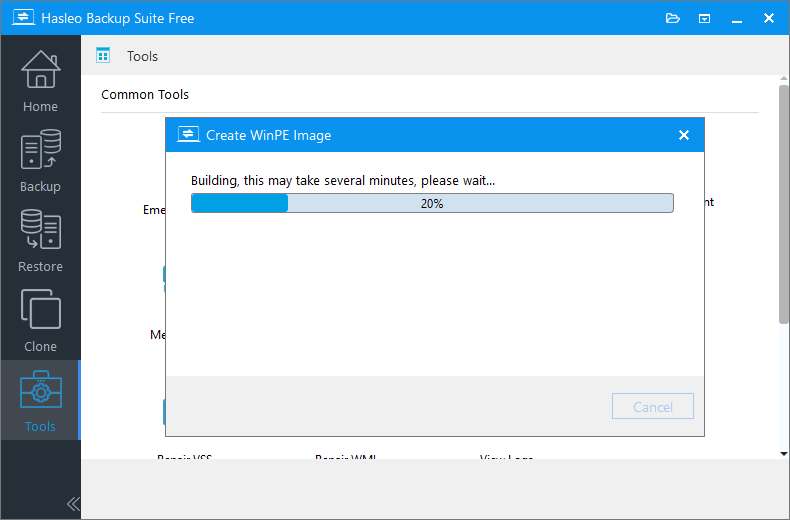
Step 3. Hasleo Backup Suite begins creating a WinPE bootable image.
Step 4. After the WinPE image is created successfully, select "USB" and click "Proceed" to create the bootable USB drive.
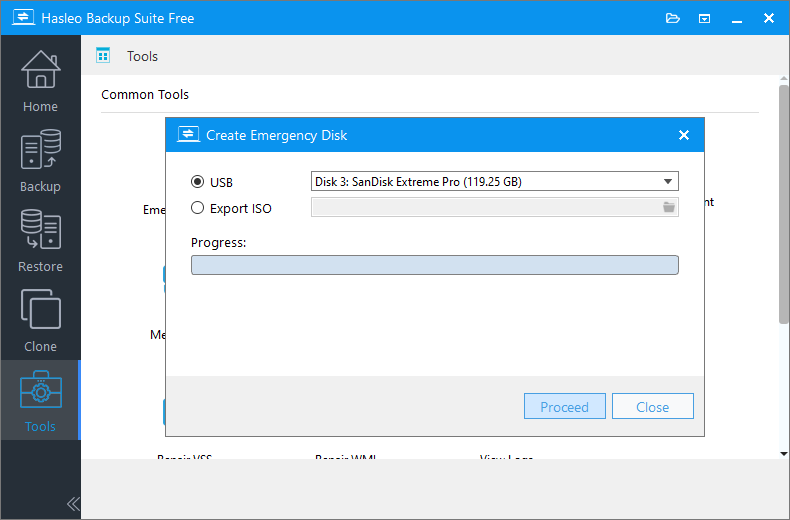
Step 5. The program will prompt you that the selected USB drive will be formatted. Please ensure any important files are backed up beforehand. To confirm and proceed with creating the bootable drive, click "Yes".
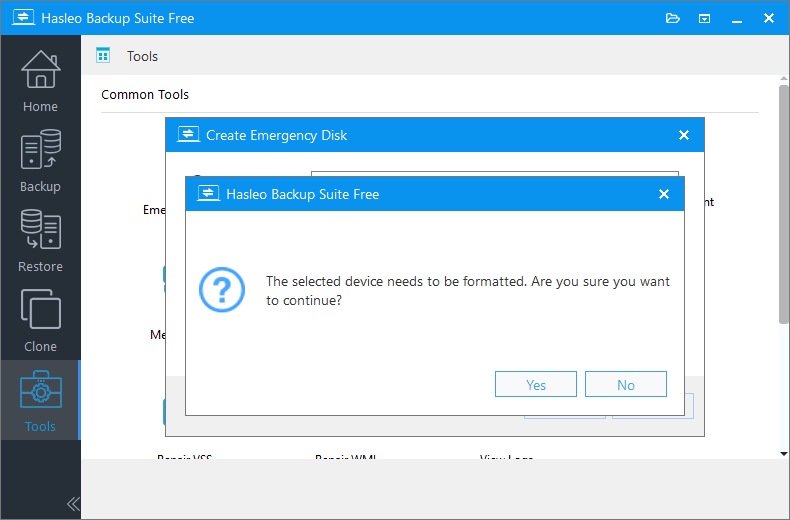
Step 6. After the operation has completed, you can safely eject the USB drive.
2. Perform System Image Restoration
Step 1. Insert the WinPE bootable USB drive and the external hard drive containing the system image into the target computer in sequence. Then, power on the computer and continuously press the F2/Del/F10/Esc keys to enter the UEFI/BIOS setup interface.
* Tips:
- For the correct key, please refer to your motherboard manual or the on-screen prompt in the lower-left or lower-right corner during startup.
- To boot from the Hasleo-created WinPE media, you may need to disable the UEFI Secure Boot feature in your system's firmware settings.
- For instructions on creating a system backup image using Hasleo Backup Suite, please refer to: How to Back Up and Restore Windows 11 for Free Using Hasleo Backup Suite Free.
Step 2. Navigate to the "Boot" tab, set the USB drive as the first boot device, and save the changes. Then, restart the system. Upon reboot from the WinPE bootable USB, the computer will automatically run Hasleo Backup Suite.
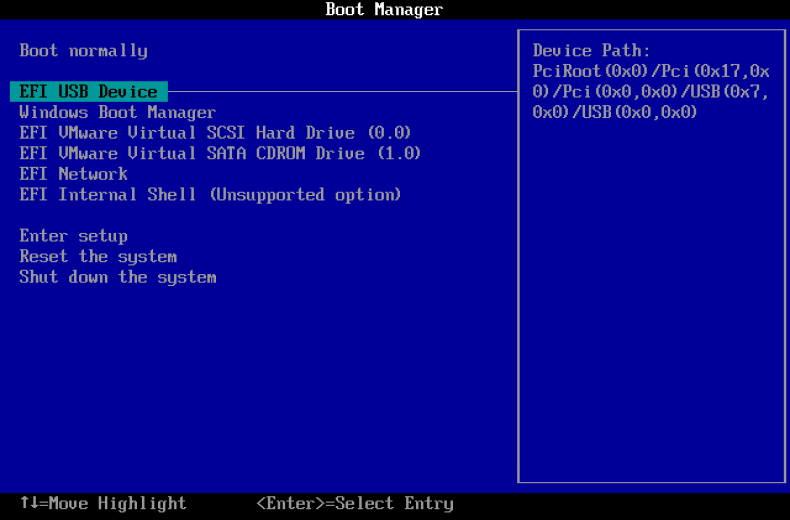
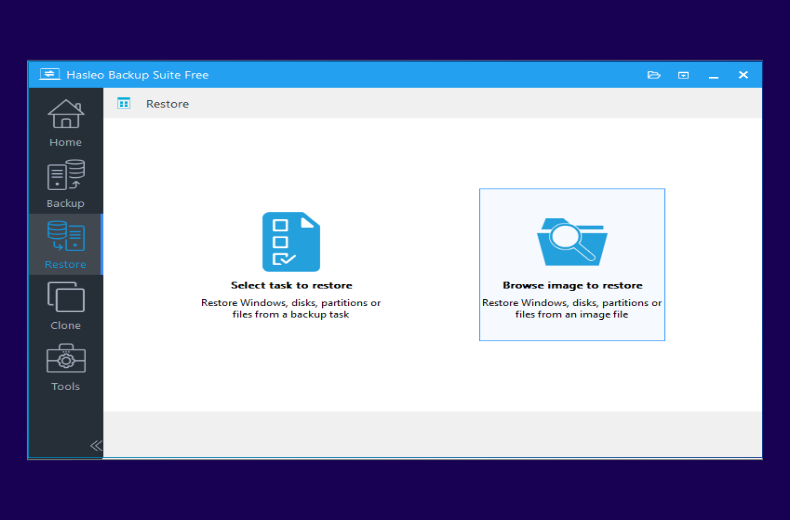
Step 3. In the "Restore" operation area, select "Browse image to restore" and locate the backup image you wish to restore.
Step 4. Select "System mode" to restore the entire system, then click "Next".
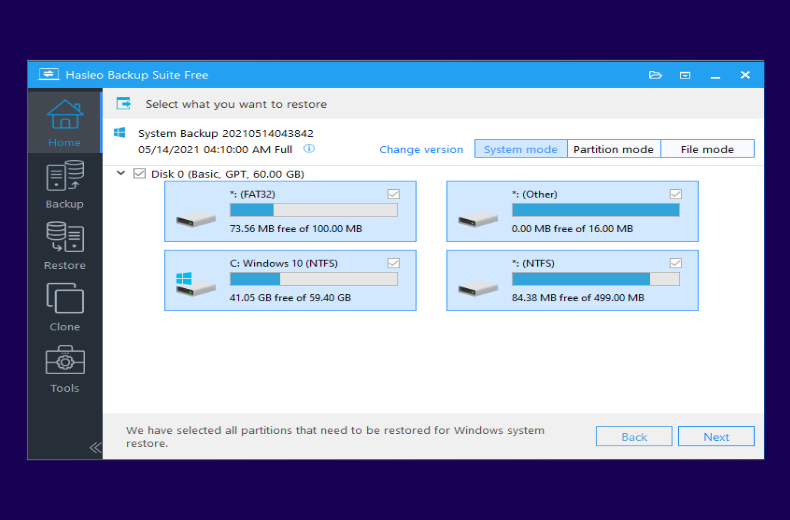
Step 5. Select the target disk for restoration. If you check the "Restore to original location" option, the "Delta restore" option will be automatically selected to speed up the process. Then, click "Next" to begin restoring the Windows image to the target computer.
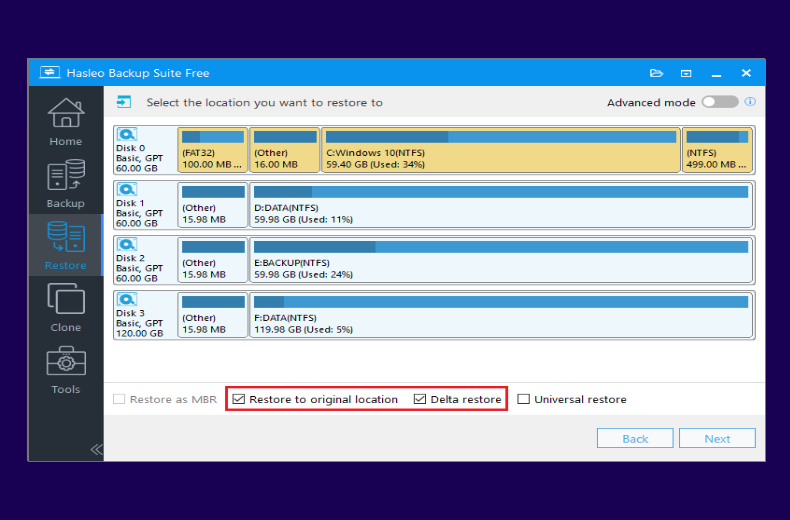
Step 6. Remove the WinPE boot disk and restart the computer. Once the system has booted successfully, verify that all functions are operating normally.
Frequently Asked Questions
A: If you don't have a backup image, you can try Windows repair options like System Restore or reset. If those fail, you may need to reinstall Windows. To avoid this situation in the future, we strongly recommend creating regular system backups using Hasleo Backup Suite.
A: Yes. You can select any destination disk during restoration. Just ensure the target disk is large enough to hold all the data from the backup. The restore process will overwrite the selected disk.
A: Store the backup image on an external hard drive or network location accessible when booted into WinPE. Connect the external drive before starting the restoration process.
A: Yes. In most cases, you need to disable UEFI Secure Boot in BIOS/UEFI settings to boot from the Hasleo-created WinPE media. Secure Boot can block third-party bootable media.
A: Restoration time depends on the backup image size and disk speed. A typical 100GB Windows 11 system takes about 10-20 minutes to restore to an SSD, or 20-40 minutes to a traditional HDD.
A: Yes. A full system restore restores everything including all files, installed applications, settings, and personalization from the backup image. Your system will be exactly as it was when the backup was created.
A: Delta restore only restores changed data, speeding up the restore process. It works when restoring to the same disk as the original backup. Enable it by checking "Delta restore" during the restoration process.
A: Yes. Hasleo Backup Suite supports creating WinPE bootable media in multiple formats including USB, CD/DVD, and ISO file. USB is recommended for faster boot speed and better compatibility with modern computers.
Summary
By following the above steps, you can use a WinPE bootable USB drive to successfully restore an unbootable Windows system from a backup image. As a professional backup and restore tool, Hasleo Backup Suite not only supports backup and restoration of systems, disks/partitions and files/folders, but also provides system, disk and partition cloning as well as an efficient Delta Clone advanced cloning feature, making it a comprehensive data protection solution that integrates data backup, system restoration and disk cloning.
Related Articles
- How to Merge/Delete Old Backup Files using Hasleo Backup Suite Free?
- How to back up and restore Windows 11 for free?
- How to Compress Backup Files using Hasleo Backup Suite Free?
- How to set up a schedule to automatically back up Windows Server?
- How to Restore Your System From Full/Differential/Incremental Backups?


