

- Common Causes of System Boot Failure Analysis
- Method 1: Using Hasleo Backup Suite to Restore System Backup
- Method 2: Using WinPE Boot Media for System Recovery
- Method 3: Using Windows Built-in Repair Tools
- Method 4: System Restore and Reset
- How to Prevent System Boot Failures
- Frequently Asked Questions
- Summary
Windows system boot failure is one of the most common and troublesome problems encountered by computer users. When your computer fails to boot normally, it not only affects work efficiency but may also lead to loss of important data, and in severe cases, you may be unable to perform any operations on the system. Many users feel helpless when faced with this situation. This guide will provide a detailed introduction to common Windows system boot failures and offer multiple practical repair methods to help you find the right solution and quickly restore normal system operation.
Common Causes of System Boot Failure Analysis
Windows system boot failure can be caused by many reasons, and different failure symptoms usually correspond to different problems. Accurately identifying the cause of failure is the key to choosing the correct repair method.
- Boot Record Corruption or Loss: Master Boot Record (MBR) or EFI System Partition (ESP) corruption is one of the most common boot problems. MBR is located in the first sector of the hard disk and contains the partition table and boot program code. ESP is a special partition in UEFI boot systems that stores boot programs. If these areas are damaged due to virus attacks, disk operation errors, or system crashes, the computer cannot find the program needed to start the system. Common symptoms include: "BOOTMGR is missing" (MBR systems) or directly entering the UEFI settings screen.
- System File Corruption or Loss: Windows system files (such as ntoskrnl.exe, hal.dll, winload.exe, etc.) are key components for system startup. These files may be damaged due to: forced shutdown causing write interruptions, virus or malware damage, disk bad sectors, driver conflicts, or system update failures. System file corruption usually manifests as: blue screen errors (Blue Screen of Death), repeated restarts during startup, or freezing at the Windows logo.
- Boot Configuration Data (BCD) Corruption: Boot Configuration Data (BCD) is the boot parameter storage method used by Windows Vista and later versions, replacing the traditional boot.ini file. BCD is stored in the EFI System Partition or active partition and contains important information such as Windows kernel paths and boot parameters. BCD corruption or configuration errors can cause "Operating system not found" or missing boot options.
- Driver Conflicts or Incompatibility: Newly installed or updated drivers may conflict with the system, especially storage controller drivers, graphics card drivers, or motherboard chipset drivers loaded during startup. Driver problems usually manifest as blue screens (error codes usually point to specific drivers), black screen after startup, or repeated system restarts.
- Insufficient Disk Space: Severe insufficient space on the system drive (usually C:) can affect normal Windows operation. The system needs some free space to run virtual memory, perform system updates, and maintenance tasks. Insufficient disk space may cause slow startup, system update failures, or errors during startup.
- Hardware Failures: Hard disk bad sectors, memory failures, unstable power supply, or other hardware problems can all cause the system to fail to start. Hardware failures have various manifestations, including hardware detection errors during startup, sudden power loss during startup, hard disk read timeouts, etc.
- System Update Issues: Windows update interruptions, corrupted update files, or compatibility issues between updates and the system can all cause boot failures. This is especially common after installing major updates (such as version upgrades).
- Viruses or Malware: Malware may tamper with system boot records, corrupt boot files, or implant malicious code to prevent normal system startup. Some ransomware even encrypts system files, rendering the entire system unusable.
💡Tips: Before attempting repairs, it is recommended to record the specific symptoms of the failure, such as error message content, which stage of the startup process has problems, and what operations were performed before the failure. This information helps quickly locate the problem and choose the correct repair method.
Method 1: Using Hasleo Backup Suite to Restore System Backup (System Still Bootable)
⚠️Important Prerequisite
Before a system can be restored, a valid system backup image must already exist. This image can be:
- Created on the same machine while Windows was running normally, or
- Created on another, normally functioning computer and intended for dissimilar hardware recovery.
Once a backup is available, restoring it is the most direct and reliable repair method. Hasleo Backup Suite is a powerful recovery solution that supports multiple restore scenarios. Even if your system fails to boot, you can easily recover using bootable media.
If the Windows system can still boot, you can restore the backup directly from the system by following these steps:
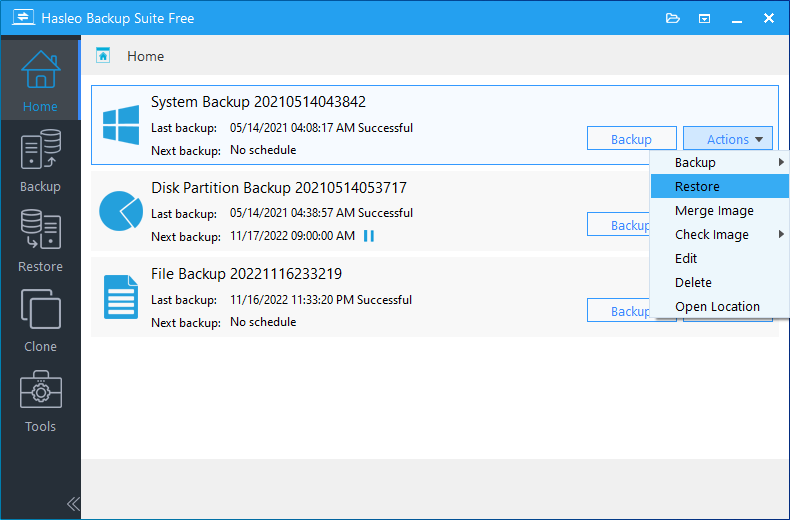
Step 1. Start the Windows system and run Hasleo Backup Suite. Click the "Home" button in the navigation bar, find the system backup task you created earlier in the task list, click the "Actions" button next to the backup task, and select "Restore" from the dropdown menu.
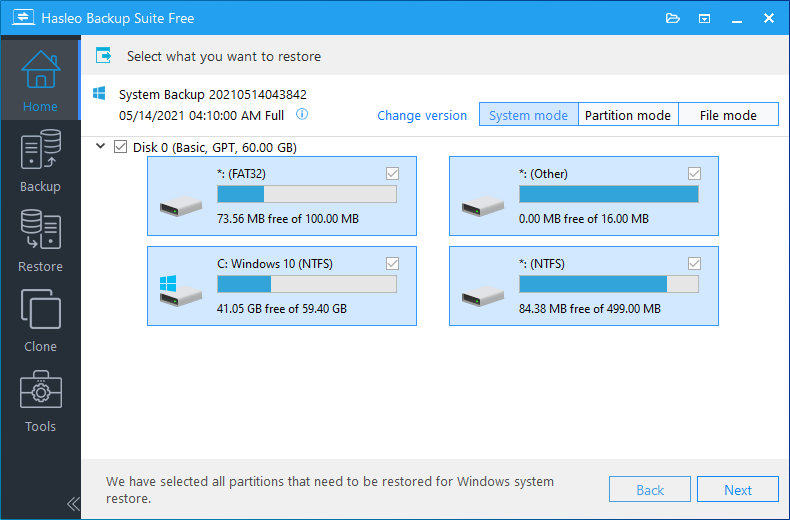
Step 2. Click the "Change version" button, select the backup version you want to restore, and then click "Next".
💡Tips:
- If you want to restore your entire operating system, please choose "System mode" in the upper-right corner. To restore a single partition, please select "Partition mode". For recovering individual files, please use "File mode".
- Important Note: Restoring only the Windows partition in "Partition Mode" may result in a system that fails to boot or function properly.
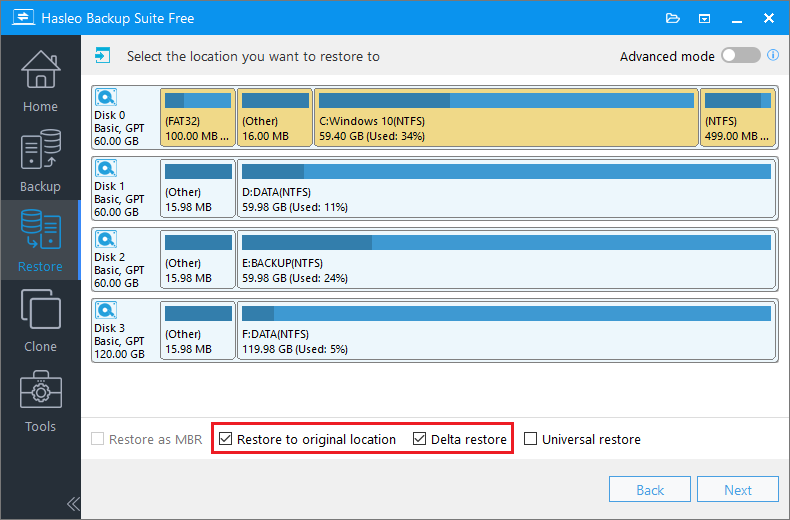
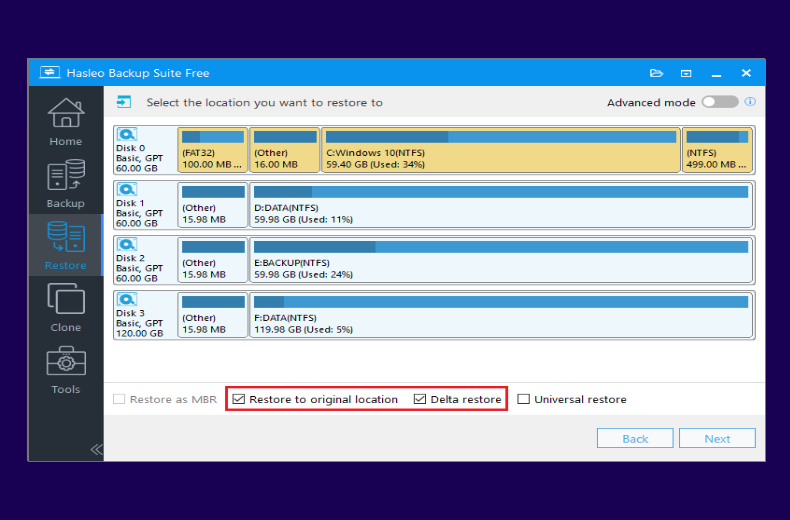
Step 3. Select the target disk you want to restore to (usually Disk 0), check the "Restore to original location" option to restore the system to its original location without damaging other partitions, and then click "Next".
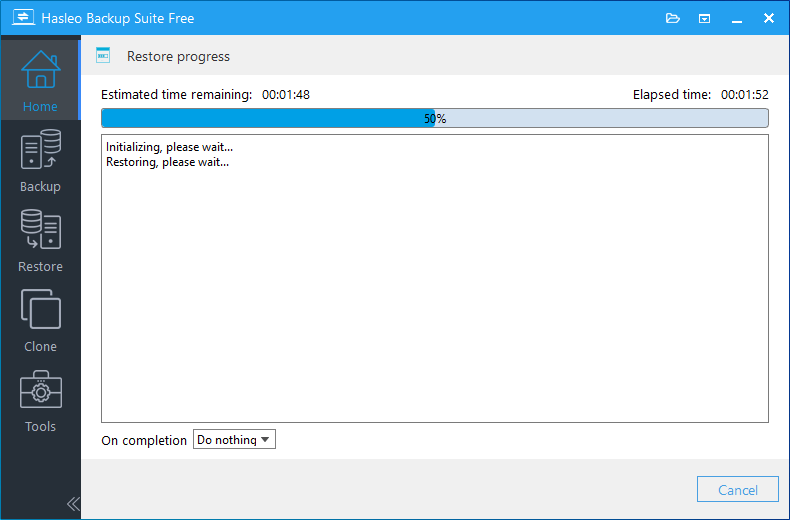
Step 4. Hasleo Backup Suite begins restoring the system to the target disk. The time required depends on the size of data to be restored; please be patient.
Step 5. After the restore is complete, restart the computer. After successful startup, verify that all systems and applications are functioning normally.
Method 2: Using WinPE Boot Media for System Recovery
When the Windows system cannot boot normally due to virus infection, driver corruption, or missing system files, you need to use WinPE boot media to restore the system. Therefore, it is very important to create a bootable WinPE emergency recovery disk in advance. Hasleo Backup Suite has built-in functionality to create WinPE boot media and can inject drivers to ensure your hardware devices are recognized in the recovery environment.
Create WinPE Boot Media (Needs to be Created in Advance on a Normal System)
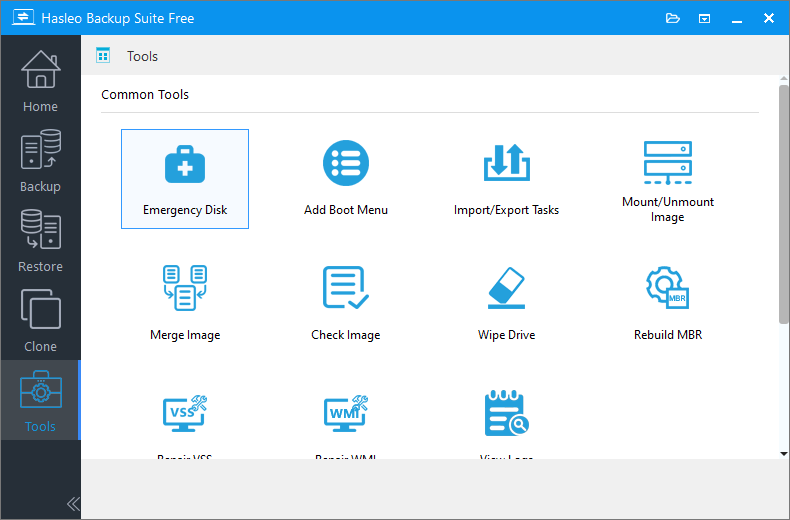
Step 1. When the Windows system is running normally, click the "Tools" button in the navigation bar, then select "Emergency Disk" in the operation area.
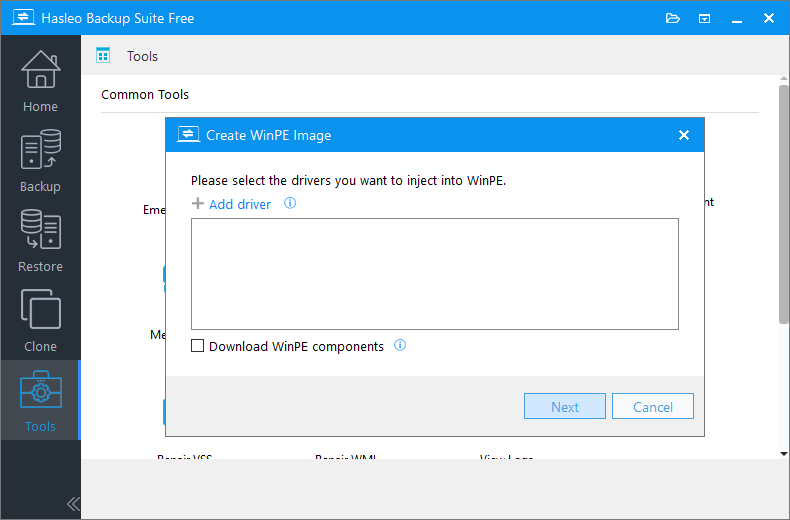
Step 2. Check "Automatic driver injection" or "Download WinPE components" to inject the drivers required by WinPE, then click "Next". If you need to inject some additional drivers, click "Add driver" and select the drivers you want to inject.
💡Tips:
- Only drivers that are based on an .inf file can be injected into WinPE.
- The Download WinPE components option allows you to obtain them from the current Microsoft.
- The Automatic driver injection option will automatically extract drivers from the current Windows operating system and inject them into WinPE. Please note that while Hasleo Backup Suite endeavors to extract and inject all drivers into WinPE, this process is not infallible, and we do not warrant that all hardware will be fully operational in the WinPE environment.
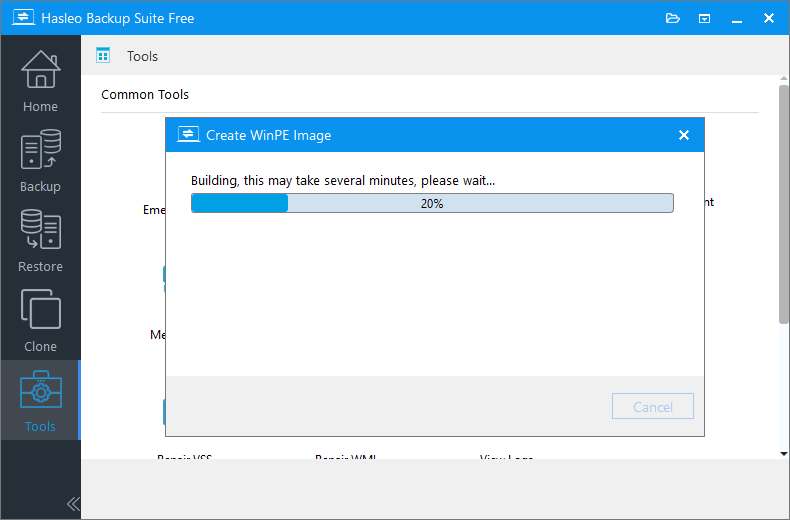
Step 3. Hasleo Backup Suite begins creating the bootable WinPE image.
Step 4. After the WinPE image is successfully created, select "USB" and click "Proceed" to create the bootable USB drive.
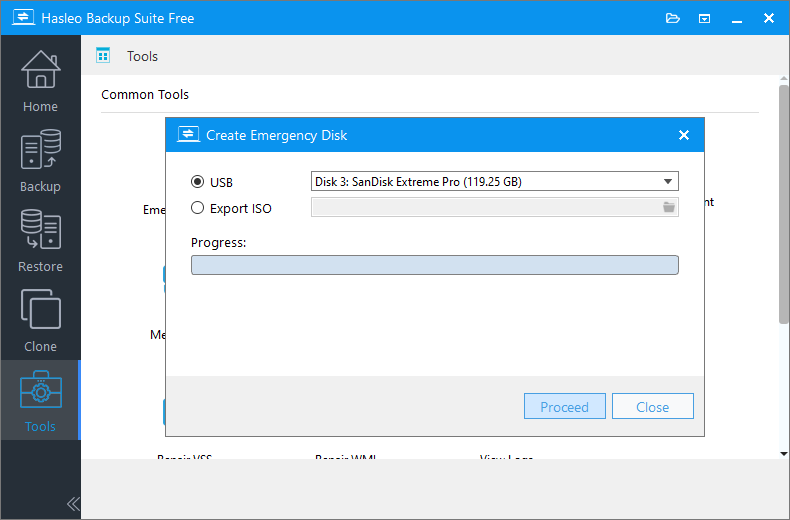
💡Tip: If you click "Export ISO", you can manually burn the ISO file to a CD/DVD/USB device using third-party burning software (such as Nero Burning ROM, Hasleo WinToUSB, etc.).
Step 5. The program will prompt you that the selected USB drive will be formatted. Please ensure any important files are backed up beforehand. To confirm and proceed with creating the bootable drive, click "Yes".
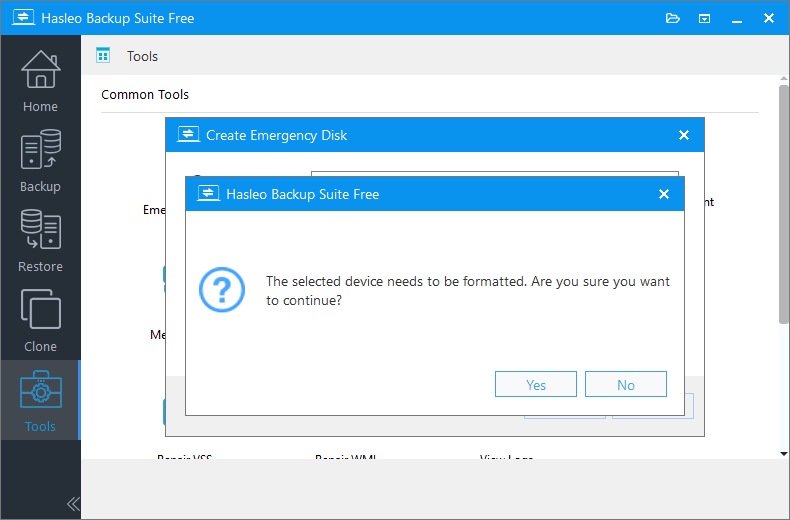
Step 6. Wait for the process to complete, then click "Close" to exit.
⚠️Important Note: You may need to disable UEFI Secure Boot in your system firmware settings to boot from the WinPE boot media created by Hasleo Backup Suite.
Using WinPE Boot Media to Restore the System
Step 1. Insert the WinPE boot media you created earlier (USB drive), then restart the computer and enter the BIOS/UEFI settings. Set the USB device as the first boot priority, save the changes, and exit. Your computer will then boot from the WinPE media.
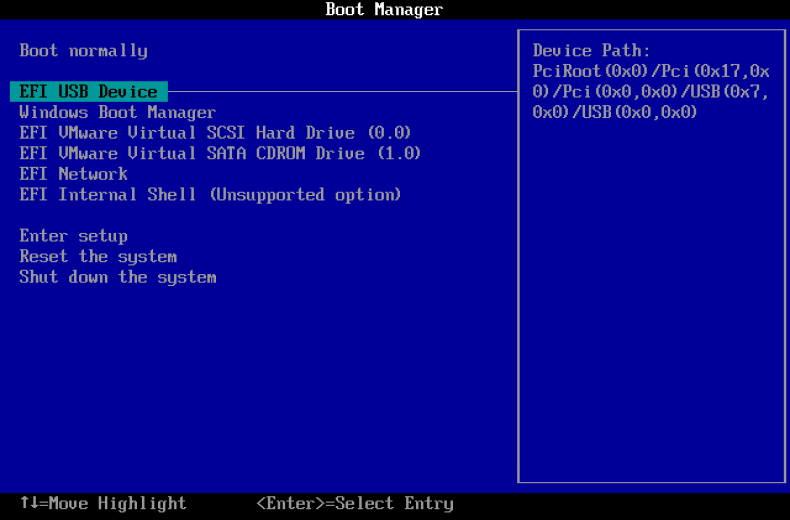
💡Tip: To boot from the Hasleo-created WinPE media, you may need to disable the UEFI Secure Boot feature in your system's firmware settings.
Step 2. Upon reboot from the WinPE bootable USB, the computer will automatically run Hasleo Backup Suite. Click the "Restore" button in the navigation bar, then select "Browse image to restore" in the operation area, and locate the system image file you created earlier (please ensure the device storing the backup image file is connected).
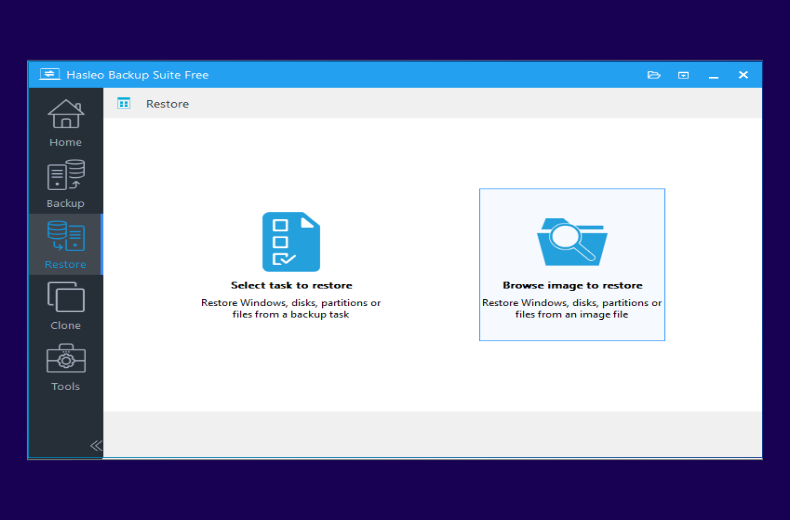
Step 3. Click "Change version" to select the backup version you want to restore, select "System mode" to restore the entire system, and then click "Next".
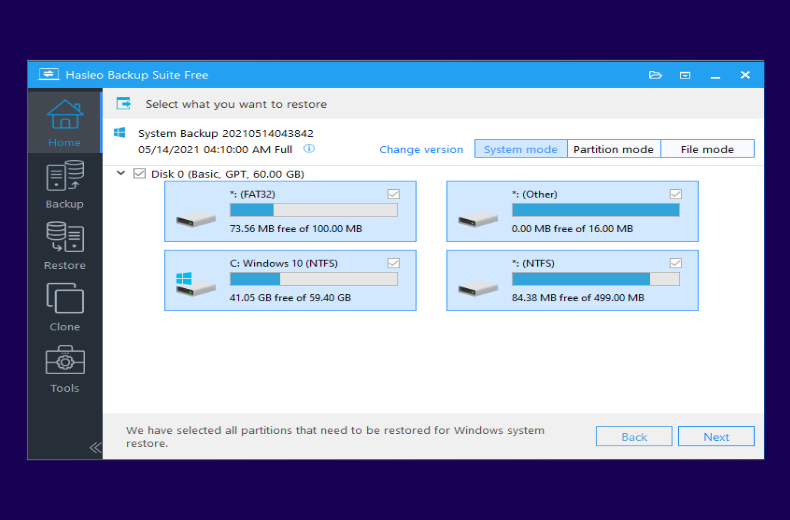
Step 4. Select the target disk for restoration, check "Restore to original location" which will automatically check "Delta restore" to speed up the restore process, then click "Next".
Step 5. The program begins restoring the Windows system to the target computer. After the restore is complete, remove the WinPE boot disk, restart the computer, and check if everything is running normally.
Method 3: Using Windows Built-in Repair Tools
Windows systems have multiple built-in tools for repairing boot problems, including Startup Repair, Command Prompt repair, and more. When the system can enter WinRE (Windows Recovery Environment), you can use these tools for repair.
Automatic Startup Repair
Windows' automatic Startup Repair feature can automatically detect and repair common boot problems.
- Power on the computer and repeatedly force shutdown when the Windows logo appears, repeating this 3 times to enter the WinRE environment. Alternatively, if you have Windows installation media, boot from it and select "Repair your computer".
- In the WinRE environment, select: Troubleshoot > Advanced options > Startup Repair.
- Follow the on-screen prompts, and Windows will automatically diagnose and attempt repairs. The process may take several minutes and may involve restarts.
- If Startup Repair succeeds, the computer will automatically restart and attempt to boot normally. If the repair fails, it will display a diagnostic report containing information about problems that could not be repaired.
⚠️Note: Startup Repair is suitable for system file, boot record, or boot configuration corruption, but not for hardware problems such as physical hard disk damage or memory failures.
Using Command Prompt to Repair BCD and Boot Records
When Startup Repair cannot solve the problem, you can use Command Prompt to manually repair the Boot Configuration Data (BCD) and boot records. Note: Drive letters in the WinRE environment are different from the normal system; be sure to first confirm the correct drive letter of the Windows partition.
- Enter the WinRE environment (method as above), select: Troubleshoot > Advanced options > Command Prompt.
- In Command Prompt, enter the following commands in sequence and view the volume list to find the NTFS partition with "Volume label" as Windows or the largest capacity. Note its drive letter (usually D, E, etc.).
- According to your system type (UEFI or Legacy BIOS), execute the appropriate repair commands. For UEFI systems, enter the following command:
bcdboot D:\Windows /l en-US(Please replace D: with the actual drive letter confirmed in Step 2)
For Legacy BIOS systems, execute the following commands in sequence:
bootrec /fixmbr # Repair Master Boot Record bootrec /fixboot # Repair Boot Sector bootrec /rebuildbcd # Scan all disks, rebuild BCD - After completing all commands, enter "exit" to close Command Prompt. Select "Shut down computer" or "Continue". Remove the repair media, restart the computer, and check if the system can boot normally.
Using SFC and DISM Commands to Repair System Files
If the boot problem is caused by system file corruption, you can use SFC (System File Checker) and DISM (Deployment Image Servicing and Management) tools to repair it.
- Enter the WinRE environment, open Command Prompt, and use diskpart and list volume commands to confirm the system installation partition drive letter (it may not be C:).
- Try using SFC to scan and repair system files:
sfc /scannow /offbootdir=D:\ /offwindir=D:\Windows(Please replace D: with the actual system partition drive letter)
- If SFC cannot repair the problem, try using DISM tool to repair component store:
DISM /Image:D:\ /Cleanup-Image /RestoreHealth /Source:D:\Windows\WinSxSIf the local source is also damaged, you can use Windows installation media as the repair source:
DISM /Image:D:\ /Cleanup-Image /RestoreHealth /Source:E:\sources\install.wim /LimitAccess(E: is the installation media drive letter)
- After DISM repair is complete, run SFC again for system file scan and repair.
- After repair is complete, close Command Prompt and try to boot Windows normally.
Method 4: System Restore and Reset
If the above methods cannot solve the problem, or if you want to recover the system without losing personal files, you can try System Restore or System Reset functions.
System Restore
System Restore will restore the system to a previously created restore point while preserving your personal files. This is a relatively gentle recovery method.
- Enter the WinRE environment (method as above), select: Troubleshoot > Advanced options > System Restore.
- The System Restore Wizard will start automatically; click "Next".
- Select a restore point (it is recommended to select a restore point before the failure occurred), then click "Next".
- Confirm the restore operation and click "Finish" to begin the restore process.
- After the restore is complete, you will automatically enter the desktop. If you are not satisfied with the restore results, you can undo the operation through the following path: Control Panel > Recovery > Open System Restore > Undo System Restore.
💡Tip: System Restore will not affect your personal files (such as documents, pictures, music, etc.), but may uninstall applications and drivers installed after the restore point.
System Reset
If the system problem is very severe and System Restore cannot solve it, you can consider using the System Reset function. This will reinstall Windows, but you can choose to keep personal files.
- Enter the WinRE environment and select: Troubleshoot > Reset this PC.
- Select the reset mode according to your needs:
- Keep my files: Reinstall Windows while keeping your personal files, Windows built-in apps, and apps installed from Microsoft Store.
- Remove everything: Completely clear personal files, apps, and settings; restore the system to factory state. Suitable for device transfer or thorough cleanup needs.
- Follow the on-screen prompts to complete the operation. The entire process may take 30 minutes to several hours; please keep the power connected.
⚠️Important Note: Even when selecting "Keep my files", it is strongly recommended to back up important data to an external hard drive or cloud storage in advance to prevent data loss in extreme situations.
How to Prevent System Boot Failures
Prevention is better than cure. By taking appropriate preventive measures, you can greatly reduce the risk of system boot failures and recover the system more quickly when problems occur.
- Regularly Create System Backups: This is the most important and effective preventive measure. It is recommended to use system backup software to regularly backup the entire system, including the operating system, applications, settings, and personal files.
- Enable System Restore Function:System Restore can create restore points to recover to a previous state when system problems occur. It is recommended to keep System Restore enabled and allocate sufficient disk space for storing restore points.
- Create Bootable Recovery Media: Use Hasleo Backup Suite to create a WinPE boot USB drive as an emergency recovery tool. Create this media while the system is running normally and keep it properly stored so you can perform repair or recovery operations when the system cannot boot.
- Enable Add Boot Menu Feature: The "Add Boot Menu" feature of Hasleo Backup Suite can pre-configure a recovery environment while the system is running normally. Even without a boot USB drive, you can quickly enter the recovery environment to perform system restore when the system crashes.
- Keep System and Software Updated: Regularly install Windows updates and security patches to fix known vulnerabilities and problems. However, ensure the system has sufficient disk space before updating, and create backups in case updates cause problems.
- Use Reliable Antivirus Software: Install and regularly update antivirus software to prevent viruses and malware from corrupting system files and boot records. It is recommended to choose well-known antivirus products and keep real-time protection enabled.
- Monitor Hard Disk Health: Use disk health monitoring tools (such as CrystalDiskInfo) to regularly check the SMART status of hard disks and promptly discover and handle disk problems. If you find the hard disk health is declining, immediately backup data and consider replacing the hard disk.
- Avoid Forced Shutdown and Improper Operations: Avoid forcibly shutting down or powering off the computer during system operation as this can cause system file corruption. Before shutting down the computer, ensure all running programs are closed.
- Be Careful When Installing Drivers and Software Only download and install drivers from official sources, and avoid using drivers from unknown sources. Before installing new software or drivers, read user reviews and descriptions to ensure compatibility with your system.
- Record System Configuration Information Record important system configuration information, such as installed key software, special system settings, driver versions, etc. This information can help you quickly restore your normal working environment after system recovery.
Frequently Asked Questions
A: Common causes include boot record corruption, system file corruption, BCD (Boot Configuration Data) errors, driver conflicts, insufficient disk space, hardware failures, and Windows update issues.
A: Power on the computer and repeatedly force shutdown when the Windows logo appears (repeat 3 times). Alternatively, use Windows installation media and select "Repair your computer".
A: Yes, methods like Startup Repair, System Restore, and using backup images from Hasleo Backup Suite can fix boot problems without affecting personal files.
A: MBR is used for legacy BIOS systems, while UEFI is the modern boot method. The repair commands differ: use bootrec commands for MBR, and bcdboot for UEFI systems.
A: It is recommended to create system backups monthly as needed, or before major system changes like installing new drivers or updates.
A: Startup Repair can fix corrupted boot records, missing system files, and BCD configuration errors. It cannot fix hardware problems or severe file system corruption.
A: Yes, some viruses can corrupt boot records or system files. Use antivirus software and create regular backups to protect against this.
A: Use Hasleo Backup Suite's built-in Emergency Disk feature. Go to Tools > Emergency Disk, select your options, and create a bootable USB drive while the system is working normally.
Summary
Although Windows system boot issues can be frustrating, most problems can be resolved through effective preventive measures and appropriate tools. When facing boot anomalies, the first step is to identify the specific symptoms of the fault and try using the most basic repair methods, such as the system's built-in 'Startup Repair' feature; if this is ineffective, proceed gradually to more advanced repairs such as BCD repair, or use previously created backups to restore the system.
The most important advice is: prevention is better than cure. It is recommended to enable the "Add to Boot Menu" feature of Hasleo Backup Suite when the system is running normally, and to regularly create system backups and WinPE boot media. This way, even in the event of a serious system failure, you can quickly restore the system and data, minimising losses.
Hasleo Backup Suite provides a comprehensive system protection solution, covering system backup, incremental backup, system cloning, and the creation of WinPE boot media. By making proper use of these tools, you can build a complete data protection system, ensuring efficient recovery of the system and data in any emergency.
Related Articles
- How to Merge/Delete Old Backup Files using Hasleo Backup Suite Free?
- How to back up and restore Windows 11 for free?
- How to Compress Backup Files using Hasleo Backup Suite Free?
- How to set up a schedule to automatically backup Windows Server?
- How to Restore Your System From Full/Differential/Incremental Backups?


