

- Types and Identification of Hard Disk Health Warnings
- Common Causes of Hard Disk Failures
- Effective Measures to Prevent Hard Disk Health Warnings
- Hard Disk Health Monitoring Tools and Methods
- Backing Up Disk Data Using Hasleo Backup Suite
- Emergency Response Strategies for Hard Disk Failures
- Frequently Asked Questions
- Summary
Hard disks serve as the core storage devices of computers, carrying users' important data and operating systems. Once a hard disk fails, it can lead to serious consequences such as data loss and system crashes. Hard disk health warnings are important signals sent by the disk's self-monitoring system, and timely identification and handling of these warnings is crucial for protecting data security. This tutorial will provide detailed information on preventive measures for hard disk health warnings, emergency response strategies, and how to use Hasleo Backup Suite for disk backup, helping you build a comprehensive data protection system.
Types and Identification of Hard Disk Health Warnings
Understanding the different types of hard disk health warnings is the first step in preventing and responding to failures. Hard disks use S.M.A.R.T. (Self-Monitoring, Analysis, and Reporting Technology) self-monitoring systems to detect and report various parameters and potential issues.
Common Types of Hard Disk Health Warnings
➢ S.M.A.R.T. Status Warnings
S.M.A.R.T. is a built-in self-monitoring system in hard disks that issues warnings when abnormal parameters are detected. Common S.M.A.R.T. warnings include:
- Reallocated Sector Count Warning: When a hard disk discovers bad sectors, it remaps data to spare sectors. A high value indicates bad sector problems.
- Pending Sector Count Warning: Indicates sectors that cannot be read, and data may be lost soon.
- Seek Error Rate Warning: Reflects the accuracy of data reading. Rising error rates may indicate mechanical failure.
- Temperature Warning: Triggers when disk operating temperature exceeds safe thresholds. Prolonged high temperatures accelerate disk aging.
- Power-On Count Warning: Frequent power cycling causes mechanical wear. Excessive counts may affect lifespan.
➢ Windows System Disk Warnings
The Windows operating system also indicates hard disk health issues through various means:
- Disk Check Warning: Chkdsk detects file system errors or bad sectors during startup.
- File Copy Errors: "Cannot read from source file" or "cyclic redundancy check" errors during file copying.
- Frequent System Crashes: Blue Screen of Death (BSoD) with error codes related to disk drivers (such as CRITICAL_PROCESS_DIED).
- Disk Management Warnings: Disk shows "Offline" or "Not Readable" status in Disk Management.
- Performance Degradation Prompts: System indicates disk performance degradation with noticeably slower file access.
➢ Third-Party Software Warnings
Professional hard disk monitoring software provides more detailed health information:
- CrystalDiskInfo Warnings: Shows disk health status as "Warning" or "Bad" with key parameters in red.
- HDD Regenerator Warnings: Detects physical surface damage or magnetic medium issues.
- Victoria Warnings: Scans reveal numerous bad sectors or excessively high read latency.
Hard Disk Health Status Levels
| Health Status | Description | ⭐Recommended Action |
| Good | All S.M.A.R.T. parameters are within normal ranges. No warnings or errors detected. | Continue normal use. Perform regular monitoring. |
| Warning | Minor or non-critical S.M.A.R.T. parameters show abnormalities. The drive remains operational but may be at early risk. | Immediately back up important data. Monitor the drive closely and check S.M.A.R.T. logs for changes. |
| Bad | Multiple critical S.M.A.R.T. parameters are abnormal. The drive is likely failing and data loss is possible. | Back up all data immediately. Prepare to replace the drive as soon as possible. |
| Critical | Key S.M.A.R.T. parameters have failed or are severely degraded. Complete drive failure is imminent. | Stop using the drive at once. If possible, back up data in a read-only mode. Replace the drive immediately. |
Common Causes of Hard Disk Failures
In-depth understanding of hard disk failure causes helps in taking targeted preventive measures. Hard disk failures are mainly divided into two categories: mechanical failures and electronic failures.
Mechanical Failure Causes
- Head Wear or Damage: The read/write heads inside the hard disk fly above the platters. Prolonged use causes head wear. Head-platter contact causes scratches, leading to permanent data loss.
- Spindle Motor Failure: The spindle motor driving platter rotation may develop bearing wear or winding faults, causing unstable speed or failure to start.
- Platter Scratches: Hard disks exposed to vibration, impact, or head collisions may have scratched platter surfaces, causing bad sectors and data loss.
- Servo Motor Failure: Servo system failures controlling head positioning prevent heads from accurately reading data.
- Internal Mechanical Structure Aging: Springs, bearings, and other mechanical components inside the disk age over time, affecting normal operation.
Electronic Failure Causes
- PCB Damage: Components on the hard disk PCB may be damaged by voltage fluctuations, static electricity, or moisture.
- Firmware Corruption: Firmware stored on dedicated chips. Corrupted firmware causes disk unrecognized or abnormal operation.
- Interface Failure: Poor contact or damage to SATA, USB, and other interfaces affects data transmission.
- Power Issues: Unstable or insufficient power supply causes abnormal disk operation or even damage.
- Cache Chip Failure: Disk cache chip damage causes data write errors or loss.
Environmental Factors
- Excessive Temperature: Disk operating temperatures above 45°C accelerate component aging. Above 60°C significantly shorten disk lifespan.
- Dust and Dirt: Dust entering the disk affects head reading/writing and may cause physical damage.
- Vibration and Impact: Mechanical disks are sensitive to vibration. Strong vibration causes head-platter collision.
- Magnetic Field Interference: Strong magnetic fields damage magnetically recorded data on platters, causing data loss.
- Improper Humidity: High humidity causes circuit shorts. Low humidity easily generates static electricity.
Human Factors
- Unexpected Power Outages: Power loss during data writing may cause file system corruption or data loss.
- Improper Operations: Moving computers or forcing shutdown during disk read/write may cause damage.
- Incorrect Formatting: Accidentally formatting a disk deletes all data.
- Virus Attacks: Malware may corrupt file systems or encrypt user data.
- Excessive Use: Prolonged continuous read/write accelerates disk wear and shortens service life.
Effective Measures to Prevent Hard Disk Health Warnings ✨
Prevention is better than cure. Taking effective preventive measures can significantly reduce hard disk failure risks and extend service life.
Hardware-Level Prevention
- Ensure Adequate Cooling: Keep disk operating temperature below 40°C. Regularly clean case dust and ensure fans operate normally. For high-performance drives, consider installing additional heat sinks.
- Use Stable Power Supply: Protect your system with a high-quality Power Supply Unit (PSU) to prevent damage from voltage spikes. For important data storage, employ an Uninterruptible Power Supply (UPS).
- Minimize Vibration and Physical Shock: Secure disks firmly in the case using vibration-dampening mounts. Avoid moving laptops while read/write operations are active.
- Maintain Clean Environment: Operate computers in low-dust areas. Perform periodic internal cleaning to prevent dust accumulation on disk surfaces.
- Avoid Magnetic Field Interference: Keep hard disks away from strong magnetic sources such as speakers and electric motors to prevent potential data corruption.
Software-Level Preventive Measures
- Enable Disk Write Cache Policy Optimization: Configure appropriate disk write cache policies in Device Manager for balance between performance and security. Enable "Disable write cache buffer flushing on device" cautiously for important data.
- Regularly Perform Disk Error Checks: Run chkdsk monthly to check for disk errors and repair file system issues promptly. Open Command Prompt (Administrator) and enter:
chkdsk C: /f /r - Disable Unnecessary Startup Items: Reduce frequent disk read/write during system startup to lower disk load.
- Properly Allocate Disk Space: Maintain at least 15% free disk space to avoid full disks causing performance degradation and data write errors.
- Use Quality File Systems: Use NTFS file systems for large-capacity disks for better stability and security. Avoid older file systems like FAT32 that don't support large files and permission management.
Usage Habit Preventive Measures
- Normal Shutdown: Always shut down through the operating system. Avoid direct power cuts or forcing shutdown by holding the power button.
- Safe Ejection of External Disks: After using external disks, always use system "Safely Remove Hardware" to disconnect properly and avoid data corruption.
- Avoid Moving Devices During Read/Write: Mechanical disks have very small gaps between heads and platters during read/write. Vibration may cause head-platter collision.
- Regularly Defragment Mechanical Disks: Regular disk defragmentation improves data read efficiency for mechanical disks. Disable defragmentation for SSD solid-state disks.
- Establish Data Backup Habits: This is the most effective preventive measure! Regularly back up important data. Disk failures won't cause data loss with backups.
⭐Hard Disk Health Monitoring Tools and Methods
Regular hard disk health monitoring can detect issues promptly and allow backup or replacement before complete failure.
Using Windows Built-in Tools
➢ Error Checking Tool
Windows has a built-in Error Checking tool for scanning and repairing file system logical errors and marking bad sectors:
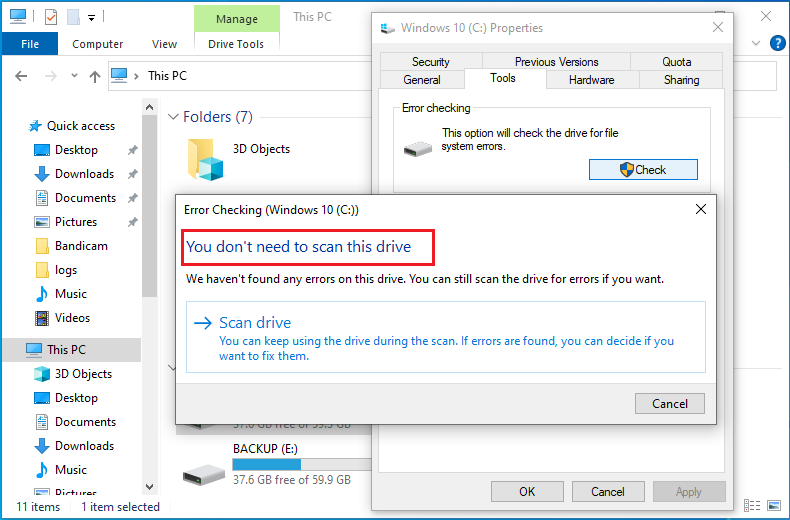
- Open "This PC," right-click on the disk partition to check, and select "Properties."
- Switch to the "Tools" tab and click "Check" in the Error checking section.
- If the system scan completes quickly with "You don't need to scan this drive," no issues were found. To force a deep scan, click "Scan drive." If checking the system drive (C:) with issues found or initiating a deep scan, the system will prompt "Schedule scan on restart." Save all work, close programs, and restart. The scan runs before Windows startup and takes time. Please wait patiently for completion.
➢ WMIC Command for Disk Health
Use Windows command-line tools to check basic disk status:
- Open Command Prompt (press Win+R, enter cmd, press Enter).
- Enter the following command to view basic disk information and status:
wmic diskdrive get model,status,serialnumber
- Status "OK" only indicates Windows hasn't detected immediate disk errors. It doesn't guarantee absolute disk health. Status not "OK" or blank may indicate disk problems. Back up data immediately and perform further testing.
➢ Physical Disk Health Status
This method checks the Windows 11 disk's physical condition (based on SMART data) and is suitable for most users.
- Open "Settings" > "System" > "Storage."
- Click "Advanced storage settings" > "Disks and volumes."
- Select the disk to check from the list and click "Properties."
- In the properties page, look for the "Health" item. Usually displays as "Healthy (Normal)," "Caution," or "Needs attention / Unhealthy".
Using Professional Disk Monitoring Tools
Professional disk health checking tools read and parse disk S.M.A.R.T. information to provide users with detailed data on disk health, performance parameters, and potential failure risks.
- Choose reliable tools and visit their official websites or trusted download sources.
- Download the version suitable for your system.
- Install and run the software according to instructions.
Using CrystalDiskInfo as an example to interpret disk health status:
| Health Status | Color | Meaning | Recommended Action |
| Good | ■ Blue | All parameters normal | Continue normal use |
| Warning | ■ Yellow | Some parameters abnormal | Back up data immediately, closely monitor disk |
| Bad/Damaged | ■ Red | Multiple parameters severely abnormal | Back up all data to other safe storage, replace disk as soon as possible |
➢ Key S.M.A.R.T. Parameter Interpretation
- Reallocated Sector Count (05): "Current" and "Worst" values typically start high (like 100) and decrease. Values near or below thresholds indicate serious problems. Monitor the declining trend.
- Pending Sector Count (C7): This value should remain 0. Any non-zero value indicates sectors the disk temporarily cannot read/write.
- Reported Uncorrectable Errors (187): This value should remain 0. These are errors even the disk's hardware-level error correction cannot fix. Any non-zero value (even 1) is extremely serious.
- Temperature (194): Recommended to keep below 45°C. Prolonged temperatures above 55°C accelerate disk aging.
- Write/Read Sector Count (AE): Cumulative write/read amounts for assessing disk usage intensity.
Establishing Regular Monitoring Plans
➢ Recommended Monitoring Frequency
| Disk Type | Recommended Frequency | Focus Areas |
| New disks (0-1 year) | Monthly | Basic parameters without abnormalities |
| Normal use disks (1-3 years) | Every 2 weeks | Reallocated sector count monitoring |
| Aging disks (3+ years) | Weekly | All parameter change trends |
| Disks with warnings | Daily | Parameter change speed and trends |
➢ Setting Up Automatic Monitoring Reminders
You can create system task schedules for regular disk monitoring:
- Open "Control Panel" > "Administrative Tools" > "Task Scheduler."
- Click "Create Basic Task" in the right action panel and set to execute weekly.
- Set to run PowerShell commands calling CrystalDiskInfo or other tools to generate reports.
Backing Up Disk Data Using Hasleo Backup Suite👑
Data backup is the most effective measure to prevent data loss from hard disk failures. Hasleo Backup Suite provides professional and reliable disk backup functions supporting various backup types to meet different user needs. As professional Windows backup software, it offers the following core backup features:
- ✅ System Backup: One-click backup of entire Windows systems including operating systems, applications, drivers, and personal settings.
- ✅ Disk/Partition Backup: Independently back up specific partitions or entire disks with high flexibility.
- ✅ File Backup: Selectively back up specific folders and files, suitable for frequently updated data.
- ✅ Incremental Backup: Only back up data changed since the last backup, saving storage space and time.
- ✅ Differential Backup: Back up data changed since the last full backup. Balances speed and completeness.
- ✅ Backup Schedule: Automatically execute backup tasks at scheduled times for unattended data protection.
Pre-Backup Preparations
- Prepare Backup Storage Devices: Prepare external hard drives with sufficient capacity. Recommended backup disk capacity at least 1.5 times the source disk.
- Ensure Stable Power: During backup, ensure computers are connected to stable power sources to avoid failures from power outages.
- Close Resource-Heavy Programs: Close antivirus software, large applications, and other programs that may affect backup speed.
- Prepare WinPE Boot Media (optional but recommended): To handle situations where systems cannot boot, it is recommended to create WinPE boot media in advance.
- Download and Install Hasleo Backup Suite: Download the required Hasleo Backup Suite version from the official website and complete installation.
Disk Backup Operation Steps
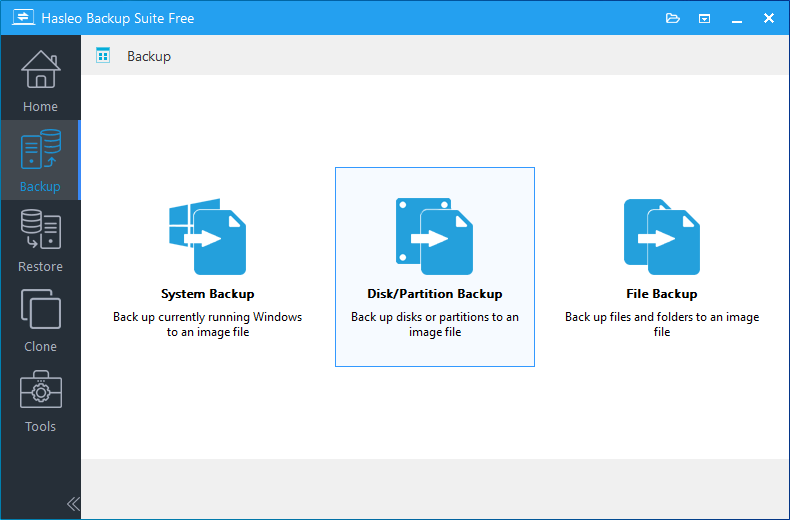
Step 1. Run Hasleo Backup Suite. Click the "Backup" button in the navigation bar, then select "Disk/Partition Backup" in the operation area.
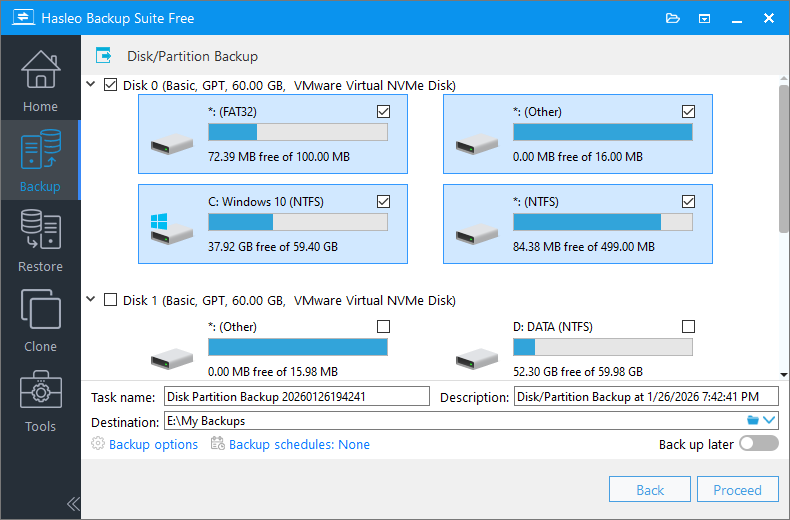
Step 2. Select the disk to back up, then customize the task name, description, and backup options as needed, setting the external hard drive as the destination.
💡Tips:
- Task name: Specify a task name so that you can quickly find and manage your backup task later.
- Description: Briefly describe the purpose of the task and any other relevant information.
- Destination: Modify the destination path where the backup image files will be stored by clicking the folder icon.
- Backup options: Advanced backup settings. For more details, please refer to Backup options.
- Backup schedule: Set up backup schedules to automatically perform your backup tasks on a regular basis. For more details, please refer to Backup schedule.
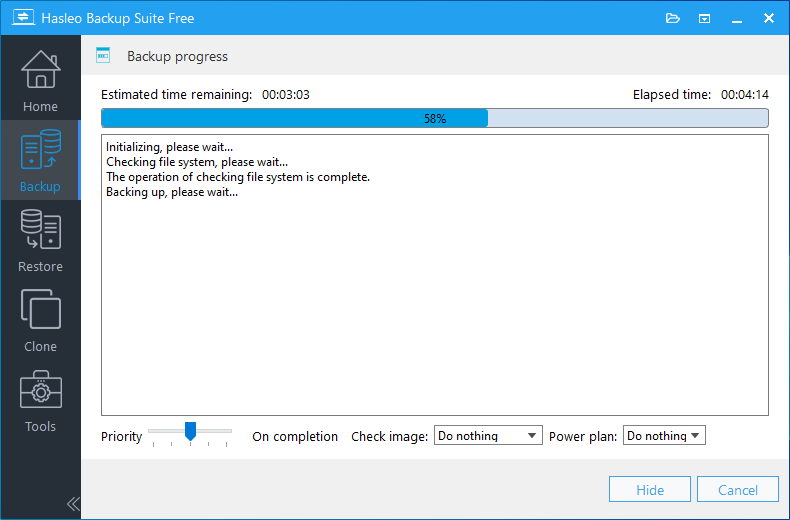
Step 3. Confirm all settings are correct and click "Proceed" to start the backup process. Note: Backup time depends on data size. The entire process may take some time.
💡Tips:
- Priority: Specify a priority for the backup process. A higher priority allocates more CPU time to the backup, which may cause other programs to run slower.
- Check image: Verify the integrity of the backup image files upon completion of the backup process.
- Power plan: Perform the power management action after the backup is complete.
⭐Emergency Response Strategies for Hard Disk Failures
When disks show failure signs or completely fail, taking correct emergency response strategies can minimize data loss.
Emergency Measures at Initial Failure Signs
➢ Immediately Stop Using the Disk
- Stop All Write Operations: Immediately stop writing any data to the failing disk, including installing programs and downloading files.
- Save Current Work: If working on important documents, save immediately and close all applications.
- Safely Shut Down System: Shut down normally and wait for the disk to completely stop rotating before proceeding.
- Disconnect Disk: If it's an external or non-system disk, safely eject and disconnect immediately.
➢ Assess Failure Severity
- Mild Symptoms: Occasional read errors, slow performance, may have minor bad sectors or file system damage.
- Moderate Symptoms: Frequent errors, system lag, file corruption, disk health showing warnings.
- Severe Symptoms: Disk unrecognized, system won't boot, constant abnormal noises, disk health showing bad status.
- Complete Failure: Disk completely unresponsive, constant abnormal or screeching noises, BIOS cannot detect.
Data Recovery Priority Strategies
➢ Recovering Data from Backup
If you have valid disk backups, you can directly recover data from backups:
- Connect the backup storage device to the computer.
- Launch Hasleo Backup Suite, click the "Restore" button, select the backup image file to restore, then select the restore target location (such as a replacement new disk).
- Start the recovery process. After completion, immediately check the integrity and availability of core data.
➢ Using Data Recovery Software
If no backup is available, data recovery software is the last resort. Note that this method cannot guarantee 100% success, especially for physically damaged disks.
- Connect the failing disk as a secondary drive to a normal computer and prepare another healthy disk with sufficient capacity as the target.
- Download and install data recovery software (such as Hasleo Data Recovery) onto the target healthy disk or its computer's system drive.
- Run the data recovery software, select the failing disk as the scan source, choose the recovery mode based on data loss situation, and start scanning.
- Select files to recover and save them to the prepared healthy target disk. Never save directly back to the source disk.
➢ Cloning Disk to New Disk
If the original disk shows failure signs but is still readable, cloning to a new disk is recommended:
- Prepare a new disk with capacity equal to or larger than the original and connect it to the computer (using USB adapter or SATA interface).
- Launch Hasleo Backup Suite and select "Clone" > "Disk Clone."
- Select the original disk as the source and the new disk as the target.
- Adjust partition sizes and positions as needed.
- Start the cloning process.
⚠️Professional Data Recovery Services
➢ When Professional Data Recovery Is Needed
In the following situations, seeking professional data recovery services is recommended:
- Physical Damage: Disks emitting abnormal noises (clicking, grinding, screeching) may have mechanical failures.
- Circuit Failure: Disks completely without power, SATA ports hot, fuses blown.
- Firmware Corruption: Disk model unrecognized, capacity display errors, cannot enter normal mode.
- Water/Fire Damage: Disks exposed to moisture, water, fire smoke, etc.
- Extremely High Data Value: When data value far exceeds recovery costs, professional services are the best choice.
➢ Considerations When Choosing Data Recovery Services
- Certification: Choose legitimate data recovery companies with relevant certifications.
- No Recovery, No Fee: Prioritize services offering "no recovery, no fee" policies.
- Non-Disclosure Agreements: Ensure services provide data confidentiality agreements to protect your privacy.
- Clean Room Facilities: Physically damaged disks require opening in clean room environments.
- Customer Reviews: Check service provider customer reviews and success stories.
Handling After Disk Replacement
➢ Installing New Disk
- Physical Installation: Open the case, install the new disk in the drive bay, and connect SATA data cables and power cables.
- Initialize Disk: Enter Disk Management, initialize the new disk, and create partitions.
- Format Partitions: Select NTFS file system for new partitions and complete formatting.
➢ Recovering Data and System
- Use Hasleo Backup Suite to restore systems or data from backups to the new disk.
- After recovery completion, update system drivers and Windows updates.
- Important: Immediately create backups of the new disk to ensure data security.
Frequently Asked Questions
A:Key S.M.A.R.T. parameters include: Reallocated Sector Count (05) - indicates bad sector remapping; Pending Sector Count (C7) - shows sectors temporarily unreadable; Reported Uncorrectable Errors (187) - hardware errors that cannot be corrected; Temperature (194) - should stay below 45°C; and Power-On Count indicating usage intensity. Monitor these parameters regularly and track trends over time.
A: Monitoring frequency depends on disk age: new disks (0-1 year) need monthly checks focusing on basic parameters; normal use disks (1-3 years) require checks every 2 weeks with emphasis on reallocated sector counts; aging disks (3+ years) need weekly monitoring tracking all parameter trends; and disks with warnings need daily monitoring to assess failure speed. Establish regular monitoring schedules using Task Scheduler for automatic reminders.
A: When failure signs appear: immediately stop all write operations and save current work; shut down normally and wait for disk to stop rotating; disconnect external disks safely; assess failure severity (mild: occasional errors; moderate: frequent errors and warnings; severe: disk unrecognized or making abnormal noises); and prioritize data backup or recovery. Time is critical - the disk may fail completely at any moment.
A: Prevention measures include: maintain disk temperature below 40°C with proper cooling; use stable power supply with UPS for protection; minimize vibration and physical shock especially during read/write; perform regular disk error checking with chkdsk; maintain at least 15% free disk space; use NTFS file system for large-capacity disks; always shut down properly through operating system; safely eject external disks before unplugging; and establish regular backup habits - the most effective preventive measure against data loss.
A: Seek professional help for: physical damage with abnormal noises (clicking, grinding); circuit failure with no power response; firmware corruption with unrecognized capacity; water or fire damage; or when data value exceeds recovery cost. Choose services with proper certifications, "no recovery, no fee" policies, clean room facilities, and NDAs. Professional recovery offers higher success rates for physically damaged disks compared to software solutions.
A: After disk replacement: physically install new disk in drive bay and connect SATA cables; initialize disk in Disk Management and create partitions with NTFS file system; use Hasleo Backup Suite to restore system or data from backup images; update system drivers and Windows updates after recovery; and critically - immediately create new backups of the restored system to ensure ongoing data protection. Test restored system thoroughly to verify all data integrity before resuming normal use.
Summary
Hard disk health monitoring and backup are two important aspects of data protection. Regular hard disk health monitoring can detect issues before failures occur. Regular data backups enable quick system and data recovery even when disks completely fail. Hasleo Backup Suite provides professional and reliable backup functions supporting system backup, disk backup, file backup, and other modes. Combined with automatic backup schedules, it enables unattended data protection. Additionally, it offers disk cloning and system migration functions as a multi-functional practical tool. Protect your data security, starting now!
Related Articles
- How to Restore a Windows System Image to a Different Computer? (Dissimilar Hardware Restore)
- How to Back Up and Restore Windows 11 for Free?
- How to Create Full/Incremental/Differential Backups Using Hasleo Backup Suite?
- How to Encrypt Backup Tasks Using Hasleo Backup Suite Free?
- How to Compress Backup Files using Hasleo Backup Suite Free?


