

- Why back up your files/folders automatically?
- Best free automatic file backup software for Windows - Hasleo Backup Suite Free
- Tutorial to Set Up Automatic Backup Schedules for Files/Folders with Hasleo Backup Suite Free
- Frequently Asked Questions
- Conclusion
This tutorial explains how to set up automatic, regular backup schedules of specific files and folders.
Why back up your files/folders automatically?
The threat of lost or corrupted files is ever-present, whether from virus attacks or accidental deletion. This makes keeping data safe a top priority in our digital lives. It is a good habit to back up important data, as it reduces the damage caused by data loss. Whether the loss is economic or otherwise, prevention is always the best choice.
To back up your important files, you have two options: backing up the entire drive where your important files are stored or only selected files. For the first option, use the Disk/Partition Backup feature. For the second, use the File Backup feature. This guide shows you how to use File Backup to protect specific files and folders.
If you often update important files that are already backed up, remember to create a new backup afterward. However, it's easy to forget this crucial step, which puts your data at risk. Setting up an automatic backup schedule for the files/folders can effectively solve the problem.
Best free automatic file backup software for Windows - Hasleo Backup Suite Free
To automate data backup, most backup software on the market provides a "backup schedule" feature that runs tasks periodically based on your preset configurations. If you are looking for free backup software with this capability to regularly back up your important files/folders, we recommend Hasleo Backup Suite Free.

Tutorial to Set Up Automatic Backup Schedules for Files/Folders with Hasleo Backup Suite Free
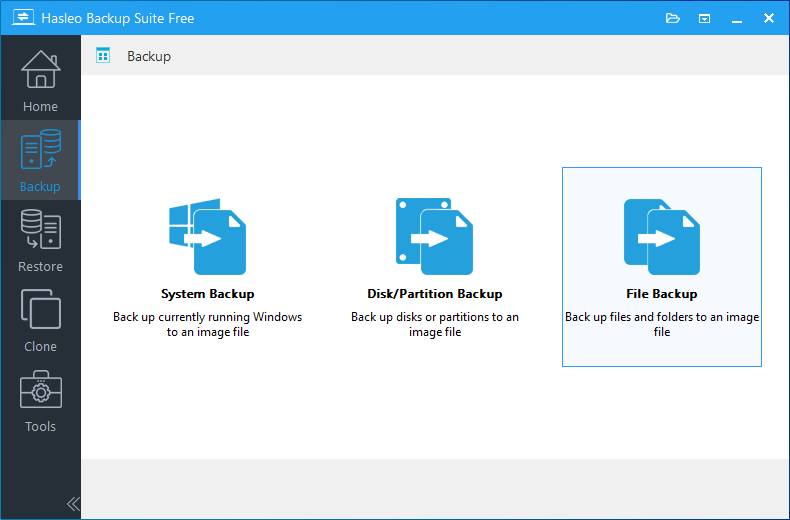
Step 1. Download, install, and run Hasleo Backup Suite Free. Click the "Backup" button in the navigation bar, then click "File Backup" button in the operation area.
Step 2. Select the files/folders that you want to back up. Then, customize the task name, description, destination, and backup options as needed. Click the "Proceed" button to continue.
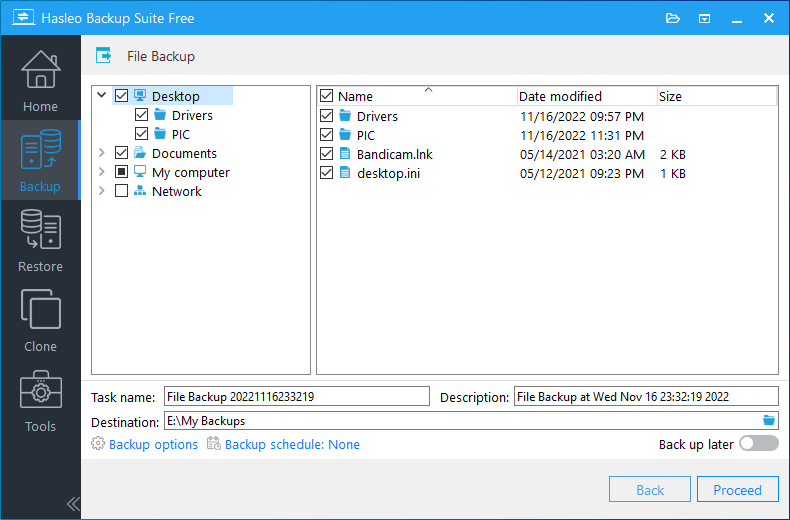
* Task name: Specify a task name so that you can quickly find and manage your backup task later.
* Description: Briefly describe the purpose of the task and any other relevant information.
* Destination: Modify the destination path where the backup image files will be stored by clicking the folder icon.
* Backup options: Advanced backup settings. For more details, please refer to Backup options.
* Backup schedule: Set up backup schedules to automatically perform your backup tasks on a regular basis. For more details, please refer to Backup schedule.
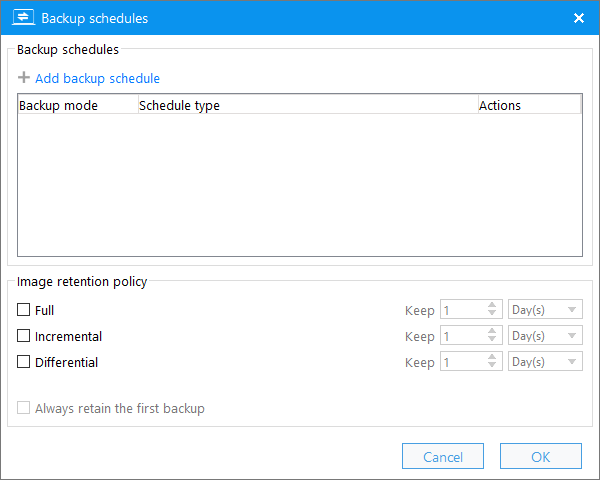
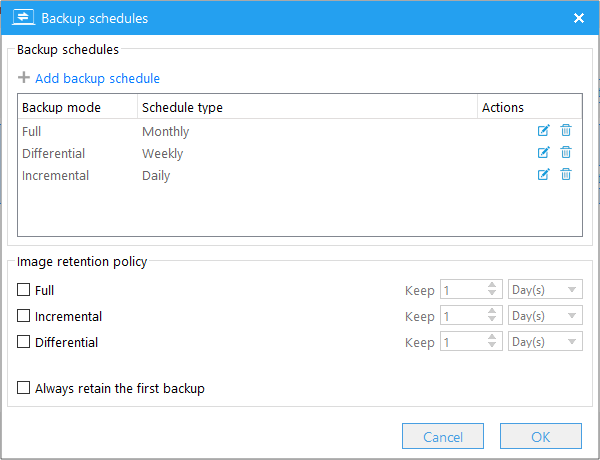
Step 3. Click "Backup schedule" to open the window for configuring backup schedules.
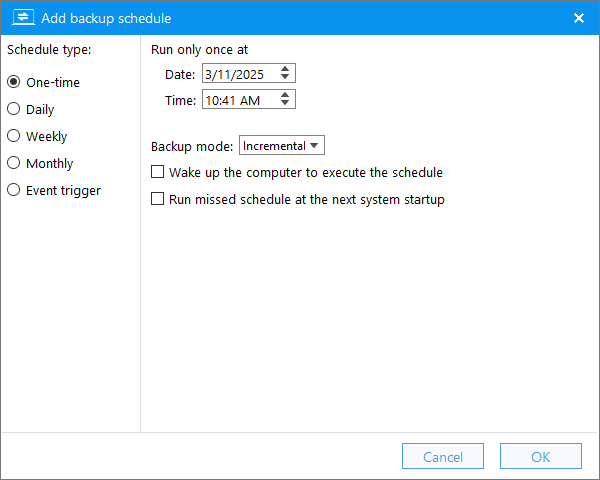
Step 4. Click "Add backup schedule". In the pop-up window, choose One-time, Daily, Weekly, Monthly, or Event triggered scheduling modes. Then, set the time for the backup to run according to your needs. Click "OK" to save the settings. You can add multiple backup schedules to this backup task by repeating the same steps.
Step 5. Click the "OK" button to save the backup schedules.
Step 6. Click the "Save" button to save the backup task. Hasleo Backup Suite Free will now regularly perform the backup task at your specified time.
Frequently Asked Questions
A: Download and install Hasleo Backup Suite, click Backup > File Backup, select the files/folders you want to back up, then click Backup schedule to add One-time, Daily, Weekly, Monthly, or Event Trigger schedules according to your needs.
A: Hasleo Backup Suite Free is the best free Windows backup software for automatic file and folder backups. It supports One-time, Daily, Weekly, Monthly, and Event Trigger scheduling modes, allowing you to create customized backup schedules.
A: The frequency depends on how often your files change. For critical documents that are updated daily, daily or event-triggered backups are recommended. For files that change less frequently, weekly backups may be sufficient.
A: Yes, you can select multiple files and folders in a single backup task and set up different schedules for each backup task. You can also add multiple backup schedules to one task to create complex backup strategies.
A: It is recommended to store backup files on a different drive or location from the original files. This ensures that if the original drive fails, your backups remain safe.
A: File backup only backs up selected files and folders, while disk/partition backup backs up the entire drive or partition including all files, system, and settings. File backup is faster and uses less storage space.
A: Yes, Hasleo Backup Suite supports encrypting backup tasks. You can enable AES 128/256-bit encryption in the backup options to protect sensitive data in your backup images.
A: By setting up automatic backup schedules, you never have to worry about forgetting to back up your files. The software will automatically perform backups at the scheduled times, ensuring your data is always protected.
Conclusion
Hasleo Backup Suite Free is Windows backup software that enables you to back up specific files/folders. It allows you to set up regular, automatic backup schedules for the specified files/folders.
As professional Windows backup software, Hasleo Backup Suite Free can back up not only files/folders, but also your entire Windows operating system, disks or partitions.


