

- When should you restore a Windows system image to a different computer? (dissimilar hardware restore)
- Advantages and Limitations of dissimilar hardware restore
- Best Windows backup and restore software—Hasleo Backup Suite
- How to Restore a Windows System Image to a Different Computer Using Hasleo Backup Suite?
- Frequently Asked Questions
- Summary
Many users wish to migrate their existing Windows system backup to new hardware when upgrading their computer, preserving their familiar operating environment and personalized settings. However, due to driver incompatibilities and hardware recognition issues, directly restoring a system image to a computer with different hardware often results in boot failures or blue screen errors. So, how can these problems be avoided? This guide details how to safely and reliably restore a Windows system image to a different computer using Hasleo Backup Suite—even when the target computer cannot boot normally.
When should you restore a Windows system image to a different computer? (dissimilar hardware restore)
You can create a system image for your current computer to restore it to the same device when needed. However, in certain situations, you may need to restore a Windows system image to a different computer with different hardware. This operation is known as dissimilar hardware restore, a widely adopted technical approach in system deployment scenarios, frequently used in the following contexts:
- Enterprise IT Standardized Deployment: An "out-of-the-box" solution for the rapid, bulk deployment of office computers, ensuring uniform configuration and efficient operational readiness.
- Computer Replacement and Hardware Upgrades: Seamlessly migrate your entire system, including personal settings, installed software, and data, to new computers or upgraded hardware when retiring old machines or in the event of hardware failure.
- Rapid System Failure Repair: Swiftly reinstall systems for instant recovery, minimizing business downtime.
Advantages and Limitations of dissimilar hardware restore
This technological approach is widely adopted not only for its robust adaptability to diverse scenarios but also for the significant operational efficiency and management benefits it delivers. This leads to several key advantages:
- High Deployment Efficiency: Rapidly deploy preconfigured system images to multiple devices in bulk, significantly reducing manual installation and configuration time.
- Excellent System Consistency: Ensures all computers share identical software environments, security policies, and user settings, simplifying management and reducing subsequent maintenance complexity through standardization.
- Robust Migration and Recovery Capabilities: Enables users to retain nearly all original work environments and data after hardware replacement or system crashes, facilitating seamless transitions and rapid business recovery.
However, dissimilar hardware restore also presents specific limitations and challenges. In practice, the following two aspects require particular attention.
Limitation 1: Hardware Driver Compatibility
The original system image contains drivers for older hardware. Restoring it directly to a computer with different hardware may result in errors related to the "Hardware Abstraction Layer" and "hal.dll", or cause a blue screen during startup (Inaccessible_Boot_Device).
While such issues were more prevalent in older Windows versions (e.g., Windows 8/7/Vista), using built-in restore tools in Windows 11/10 can still trigger them. To minimize hardware compatibility risks, we recommend enabling the Universal restore option within Hasleo Backup Software's restore feature.
Limitation 2: System Authorization and Activation
Windows licenses, especially OEM versions, are typically tied to original device's motherboard. This hardware binding means restoring a system backup to different computer may cause activation failures. It's crucial to check your license type: OEM licenses pre-installed by device manufacturers are non-transferable, while Retail licenses purchased from retailers or official stores allow migration between different hardware configurations.
License Type Verification Method:
- Press the "Win+R" keys to open the Run dialog box. Type "cmd" and press Enter to launch the Command Prompt.
- At the command prompt, type "Slmgr /dli" and press Enter.
- The system will display a pop-up window with the license details. Check the "Description" field: If it contains the keyword "OEM" or "OEM_DM", it is an OEM version; If it contains "RETAIL", it is a retail version.
Best Windows backup and restore software—Hasleo Backup Suite
Restoring a Windows system image to dissimilar hardware using built-in tools may cause compatibility issues. To avoid this, we recommend a professional backup and restore tool—Hasleo Backup Suite. It integrates comprehensive features to address this problem: comprehensive system imaging to fully capture the OS environment; support for creating WinPE boot media to facilitate recovery from boot failures; and universal restore functionality, enabling stable system image deployment across dissimilar hardware platforms. Furthermore, to meet your varied data protection requirements, Hasleo Backup Suite provides the following suite of key features:
- Comprehensive and powerful: Its backup and restore features let you create system images effortlessly and recover from crashes instantly, while the cloning function promotes seamless data migration.
- Advanced technology and excellent performance: Compatible with all Windows PCs and servers, it supports Windows x86/x64 and ARM64 architectures. It boots in both UEFI and Legacy BIOS modes, ensures safe and stable program running, and operates with high efficiency and low power consumption.
- Multiple backup modes: It supports full, incremental and differential backups. Following an initial full backup, both incremental and differential backups save time and storage space by only copying the data that has changed.
- Features compression and encryption: It allows you to compress backup images to save disk space and encrypt them to protect your important data.
- Practical Toolbox: Here you can access advanced features like creating a WinPE emergency disk, merging backup images, and securely wiping disks.
- Intuitive and user-friendly interface: The interface design is clear, with the main functions immediately obvious, and guided prompts allow even beginners to get started quickly.
How to Restore a Windows System Image to a Different Computer Using Hasleo Backup Suite?
Here are the detailed steps to perform a Windows dissimilar hardware restore using Hasleo Backup Suite, including creating a WinPE bootable USB, backing up the Windows image, and restoring the system image to a computer with different hardware.
1. Create WinPE Bootable USB
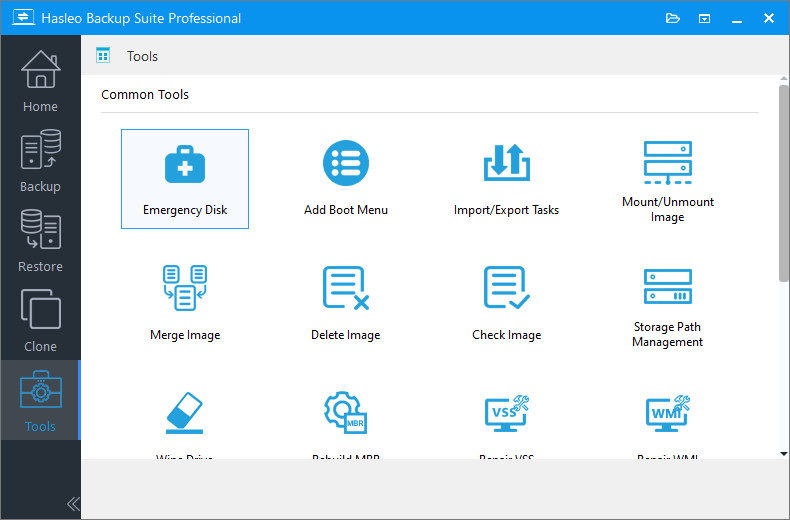
Step 1. Insert the USB drive into the source computer. Download, install, and run Hasleo Backup Suite. Click the "Tools" button in the navigation bar, and then select "Emergency Disk" in the operations area.
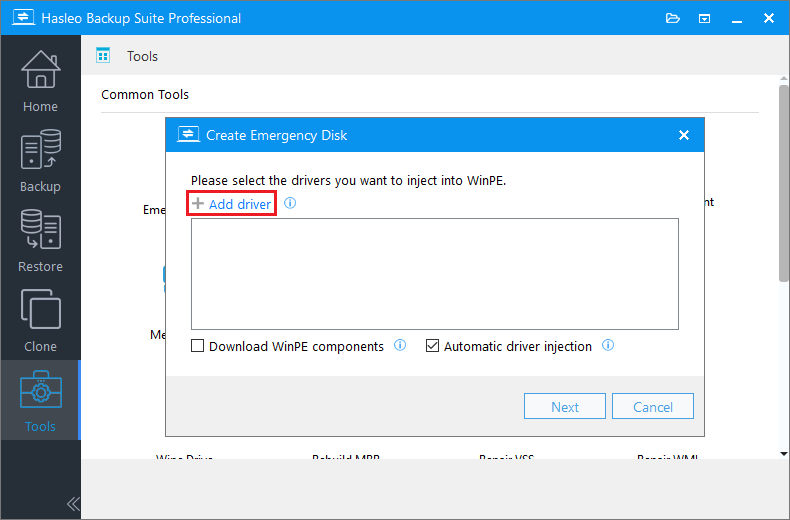
Step 2. Check the "Automatic driver injection" option to have the required drivers added to WinPE, then click "Next". To add any additional drivers, click "Add driver" and make your selection.
* Tips:
- Only drivers that are based on an .inf file can be injected into WinPE.
- The "Download WinPE components" option allows you to obtain them from Microsoft.
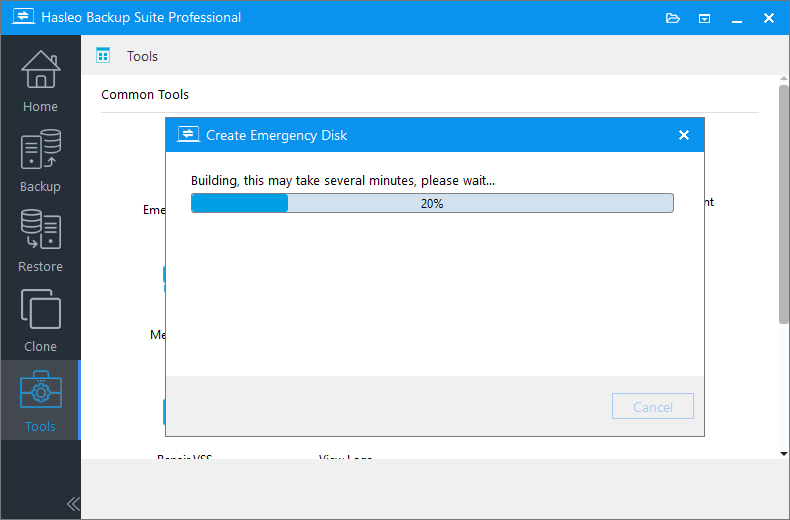
Step 3. Hasleo Backup Suite begins creating a WinPE bootable image.
Step 4. After the WinPE image is created successfully, select "USB" and click "Proceed" to create the bootable USB drive.
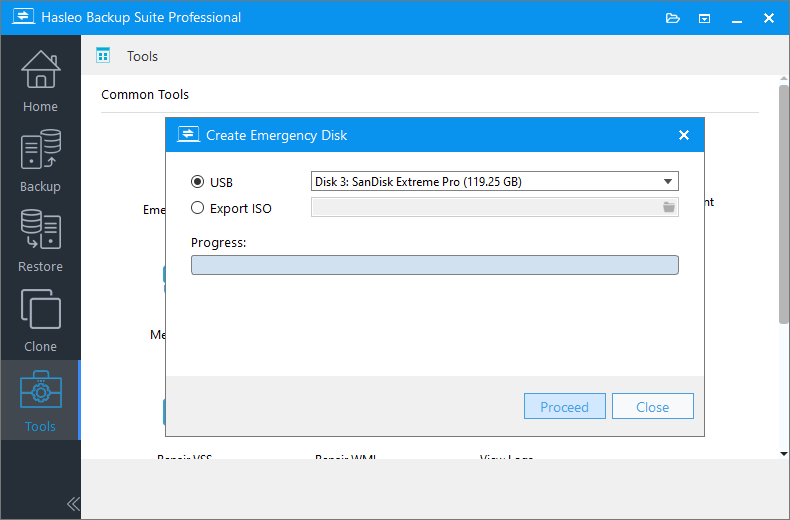
Step 5. The program will prompt you that the selected USB drive will be formatted. Please ensure any important files are backed up beforehand. To confirm and proceed with creating the bootable drive, click "Yes".
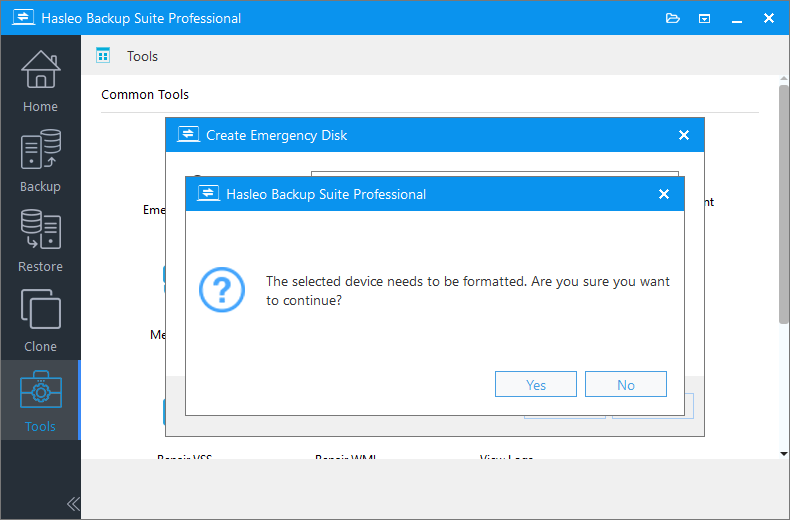
Step 6. After the operation has completed, you can safely eject the USB drive.
* Tips: If the target computer boots normally, you do not need a external WinPE boot medium. Instead, you can download Hasleo Backup Suite directly on the device, create a local WinPE environment, connect the external hard drive containing your system image, and enable universal restore to perform the restore.
2. Create Windows System Image
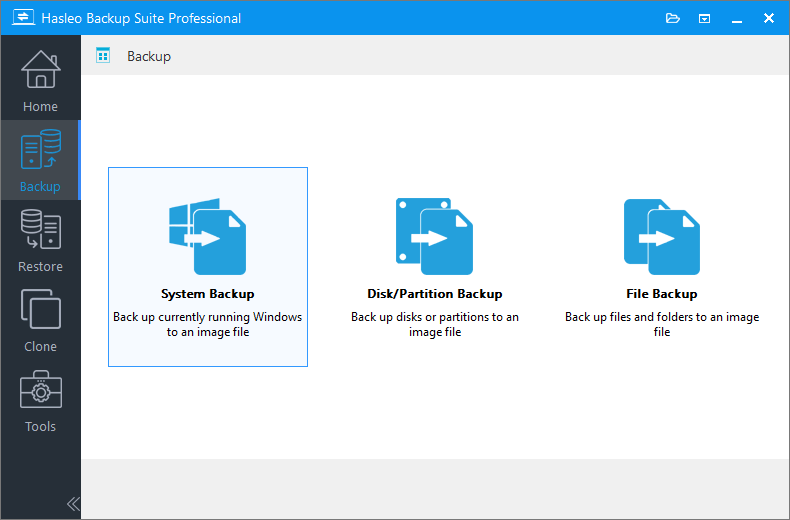
Step 1. Click the "Backup" button in the navigation bar, then select "System Backup" in the operation area.
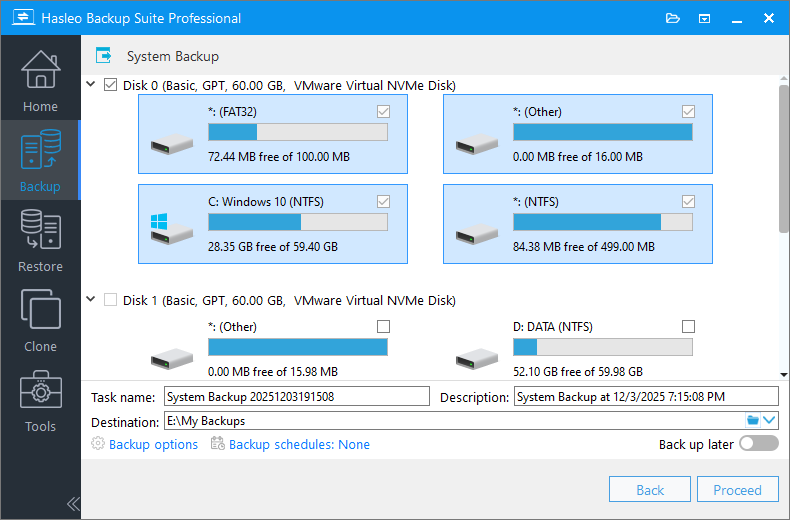
Step 2. Hasleo Backup Suite will automatically select all partitions required for a Windows system backup. Customize the task name, description, and backup options as needed. Then, select an external hard drive as the destination to save the system image. Finally, click "Continue".
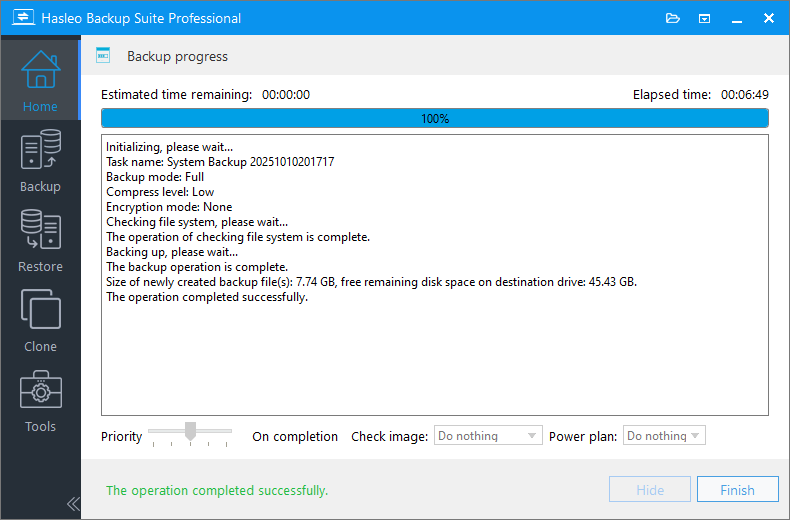
Step 3. Hasleo Backup Suite has started backing up your Windows operating system to the specified storage path. This process may take some time; please wait patiently.
3. Restore Windows System Image to Different Hardware
Step 1. Insert the WinPE bootable USB drive and the external hard drive containing the system image into the target computer in sequence. Then, power on the computer and continuously press the F2/Del/F10/Esc keys to enter the UEFI/BIOS setup interface.
* Tips:
- For the correct key, please refer to your motherboard manual or the on-screen prompt in the lower-left or lower-right corner during startup.
- To boot from the Hasleo-created WinPE media, you may need to disable the UEFI Secure Boot feature in your system's firmware settings.
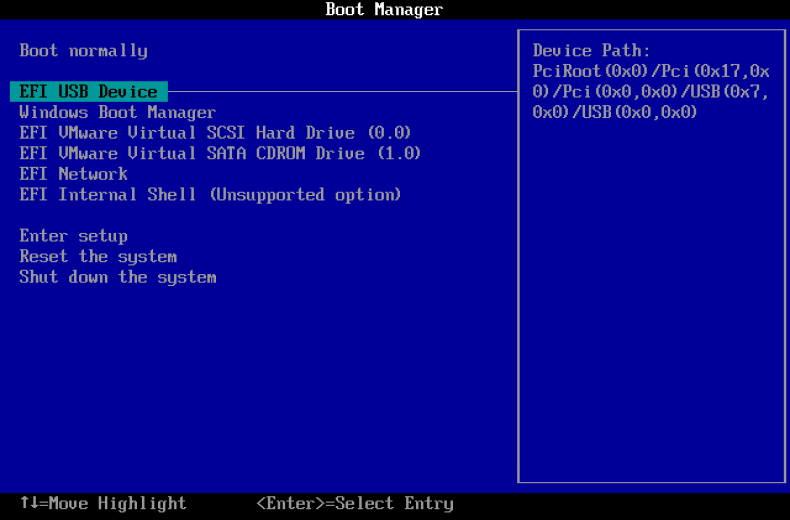
Step 2. Navigate to the "Boot" tab, set the USB drive as the first boot device, and save the changes. Then, restart the system. Upon reboot from the WinPE bootable USB, the computer will automatically run Hasleo Backup Suite.
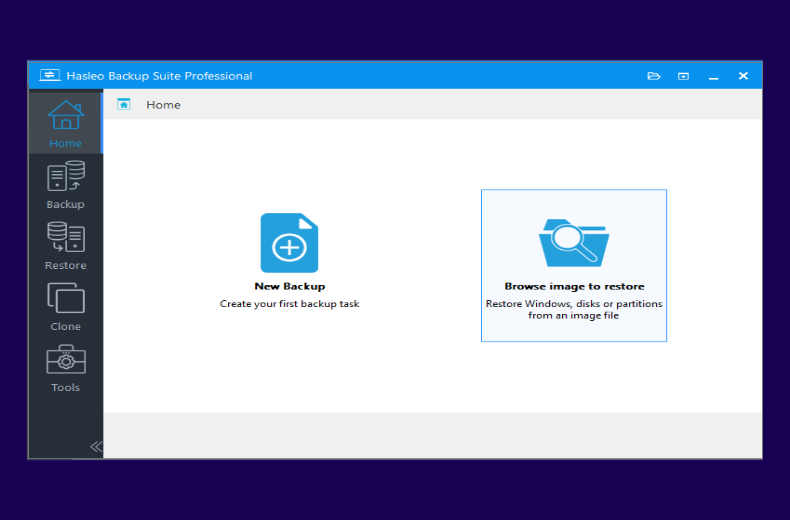
Step 3. In the "Home" or "Restore" operation area, select "Browse image to restore" and locate the backup image you wish to restore.
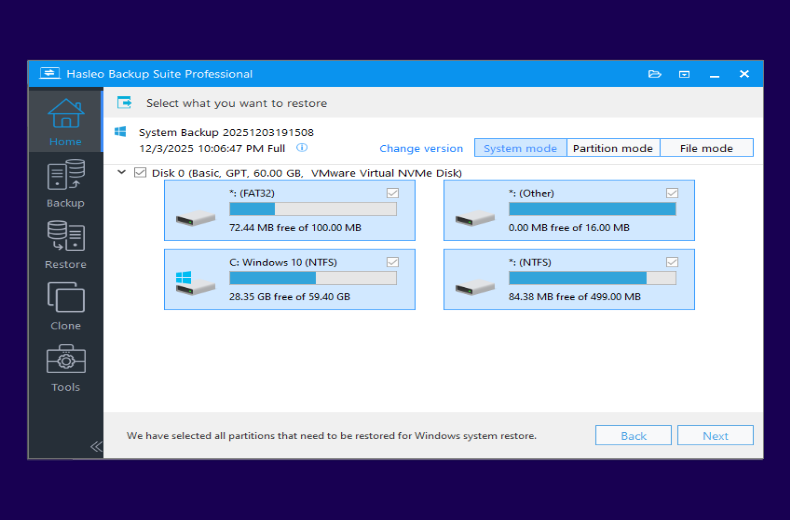
Step 4. Select "System mode" to restore the entire system, then click "Next".
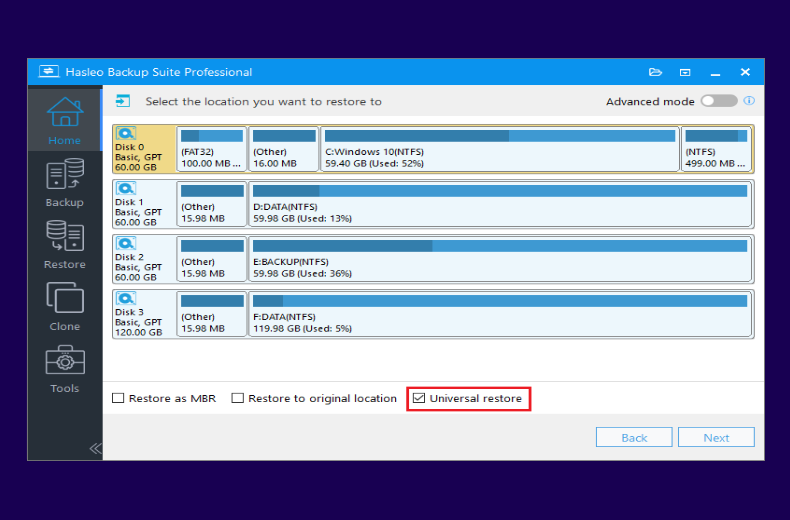
Step 5. Select the target disk to restore, check the "Universal restore" option, and click "Next". The program will begin restoring the Windows image to the target computer.
Step 6. Remove the WinPE bootable USB and restart your computer. After the computer boots successfully, complete the Windows activation process as required by your system.
Frequently Asked Questions
A: Dissimilar hardware restore means restoring a Windows system image to a computer with different hardware components than the original machine.
A: Retail licenses can be transferred. OEM licenses are tied to the original motherboard and may not activate on different hardware.
A: Yes, if the target computer cannot boot. WinPE allows you to restore the system image when the OS is not functional.
A: Universal Restore automatically adjusts drivers for the new hardware, ensuring the system can boot after restoring to different hardware.
A: Yes, as long as the destination drive can hold all the data from the source system image.
A: Include chipset, storage controller, and network drivers for the target computer hardware.
A: Yes, all data on the target disk will be overwritten. Back up important data first.
A: Yes, dissimilar hardware restore is commonly used for bulk deployment in enterprise environments.
Summary
Hasleo Backup Suite is a professional Windows backup and restore solution compatible with all Windows operating systems. It offers a Universal Restore feature for securely and stably migrating system images to dissimilar hardware and supports creating a WinPE bootable rescue medium for rapid recovery when the system cannot boot.
Hasleo Backup Suite offers powerful cloning capabilities for system, disks, and partitions. In addition, its Delta Clonetechnology significantly enhances cloning efficiency. This all-in-one software combines backup, restore, and cloning functions, making it your best choice for data protection!
Related Articles
- How to Merge/Delete Old Backup Files using Hasleo Backup Suite Free?
- How to back up and restore Windows 11 for free?
- How to Compress Backup Files using Hasleo Backup Suite Free?
- How to set up a schedule to automatically back up Windows Server?
- How to Restore Your System From Full/Differential/Incremental Backups?


