

- Why does my computer freeze during backup?
- Solution: Limit the image transfer rate
- Why Do Speed Limits Solve the Backup Performance Problem?
- Other Factors That May Cause Lag
- Frequently Asked Questions
- Conclusion
Some users have reported that during backups, their entire computer becomes virtually locked up - the mouse moves slowly and other applications stop responding - until the backup finishes, at which point everything returns to normal. This issue is not unique to Hasleo; similar backup software, such as Macrium Reflect, may exhibit the same behavior under certain hardware configurations.
Why does my computer freeze during backup?
The root cause is that backup processes consume a significant amount of disk I/O and CPU resources. With high-speed SSDs like NVMe drives, backup software can fully utilize multi-core CPUs to maximize read/write speed. However, this also results in high system resource usage, which may impact other applications and potentially cause lag or freezes.
When using SATA III SSDs or NVMe drives, backup operations significantly increase system load, slowing down the response times of other running applications.
Solution: Limit the image transfer rate 💡
Hasleo Backup Suite includes a speed limit option for image transfers, which can effectively reduce system lag during backups.
How to Configure Speed Limit in Hasleo Backup Suite
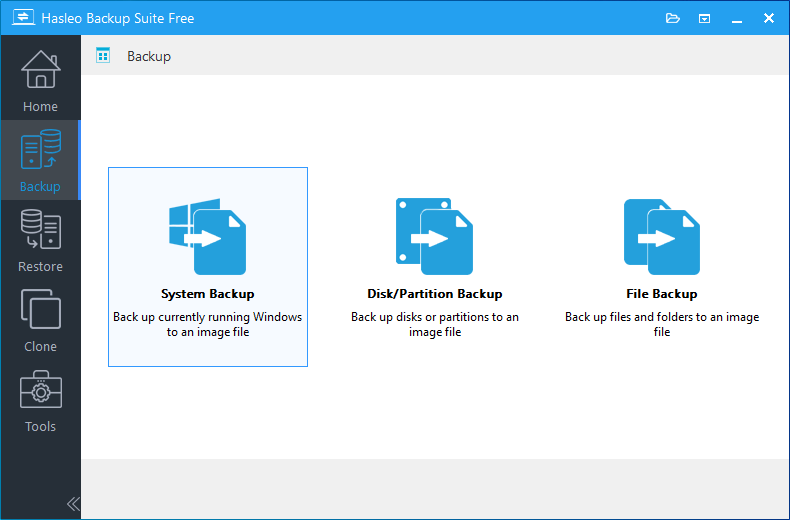
Step 1. Launch Hasleo Backup Suite, click the Backup button in the navigation bar, and select the backup mode you need.
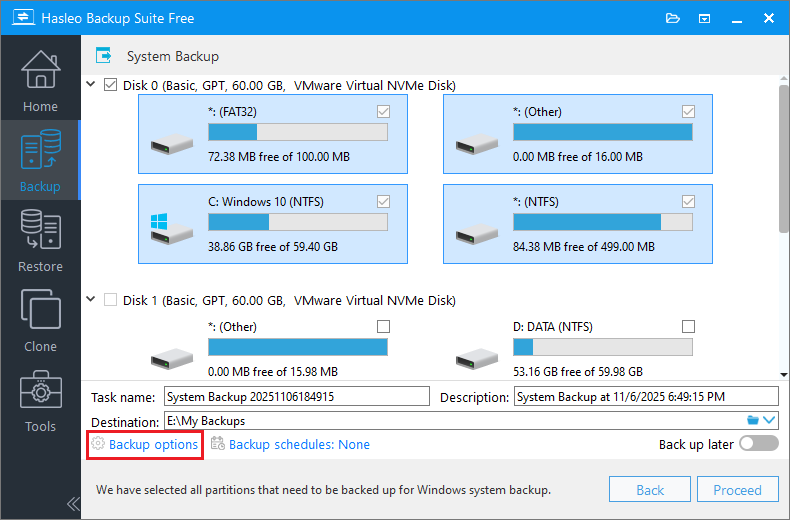
Step 2. On the backup job configuration screen, click Backup options.
Step 3. In the pop-up window, select Advanced, check the Image transfer speed limit option, and set the speed to a lower value - for example, 100 MB/s or less.
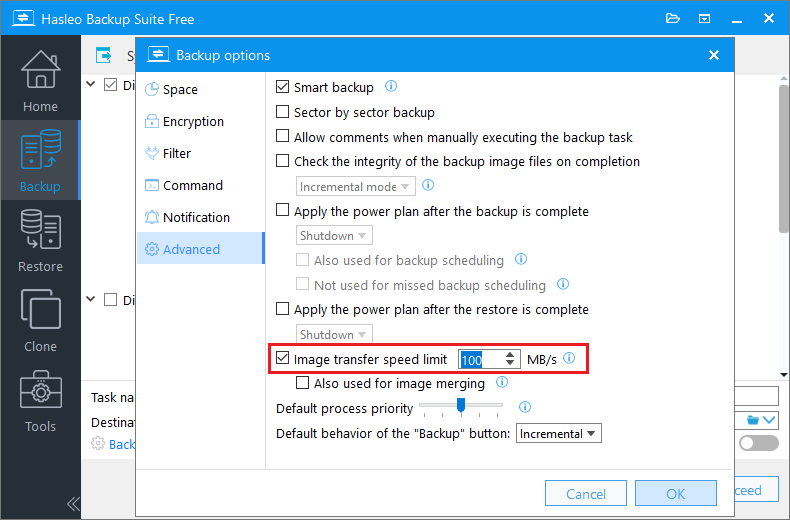
Step 4. Click OK to save the settings, then rerun the backup job.
Recommended Speed Settings
| Storage Medium | Recommended Speed | Notes |
|---|---|---|
| Hard Disk Drive (HDD) | 50-80 MB/s | Limited by drive performance; throttling has minimal effect |
| SATA SSD | 100-150 MB/s | Balances speed and bandwidth for other apps |
| NVMe SSD | 150-300 MB/s | Adjust based on observed lag |
We recommend starting with a lower value (e.g., 100 MB/s) and gradually increasing it based on actual performance to find the right balance between backup speed and system responsiveness.
Why Do Speed Limits Solve the Backup Performance Problem?
Limiting the transmission rate solves the problem because it essentially "proactively yields" system resources.
Without restrictions:
The backup software consumes as many disk and CPU resources as possible to maximize speed. On multi-core CPUs and high-speed NVMe drives, this can significantly increase system load, leaving other processes with insufficient I/O and CPU time.
With restrictions in place:
The backup software writes data at a steady rate according to the set limit, reserving sufficient resources for the OS and other applications. This eliminates lag; although the backup takes slightly longer, your computer remains fully usable.
Just as a wooden bucket's capacity is determined by its shortest plank, backup speed is limited by the slowest link in the chain. Resource contention (CPU and disk I/O) can significantly impact performance. Speed limiting is a proactive way to balance resources, ensuring overall system stability and responsiveness.
Other Factors That May Cause Lag 🎯
If the issue persists after limiting the transfer rate, we recommend investigating the following factors:
Real-Time Scanning by Antivirus Software
The "real-time file scanning" (or "on-access scanning") feature of antivirus software checks files as backup software reads them, causing I/O contention. This can significantly slow down the backup process and exacerbate system lag.
Recommended Action:
1. Temporarily disable the antivirus software's real-time protection, then rerun the backup.
2. If disabling the feature resolves the issue, add Hasleo Backup Suite to the antivirus software's scan exclusion list.
System Resource Contention
Running other intensive tasks (e.g., video rendering or large file copies) during a backup can cause noticeable lag. To minimize this, we recommend reducing other high-load applications during the backup process.
Disk Drivers and Hardware
Driver Issues:
Outdated storage drivers - especially for RAID and USB 3.0 - can impact performance. Updating to the latest version usually resolves the problem.
Disk Interfaces:
Ensure the backup target is connected to a high-speed interface (USB 3.x or later, not USB 2.0), and that the cable and connector are securely attached.
External Disk Policy:
For external drives, set the policy to "Better Performance" (with write caching enabled) in Device Manager to improve I/O efficiency.
Frequently Asked Questions 🔥
Q: Will limiting the transfer rate significantly increase backup times?
A: It will increase somewhat, but usually to a manageable extent. Compared to a completely frozen and unresponsive computer, this is a reasonable trade-off.
Q: Is the speed-limiting option available in the free version?
A: Yes. This feature is available in all editions of Hasleo Backup Suite, including the free version.
Q: Why does Macrium Reflect have the same issue?
A: Because the root cause lies in high-speed I/O devices and multithreaded backup technology. This indicates the issue is a common phenomenon for backup software running on high-performance hardware, rather than a defect specific to any single program.
Conclusion
High-speed SSDs (especially NVMe drives) can push backup software to max out disk I/O and CPU usage in pursuit of speed, sometimes making the entire system sluggish or unresponsive during backups.
Hasleo Backup Suite offers a straightforward fix: on the Advanced page of the backup options, enable Limit image transfer speed and set a reasonable rate. The goal is to balance backup efficiency with system responsiveness.
By reserving resources for the OS and other applications, you can keep working smoothly while the backup runs in the background. This may slightly extend the total backup time, but it ensures your computer stays fully usable - a valuable trade-off that prioritizes user experience over raw speed.

Related Articles
- From First Backup to Regular Schedule - A Beginner's Guide to Hasleo Backup Suite
- How to Create Full/Differential/Incremental Backups in Windows Using Hasleo Backup Suite Free?
- How to Set Up Backup Schedules to Automatically Backup Windows?
- Best Free Windows Backup Software
- How to Compress Backup Files Using Hasleo Backup Suite Free?


