

- What is a Virtual Machine? Why Backup Virtual Machines?
- Method 1: Create a Recovery Point Using VMware Snapshots (Not a Standalone Backup)
- Method 2: Use VMware's Built-in Cloning
- Method 3: Back Up Virtual Machine Using Hasleo Backup Suite👑
- Comparison of Three Backup Methods
- Frequently Asked Questions
- Summary
VMware Workstation Pro, as a leading desktop virtualization software in the industry, is widely used in software development, testing, training, and technical demonstration scenarios. Virtual machines host important applications, configuration data, and business environments. Once data loss or system failure occurs, it will seriously affect work efficiency. Backing up virtual machines is a key measure to protect virtualization investments and ensure business continuity.
This tutorial will introduce three commonly used VMware virtual machine backup methods: VM snapshots, VM cloning, and creating full backup images using Hasleo Backup Suite. Through detailed comparative analysis, it will help you choose suitable virtual machine backup solution.
What is a Virtual Machine? Why Backup Virtual Machines?
A Virtual Machine (VM) is a virtual computing environment created on a physical computer through virtualization technology. It simulates a complete computer hardware system, including CPU, memory, hard disk, network card, and other devices, allowing you to install and run independent operating systems and applications, just like using an independent physical computer.
👍Main Characteristics of Virtual Machines:
- Isolation: Each virtual machine is isolated from each other, and the crash of one virtual machine will not affect other virtual machines.
- Portability: Virtual machine files can be easily migrated to different physical hosts for running.
- Resource Sharing: Multiple virtual machines share physical hardware resources, improving hardware utilization.
- Rapid Deployment: Virtual machine environments can be quickly created, copied, and deployed.
- Security: You can test suspicious software or conduct security experiments in virtual machines without affecting the host system.
Although virtual machines have advantages such as isolation and portability, they also face risks of data loss and system failure. Backing up virtual machines is an important measure to ensure the security of virtualization environments.
Main Risks Virtual Machines Face:
- Operating System Failure: Virtual machine operating system crash, driver conflicts, or system file corruption may prevent the virtual machine from starting.
- Application Errors: Applications installed in the virtual machine may encounter errors, conflicts, or data corruption, affecting normal business operations.
- Human Errors: Administrators or users may accidentally delete important files, make configuration errors, or unexpectedly shut down virtual machines.
- Malware Attacks: Virtual machines may become targets of ransomware and malware attacks, leading to data encryption or theft.
- Storage Failures: Physical disk failures where virtual machine files are stored may make entire virtual machines inaccessible.
- Configuration Change Issues: System updates, driver upgrades, or software installations may cause virtual machine environments to become unstable.
🎯Core Value of Virtual Machine Backup:
- Quick Recovery: When virtual machine failures occur, recovery from backup can be quick, reducing downtime.
- Environment Preservation: Save the complete state of development, testing, or specific configuration environments for later use.
- Version Control: Retain virtual machine states at different points in time, supporting version rollback and comparison.
- Data Protection: Protect important data and configuration information in virtual machines from being lost.
- Security Isolation: Backup files can be stored offline or offsite, providing an additional layer of security protection.
Method 1: Create a Recovery Point Using VMware Snapshots (Not a Standalone Backup)
VMware snapshots are a built-in feature of VMware Workstation Pro that can capture the state of a virtual machine at a specific point in time, including disk, memory, and configuration information.
👍 Characteristics of VMware Snapshots:
- Quick Creation: Snapshot creation is fast, usually taking only a few seconds.
- Incremental Storage: Snapshots are stored incrementally, recording only changes after snapshot creation.
- State Capture: Can capture virtual machine disk, memory, and CPU states.
- Easy Rollback: Can quickly restore the virtual machine to the state when the snapshot was created.
⚠️ Limitations of VMware Snapshots:
- Non-Independent Backup: Snapshots depend on original virtual machine files and cannot exist independently.
- Performance Impact: Snapshots reduce virtual machine disk I/O performance, and it is not recommended to keep too many snapshots.
- Storage Growth: Keeping snapshots for a long time causes snapshot chains to grow longer, consuming a lot of storage space.
- Cannot Migrate: Snapshot files are difficult to migrate to other systems or storage locations.
📌 Steps to Back Up Virtual Machine Using VMware Snapshots:
- Open VMware Workstation Pro and select the virtual machine you want to backup. In the main interface toolbar, click "VM" > "Snapshot" > "Take Snapshot", or directly click the "Take Snapshot of this Virtual Machine" button in the toolbar.
- In the "Take Snapshot" dialog box, enter a snapshot name and description, then click "Take Snapshot" button.
- After the snapshot is created, you can view and manage all snapshots in the "Snapshot Manager".
- When you need to restore the virtual machine, open the "Snapshot Manager", select the snapshot you want to restore, and click "Restore to Snapshot" button.
💡Tips:
- It is recommended to create snapshots before performing major operations (such as system updates or installing new software).
- Delete unnecessary snapshots in a timely manner after completing tasks to avoid performance degradation.
- Do not keep too many snapshots (it is recommended to keep no more than 3-5) to avoid affecting virtual machine performance.
- Snapshots cannot replace complete backups and should be used in combination with other backup methods.
Method 2: Use VMware's Built-in Cloning
The VMware clone feature can create a complete copy of a virtual machine, generating an independent new virtual machine that is completely isolated from the original virtual machine.
👍 Characteristics of VMware Clone:
- Complete Copy: Creates a complete copy of the virtual machine, including all disk files, configuration, and installed applications.
- Independent Operation: Cloned virtual machines can run and modify independently without affecting the original virtual machine.
- Rapid Deployment: Can quickly create multiple virtual machines with the same environment for testing or distribution.
- Flexible Selection: Supports linked clones (space-saving) and full clones (independent operation).
⚠️ Limitations of VMware Clone:
- Time Consuming: Full clones need to copy all virtual disk files, and the more disk space occupied, the longer it takes.
- Large Space Occupation: Full clones occupy the same or more storage space as the original virtual machine.
- Fixed Version: Clones are static copies and do not automatically update with the original virtual machine.
- Platform Dependent: Clone files can only be used in VMware environments and cannot be directly restored on other platforms.
📌 Steps to Back Up Virtual Machine Using VMware Clone:
- Open VMware Workstation Pro and select the virtual machine you want to backup. In the main interface toolbar, click "VM" > "Manage" > "Clone".
- In the "Clone Virtual Machine Wizard" window that pops up, click "Next" to continue.
- Select the clone source. You can choose the current state or a snapshot as the clone source, then click "Next".
- Select the clone type. "Linked Clone" creates a thin copy associated with the original virtual machine, saving space but depending on the original virtual machine; "Full Clone" creates a completely independent copy, occupying more space but can run independently.
- Specify a name and storage location for the cloned virtual machine, then click "Finish" to start the cloning process.
💡Tips:
- Linked clones require the original virtual machine file when starting, while full clones can run independently.
- If you need to keep backups for a long time, it is recommended to use full clones.
- After cloning is complete, you can rename the virtual machine and change its configuration (such as network settings) to avoid conflicts with the original virtual machine.
Method 3: Back Up Virtual Machine Using Hasleo Backup Suite👑
Compared to VMware's native snapshot and clone features, Hasleo Backup Suite provides a more comprehensive backup solution focused on long-term preservation, disaster recovery, and cross-machine migration. This compensates for the inadequacy of VMware native snapshots for long-term archival backups. When it performs a system backup on a Windows host running VMware Workstation Pro, it packages the entire system drive (including the operating system, installed VMware Workstation program, and all virtual machine configuration files, virtual disk files, and snapshot data stored on the system drive) into a complete backup image file. By restoring this backup image, the entire working environment (host system + virtual machine collection) can be restored to the different hardware or original machine.
🎯 Features of Hasleo Backup Suite
- Comprehensive Features: Offers system backup, disk cloning, and system restore functions.
- Independent Backup Format: Backup as standard image files, not dependent on VMware environment.
- Multiple Backup Modes: Supports full backup, incremental backup, and differential backup modes, effectively saving storage space and backup time.
- Data Encryption Protection: Supports AES 128/256-bit encryption to protect backup data security.
- Compressed Storage: Supports backup compression to effectively reduce storage space usage.
- Automated Backup: Supports backup schedules and image retention policies to achieve unattended automated backup.
📌 Steps to Back Up Virtual Machine Using Hasleo Backup Suite:
Preparation:
- Download and install Hasleo Backup Suite (it is recommended to use Home, Professional, or higher versions for more advanced features).
- Ensure virtual machines are powered off or in a quiescent state (it is recommended to shut down virtual machines for best backup results).
- Prepare sufficient backup storage space (it is recommended to be at least 1.5 times the size of the data to be backed up).
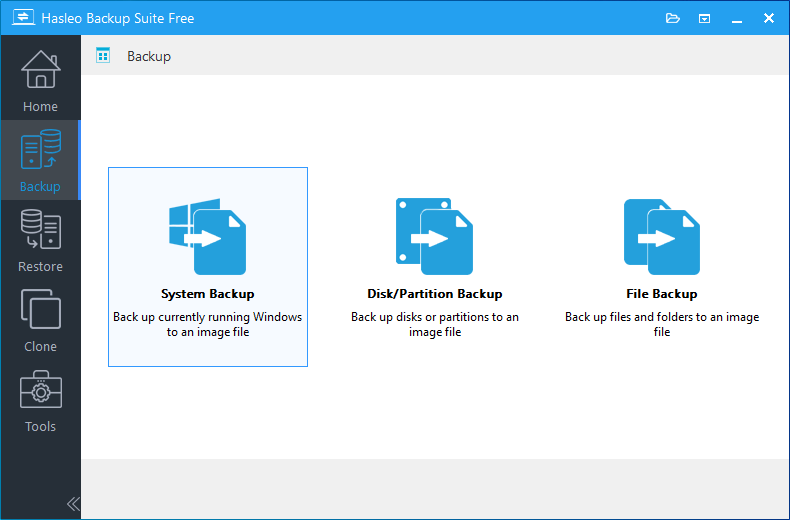
Step 1. Run Hasleo Backup Suite, click the "Backup" button in the navigation bar, and then select "System Backup" in the operation area.
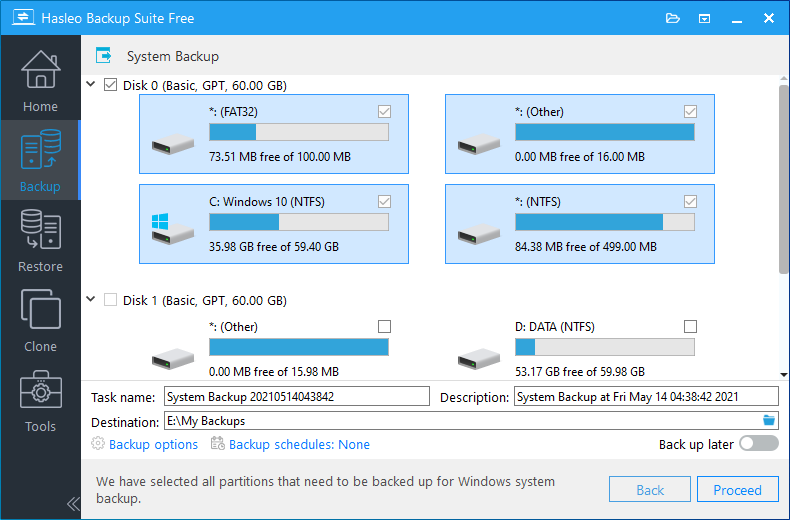
Step 2. Hasleo Backup Suite will automatically select all partitions required for system backup, including those containing VMware virtual machines. Customize the task name, description, destination location, and backup options as needed. Then click "Proceed" button.
💡Tips:
- Task name: Specify a task name so that you can quickly find and manage your backup task later.
- Description: Briefly describe the purpose of the task and any other relevant information.
- Destination: Modify the destination path where the backup image files will be stored by clicking the folder icon.
- Backup options: Advanced backup settings. For more details, please refer to Backup options.
- Backup schedule: Set up backup schedules to automatically perform your backup tasks on a regular basis. For more details, please refer to Backup schedule.
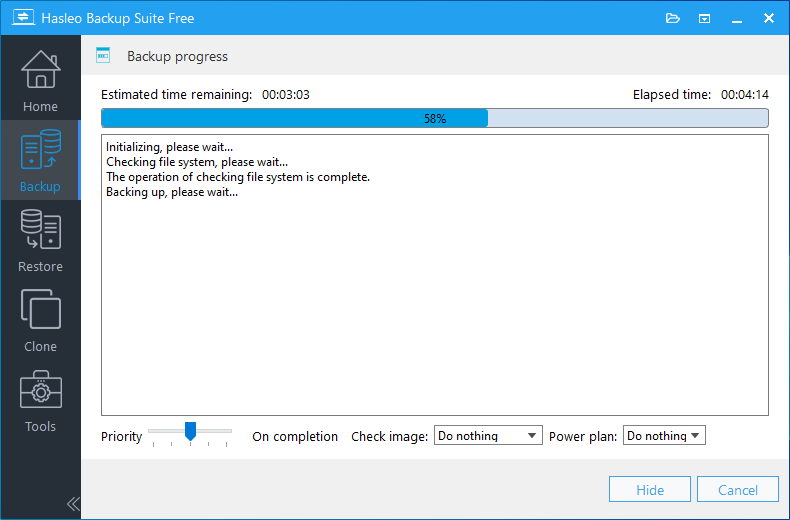
Step 3. After clicking "Proceed", Hasleo Backup Suite starts backing up the Windows system containing VMware virtual machines to your selected location. Note: The time required for backup depends on your data size, and the entire process may take some time.
💡Tips:
- Priority: Specify a priority for the backup process. A higher priority allocates more CPU time to the backup, which may cause other programs to run slower.
- Check image: Verify the integrity of the backup image files upon completion of the backup process.
- Power plan: Perform the power management action after the backup is complete.
Comparison of Three Backup Methods
The following table provides a detailed comparison of the core features of the three virtual machine backup methods to help you choose the most suitable backup solution:
| Method 1: VMware Snapshot | Method 2: VMware Clone | Method 3: Hasleo Backup Suite | |
|---|---|---|---|
| Backup Speed | Fast (seconds) | Slow (depends on disk size) | Fast (intelligent sector backup) |
| Storage Efficiency | Incremental storage | Full copy occupies large space | Supports compression and incremental backup |
| Independent Backup | No (depends on original VM) | Yes (full clone independent) | Yes (standard image files) |
| Recovery Flexibility | Only to snapshot point | Can restore to full copy state | Supports multiple recovery options |
| Data Encryption | Not supported | Not supported | AES 128/256-bit encryption |
| Automation Support | Limited | Not supported | Full support for scheduled tasks |
| Best Use Scenarios | Temporary rollback points | Environment replication and distribution | Long-term archiving, disaster recovery, whole machine migration |
🎯 Usage Scenario Suggestions:
- Daily Protection: It is recommended to use Hasleo Backup Suite as the primary backup solution to provide complete data protection.
- Pre-Operation Protection: Use VMware snapshots to create quick rollback points before performing major operations (such as system updates).
- Environment Replication: When you need to create multiple virtual machines with the same environment, use the VMware clone feature.
- Multi-Layer Protection: You can combine multiple methods. For example, use Hasleo Backup Suite for regular full backups while using snapshots to protect critical operations.
Frequently Asked Questions
A: There are three main methods: 1) VMware snapshots for quick rollback points, 2) VMware clones for environment replication, and 3) Hasleo Backup Suite for complete system image backup with long-term archival and disaster recovery capabilities.
A: No, VMware snapshots are not independent backups. They depend on original VM files, reduce disk I/O performance, and cannot be migrated to other systems. Snapshots should be used together with complete backups.
A: Run Hasleo Backup Suite, click Backup > System Backup, select the system partition containing your VMware virtual machines, choose destination, and click Proceed. The backup will include the host OS, VMware software, and all virtual machine files.
A: Linked clones create thin copies that depend on the original VM, saving space but requiring the original to run. Full clones create completely independent copies that can run on their own but occupy more storage space.
A: Yes, Hasleo Backup Suite backup images can be restored to different hardware. The entire working environment (host system + virtual machine collection) can be restored to a new machine.
A: Yes, it is recommended to shut down virtual machines for best backup results. If using snapshots, ensure VMs are in a quiescent state to capture consistent data.
A: For critical VMs, daily backups are recommended. You can set up automatic backup schedules in Hasleo Backup Suite to perform regular backups automatically.
A: Yes, Hasleo Backup Suite supports full, incremental, and differential backup modes. After the initial full backup, incremental backups only backup changed data, saving storage space and backup time.
Summary
A detailed comparison of the three virtual machine backup methods shows that VMware's snapshot and cloning features can serve as supplementary tools for daily operational protection and environment replication, while professional backup software is suitable for long-term archiving. It is recommended that you comprehensively utilize multiple backup methods based on actual needs to build a complete virtual machine data protection system.
Related Articles
- How to Back Up and Restore Windows 11 for Free?
- How to Back Up Microsoft Surface (ARM64) Computers Using Hasleo Backup Suite?
- How to Emergency Recover Your Computer Without Windows Boot Media?
- How to Set Up Backup Schedules to Automatically Backup Windows?
- How to Clone Windows from MBR Disk to GPT Disk?


