

- Why should programs installed on Windows be backed up?
- Best Windows backup software—Hasleo Backup Suite
- How to Safely and Efficiently Back Up Installed Programs in Windows Using Hasleo Backup Suite?
- Frequently Asked Questions
- Conclusion
In Windows systems, directly copying installed program files often cannot achieve effective backup, as this can easily lead to missing registry information, incomplete dependency files, or the program being unable to run properly. Most Windows programs not only rely on files in their installation directory but are also closely associated with the registry, system files, and hidden folders. Simply copying the program folder is obviously insufficient. This guide provides detailed steps to safely and efficiently back up your installed Windows programs. Follow these instructions to ensure your applications—along with their settings and configurations—can be fully restored when needed, making system migration or recovery quick and convenient.
Why should programs installed on Windows be backed up?
Backing up your Windows programs properly allows you to restore them with all your preferences and plugins intact. This makes recovering your PC much quicker and easier. Moreover, a complete program backup offers key benefits:
- Recover system state instantly: After reinstalling the system, there is no need to download and install programs one by one; they can be restored directly from the backup, greatly saving time. Personalized program settings are also retained, avoiding the need for manual adjustments again.
- Retaining software versions and licences: For software that has been discontinued or is no longer updated, the backup can preserve specific versions to prevent software loss. For paid software that requires activation, the backup can also avoid the repeated activation process (some software may require additional backup of the licence file).
- Convenient migration to new devices: When changing computers or upgrading the hard drive, the backed-up program images can be directly migrated to the new environment and restored, without the need for complex reinstallation and setup, enabling a seamless transition.
Best Windows backup software—Hasleo Backup Suite
While simply copying individual installed program files won't achieve effective backup, you can use professional Windows backup tools to create a complete system backup image, thereby easily achieving the same purpose. This method is not only more convenient but also far more efficient.
Hasleo Backup Suite, as professional Windows backup software, is highly favoured by users due to its exceptional performance, comprehensive features and reliable stability. It not only provides flexible and diverse data protection solutions, but also simplifies the backup, restore and cloning processes, making it the best choice for Windows system backup. The following are its main advantages:
- Comprehensive and powerful free edition: Its backup and restore features let you create system images effortlessly and recover from crashes instantly, while the cloning function promotes seamless data migration.
- Advanced technology and excellent performance: Compatible with all Windows PCs and servers, it supports Windows x86/x64 and ARM64 architectures. It boots in both UEFI and Legacy BIOS modes, ensures safe and stable program running, and operates with high efficiency and low power consumption.
- Multiple backup modes: It supports full, incremental and differential backups. Following an initial full backup, both incremental and differential backups save time and storage space by only copying the data that has changed.
- Features compression and encryption: It allows you to compress backup images to save disk space and encrypt them to protect your important data.
- Practical Toolbox: Here you can access advanced features like creating a WinPE emergency disk, merging backup images, and securely wiping disks.
- Intuitive and user-friendly interface: The interface design is clear, with the main functions immediately obvious, and guided prompts allow even beginners to get started quickly.
How to Safely and Efficiently Back Up Installed Programs in Windows Using Hasleo Backup Suite?
To effectively back up your Windows system and installed programs, you can use Hasleo Backup Suite to create a complete system image. Follow this detailed, step-by-step guide to ensure a successful backup.
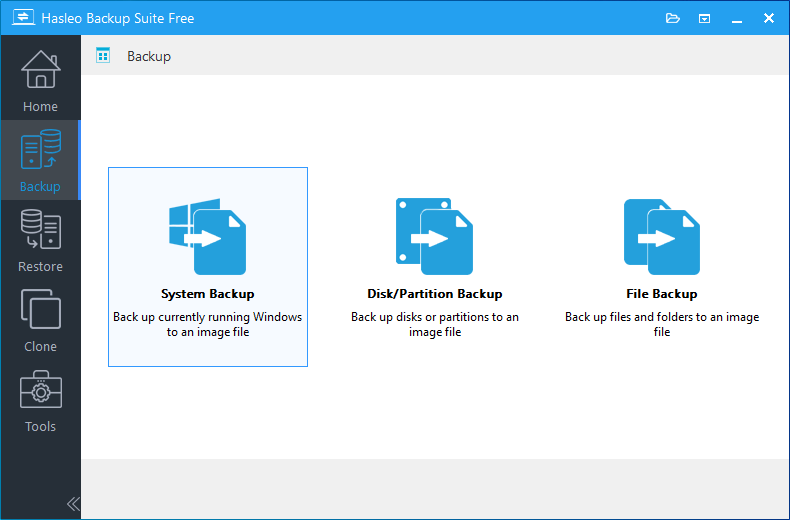
Step 1. Download, install, and run Hasleo Backup Suite. Click the "Backup" button in the navigation bar, then select "System Backup" in the operation area.
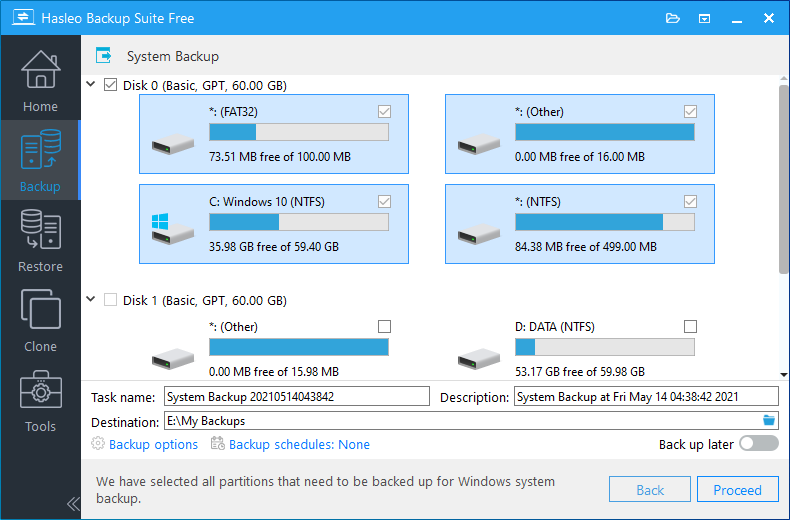
Step 2. Hasleo Backup Suite will automatically select all partitions required for a Windows 11 system backup. Then, customize the task name, description and destination according to your needs. Finally, click “Proceed” to begin the backup process.
* Tips:
- Task name: Specify a task name so that you can quickly find and manage your backup task later.
- Description: Briefly describe the purpose of the task and any other relevant information.
- Destination: Modify the destination path where the backup image files will be stored by clicking the folder icon.
- Backup options: Advanced backup settings. For more details, please refer to Backup options.
- Backup schedule: Set up backup schedules to automatically perform your backup tasks on a regular basis. For more details, please refer to Backup schedule.
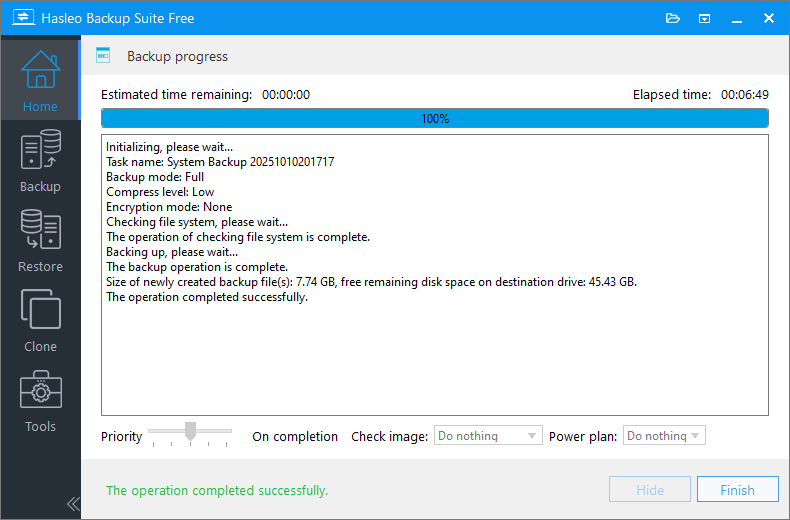
Step 3. Hasleo Backup Suite is now creating a system image of your Windows OS, installed applications, and personal settings. This process will take some time; please be patient.
* Tips:
- Priority: Specify a priority for the backup process. A higher priority allocates more CPU time to the backup, which may cause other programs to run slower.
- Check image: Verify the integrity of the backup image files upon completion of the backup process.
- Power plan: Perform the power management action after the backup is complete.
Frequently Asked Questions
A: Yes, by using Hasleo Backup Suite to create a complete system image backup, you can back up all installed programs along with their settings. When restoring, you don't need to reinstall programs manually.
A: Simply copying program files won't achieve effective backup because Windows programs rely on registry information, system files, and hidden folders. Copying only the program folder will result in missing dependencies and the program won't run properly.
A: Creating a complete system image backup using Hasleo Backup Suite is the simplest and most efficient method. This backs up all installed programs, Windows OS, personalized settings, and personal files.
A: Yes, a complete system backup preserves program settings, preferences, and plugins. For paid software requiring activation, the backup can also avoid the repeated activation process (some software may require additional backup of the licence file).
A: You can use Hasleo Backup Suite to restore the system image to a new drive or computer. This will transfer all installed programs with their settings intact, enabling seamless migration without reinstallation.
A: Yes, Hasleo Backup Suite supports full, incremental, and differential backup modes. After an initial full backup, incremental and differential backups only copy changed data, saving time and storage space.
A: Yes, Hasleo Backup Suite supports AES 128/256-bit encryption for backup images. You can enable encryption in backup options to protect your important program data.
A: Yes, it is highly recommended to create a WinPE emergency recovery disk before performing backups. This allows you to restore your system with all programs even when Windows fails to boot.
Conclusion
To back up the programs installed on your Windows PC, creating a full system image backup is the simplest and quickest solution. This method not only backs up all installed programs but also the Windows operating system, personalised settings and personal files. When the system crashes or encounters other issues, you can easily restore the entire working environment without having to reinstall and configure the software one by one.
Hasleo Backup Suite delivers enterprise-grade data protection with safety and efficiency at its core. It supports customized backup schedules, allowing the program to automatically perform backup tasks. Advanced image management features, such as merging and deleting backups, help you optimize storage utilization and maintain a clean backup structure. From routine data backup and system recovery to full disk cloning, Hasleo Backup Suite is capable and serves as your best assistant in protecting your data.
Related Articles
- From First Backup to Regular Schedule - A Beginner's Guide to Hasleo Backup Suite
- How to back up and restore Windows 11 for free?
- How to Encrypt Backup Tasks Using Hasleo Backup Suite Free?
- Best Windows Server Backup and Restore Software in 2026
- How to set up backup schedules to automatically backup Windows?
- How to Back Up the ReFS Partition Using Hasleo Backup Suite?


