

- The benefits and key considerations of backing up Windows to an external hard drive
- Best Windows Backup Software—Hasleo Backup Suite
- How to Back up Windows 11 to an External Hard Drive Using Hasleo Backup Suite?
- Frequently Asked Questions
- Summary
System backup is a critical data protection strategy, designed to safeguard against failures and disasters by ensuring data recoverability. It not only reduces risks like virus attacks by enabling rapid restoration from an external drive but also secures business continuity and enhances overall data security. This guide provides a clear introduction for efficiently backing up Windows 11 to an external hard drive.
The benefits and key considerations of backing up Windows to an external hard drive
To safeguard your core data, you can create an independent, complete system copy by backing up your Windows system entirely to an external hard drive. This proactive isolation from potential risks offers significant advantages:
- Guarantee Comprehensive Data Security: Protect against system crashes, malware, and hardware failure by creating complete backups that preserve your entire system state—OS, applications, files, and settings.
- Achieve Rapid System Recovery: Quickly restore your system from a backup when issues arise, eliminating the lengthy reinstallation of the OS, drivers, and software to save significant time and effort.
- Offer Flexible, Portable Storage: External hard drives can be connected or removed at any time, making storage and portability convenient, which makes backup management more free and flexible.
- Ensure High Independence and Compatibility: Backup files are stored independently from the computer's internal drive, ensuring they remain unaffected by issues with the local system. Even if the host fails to boot, the system can be directly restored using WinPE boot media, guaranteeing data accessibility and system recovery at any time.
Before starting the backup, please review the following points to ensure the process completes smoothly and results in a complete, usable backup file.
- Ensure that the external hard drive has sufficient capacity, ideally at least 1.5 times the used space of the system drive. If large storage capacity and cost-effectiveness are priorities, an HDD is recommended; if read/write speed and durability are more important, or frequent and automatic backups are needed, an SSD is more suitable.
- As system image files may exceed 4GB, please format the hard drive to NTFS to support large file storage.
- To improve transfer speeds, it is recommended to use USB 3.0/3.1/3.2 ports, which can significantly shorten backup time. Preferably connect the hard drive to the rear USB ports of the motherboard, and avoid using front case ports to prevent power or signal instability causing transmission interruptions.
- Before starting the backup, ensure that the system is running stably, and close antivirus software and large applications in advance to ensure file sync consistency.
Best Windows Backup Software—Hasleo Backup Suite
For a truly comprehensive backup experience, we highly recommend professional software like Hasleo Backup Suite. This professional tool is not only user-friendly but also exceptionally powerful. It supports all essential backup types—full, incremental, differential, sector-level, and file-level—while offering complete backup, restore, and cloning functions. Thanks to its excellent performance, reliability, and stability, it stands as a robust all-around solution, with key advantages detailed below.
- Comprehensive and powerful free edition: Its backup and restore features let you create system images effortlessly and recover from crashes instantly, while the cloning function promotes seamless data migration.
- Advanced technology and excellent performance: Compatible with all Windows PCs and servers, it supports Windows x86/x64 and ARM64 architectures. It boots in both UEFI and Legacy BIOS modes, ensures safe and stable program running, and operates with high efficiency and low power consumption.
- Multiple backup modes: It supports full, incremental and differential backups. Following an initial full backup, both incremental and differential backups save time and storage space by only copying the data that has changed.
- Features compression and encryption: It allows you to compress backup images to save disk space and encrypt them to protect your important data.
- Practical Toolbox: Here you can access advanced features like creating a WinPE emergency disk, merging backup images, and securely wiping disks.
- Intuitive and user-friendly interface: The interface design is clear, with the main functions immediately obvious, and guided prompts allow even beginners to get started quickly.
How to Back up Windows 11 to an External Hard Drive Using Hasleo Backup Suite?
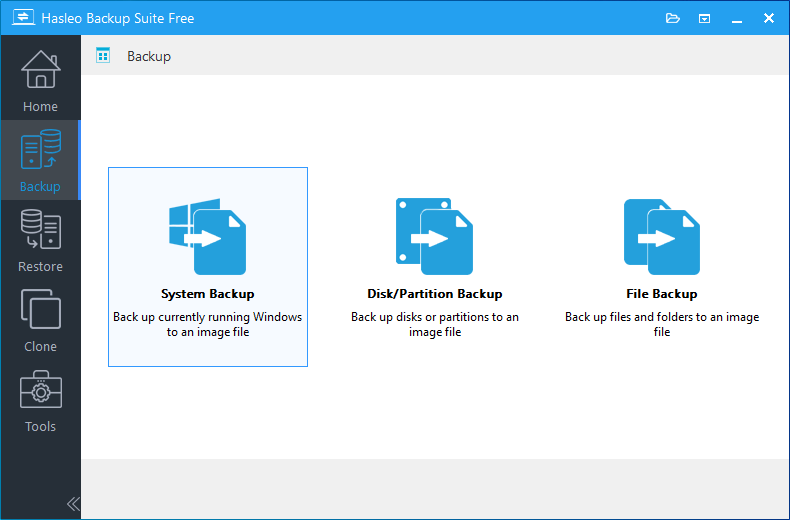
Step 1. Connect the external hard drive to your computer and ensure Windows detects it. Download, install, and run Hasleo Backup Suite. Click the "Backup" button in the navigation bar, then select "System Backup" in the operation area.
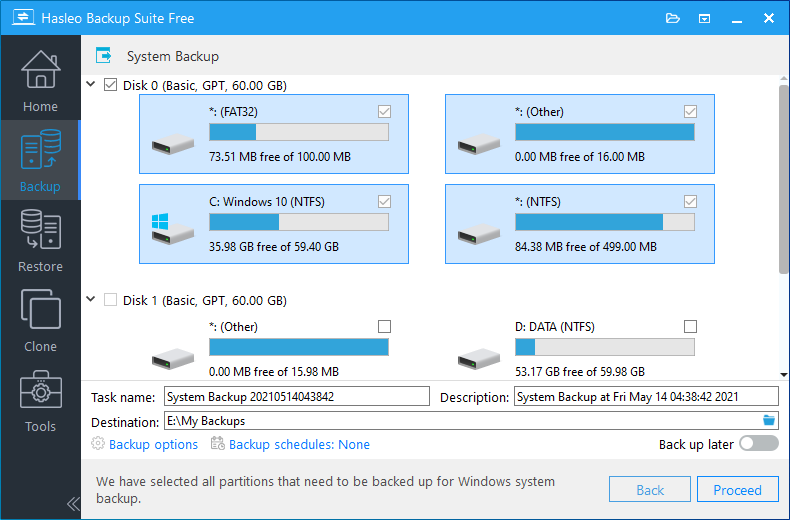
Step 2. Hasleo Backup Suite will automatically select all partitions required for a Windows 11 system backup. Then, customize the task name, description, backup options according to your needs, and set the external hard drive as the destination. Finally, click “Proceed” to begin the backup process.
* Tips:
- Task name: Specify a task name so that you can quickly find and manage your backup task later.
- Description: Briefly describe the purpose of the task and any other relevant information.
- Destination: Modify the destination path where the backup image files will be stored by clicking the folder icon.
- Backup options: Advanced backup settings. For more details, please refer to Backup options.
- Backup schedule: Set up backup schedules to automatically perform your backup tasks on a regular basis. For more details, please refer to Backup schedule.
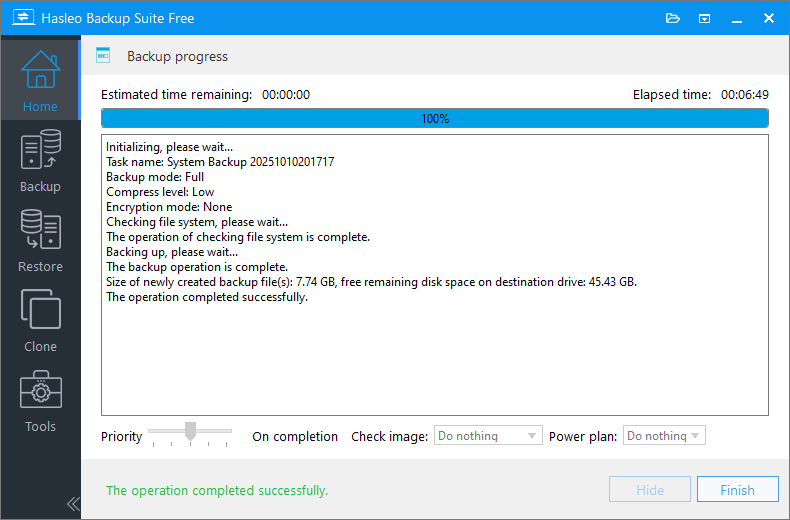
Step 3. Hasleo Backup Suite is now backing up Windows 11 to the target external hard drive. This process may take some time, so please be patient.
* Tips:
- Priority: Specify a priority for the backup process. A higher priority allocates more CPU time to the backup, which may cause other programs to run slower.
- Check image: Verify the integrity of the backup image files upon completion of the backup process.
- Power plan: Perform the power management action after the backup is complete.
Frequently Asked Questions
A: Connect the external hard drive, run Hasleo Backup Suite, click Backup > System Backup, select your Windows 11 partitions, choose the external drive as destination, and click Proceed to start the backup.
A: It is recommended to use an external hard drive with capacity at least 1.5 times the used space of your Windows 11 system drive. SSDs are recommended for speed and durability, while HDDs offer better cost-effectiveness for large storage.
A: Yes, it is recommended to format the external hard drive to NTFS because Windows 11 system backup images may exceed 4GB, which is the file size limit of FAT32.
A: Backup time depends on the size of your Windows 11 system partition and the drive speed. Using USB 3.0, a typical Windows 11 installation takes about 20-40 minutes. Using USB 2.0 will take significantly longer.
A: Yes, Hasleo Backup Suite supports backup scheduling. You can set up Daily, Weekly, Monthly, or Event Trigger schedules to automatically back up Windows 11 to your external hard drive.
A: You need a WinPE emergency recovery disk. Boot from the WinPE media, then use Hasleo Backup Suite to select your backup image from the external hard drive and restore Windows 11.
A: Yes, Hasleo Backup Suite supports AES 128/256-bit encryption for backup images. You can enable encryption in backup options to protect sensitive data.
A: Hasleo Backup Suite is the best free Windows 11 backup software. It supports full, incremental, and differential backups, compression, encryption, and automatic backup scheduling.
Summary
As professional backup software, Hasleo Backup Suite can easily back up Windows systems and also supports backup schedules, allowing the program to perform backup tasks automatically. In addition, you can manage backup images by merging or deleting them, further optimizing storage space and backup structure. Whether you need to clone Windows 11 or restore a Windows 11 backup image, Hasleo Backup Suite can complete the task without the need to download additional software, making it your best choice for data protection.
Related Articles
- How to Create Full/Differential/Incremental Backups in Windows Using Hasleo Backup Suite Free?
- How to back up and restore Windows 11 for free?
- How to Encrypt Backup Tasks Using Hasleo Backup Suite Free?
- Best Windows Server Backup and Restore Software in 2026
- How to Back Up the ReFS Partition Using Hasleo Backup Suite


