

- Why is professional backup software necessary?
- Comparison: Built-in Tools vs Hasleo Backup Suite Free
- Best Free Windows Backup Software - Hasleo Backup Suite Free
- How to Back Up Specific Folders in Windows 11
- How to Restore Specific Folders from Backup
- Best Practices for Folder Backup
- Frequently Asked Questions
- Summary
To protect important data and prevent data loss due to system crashes or hardware failures, most users prefer to back up specific folders rather than the entire computer. This method not only significantly reduces the backup time but also saves storage space, making it a more efficient and flexible data protection strategy. Unlike full system backup which captures the entire operating system, folder-level backup focuses on your important files and data, giving you granular control over what gets protected.
Why is professional backup software necessary?
Windows 11 includes built-in backup options like File History, Backup and Restore (Windows 7), and OneDrive, which can help users perform basic backup tasks. However, these tools have certain limitations. For example, File History only supports backing up user libraries (Desktop, Documents, Pictures, etc.). It cannot independently add system files or other arbitrary folders, and requires an external or network drive as the destination. Backup and Restore (Windows 7) can create full system images but, for file backup, is similarly restricted to user libraries, excluding other folders. OneDrive allows custom folder selection but its free tier is limited to 5 GB, often necessitating a paid upgrade for adequate storage.
When you need to back up specific folders that go beyond the limitations of built-in tools, professional backup software like Hasleo Backup Suite Free becomes necessary. It offers complete flexibility in folder selection without storage restrictions, supports advanced features like scheduling and encryption, and ensures your data is protected reliably.
Comparison: Built-in Tools vs Hasleo Backup Suite Free
To help you make an informed decision, here is a direct comparison of folder backup solutions available on Windows 11:
| Feature | File History | OneDrive | Backup & Restore (Win7) | Hasleo Backup Suite Free |
|---|---|---|---|---|
| Any folder selection | ✗ Libraries only | ✓ (5 GB free) | ✓ | ✓ Unlimited |
| Free storage limit | Unlimited (your drive) | 5 GB | Unlimited (your drive) | Unlimited (your drive) |
| Automatic scheduling | ✓ Basic | ✓ Basic | ✓ Daily/Weekly/Monthly | ✓ Daily/Weekly/Monthly/Event |
| Incremental/Differential backup | ✗ | ✗ | ✓ (VSS incremental) | ✓ |
| Encryption (AES) | ✗ | ✓ (server-side, uncontrollable) | ✗ | ✓ AES 128/256 |
| Compression | ✗ | ✗ | ✗ | ✓ |
| Restore individual files | ✓ | ✓ | ✓ | ✓ |
As the table shows, Hasleo Backup Suite Free is the only solution that offers all essential features without restrictions - free unlimited folder selection, flexible scheduling, multiple backup modes, compression, and encryption - making it the best way to back up specific folders on Windows 11.
Best Free Windows Backup Software - Hasleo Backup Suite Free
As a professional-grade solution, Hasleo Backup Suite Free supports both flexible backup and restoration of any folders and even entire drives. Its intuitive interface, combined with a powerful Backup Schedule feature, automates regular protection, making data security simpler and more reliable than ever. From critical work documents to system configurations, you maintain full control through customizable tasks, ensuring nothing important is ever lost.
Key Features of Hasleo Backup Suite Free Include:
- Comprehensive and powerful free edition: It supports backing up and restoring system, disks/partitions, and files/folders, provides cloning function, and enables seamless data migration.
- Advanced technology and excellent performance: It supports Windows x86/x64 and ARM64 architectures. It boots in both UEFI and Legacy BIOS modes, ensures safe and stable program running, and operates with high efficiency and low power consumption.
- Multiple backup modes: It supports full, incremental and differential backups. Following an initial full backup, both incremental and differential backups save time and storage space by only copying the data that has changed.
- Features compression and encryption: It allows you to compress backup images to save disk space and encrypt them to protect your important data.
- Practical Toolbox: Here you can access advanced features like creating a WinPE emergency disk, merging backup images, and securely wiping disks.
- Intuitive and user-friendly interface: The interface design is clear, with the main functions immediately obvious, and guided prompts allow even beginners to get started quickly.
How to Back Up Specific Folders in Windows 11 Using Hasleo Backup Suite Free
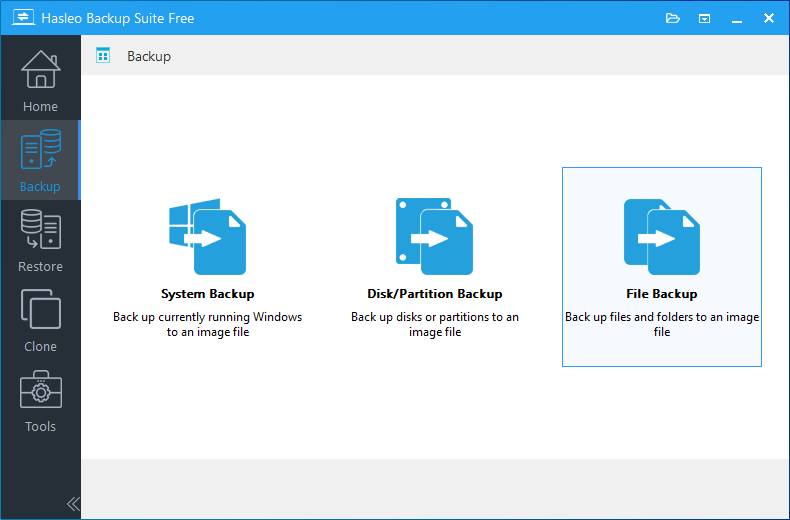
Step 1. Download, install, and run Hasleo Backup Suite Free. Click the "Backup" button in the navigation bar, then select "File Backup" in the operation area.
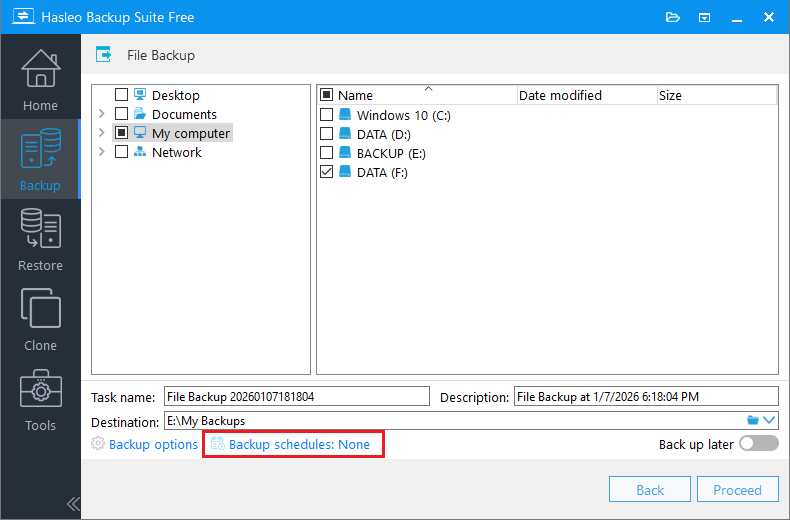
Step 2. Select the folder you want to back up. Then customize the task name, description, destination, and backup options as needed. Click "Backup Schedules" to set up an automatic backup schedule.
* Tips:
- Task name: Specify a task name so that you can quickly find and manage your backup task later.
- Description: Briefly describe the purpose of the task and any other relevant information.
- Destination: Modify the destination path where the backup image files will be stored by clicking the folder icon.
- Backup options: Advanced backup settings. For more details, please refer to Backup options.
- Backup schedule: Set up backup schedules to automatically perform your backup tasks on a regular basis. For more details, please refer to Backup schedule.
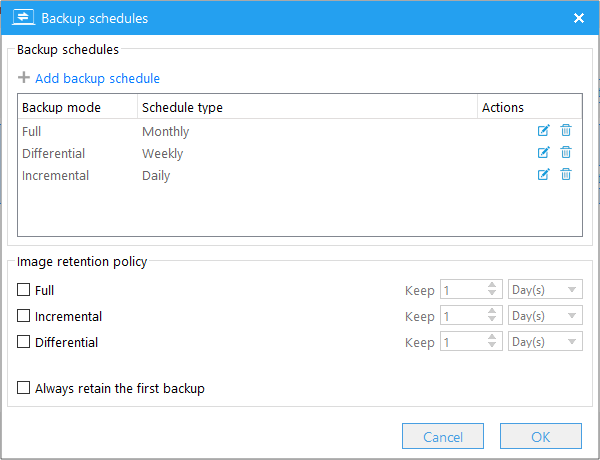
Step 3. In the "Backup schedules" section, click "Add backup schedule" to configure the frequency, time, and backup mode for the backup task. Click "OK" to save the settings.
Step 4. Click "Save" to create this file backup task. Hasleo Backup Suite Free will then perform it automatically according to the schedule you've set.
How to Restore Specific Folders from Backup
Creating backups is only half the equation - knowing how to restore your data is equally important. Hasleo Backup Suite Free makes the restore process simple and flexible.
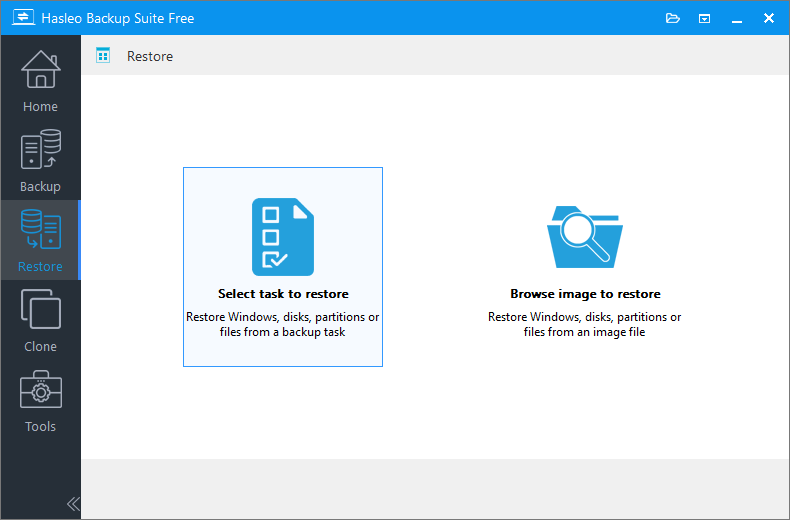
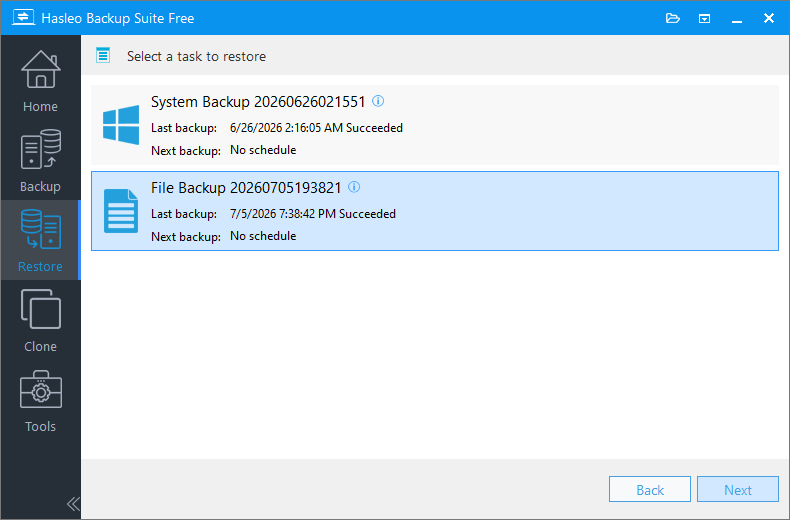
Step 1. Open Hasleo Backup Suite, click the Restore tab in the navigation bar, and choose the Select task to restore.
Step 2. The software will display all available backup points. Select the backup task or backup image file you want to restore from. Click Next.
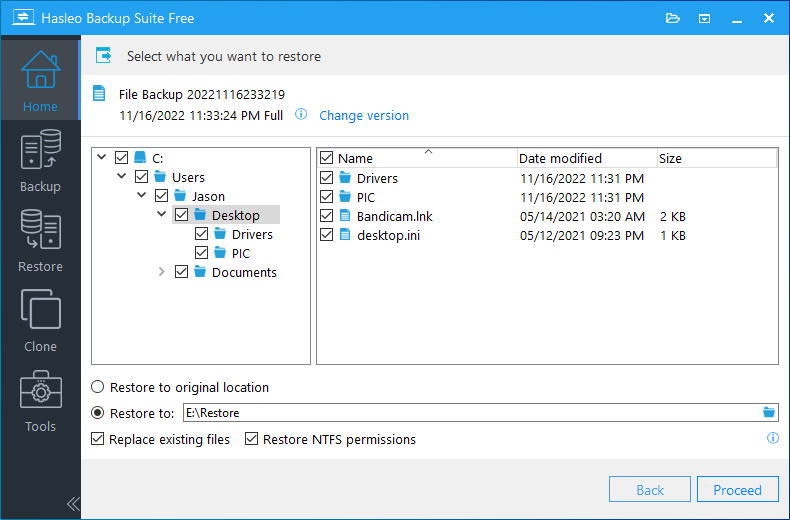
Step 3. Use the directory tree to select the specific files or folders you want to restore. Alternatively, choose to restore the entire backup to recover all contents from the image. Then select a destination location - you can restore to the original location or specify a new one.
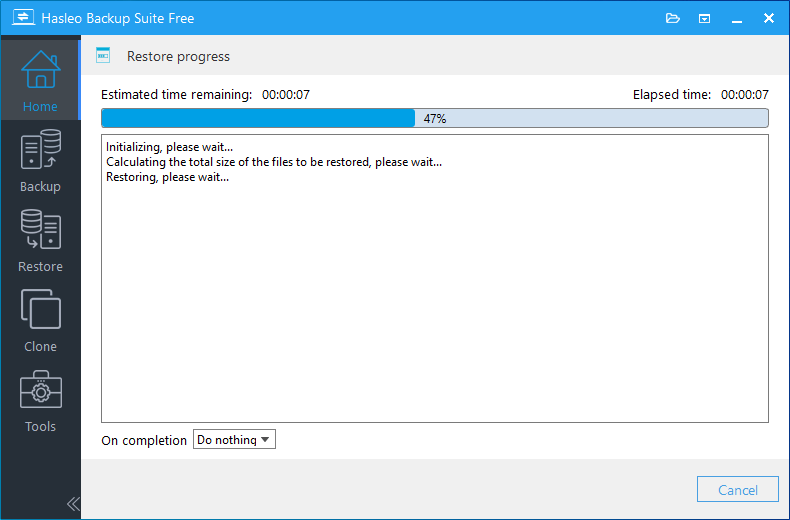
Step 4. Click Proceed to begin the restoration process. The selected items will be recovered to your specified location.
Best Practices for Folder Backup on Windows 11
To ensure your data is fully protected, follow these best practices when backing up specific folders on Windows 11:
Follow the 3-2-1 Backup Rule
Keep at least 3 copies of your data, store them on 2 different media types, and keep 1 copy offsite. For example, keep one backup on an external hard drive and another in a network location.
Set an appropriate backup schedule
For frequently updated work documents, set a daily backup schedule. For personal files that change less often, a weekly schedule may be sufficient. Use event-triggered backups before major system updates for added protection. Learn more about setting up backup schedules.
Use encryption for sensitive data
If your folders contain personal or confidential information, enable AES encryption in the backup options. This ensures your backup files remain secure even if the storage device is lost or stolen. See how to encrypt backup tasks.
Store backups on a separate drive
Always store your backup images on a different physical drive than your original data. This protects against hardware failure, malware, or accidental deletion affecting both copies simultaneously.
Compress backups to save space
Enable compression to reduce the size of your backup images, especially useful when storing multiple versions. Check out how to compress backup files.
Test your backups regularly
A backup is only useful if you can restore from it. Periodically perform a test restore to verify your backup files are intact and the restoration process works as expected.
Frequently Asked Questions
A: Hasleo Backup Suite is the most reliable solution. It lets you select any folder, supports automatic scheduling, and offers incremental/differential backup modes.
A: Yes, you can back up any folder including system files, user documents, and custom directories, unlike Windows built-in tools that restrict to user libraries.
A: Yes, it supports Daily, Weekly, Monthly, and Event Trigger schedules, allowing fully automated folder backups.
A: For active work documents, daily backups are recommended. For less frequently changed files, weekly or event-triggered backups are sufficient.
A: Yes, you can restore individual files or entire folders. Simply select specific items from the backup image and choose a destination.
A: Yes, it supports full, incremental, and differential backups. After the initial full backup, incremental backups only copy changed data to save space.
A: Store backups on a different drive from the original files. External hard drives, USB drives, or network locations are recommended.
A: Yes, Hasleo Backup Suite supports AES 128/256-bit encryption for backup images. You can enable encryption in backup options to protect sensitive data in your folder backups.
Summary
Backing up specific folders on Windows 11 is a smart and efficient data protection strategy. While Windows includes basic backup tools like File History, OneDrive, and Backup and Restore, each comes with significant limitations - restricted folder selection, storage caps, or lack of advanced features.
Hasleo Backup Suite Free stands out as the best free solution for backing up specific folders on Windows 11. It offers unlimited folder selection, flexible backup schedules, incremental/differential backup modes, compression, and AES encryption - all completely free. With full compatibility across Windows 11/10/8/7 and support for both x86/x64 and ARM64 architectures, it is a versatile and reliable choice for any user.
By following the best practices outlined in this guide - including the 3-2-1 backup rule, regular testing, and using encryption - you can ensure your important folders are always protected against data loss.
Related Articles
- How to Merge/Delete Old Backup Files using Hasleo Backup Suite Free?
- How to back up and restore Windows 11 for free?
- How to Compress Backup Files using Hasleo Backup Suite Free?
- How to set up a schedule to automatically back up Windows Server?
- How to Restore Your System From Full/Differential/Incremental Backups?


