

- Introduction to OneDrive Cloud Storage
- OneDrive Usage Precautions and Limitations
- Pre-Backup Preparation
- How to Back Up Data to OneDrive Using Hasleo Backup Suite?
- Backup Strategy Recommendations
- Frequently Asked Questions
- Summary
In today's digital age, the secure storage of important data has become a core issue that cannot be overlooked by individuals and businesses alike. Risks such as hard drive failures, accidental deletions, and ransomware attacks are everywhere, and relying solely on local storage is no longer sufficient to meet data protection needs. Backing up important data to cloud storage has become one of the industry-recognized best practices, and Microsoft OneDrive, as a globally leading cloud storage service, has become the preferred solution for many users to achieve cloud backup thanks to its deep integration with the Windows operating system, reliable data centers, and flexible sync capabilities.
This tutorial will provide a detailed guide on how to use Hasleo Backup Suite to securely backup important data to OneDrive cloud storage, covering OneDrive sync setup detailed steps, pre-backup preparation work, and Hasleo Backup Suite operation guides, helping you build a comprehensive data protection system.
Introduction to OneDrive Cloud Storage
Why Backup Data to OneDrive?
Microsoft OneDrive is a cloud storage service launched by Microsoft Corporation, deeply integrated with the Windows operating system, dedicated to providing users with secure and convenient cloud storage solutions. Before diving into the operational steps, it is necessary to explore the core value and importance of backing up important data to OneDrive cloud storage. Data loss often comes unexpectedly, and cloud backup serves as a reliable line of defense for you. Its unique advantages are reflected in the following aspects:
- Offsite Protection: Data is stored in Microsoft's globally distributed data centers, unaffected by local disasters such as fire or theft.
- Automatic Sync: OneDrive automatically uploads files after modification, requiring no manual operation and ensuring data stays current.
- Version History: OneDrive retains file version history, allowing recovery of previous versions after accidental modifications or deletions.
- Ransomware Protection: OneDrive detects suspicious activity and alerts users, helping restore files in bulk. (Microsoft 365 subscribers)
- Multi-Device Sync: Files modified on one device automatically sync to all devices logged into the same account, maintaining workflow continuity.
👍OneDrive Core Features:
- Deep Windows Integration: OneDrive is natively integrated into Windows 10 and Windows 11, allowing access to cloud files directly through File Explorer.
- Microsoft 365 Integration: Subscribing to Microsoft 365 services provides 1TB to 6TB of OneDrive storage space.
- File Version History: OneDrive retains file versions for up to 30 days (extendable to 1 year for Microsoft 365 subscribers), allowing recovery of previous versions.
- Sharing and Collaboration: Supports generating sharing links and setting access permissions, making it easy to share files and collaborate with others.
OneDrive Storage Plan Comparison:
| Plan Type | Free Space | Paid Options | Key Features |
| Free Version | 5GB | - | Suitable for light users storing documents |
| Microsoft 365 Personal | 1TB | Approx. $69/year | Includes complete Office suite, version history extended to 1 year |
| Microsoft 365 Family | Total 6TB (1TB per user) | Approx. $99/year | Can be used by up to 6 people, suitable for families and small teams |
| Enterprise Version | Allocated on demand | Per user billing | Includes advanced security features and admin console |
📌OneDrive Sync Folder Setup
Configuring your OneDrive sync folder correctly is essential for uploading backup data to the cloud. Follow the steps below.
Step 1: Set Up the Sync Folder
- Click the OneDrive cloud icon in the taskbar notification area, or search for and launch the "OneDrive" from the Start menu.
- Log in with your Microsoft account. If your Windows is already linked to one, it may sign you in automatically; if not, you need to register at the official website.
- When prompted, select a local folder for syncing. The default C:\Users\UserName\OneDrive is recommended for automatic system management.
Step 2: Verify Sync Status:
- Open File Explorer and find the "OneDrive" folder in the left navigation pane.
- The OneDrive folder will show status icons: A green checkmark means the file has been successfully synced to the cloud; a blue cycling arrow means syncing is in progress; a red "X" indicates a sync problem.
- To view the overall status, right-click the OneDrive icon in the taskbar to check sync progress and any activity notifications. You can also go to "Help and Settings" > "View Sync Issues" for detailed reports.
💡Tips:
- Regularly check OneDrive sync status to ensure all important files have been successfully uploaded.
- If sync fails: 1) Check your internet connection; 2) Ensure sufficient OneDrive cloud storage; 3) Pause and resume sync from the taskbar icon; 4) Restart the OneDrive service or re-login.
ℹ️OneDrive Usage Precautions and Limitations
Before backing up important data to OneDrive, understanding its usage limitations and precautions is very important, which helps you better plan your backup strategy and avoid unnecessary troubles.
OneDrive Usage Limitations:
| Limitation | Specification | Recommended Solution |
| Single File Size | 250 GB upload limit | Use Hasleo Backup Suite's splitting feature to break large files into sub-250 GB segments. |
| File Path Length | Total path must be under 400 characters | Use short folder names and avoid deep nesting |
| File Name | Cannot contain: \ / : * ? " < > | | Rename files and remove these characters |
| Reserved File Name | Cannot use CON, PRN, AUX, NUL, etc. | Avoid using Windows reserved device names |
| Sync Performance | Limited by network bandwidth and server-side throttling | Adjust bandwidth in OneDrive settings, or perform backups for off-peak hours |
| Items per Folder | Single folder should not exceed 50,000 files | Organize large file sets into multiple subfolders |
⚠️OneDrive Usage Precautions:
- Keep Client Running: Ensure the OneDrive client always runs in the background; otherwise, sync will pause.
- Network Connection Requirements: The initial full backup takes a long time. Ensure your computer is connected to a stable network and avoid interrupting the network connection during the backup process.
- Storage Space Monitoring: Regularly check OneDrive storage usage to avoid sync failures due to insufficient space. You can view current usage in OneDrive settings.
- Sensitive Data Encryption: Although OneDrive provides enterprise-level security, for extremely sensitive financial, legal, or personal privacy data, it is recommended to use Hasleo Backup Suite's encryption feature for additional protection.
- Avoid Sync Conflicts: If multiple devices modify the same file simultaneously, conflict copies may be created.
- Use Selective Sync Carefully: If "Selective Sync" is enabled in OneDrive settings, unselected folders will not be downloaded locally, but files will still remain in the cloud.
- Account Handling When Leaving: If using enterprise OneDrive, remember to transfer important data before leaving. For personal OneDrive, pay attention to account security.
- Regularly Verify Backups: Do not rely entirely on automatic sync. It is recommended to regularly download backup files to verify and ensure data integrity.
⭐OneDrive Sync Status Details:
During daily use of OneDrive, you may see different file icon statuses. Understanding the meaning of these statuses helps you discover and handle sync problems in a timely manner.
| Icon Status | Status Description | Meaning and Handling |
| Green Checkmark | Sync Complete | File successfully uploaded to cloud, local and cloud versions match. No action needed. |
| Blue Cycling Arrow | Syncing | File is uploading or downloading. Please maintain network connection. |
| Red X | Sync Error | Sync failed. May be due to illegal file name, file in use, or insufficient space. Click OneDrive icon for error details. |
| Yellow Triangle (with Exclamation) | Needs Attention | Potential issues like unstable network or service temporarily unavailable. Usually auto-recovers after checking. |
| Blue Cloud Icon | Online-Only | File is in cloud, does not take up local space. Must be manually downloaded to open. |
| Green Solid + White Check | Always Keep on This Device | File downloaded locally, set to always available, not affected by storage sense features. |
❗Sync Problem Troubleshooting Guide:
- Check Network Connection: Ensure your computer is connected to the internet. Test by accessing a website in your browser.
- Check Available Storage: Confirm both local disk and OneDrive cloud have sufficient space. Insufficient space is the most common sync failure cause.
- Restart OneDrive Service: Right-click the taskbar OneDrive icon, select "Close OneDrive," then restart.
- Check File Usage: Ensure no other programs are using files to be synced. Close files before retrying sync.
- Check Sync Conflicts: If multiple devices modified the same file, OneDrive creates conflict copies that need manual resolution.
- Check File Names: Confirm file names do not contain illegal characters and path length does not exceed 400 character limit.
- Re-login Account: In OneDrive settings, sign out of your account and then sign back in to refresh the connection.
- Check Service Status: Visit the official Microsoft Service Status page to rule out any ongoing service outages.
Pre-Backup Preparation
Before you begin a backup with Hasleo Backup Suite, ensure the following preparations are complete.
System and Software Preparation:
- Install Hasleo Backup Suite: Visit the Hasleo official website, download the edition of Hasleo Backup Suite that fits your needs, and complete the installation.
- Verify OneDrive Client: On Windows 11/10, OneDrive is typically pre-installed. If it's missing, install it from Microsoft's website.
- Check OS Version: Your system should be Windows 7 SP1 or later for optimal compatibility.
OneDrive Account Preparation:
- Check Available Storage: Log in to OneDrive web version and check if available storage space meets backup needs.
- Consider Upgrading Storage Plan: If free space is insufficient, consider subscribing to Microsoft 365 for larger storage space.
Data Organization Preparation:
- Organize Data to Backup: Clarify important file types to backup, such as work documents, photos, financial records, etc.
- Clean Redundant Files: Delete duplicate files and unnecessary temporary files to optimize backup efficiency.
- Organize Folder Structure: Establish clear folder hierarchies for easy management and retrieval.
Network Environment Preparation:
- Ensure Stable Network Connection: The initial full backup requires uploading large amounts of data. A stable network connection is crucial.
- Recommend Wired Connection: For initial backup, it is recommended to use Ethernet wired connection, which is more stable and faster than Wi-Fi.
- Avoid Network Peak Hours: Perform initial full backup at night or during network idle times.
How to Back Up Your Data to OneDrive Using Hasleo Backup Suite?
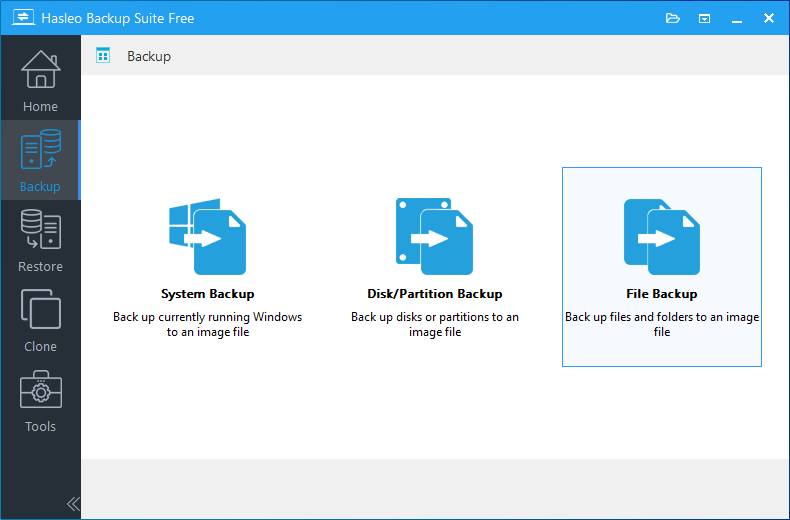
Step 1. Run Hasleo Backup Suite. Click the "Backup" button in the navigation bar, then click "System Backup," "Disk/Partition Backup," or "File Backup" in the operation area.
Step 2. Select the system, disk/partition, or files/folders to back up. Customize the task name and description as needed. Navigate to and select your OneDrive local sync folder as the backup destination (usually C:\Users\Username\OneDrive\). Also, confirm that the OneDrive "Sync Folder" feature is enabled.
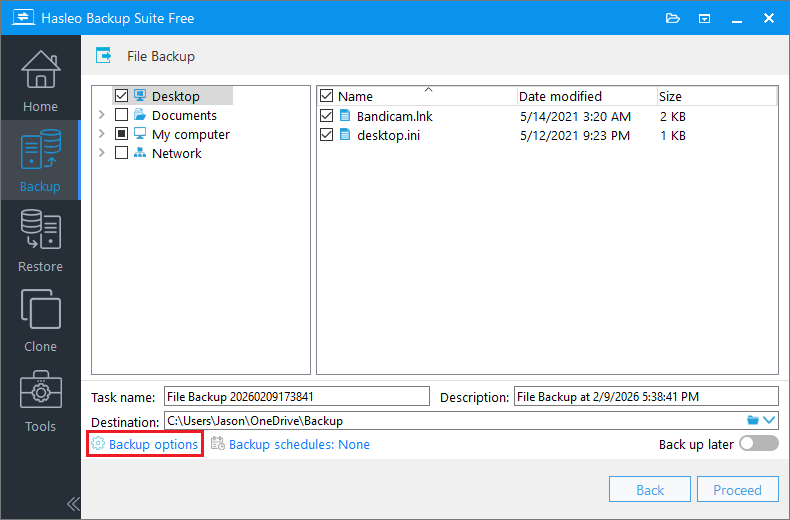
💡Tips: If you select "System Backup," Hasleo Backup Suite will automatically select all partitions required for Windows system backup.
- Task name: Specify a task name so that you can quickly find and manage your backup task later.
- Description: Briefly describe the purpose of the task and any other relevant information.
- Destination: Modify the destination path where the backup image files will be stored by clicking the folder icon.
- Backup options: Advanced backup settings. For more details, please refer to Backup options.
- Backup schedule: Set up backup schedules to automatically perform your backup tasks on a regular basis. For more details, please refer to Backup schedule.
Step 3. Click "Backup Options" to configure compression levels, encryption, and other advanced settings to protect sensitive data. If you need to split backup files into smaller files for storage or transfer, click Space > Splitting in the options to configure.
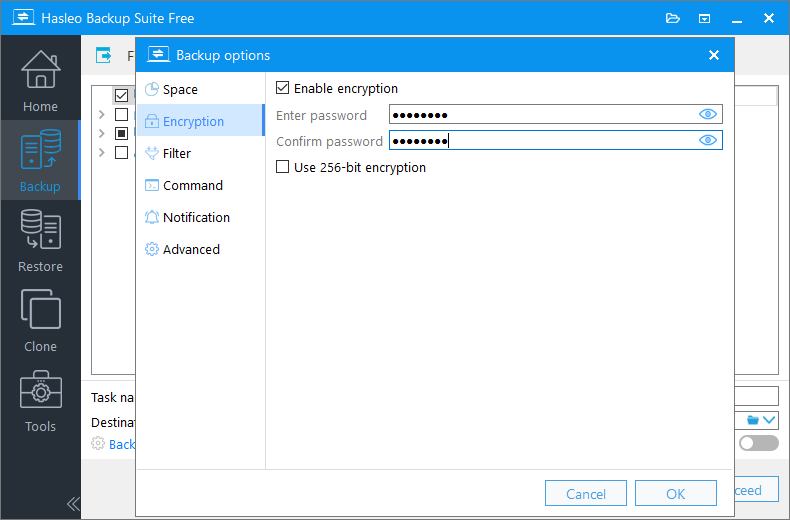
⚠️Tips: Please keep the encryption password safe! Hasleo Backup Suite uses high-strength encryption algorithms. If you forget the password, you will not be able to restore backup data.
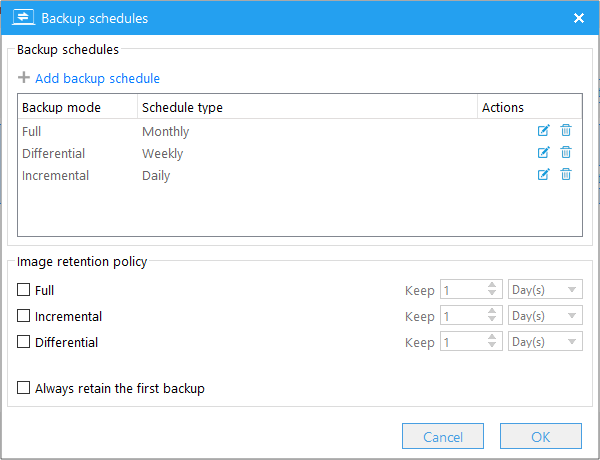
Step 4. Click "Backup Schedules" to configure backup schedules for different cycles based on your needs.
Step 5. After configuration is complete, click "Continue." Hasleo Backup Suite will start the backup process and save backup files to your specified OneDrive sync folder. The OneDrive client will automatically detect new files or changes and upload them to cloud servers in the background. You can view the upload progress through the OneDrive icon.
Backup Strategy Recommendations
To maximize data protection, adhere to the following backup strategy best practices.
Backup Frequency and Retention Strategy:
| Data Type | Recommended Backup Frequency | Number of Versions to Keep | Description |
| Operating System | Monthly/Major Updates | Last 3-5 images | Enables rapid full-system recovery in case of failure |
| Work Documents | Daily/After Each Important Modification | Last 5-10 versions | Keep multiple recent versions to prevent accidental deletion or modification |
| Photos and Videos | Quarterly or After Each Batch of New Photos | Permanent | Preserves irreplaceable personal or creative assets indefinitely |
3-2-1 Backup Principle Practice:
Combined with this OneDrive backup solution tutorial, your data protection system should follow the 3-2-1 principle:
- 3 Copies: Original data + Local external hard drive backup + OneDrive cloud backup
- 2 Media Types: Local hard drive/external hard drive + OneDrive cloud storage
- 1 Offsite: OneDrive cloud backup ensures offsite storage of data
Regular Verification and Maintenance:
- Monthly Check: Check if backup tasks are running normally and sync status is normal.
- Quarterly Test: Try restoring several files from backup to verify completeness and recoverability.
- Semi-Annual Review: Evaluate storage space usage. Upgrade OneDrive capacity or clean up expired backups if necessary.
Frequently Asked Questions
A: OneDrive has a 250GB single file upload limit. Use Hasleo Backup Suite's splitting feature for larger files.
A: At least 1.5 times your backup data size. Free: 5GB. Microsoft 365 Personal: 1TB. Family: 6TB total.
A: Yes, Hasleo Backup Suite supports Daily, Weekly, Monthly, or Event Trigger automatic backup schedules.
A: Depends on data size and network speed. Initial full backup of large data may take several hours.
A: Yes, for sensitive financial, legal, or personal privacy data, it is recommended to use Hasleo Backup Suite's AES 128/256-bit encryption feature before uploading to OneDrive for additional protection.
A: Check your network connection, ensure sufficient OneDrive storage space, verify file names don't contain illegal characters, and restart the OneDrive service. You can also check OneDrive sync issues in the settings.
A: Yes, you can download backup files directly from OneDrive web or sync them to your local machine. For image backups created by Hasleo Backup Suite, use the Restore function in the software to recover.
Summary
This guide covered the complete process of backing up data to OneDrive using Hasleo Backup Suite, from understanding OneDrive's storage plans and sync setup to step-by-step backup configuration and strategy recommendations. With the plan comparison table, usage limitations table, and sync status guide, you have all the information needed to build a reliable cloud backup workflow.
Take action today. Download Hasleo Backup Suite, set up your OneDrive sync folder, and start protecting your important files with automated cloud backups. A few minutes of setup can save you from irreversible data loss.
Always follow the 3-2-1 backup principle for comprehensive data protection: keep three copies of your data on two different media types, with one copy stored offsite. Regular verification and maintenance of your backup system ensure your data remains recoverable when you need it most.


